Build a Chatbot for Your Website in Five Days: A Day-by-Day Plan That Ends With a Safe, Page-by-Page Launch (Free Checklist)
Build a chatbot for your website without coding by spreading the work across five short days instead of one long weekend. Each day has one job and one test, so you catch mistakes while they are small. By Friday you have a bot that knows your business, hands over to a person and appears only on the pages where it helps.
⚡ In short
- One job a day: scope, knowledge, tone, rules and a limited launch.
- Test at the end of each day with a short list of real questions.
- Launch on three pages first. Widen only after you have read a week of real chats.
- Tick the checklist below as you go. It keeps the plan honest.
The idea
Why five short days beat one long weekend when you build a chatbot for your website
Most bots that disappoint were built in one rush and launched everywhere at once. The builder was tired, the answers were guessed and nobody had tried a hard question. Customers found the gaps, and the owner switched the bot off.
Five short sessions fix that. Sleeping between them gives you fresh eyes. Reading yesterday’s answers on a new day shows mistakes you could not see. And a limited launch means the first real customers meet a bot that has already been tested on the pages you chose.
You do not need coding. The AI Agent in LiveChatBot is set up from a dashboard: you give it knowledge, a name, a tone and rules. Each day below uses one of those parts.
Days one and two
Day 1 decides the job. Day 2 builds the knowledge.
Day 1: pick one job and three pages
Write one sentence: “This bot answers questions about ___ for visitors on ___.” A shop might choose delivery and returns on the product, cart and contact pages. A clinic might choose timings and fees on the home and appointment pages. A narrow job is easier to test.
Then list the ten questions people ask most about that job. Look at emails, calls and WhatsApp messages.
Day 2: load the facts
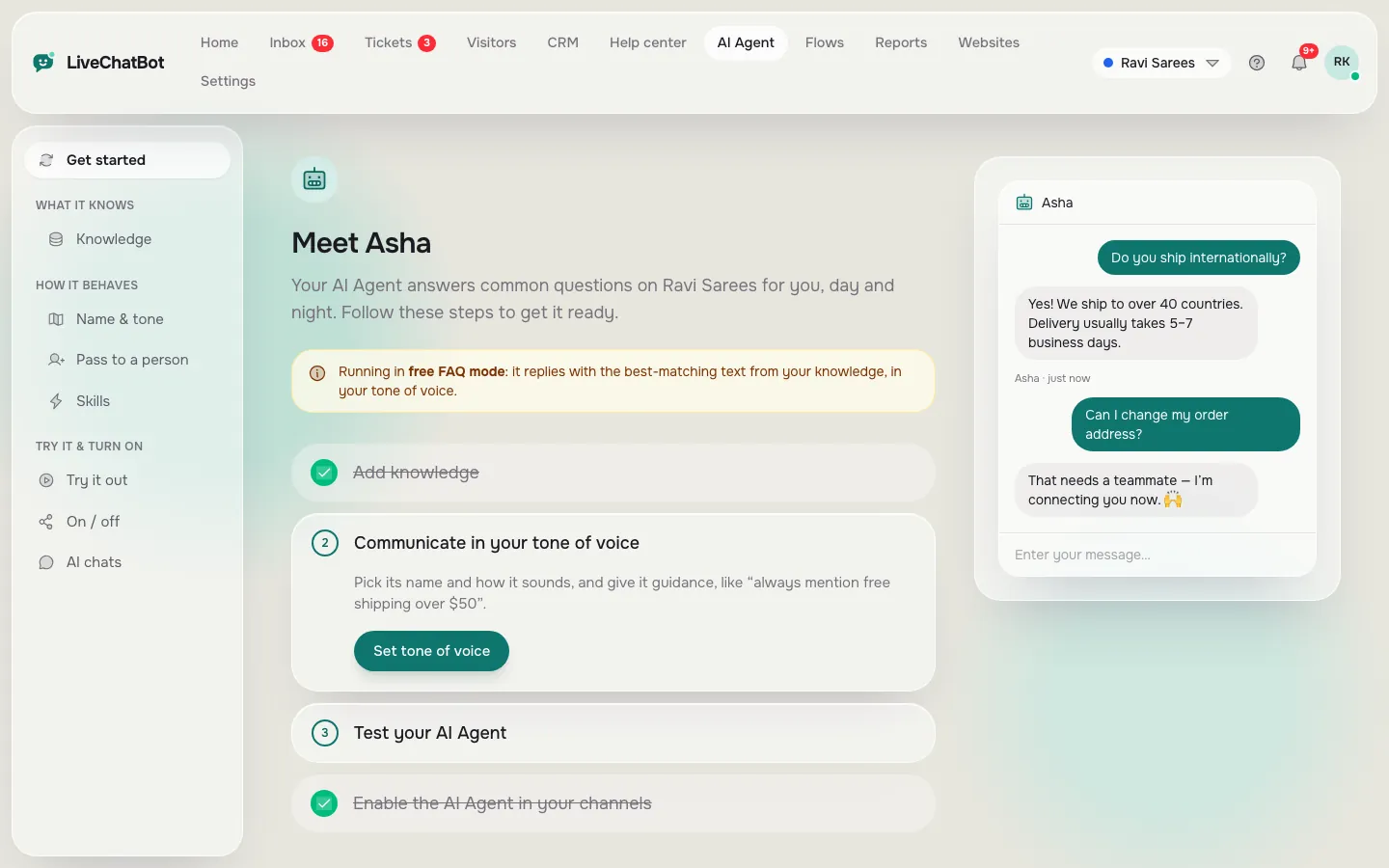
In the AI Agent knowledge, type your answers, copy the page that already explains each topic, or upload a PDF, Word, Excel, CSV or text file. Aim for twenty answers, each with the exact numbers: price, hours, place, days.
End the day with a test. Ask the bot your ten questions in the playground. Fix any answer that is wrong or vague before you stop.
Days three and four
Day 3 sets the voice. Day 4 sets the rules.
Day 3: name and tone
Give the bot a name and pick a tone of voice. Match how you speak to customers: short and friendly for a café, calm and precise for a clinic. Read three answers aloud. If they do not sound like you, adjust.
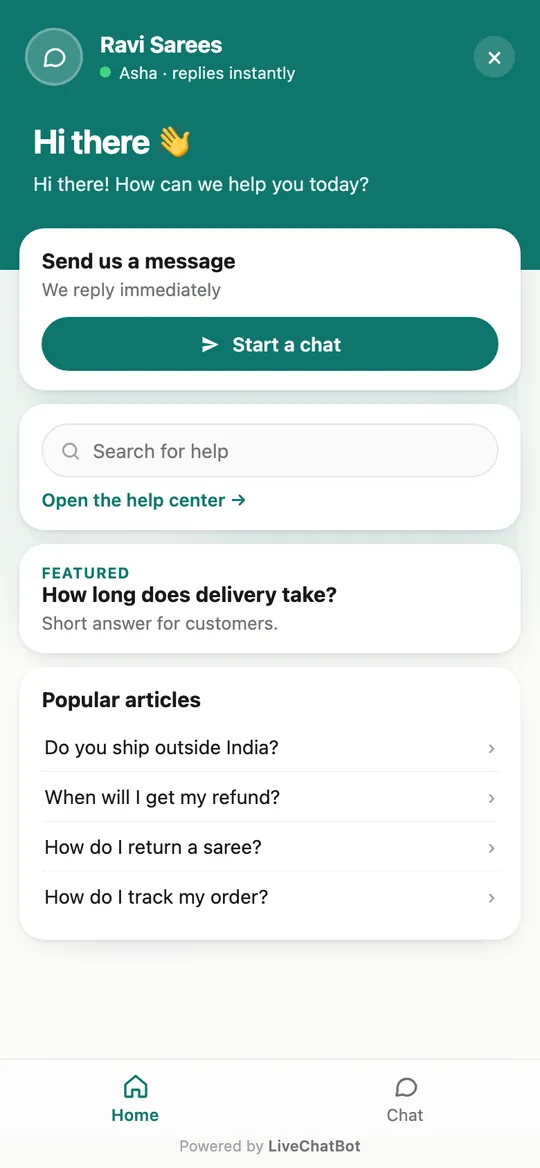
Write the welcome message too. Say what the bot can help with, so people ask the right things. Our guide to how to write a live chat welcome message has examples.
Day 4: rules, handover and hours
Open the Rules box and add short instructions, for example “Never promise delivery dates” or “If unsure, offer to take a phone number”. Rules work with AI replies; the free keyword bot cannot follow written rules.
Set opening hours and the away form, so after-hours visitors leave an email or phone number. Add saved replies for your top five questions as a fallback.
Test: ask a question you never taught, and “can I talk to a person?”. Both must end well.
Try it
Your five-day checklist
Tick each step as you finish it. The bar shows how close you are to a safe launch.
Day five
Day 5 launches safely on three pages
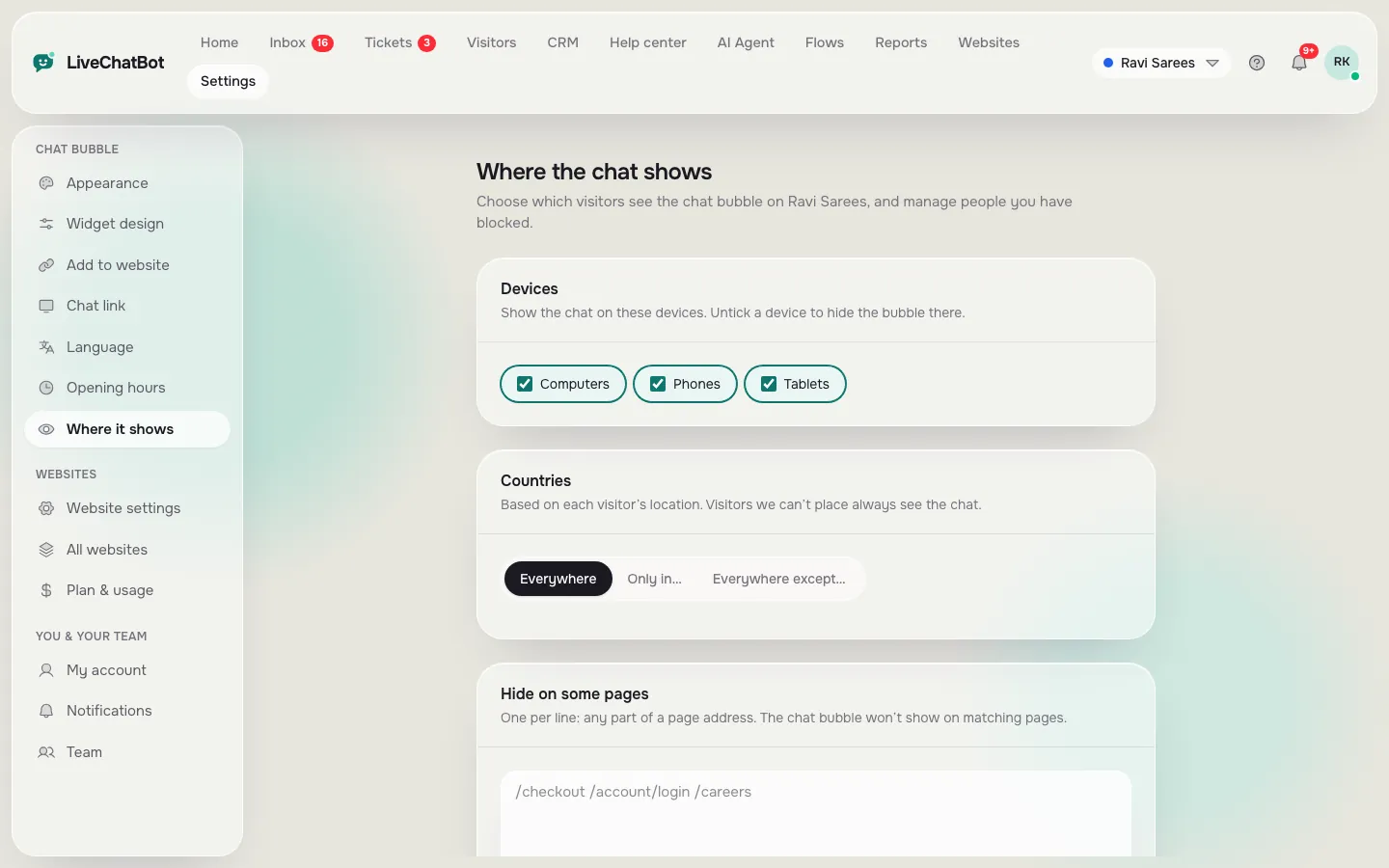
On the last day, go live, but narrowly. In the widget’s visibility settings, choose the three pages from day one and hide the chat everywhere else, including checkout and login. Our guide to showing live chat on specific pages covers the options for pages, devices and countries.
Install the Android app on the phone of whoever will answer. Send yourself a test chat and check that the alert arrives within seconds. Keep the first week light: you want to read every chat.
If you want the bot to speak first on one page, add a proactive message through Flows. Keep it to one page for now, and add conditions such as source or number of visits only after you have seen real traffic.
Real screens
The screens behind days 2, 4 and 5
Real screens from the LiveChatBot panel, shown with sample data. Click any picture to see it full size.
Mistakes
Five mistakes that wreck a first attempt to build a chatbot for your website
Teaching it everything at once
A bot with two hundred half-checked answers is harder to fix than one with twenty good ones. Start small and add after reading real chats.
Guessing the facts
Every price, time and policy must come from a source you can point to. If the bot says something wrong, find the entry and correct it.
Skipping the handover
Test “can I talk to a person?” every time you change the setup. A bot that cannot hand over frustrates people who are ready to buy.
Launching everywhere
Three pages first. The checkout page is the one place where a mistake costs most, so keep it hidden until you trust the bot.
Never reading the chats
The best training data you will ever get is a week of real questions. Read them, then update the AI Agent knowledge the same day.
Week two
Widening the launch after the first week
After seven days, read every chat. Sort the questions the bot got wrong into three piles: facts you forgot, answers that were unclear and questions outside the job. Fix the first two. For the third, decide whether to extend the job or hand those to your team.
When fewer than one chat in ten needs a correction, widen to the next group of pages. Repeat. Within a month, many owners reach every public page with a bot they trust.
Be clear about limits. “Powered by LiveChatBot” stays on every plan. The AI model is chosen by us, not by you, and there is no iOS team app. The free plan covers two websites, 100 visitors each a month. See pricing if you need more.
Frequently asked questions
How long does it take to build a chatbot for your website?
To build a chatbot for your website takes about five sessions of 45 minutes. The knowledge and testing take the most time; the setup screens are quick.
Do I need to know how to code?
No. You set the AI Agent up from the dashboard and paste one snippet, or use the WordPress plugin.
Can the bot learn from my existing pages?
Yes. You can copy a web page into the knowledge or upload a PDF, Word, Excel, CSV or text file.
What if the bot does not know an answer?
It should say so and offer a person or a form. Test this on day four with a question you never taught.
Does it cost anything to start?
No. The free plan covers two websites with 100 visitors each a month, and there are no per-seat charges.
More to read
More guides on this topic
Deploy Chatbot on Website in Four Safe Stages: Rehearse on a Spare Site, Go Live on One Page, Widen, Then Review (Free Go-Live Gate Checklist)
Start day one today
Free plan for two websites and no per-seat charges. Build your bot at livechatbot.in.