Chat Embedded in Website Pages: Floating Bubble, Inline Box or Full-Page Link? Pick the Right Way to Embed by Page Job (Free Decision Tree)
Chat embedded in website pages can take three different shapes: a floating bubble that follows the visitor, an inline box that sits inside the page like a paragraph, or a link that opens a full-page chat. Each fits a different job. This guide explains how the three differ, where each works best, and gives you a short decision tree to choose.
⚡ In short
- Most sites should start with the floating bubble. It follows the visitor and needs no page design.
- An inline box suits a page where chat is part of the content, such as a help or enquiry page.
- A full-page chat link suits emails, QR codes and social bios, where there is no website around it.
- All three come from the same LiveChatBot account, so you can mix them.
Three shapes
What embedding really means for chat
Embedding means the chat lives on your page rather than on another company’s site. The visitor never leaves. But “embedded” does not tell you what it looks like, and the look changes how people use it.
The floating bubble
A small round or pill-shaped button in a corner. It stays in the same place as the visitor scrolls and moves from page to page. It is the default for good reason: it works everywhere without changing your layout.
The inline box
A chat area that sits inside the page, at the spot where you place it. It scrolls with the content. LiveChatBot has an inline mode for this. It suits pages where chat is the main action.
The full-page link
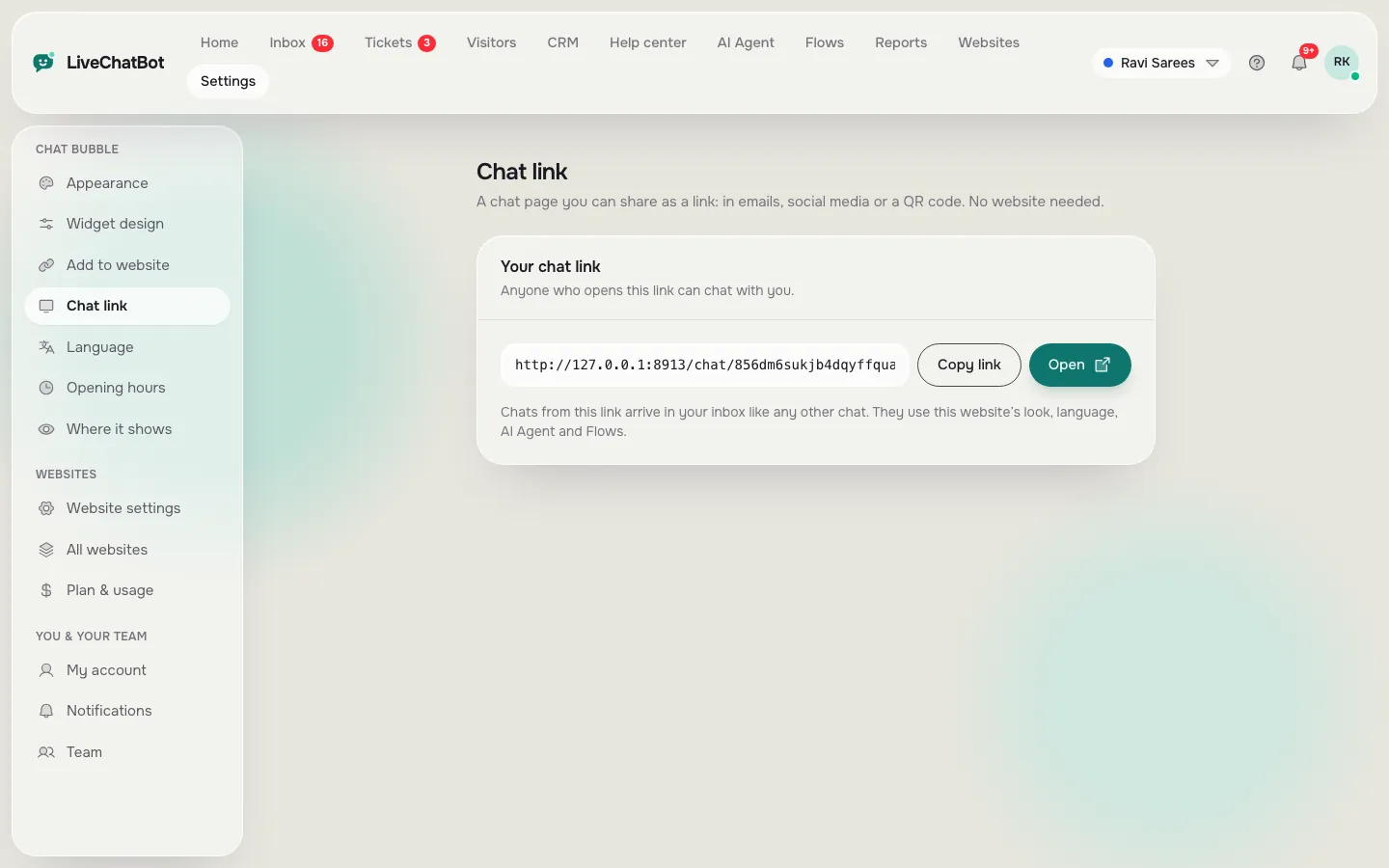
A link that opens a chat on its own page. You can put it in an email signature, a QR code, a social bio or a button on your site. It needs no embed on the page that links to it.
For the broader picture, see our guide to the website chat widget.
Bubble first
Why the bubble is the default for chat embedded in website pages
If you are unsure, start with the bubble. It has four advantages.
- One-time install. You paste one snippet, and chat appears on every page you choose.
- No layout work. It floats above your design, so you do not need a designer or developer to make space.
- Always in reach. Visitors who scroll a long page do not have to go back up.
- Page rules. You can hide it on some pages and show it on others from the settings.
The downside is that it can feel like an extra layer. On a small phone, it can sit over a button. Check the position on your key pages, and if you also run a WhatsApp button or cookie banner, keep them from colliding. Our guide to customising your chat widget explains the colour, position and text options.
When to move beyond it
If your visitors have a clear question in mind when they land, such as a help page or a booking page, a bubble in the corner may be too quiet. That is when the inline box helps.
Inline
When chat embedded in website content works better
An inline box turns chat into part of the page. It is useful in three situations.
A dedicated help or contact page
Instead of a form that goes to an inbox, show the chat itself. The visitor starts typing right away, and your team sees it in the shared inbox. If nobody is online, the away form collects an email or phone number.
A page built around one question
A course page, a rental listing or a pricing page may need the visitor to ask something before deciding. An inline box under the main text invites that question in context.
A page where corners are busy
If the corner already holds a cookie notice, a sticky bar and a WhatsApp button, adding a bubble makes the page cluttered. An inline box avoids the pile-up.
The trade-off is design time. You choose the spot, and you should look at the page on a phone to make sure it fits the width. Do not put two inline boxes on one page; one clear place is enough.
Link only
When a link beats an embed
Sometimes there is no page to embed into. Think of an email signature, a printed flyer with a QR code, a WhatsApp status or an Instagram bio. Here a full-page chat link is the best choice. The visitor taps it and lands in a chat with your team.
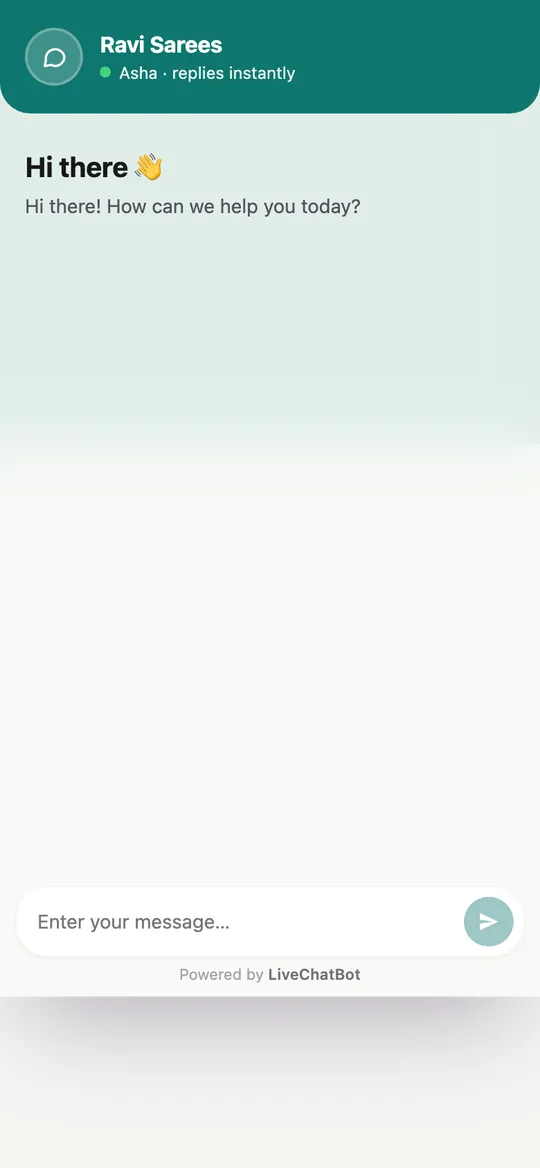
Full-page chat also works well on phones. There is no corner to cover and no keyboard clash with other page elements. The screen is just the conversation.
Use it as well as an embed
You do not have to choose one. Many sites run the floating bubble on every page and a full-page link in emails and social profiles. Both go to the same inbox, so your team does not need to learn anything new. A visitor from the bio link and a visitor from your pricing page appear in the same list, tagged by where they came from.
Try it
Which embed fits this page?
Follow the branch that matches the page you are working on. Each ends with the embed to use.
Real screens
The install snippet, the chat page link and full-page chat on a phone
Real screens from the LiveChatBot panel, shown with sample data. Click any picture to see it full size.

Install
How to get chat embedded in website pages right the first time
Whichever shape you pick, the install steps are similar.
- Create a free account at livechatbot.in and add your website.
- Copy the snippet from the install page, or use the WordPress plugin if that is your platform.
- Paste it once, before the closing body tag or in your site’s custom code area. Shopify, Wix and Squarespace use paste-in code, as there is no Shopify app.
- Open your site on a phone and a computer. Confirm the chat shows on the pages you want and not on the ones you hid.
- Send a test message and see it arrive in the inbox.
Platform specifics are in our live chat setup guide, and the website chat widget page covers the widget in general.
Check after changes
If you change theme, add a cookie banner or update your page builder, look again. Embeds can break quietly. A thirty-second check after any big change saves a missed enquiry.
Frequently asked questions
What does chat embedded in website pages mean?
It means the chat runs inside your own page instead of on another company’s site, so the visitor never leaves your domain.
Can I use more than one embed style?
Yes. You can run the floating bubble on your pages and share a full-page chat link in emails and social profiles. Both reach the same inbox.
Does an inline box need coding?
No. LiveChatBot has an inline mode you set up from the dashboard, though you choose where it sits on your page.
Will an embedded chat slow my site?
Any script adds a little weight. Test your main pages after installing and keep proactive pop-ups to a minimum.
Can I hide the chat on some pages?
Yes. The where-it-shows settings let you hide it on chosen pages and limit it by device or country.
Keep reading
Related guides
Chat for Your Website, Decided in One Evening: Seven Choices a First-Timer Must Make Before Going Live (Free Evening Checklist)
Chat Function on Website: Six Jobs a Chat Does Behind the Bubble, and Which Ones Your Business Needs First (Free Weighted Scorecard)
Chat Client for Website Teams: The App Your Staff Reply From, and the Eighteen Inbox Words You Will Meet on Day One (Free Searchable Glossary)
Embed chat the way your page needs
Bubble, inline box or full-page link, all from one free account. Start free on livechatbot.in.