Chat for Your Website, Decided in One Evening: Seven Choices a First-Timer Must Make Before Going Live (Free Evening Checklist)
Chat for your website sounds like a big project, but the real work is seven small choices, and you can make them in one evening. Who answers, when, with what words, and what happens when nobody is there. This guide walks through those seven choices in order, with a tickable checklist so you know when you are ready to go live.
⚡ In short
- You do not need a plan for months. You need seven decisions, and most take a few minutes.
- Decide first who answers and when. The look of the widget comes last.
- Always plan for the hours when nobody is online, because that is when leads get lost.
- Start on the free plan, watch the first week and adjust. Nothing here is permanent.
Before you start
Why chat for your website is a set of choices, not a project
Most people who put off adding chat are waiting to feel ready. They imagine training, design work and a long list of settings. In practice, the tool is the easy part. What takes thought is a few decisions about how you want to talk to visitors.
If you make those decisions first, the install is almost mechanical. If you skip them, you end up with a bubble in the corner that nobody answers, which is worse than no chat at all.
What you need before you begin
- Your website address and a way to add a small script, or the WordPress plugin.
- A phone with the Android app, or a laptop you will have open during working hours.
- Ten minutes to list the questions customers ask most.
That is all. The seven choices below turn that list into a working chat. You can read our broader live chat overview if you want the background first.
Choices 1 to 3
Chat for your website starts with who answers, when, and what first
1. Who answers?
Pick one person to start with, even if more join later. A single owner means a clear answer to “did anyone see this?” LiveChatBot has no per-seat charges, so adding staff later costs nothing extra.
2. When do they answer?
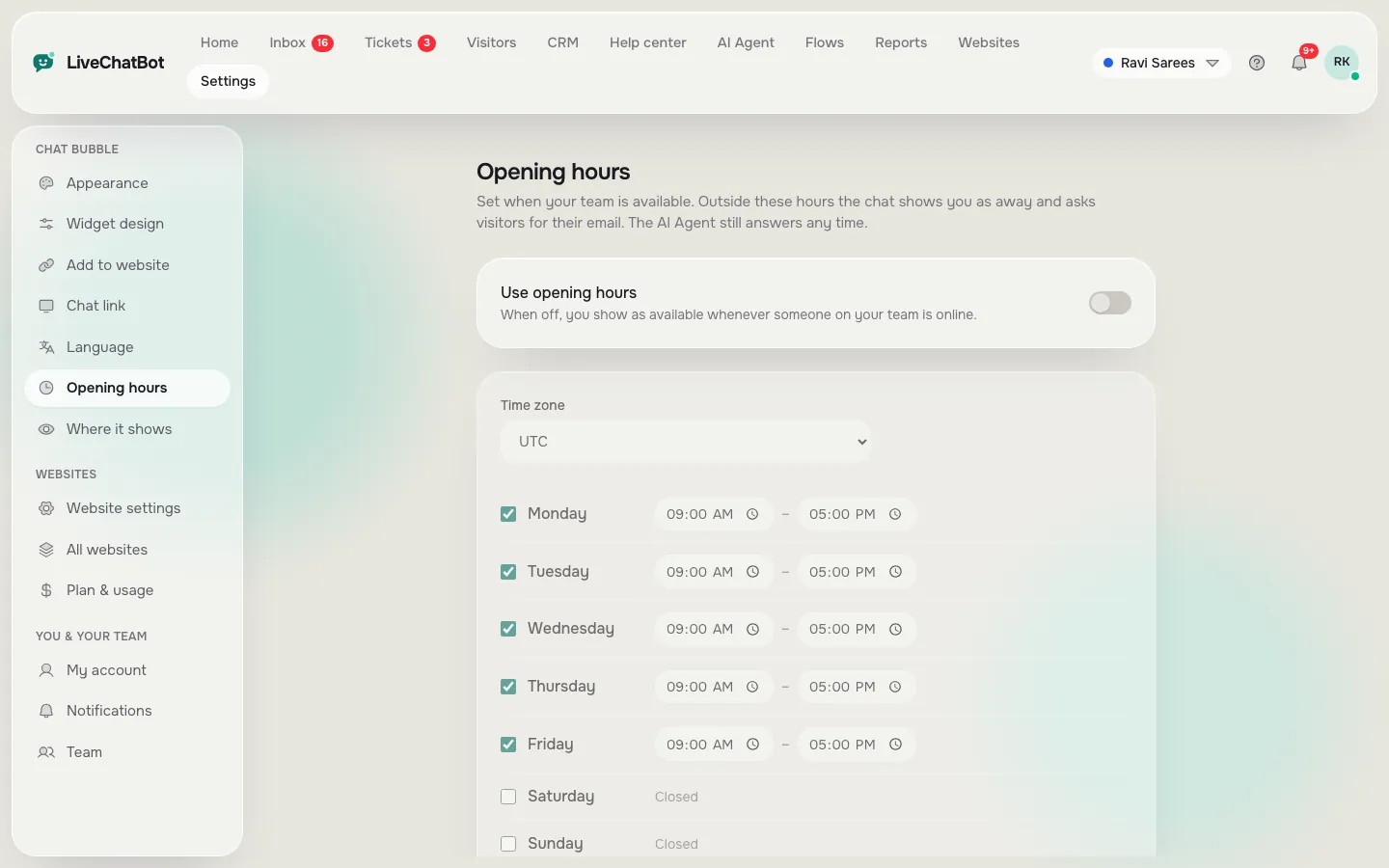
Be honest about your hours. If you are online nine to six on weekdays, say so in the opening hours settings. Visitors outside those hours see an away form instead of a chat that goes nowhere. Our guide to setting opening hours shows how.
3. What does the first message say?
The welcome text is the line visitors read before they type. Keep it short and specific. “Ask us about delivery, sizes or bookings” works better than “How can we help you today?” because it gives visitors an idea of what to ask. See our tips on writing a welcome message.
Choices 4 to 7
Bot, pages, phone and the bad day
4. Will a bot help?
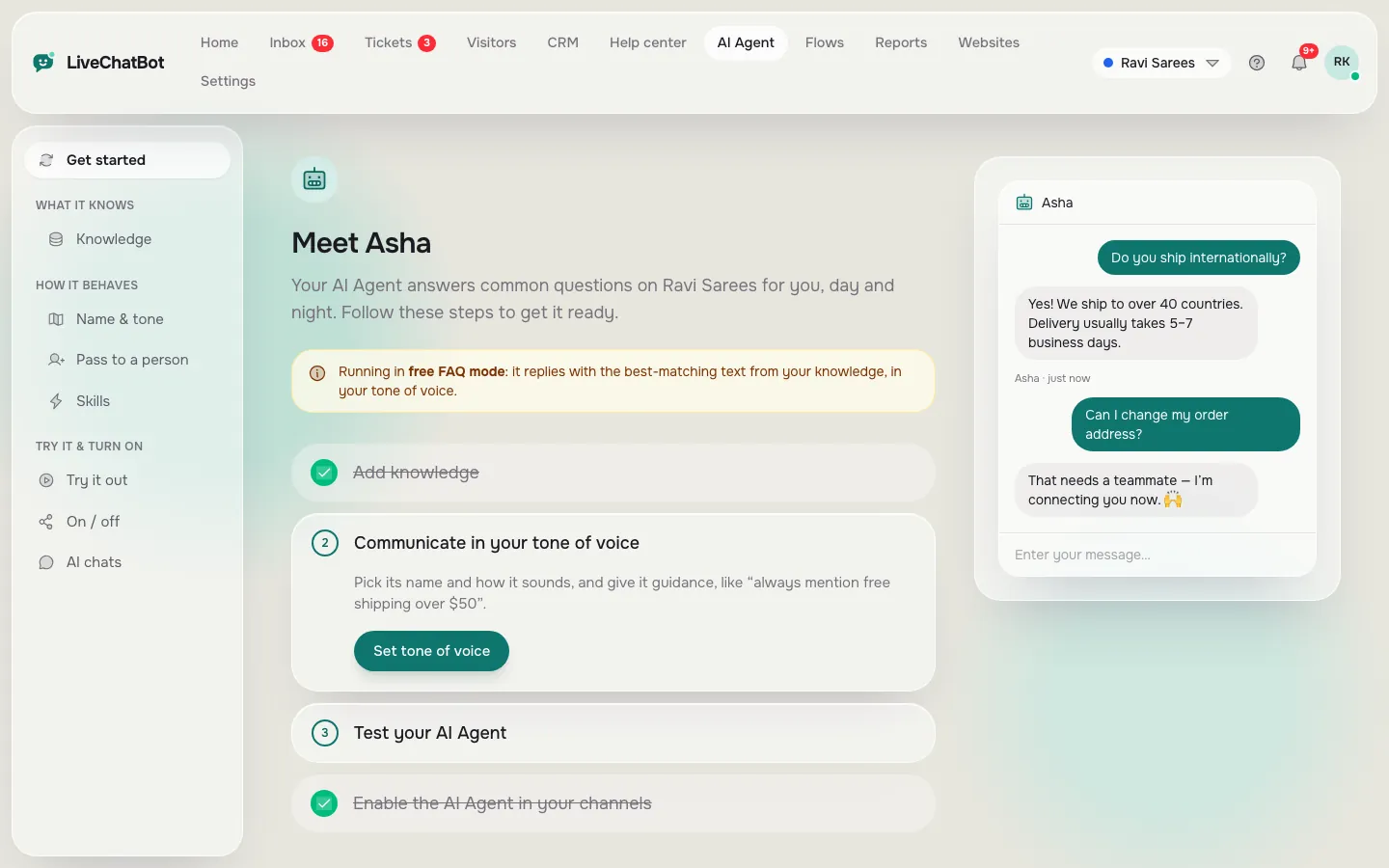
If you can list ten common questions, an AI Agent can answer them from facts you give it, and a person can take over any time. There is also a free keyword bot that answers from saved replies. Start small and add facts as you see what people ask. Read how the AI Agent is taught.
5. Which pages get chat?
Chat does not need to be everywhere. Pricing, services and contact pages are the best start. You can hide it from pages where it distracts.
6. Where do you answer from?
Install the Android app on the phone you carry, and set a notification tone. If you are on an iPhone, you can reply from the browser, as there is no iOS team app.
7. What happens on a bad day?
Decide now what to do if a chat is rude, a visitor is stuck, or you are on holiday. You can block a visitor, turn a chat into a ticket, and use the away form to collect a phone number so no one is lost.
Try it
Tick off your evening plan
Work through the list in order. When every box is ticked, you are ready to go live.
Real screens
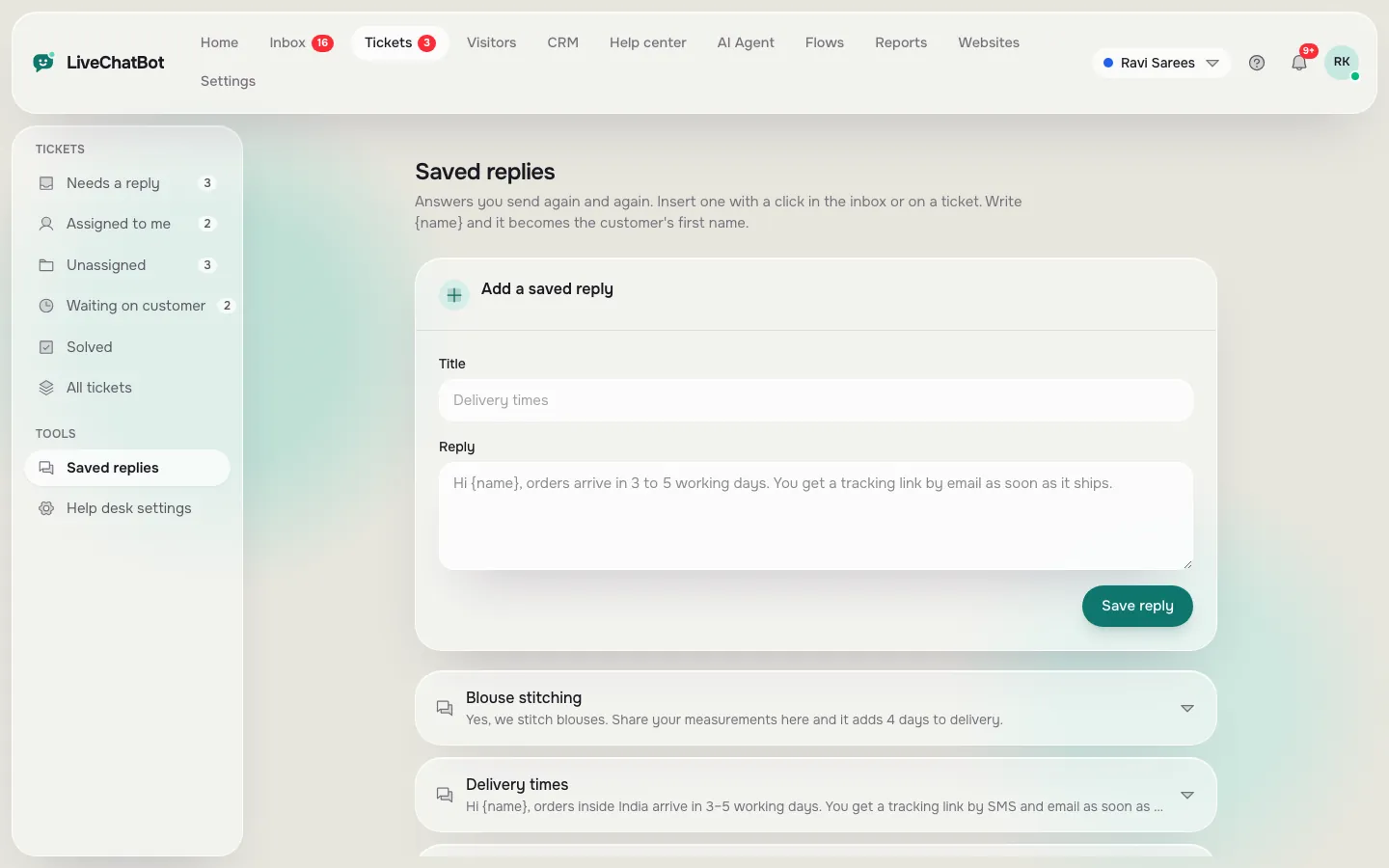
Opening hours, saved replies and the AI Agent setup
Real screens from the LiveChatBot panel, shown with sample data. Click any picture to see it full size.
The first week
What to do after you go live
Going live is the start of learning, not the end. In the first week, do three small things.
- Read every chat. You will learn what visitors really ask, which is often different from what you guessed.
- Add answers. Each time you type the same reply twice, save it. Each question the bot missed becomes a new fact.
- Watch the times. The Reports area shows first response time and how many chats were replied to. If replies are slow, change who is on duty, not the software.
Do not over-tune
Resist the urge to change colours and positions every day. Make one change at a time, wait a few days, and look at the result. Our post on pricing explains what happens as visitors grow, so you know your limits before you reach them.
Keep it honest
If the chat is bot-only at night, say so in the welcome line. Visitors forgive a bot that is clear about its limits. They do not forgive silence.
Limits
What chat for your website will not do for you
Be realistic. A chat tool answers questions and collects contact details. It will not fix a confusing website, a slow product or an unclear price list. If many visitors ask the same question, treat that as a sign the page needs rewriting.
Also be clear about the gaps in LiveChatBot. The “Powered by LiveChatBot” credit stays on every plan. There is no iOS team app, and no single sign-on or audit log. Native links to CRMs such as HubSpot or Salesforce are not built in, though Zapier and webhooks can connect many tools.
If those fit, you are set. Return to the live chat guide when you want to go deeper, or sign up at livechatbot.in.
Frequently asked questions
How long does it take to add chat for your website?
Installing takes minutes. Deciding who answers, when, and what to say takes an evening. The checklist above covers both.
Do I need a developer?
Usually not. You paste one snippet, or use the WordPress plugin. Shopify, Wix and Squarespace use paste-in code.
What if nobody is online?
Visitors see an away form that collects an email or phone number, and you can turn offline messages into tickets.
Is there a free option?
Yes. The free plan covers two websites with 100 visitors per website each month, and paid plans start at ₹299 a month.
Can I use a bot instead of a person?
You can use the AI Agent or the free keyword bot for common questions, with a person able to take over.
Keep reading
Related guides
Chat Embedded in Website Pages: Floating Bubble, Inline Box or Full-Page Link? Pick the Right Way to Embed by Page Job (Free Decision Tree)
Chat Integration in Website Projects: Two Layers to Get Right, the Install and the Connections (Free Verification Checklist)
Chat Client for Website Teams: The App Your Staff Reply From, and the Eighteen Inbox Words You Will Meet on Day One (Free Searchable Glossary)
Make the seven choices tonight
Free plan for two websites. Install in minutes and start answering. Start free on livechatbot.in.