Chat Integration in Website Projects: Two Layers to Get Right, the Install and the Connections (Free Verification Checklist)
Chat integration in website projects has two layers that people mix up. The first is the install, which puts the chat bubble on your pages. The second is the set of connections that carry what happens in chat to your email, sheets, store and phone. This guide separates the layers, shows which route exists for each, and ends with a checklist to prove both work before you tell anyone the chat is live.
⚡ In short
- Layer one is the install: a plugin or a pasted code line that shows the chat on your pages.
- Layer two is the connections: alerts to phones, form leads, Zapier, webhooks and the REST API.
- Do the install first, prove it on three page types, then add one connection at a time.
- Use the checklist below so nothing is assumed to work without a test.
The big picture
Why one word, integration, hides two different jobs
When someone says they want to add chat to a site, they may mean two things. One person means the bubble in the corner. Another means that a lead typed into chat should land in a sheet and ping a phone.
Both are valid, and mixing them up is the main reason projects stall. A site owner pastes the code, sees the bubble and thinks the work is done. Three weeks later nobody has answered a chat because the alerts were never set up.
Treat them as separate tasks with separate tests. The install is a one-time job, often under ten minutes. The connections grow over time, one at a time, as you find a real need. If you want the basics of the bubble itself first, read our website chat widget guide and then return here.
Layer one
The install layer: three routes onto your pages
WordPress and WooCommerce
The WordPress plugin adds the chat to every page without editing a theme. It also catches form submissions from Contact Form 7, WPForms, Elementor Pro, Gravity, Fluent and Ninja forms as leads.
Joomla, React and Vue
Joomla has an extension. React and Vue have plugins, so a single-page app keeps the chat across route changes.
Everything else: paste one code line
Shopify, Wix, Squarespace and plain HTML sites use a pasted code line from the dashboard. For Shopify you can also connect the store so agents see the cart, but there is no Shopify App Store app. Our step-by-step set-up guide walks through the paste for each builder.
Real screens
Where the install and the connections live in the dashboard
Real screens from the LiveChatBot panel, shown with sample data. Click any picture to see it full size.

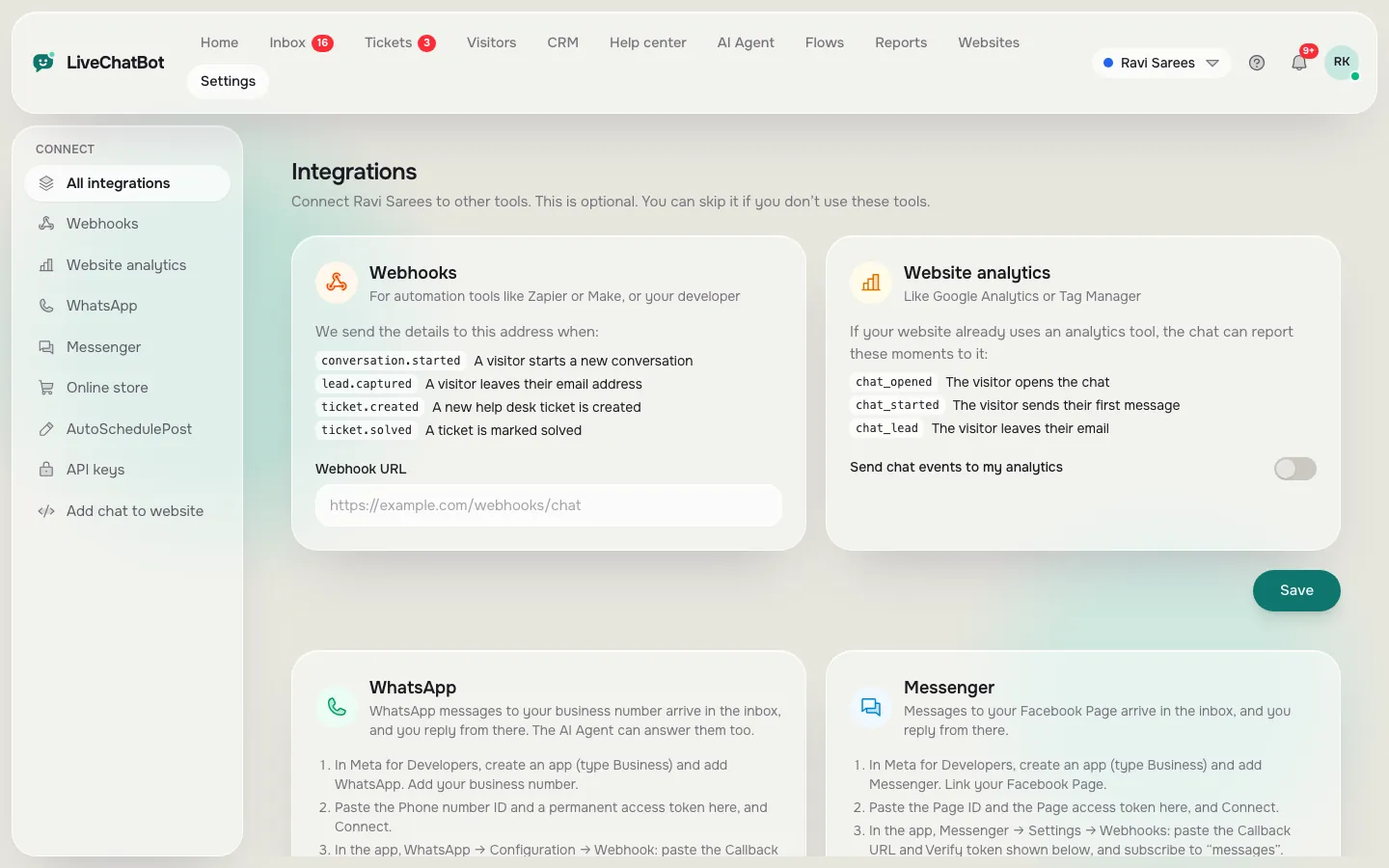
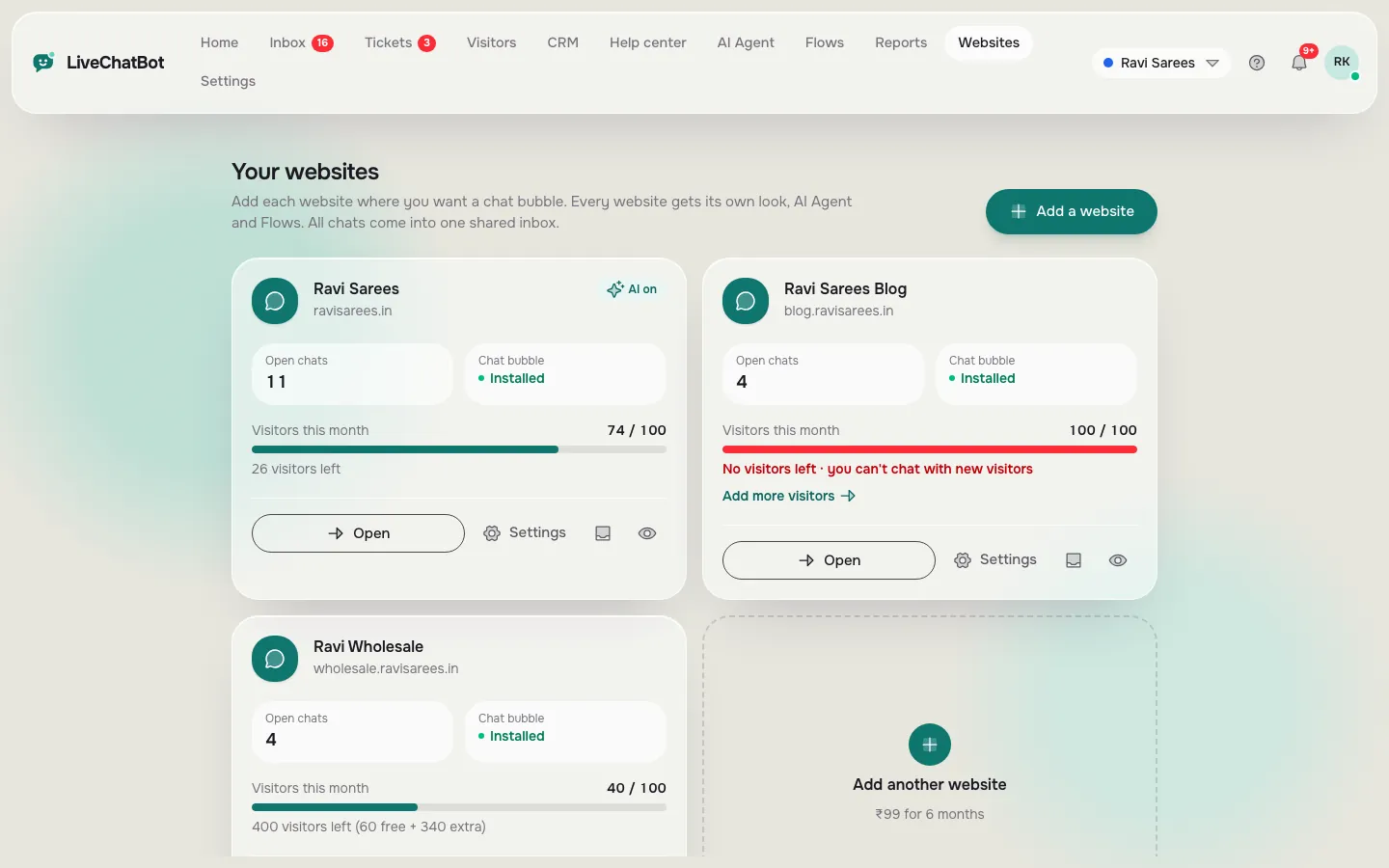
Layer two
The connection layer: what carries chat out to the rest of your work
Once the bubble works, ask what should happen after someone types.
- Alerts. The Android app and browser notifications tell your team a visitor is waiting, and a form-lead submit sends an instant New lead alert.
- Channels. WhatsApp and Facebook Messenger messages arrive in the same inbox, connected through Meta.
- Automation. Zapier and webhooks (ticket.created and ticket.solved) can pass chats and tickets to tools such as Google Sheets or email.
- Code. The REST API and the JavaScript API (window.LiveChatBot) let a developer open the chat from a button or pass a logged-in customer’s name.
What does not exist: native HubSpot, Salesforce, Zoho, Slack or Calendly connections. Zapier and webhooks can bridge some, but say plainly to your team that these are indirect links.
Order of work
Add each connection only when a real need shows up
A good chat integration in website work plan is short. Start with the install and phone alerts. Only then look at the rest.
- Install on one page type, then all pages.
- Install the Android app and test an alert.
- Set opening hours and the away form so night visitors can leave a phone number.
- Add one Zapier link, for example new leads to a sheet. Our Zapier guide shows the steps.
- Review the integrations page once a quarter and drop anything you never use.
Resist adding five links on day one. Each one is another place for a message to get lost, and you will not know which one broke.
Common failures
Six ways an integration looks finished but is not
These are the failures we see most when reading how small teams describe a launch.
The code is on the home page only. Visitors land on product pages and see no chat. Check three different page types.
A cache or a speed plugin hides the new line. Clear the cache after install and test in a private window.
Two chat tools run together. Two bubbles fight for the corner. Remove the old one first.
Alerts go to nobody. The inbox gets the chat but no phone is set up. Send yourself a test chat from another device.
Page rules hide the chat. Where-it-shows settings may turn the chat off for a device, country or page. Review them in the dashboard.
The form lead never arrives. The form plugin is not one of the supported ones. Test with a real submit.
Free tool
Verify your chat integration in website pages, step by step
Tick each check only after you have seen it with your own eyes. The bar shows how far you are from a proven launch.
Safety
Keep chat integration in website connections light and the data tidy
Every connection moves visitor data. A name, an email or a phone number that was typed in chat may now sit in a sheet, an inbox and a ticket. Know where each copy lives.
Mention chat in your privacy notice, and keep the sheet that Zapier writes to limited to the few people who follow up. If a visitor asks you to remove their details, you will need to delete them in each place.
It also helps to name an owner for each link. If the sheet breaks, who finds out? A short note with the link, the person and the last test date takes two minutes and saves hours later. The same discipline applies if you later run the chat on a second site: the free plan covers two websites, and each has its own install and its own checks.
Next step
Where to go from here
Start on the free plan, install the chat, and tick the checklist. Once you can show eight proven checks, add the first real connection. If you are still deciding between a bubble and other layouts, our live chat overview explains the options, and the website chat widget page covers colours and wording. Sign up at livechatbot.in when you are ready.
Frequently asked questions
What does chat integration in website work actually include?
Two jobs: putting the chat on your pages, and connecting what happens in chat to your alerts, forms, sheets and store. Do the install first and test it before adding connections.
Do I need a developer to add chat to my site?
Usually not. WordPress has a plugin, and most other builders only need one pasted code line. A developer helps with the JavaScript API or the REST API.
Can I connect LiveChatBot to HubSpot or Salesforce directly?
No native connection exists. Zapier, webhooks and the REST API can pass data to many tools, but they are indirect links you set up yourself.
How do I know the integration is working?
Run the eight checks: bubble on three page types, a test chat, a phone alert, the away form, a form lead and each automation link.
Does the free plan include the connections?
The free plan covers two websites with 100 visitors each a month. Plans do not charge per seat, and you can try the connections on the free plan.
Install it, then prove it
Free plan for two websites, no per-seat charges. Start free on livechatbot.in and tick all eight checks.