3rd Party Chat Integration: Eleven Things to Check Before You Let an Outside Chat Script Onto Your Website (Free Review Checklist)
3rd party chat integration means adding a chat tool built and hosted by another company to your website. It is the normal way small businesses get live chat, and it is safe when you review it first. This guide lists eleven checks on speed, data, cookies, cost and getting out again, with a tickable checklist you can use on any vendor, including LiveChatBot.
⚡ In short
- A 3rd party chat integration loads code from another company’s servers on your pages, so review it like you would any new supplier.
- Check what it loads, what visitor data it collects, what it costs after the free tier, and how you remove it.
- Test on a real phone and watch your page speed before and after.
- Use the checklist in this guide with any vendor. The answers should be easy to find and plain.
What it means
What a 3rd party chat integration really is
When you add chat, a small piece of code sits on your pages. When a visitor opens a page, their browser asks the chat company’s server for the widget, and the chat company stores the messages. You do not run the chat yourself. You rent it.
That is what “third party” means: a company that is not you and not your visitor. The same idea applies to analytics and maps. It is normal, but it deserves a short review, because that code runs on the page your customers trust.
There are two flavours worth separating:
- The widget itself, the chat bubble and window your visitors see.
- The connections behind it, such as sending a new lead to a spreadsheet or a store connection.
Both are third-party integrations, but the first is on your page and the second happens on servers. Our guide to WordPress chatbot integration covers the second kind in detail. This one is about the first.
Speed and weight
Check one: what a 3rd party chat integration adds to your page
A chat widget should load after your content, without blocking it. Ask the vendor whether the script loads asynchronously, and then check it yourself.
A five-minute speed test
- Run a free page-speed test on one page before adding chat. Write the score down.
- Add the chat and clear any cache.
- Run the same test again on the same page.
- Open the page on a phone using mobile data, and watch for a jump when the bubble appears.
A small change is normal; a big drop means a heavy script. See AI chat for website speed and SEO.
Data and cookies
Checks two to five: visitor data, cookies, consent and where messages live
What does it collect?
Any chat tool knows the page a visitor is on and the messages they type. Some also track visits over time. Read the privacy page and write down what is collected, why, and for how long.
Does it set cookies?
Most chat tools set a small cookie so a returning visitor sees their old chat. If your site shows a cookie banner, decide whether chat belongs in the necessary group or the optional one, and follow your own legal advice.
Can you delete a visitor’s data?
If a customer asks you to delete their messages, you need a way to do it. Ask the vendor how, before you need it.
Who can read the chats?
Only your team should. Check how staff log in. LiveChatBot has no per-seat charges, so each person can have their own login.
Real screens
What you will see in LiveChatBot
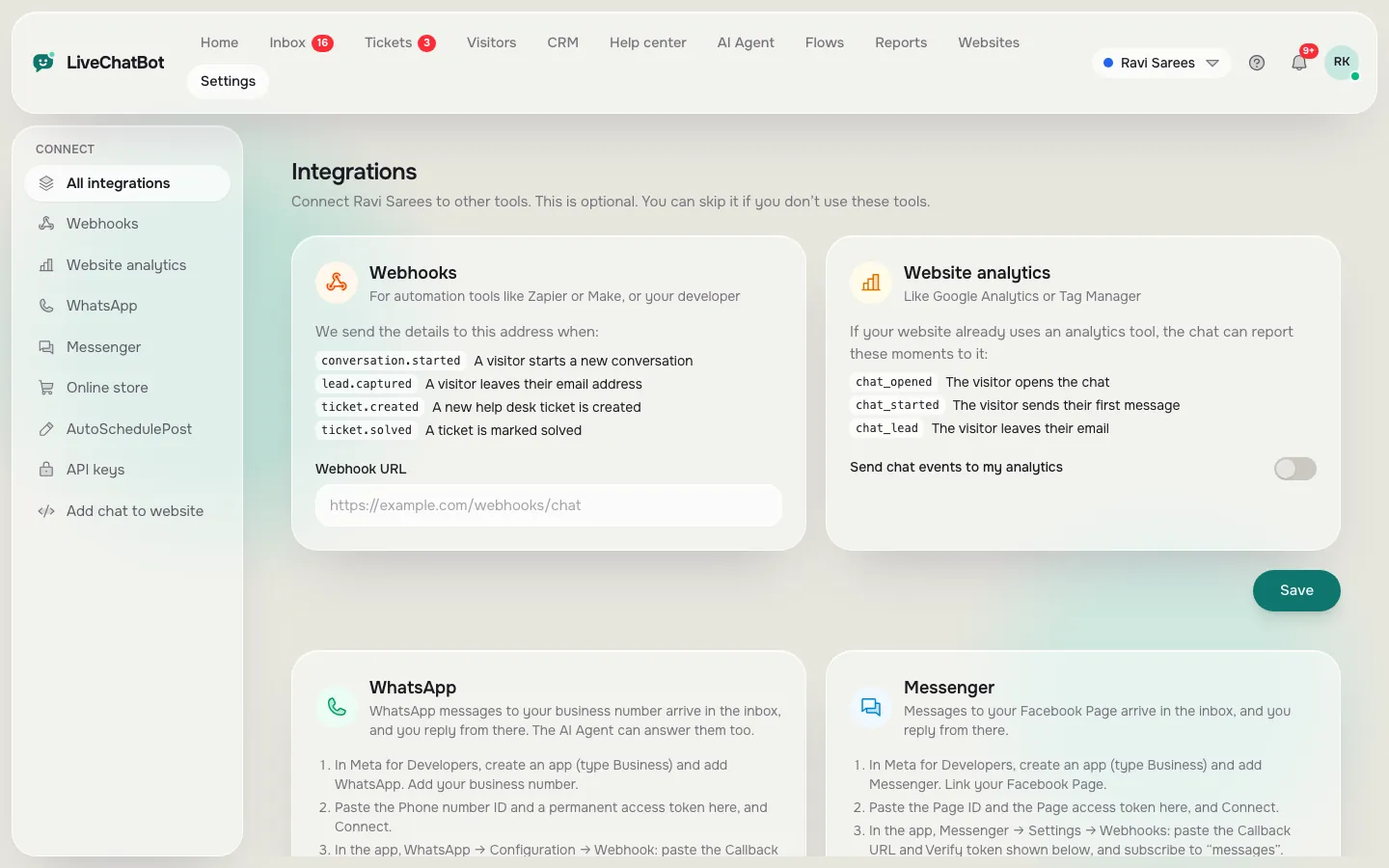
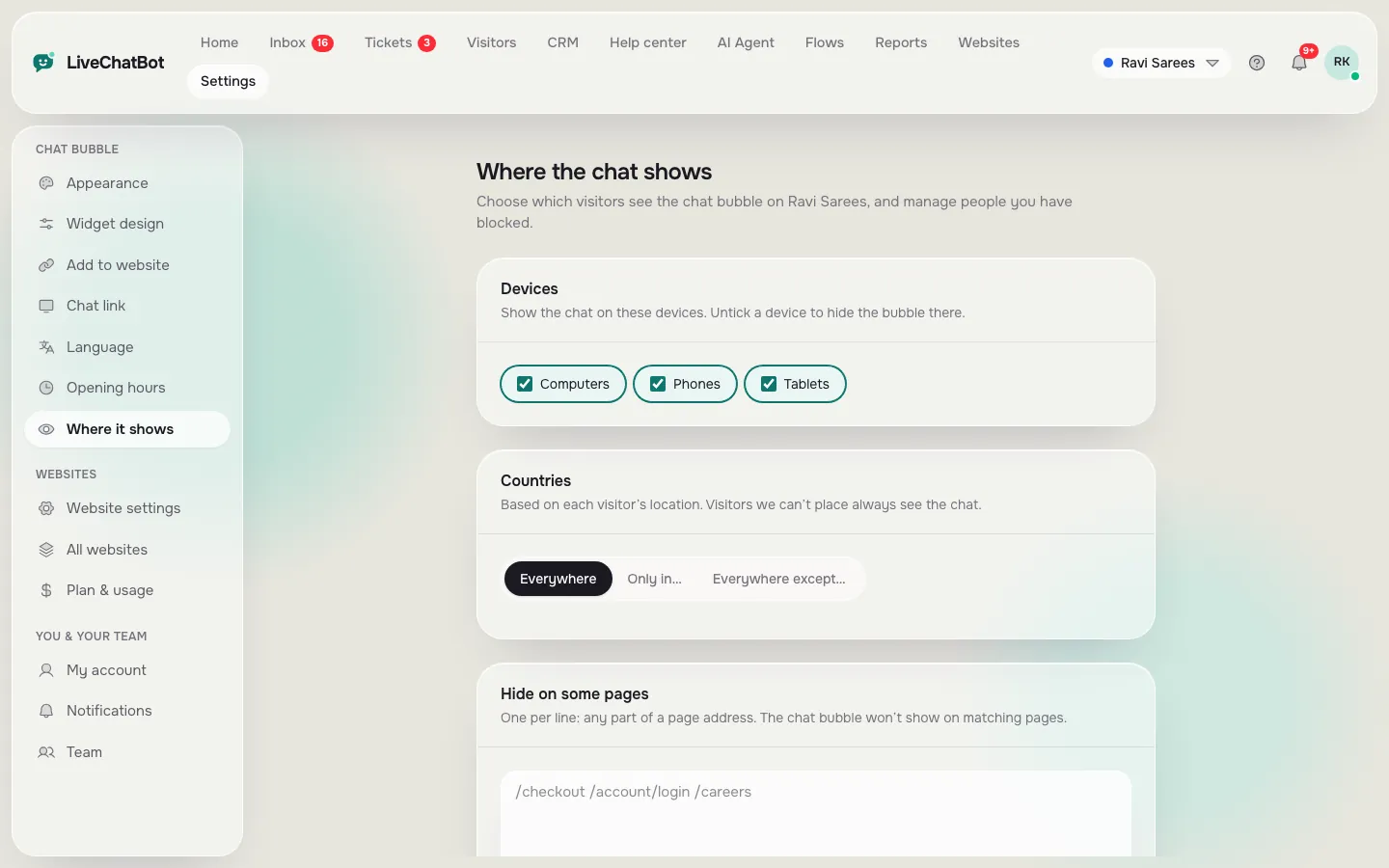
Real screens from the LiveChatBot panel, shown with sample data. Click any picture to see it full size.

Free tool
Review a vendor in eleven checks
Tick each item as you confirm it. Anything you cannot tick is a question to send the vendor. The checklist works for any third-party chat tool.
Cost and exit
Checks six to eleven: the money, the connections and the way out of a 3rd party chat integration
Cost after the free tier
Free plans are real, but read what happens at the limit. On LiveChatBot the free plan covers two websites with 100 free visitors per website each month. Above that, chat pauses for new visitors until you add visitors or the month resets. Nothing is charged automatically, and there are no per-seat charges. Compare that with how other tools work in our AI chatbot pricing guide.
What it connects to
Honest vendors list what they connect to and what they do not. LiveChatBot connects through Zapier, webhooks (ticket.created and ticket.solved) and a REST API, plus WooCommerce and Shopify store connections and form-lead capture. It has no native Slack, HubSpot, Salesforce or Zoho integration, and you should be wary of any tool that claims everything.
The way out
The best test of a third-party tool is how easily you leave it. Ask whether you can export your contacts and chats, and whether removing the script leaves anything behind. If you want to compare vendors side by side, see the live chat comparison guide.
Doing it with LiveChatBot
How the LiveChatBot integration works in practice
You add one line of code, or the WordPress plugin, and the widget loads. From then on you manage everything in the dashboard: colours, welcome text, opening hours, which pages show chat, and the AI Agent that answers from your own facts.
If you run WordPress, the plugin is the shortest route. Read the WordPress live chat plugin guide for the steps. For any other site, website chat widget explains the paste-in code, and the same code works on Shopify, Wix, Squarespace and plain HTML sites.
Three honest limits. The “Powered by LiveChatBot” credit stays on every plan. There is no iOS team app, only Android. And there is no captcha or single sign-on. If any of those is a hard requirement for you, a different tool is the right choice.
Frequently asked questions
Is a 3rd party chat integration safe for my website?
It is safe when you choose a reputable vendor and review what it loads and collects. Run a speed test, read the privacy page and make sure you can remove it in one step.
Will a third-party chat widget slow my site?
A well-built one loads after your content and adds little. Always compare a page-speed test before and after, and test on a phone.
Does a chat integration need my cookie banner updated?
Often yes, because most chat tools set a cookie so returning visitors see their old chat. Check what yours sets and follow your own legal advice.
Can I connect LiveChatBot to my other tools?
Yes, through Zapier, webhooks, a REST API, and the WooCommerce and Shopify store connections. It has no native Slack, HubSpot or Salesforce integration.
How do I remove a third-party chat tool?
Delete the pasted line of code or deactivate the plugin, then clear caches. Check the page source afterwards to confirm the script is gone.
Keep reading
Related guides
2 Types of Chatbots, Rule-Based and AI: The Short Answer, the Long Answer and a 12-Scenario Drill to Tell Them Apart (Free Type Spotter)
Abstract of Chatbot Projects: How to Write One Examiners Approve, With a Free Abstract Builder
Add a Chatbot to Your Website Without Crowding the Screen: A Corner Planner for Bubbles, Buttons and Banners
Add chat with a clear review
Free plan for two websites, no per-seat charges and a one-line install. Start free on livechatbot.in.