WooCommerce Customer Support Chatbot: Five Order Questions a Bot Should Never Guess, and the Safer Reply for Each (Free Risky-vs-Safe Examples)
WooCommerce customer support chatbot tools handle a lot of shop questions well, but orders are where a wrong guess costs real money. A bot that cannot see your orders must not pretend to. This guide shows five common order questions, the risky reply and the safer one, and how to set up LiveChatBot so the bot answers policy and your team handles the rest.
⚡ In short
- A WooCommerce customer support chatbot should answer policy and hand over order-specific questions.
- LiveChatBot’s AI Agent answers from facts you give it. It cannot see live orders, stock or refunds.
- Write replies that admit this, then ask for the order number and alert your team.
- Use the risky-vs-safe list below as a template for your own saved replies.
The real risk
Why order questions are the dangerous ones
Store owners often worry that a bot will sound robotic. The bigger risk is that it sounds helpful and wrong. A made-up delivery date can lead to an angry call. A made-up refund status can lead to a chargeback.
Questions about policy are safe, because the answer is the same for everyone. Delivery takes five to seven working days. Returns are open for seven days. Cash on delivery is available in these cities. You can write all of that once and trust it.
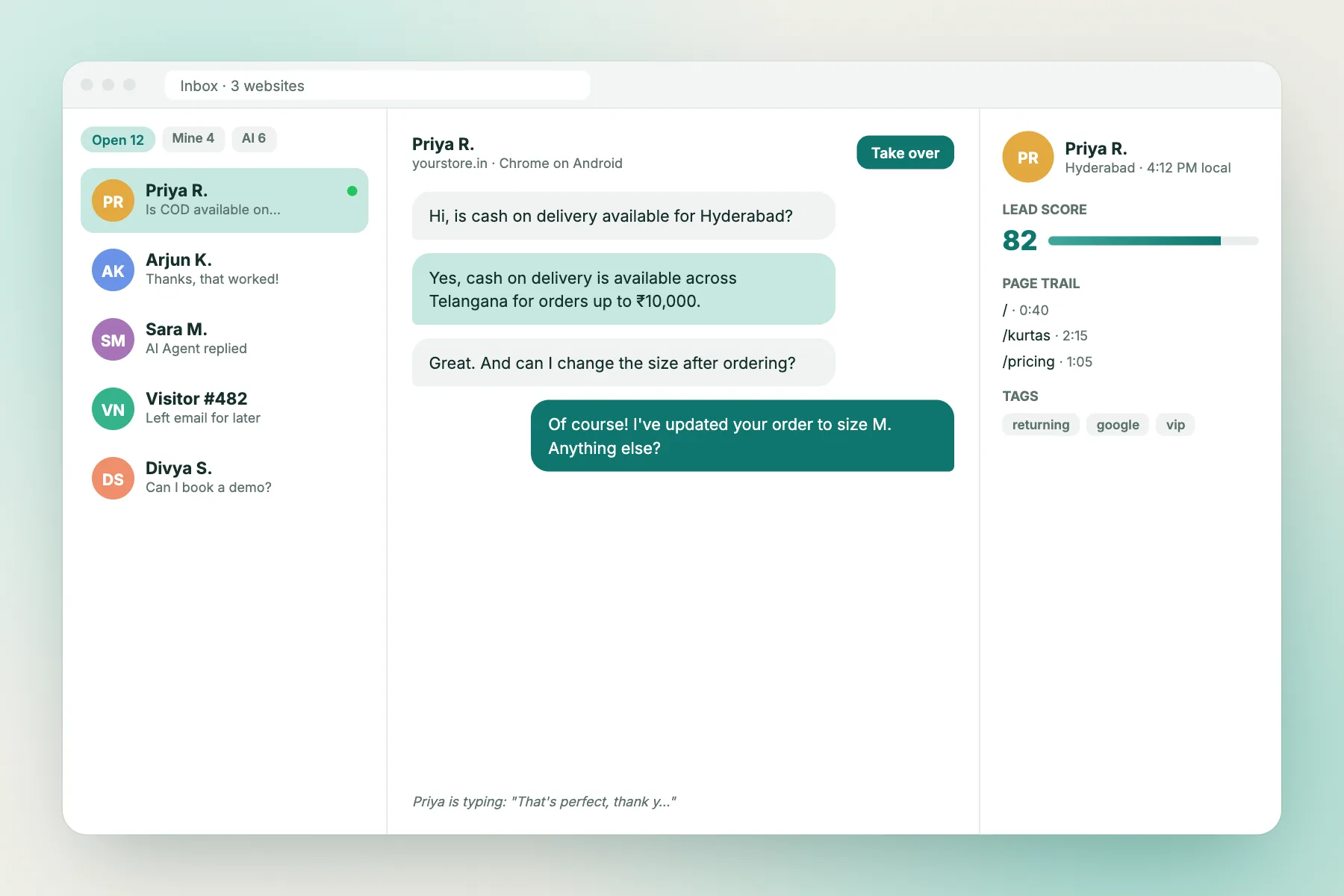
Questions about one particular order are different. The answer lives in your WooCommerce admin, not in the bot’s knowledge. LiveChatBot’s AI Agent answers from the knowledge you provide and does not read live orders, stock levels or refunds.
So the design rule is simple: let the bot explain policy, and let a person look up the order. The examples below show what that looks like in words.
Free tool
Risky bot reply or safer reply?
Five common WooCommerce questions. Copy the safer version into your saved replies and edit the numbers to match your store.
What the bot can answer
The questions a WooCommerce customer support chatbot can safely answer
Policy and process
Delivery times by region, return windows, payment methods, cash-on-delivery rules, warranty terms and how to track a parcel using the courier link. These are the same for every customer, so the bot can answer them with confidence.
Product facts you provide
Sizes, materials, care instructions and compatibility, if you write them into the knowledge. Add the facts that cause most pre-sale questions. Our WooCommerce live chat page and the guide to training your AI chatbot show how to prepare them.
Contact and hours
Your opening hours, phone number, WhatsApp number and what happens after hours. LiveChatBot shows opening hours and an away form that collects email or phone, so a night-time question becomes a morning task.
The handover
What should happen when the bot cannot see the order
A good handover has three parts.
- Say what the bot cannot do. One honest sentence: “I cannot see live orders here.”
- Ask for what the team needs. The order number, and the email used for the order.
- Alert a person. The chat lands in the shared inbox and on the Android app, so someone can open the WooCommerce admin and reply.
If the answer needs time, turn the chat into a ticket with an owner. The ticketing system page explains the three states. The customer gets a ticket link that works without a login, so they can check progress without writing again.
Check the handover on your own store before launch. Place a test order, open the chat from a phone, ask where it is, and see how long your team takes to notice. If the alert is slow, fix that first, because a polite handover that nobody sees is no better than a guess. Run the same test once a quarter, and again after any big sale, when message volume is highest.
Keep one saved reply for this moment, such as: “Thanks {name}. I cannot see orders from this chat, so a team member will check. Please send your order number.” The {name} placeholder fills in the customer’s name. The saved replies guide shows how to add it.
Honest limits
What LiveChatBot does not do for WooCommerce support
Plan around these gaps rather than finding them later.
- No live order lookup, stock check or refund status inside the bot.
- No edit of orders or addresses from chat.
- No WhatsApp inbox. A WhatsApp button card sends visitors to your number.
- No native Zendesk, Freshdesk or helpdesk integration. Use Zapier, webhooks (ticket.created and ticket.solved) or the REST API.
- No pre-chat form and no iPhone team app.
- The “Powered by LiveChatBot” badge stays on every plan.
The JavaScript API, `window.LiveChatBot.setVisitor`, can pass a logged-in customer’s name or email to the chat, so your team does not need to ask. A developer can add that to your theme. Ask our team for developer documentation if you want to go further.
Setup in an evening
A simple WooCommerce customer support chatbot setup
Do this in order, and stop when it feels done.
- Install the WordPress live chat plugin, which also works with WooCommerce.
- Write twenty policy answers into the AI Agent knowledge.
- Add the five safer replies above as saved replies.
- Hide the chat on your checkout page if it distracts buyers, using the “where it shows” settings.
- Use Flows to show a short message on the delivery and returns pages.
- Set opening hours and the away form.
- Install the Android app on the phone of the person who answers.
The free plan covers two websites with 100 free visitors per website each month. For busy shops, visitor packs are one-time and never expire. See pricing, then sign up at livechatbot.in.
Frequently asked questions
What can a WooCommerce customer support chatbot answer?
Policy, process and product facts you give it, such as delivery times, returns, payment options and sizes.
Can the bot look up my WooCommerce orders?
No. LiveChatBot’s AI Agent answers from the knowledge you provide and does not read live orders, stock or refunds.
How do I handle an order question?
Have the bot say it cannot see orders, ask for the order number and alert your team through the shared inbox.
Does it work with WooCommerce on WordPress?
Yes. The WordPress plugin also supports WooCommerce.
Do I pay for each support agent?
No. There are no per-seat charges.
Keep reading
Related guides
WordPress AI FAQ Chatbot: Is Your FAQ Ready for a Bot? Four Questions That Tell You What to Fix First (Free FAQ Readiness Quiz)
WooCommerce Product Recommendation Chatbot: Teach It Your Buying Rules, Not Your Whole Catalogue (Free Style Quiz)
WordPress Helpdesk Chatbot Jargon Decoded: Sixteen Support Words You Will Meet on Plugin Pages, and What Each Means for a Small Team (Free Glossary)
Let the bot explain, let people check
Free plan for two websites, with tickets, saved replies and an AI Agent. Start at livechatbot.in.