WooCommerce Chatbot With Live Support: Plan Who Answers Each Hour of the Shop Day, Bot or Person (Free Coverage Grid)
WooCommerce chatbot with live support sounds like one feature, but it is really a schedule. Some hours a person answers, some hours a bot answers, and some hours the shop is closed and only a form is open. Plan those hours before you install anything, and your shoppers always meet a sensible reply. LiveChatBot gives you the pieces: a chat widget, a team inbox, an Android app, opening hours and tickets.
⚡ In short
- Live support in a shop is a timetable: a person when you are in, the bot when you are busy, a form when you are closed.
- Write the timetable first, then set opening hours, the AI Agent and the away form to match it.
- Keep the handover rule simple: orders, payments and angry customers always go to a person.
- Use the coverage grid below to colour in your own week.
The idea
Why live support in a shop is a schedule, not a switch
Most small stores run on one or two people who also pack parcels, post on social media and talk to suppliers. Nobody sits at the chat window all day. A switch that says “live support on” is a promise you cannot keep.
A schedule is honest. It says: between 10 and 6 a person watches the chat; around lunch and during packing the bot answers common questions and flags anything hard; at night a form collects an email or phone number. Shoppers do not mind a bot at 9 pm. They mind silence.
For a WooCommerce chatbot with live support, that means three jobs: answering the repeat questions (shipping, returns, sizes), handing over the hard ones, and catching the visitors who arrive when nobody is there. LiveChatBot handles each with a different setting, so you can map your week onto them.
Try it
Colour in your shop week
Each cell shows who covers the chat in an example week for a small shop: a person, the bot with an email follow-up, or the bot alone. Use it as a starting pattern and change it to match your own hours.
| Mon | Tue | Wed | Thu | Fri | Sat | Sun | |
|---|---|---|---|---|---|---|---|
| 9 am-12 | Person | Person | Person | Person | Person | Bot + email | Bot only |
| 12-3 pm | Bot + email | Bot + email | Bot + email | Bot + email | Bot + email | Bot + email | Bot only |
| 3-6 pm | Person | Person | Person | Person | Person | Bot + email | Bot only |
| 6-10 pm | Bot + email | Bot + email | Bot + email | Bot + email | Bot + email | Bot + email | Bot + email |
| 10 pm-9 am | Bot only | Bot only | Bot only | Bot only | Bot only | Bot only | Bot only |
Person hours
The hours a person answers: inbox, alerts and the Android app
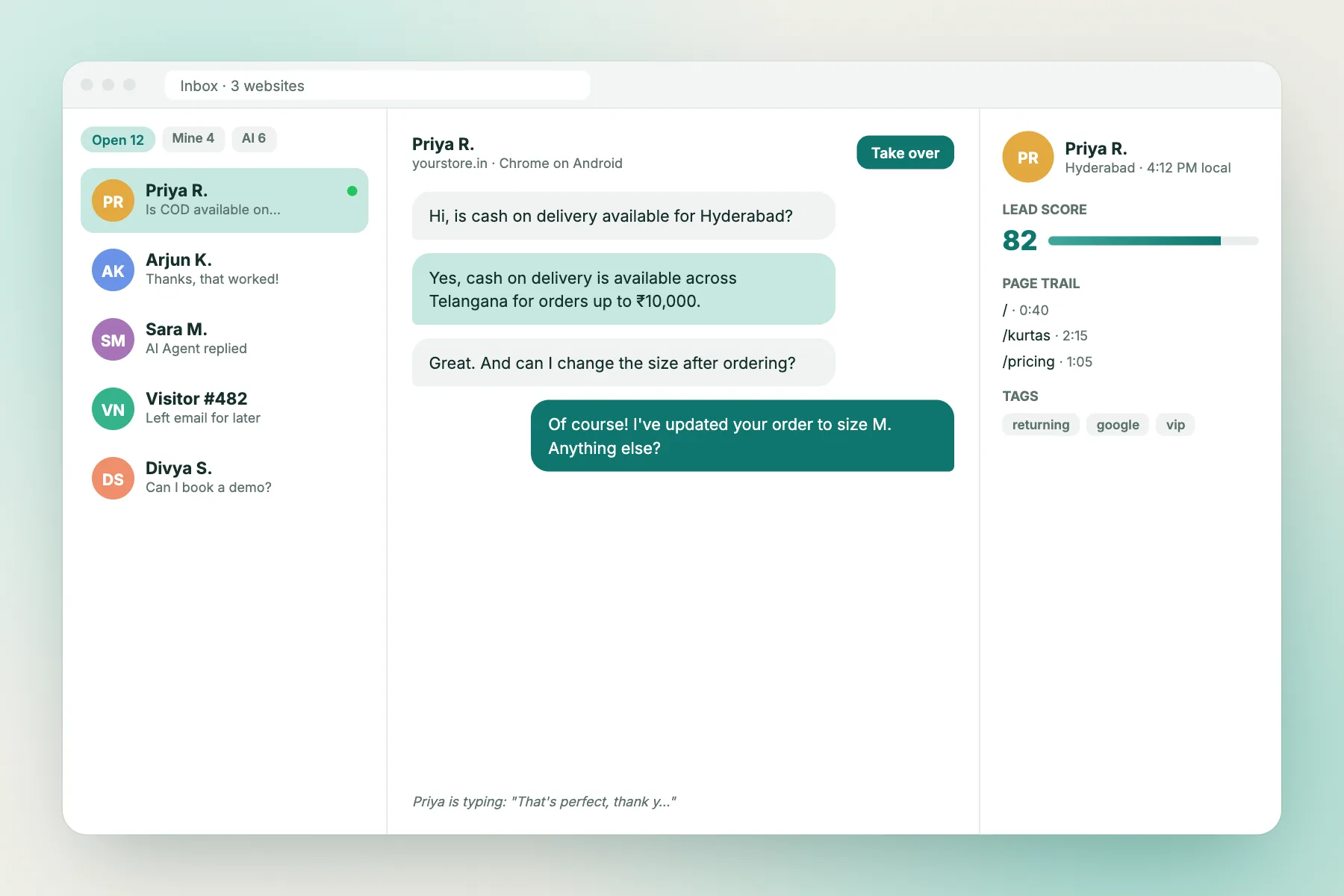
When a person is on, the goal is a fast first reply. The LiveChatBot inbox shows every open chat and the page the visitor is on, so you can say “I can see you are looking at the blue kettle” without asking. There are no per-seat charges, so a part-time helper or a family member can be added without changing the price.
Get alerts to the right phone
Install the Android app on the phone of whoever is on duty. New chats then reach them even when the laptop is closed. There is no iPhone team app, so an iPhone user answers from the browser instead.
Use saved replies for speed
Write ten saved replies for the questions you type most, such as delivery time, return window and payment options. A reply with {name} feels personal while saving you the typing.
Bot hours
The hours the bot answers: what it can and cannot cover
The AI Agent answers from the knowledge you give it, such as your shipping rules, return policy, product care notes and opening times. It has a small free monthly allowance per website, then AI packs. When that is used up, the free keyword bot answers from your saved replies, so keep both ready. See how to train your AI chatbot.
What it cannot do matters just as much. LiveChatBot does not read WooCommerce orders, check live stock or change an order. So a shopper asking “where is my order 4821?” needs a person, or a reply that explains where the tracking email arrives. Our guide to the WooCommerce order tracking chatbot shows how to word that.
The bot should say so plainly: “I cannot see your order, but our team can. Please leave your email and we will reply.” That sentence is the handover.
Handover
A handover rule for a WooCommerce chatbot with live support that busy owners can follow
Complicated rules fail when you are packing boxes. Use three that fit on a sticky note.
- Money and orders go to a person. Refunds, changed addresses, payment failures and anything with an order number.
- Repeat questions stay with the bot. Delivery times, returns policy, sizes, care, opening hours.
- Upset customers go to a person, early. Do not make someone ask a third time.
Put rule one into the bot’s knowledge as a plain line, and test it by asking the questions yourself. Tidy handover wording also helps; our post on human handoff in a WordPress chatbot has lines you can adapt.
Use a chat flow to offer help in the right place, for instance a friendly message on the cart or checkout page after a minute of inactivity. Flows can use up to six conditions, such as page, country, device or number of visits.
Closed hours
Closed hours: opening hours, the away form and tickets
A closed shop still gets visitors, often your best ones, because they browse in the evening. Set opening hours so the widget knows when nobody is watching, and turn on the away form so it asks for an email or phone number.
Those offline messages can become tickets. A ticket has an owner and a status of open, pending or solved, and the customer gets a ticket page that works without a login. In the morning your first job is a short list: who left a message, what they want, and who owns the reply.
Our ticketing system page explains the statuses. If you want to see how this looks for a store, read live chat for ecommerce.
Setup
Connect it to WooCommerce and test the week before you trust it
LiveChatBot has a WordPress plugin that also works on WooCommerce stores. It adds the widget to your site; it does not sync products, orders or customers. For a longer comparison of options, see the best chatbot for WooCommerce guide.
Test your WooCommerce chatbot with live support in one afternoon:
- Set opening hours to end ten minutes from now and send a message from your phone. You should see the away form.
- Ask the bot a question you taught it, then one you did not. The second should lead to a handover, not a guess.
- Open the Android app and confirm a new chat alerts you within seconds.
- Convert the offline message into a ticket and mark it solved.
If all four pass, the schedule works. Sign up free at livechatbot.in when you are ready.
Frequently asked questions
Can a WooCommerce chatbot with live support read my orders?
Not with LiveChatBot. It has no order lookup or WooCommerce sync. The bot asks for the order number and a person checks it in WooCommerce.
Do I have to be online all day?
No. Use opening hours so a person covers set times, let the bot handle repeat questions, and use the away form for the rest.
What happens when the AI allowance runs out?
The free keyword bot answers from your saved replies. Keep a good set of saved replies ready for that moment.
Can several staff reply?
Yes. There are no per-seat charges, and chats can be answered from the inbox or the Android app.
Is there a WhatsApp inbox?
No. There is a WhatsApp button card that sends visitors to your number, but chats are answered in the LiveChatBot inbox.
Keep reading
Related guides
WooCommerce Chatbot for Shipping Queries: Answer Delivery Questions From Your Rules and Send Tracking Questions to the Right Place (Free Shipping Glossary)
WooCommerce Chatbot for Refunds: Explain the Policy, Collect the Details, Leave the Money to You (Free Copy-Ready Replies)
WooCommerce Chatbot for Checkout: Answer Last-Minute Doubts Without Getting in the Way of the Pay Button (Free Checkout Journey Timeline)
More to read
More guides on this topic
Chatbot With Live Agent Takeover: Plan Who Takes Over and When, Hour by Hour Across the Week (Free Coverage Grid)
Give your shop a support timetable
Free plan for two websites, inbox, Android app and opening hours with no per-seat charges. Start free on livechatbot.in.