Customer Service Chat Software Sized by Your Busiest Hour: How Many People You Really Need, With the Maths Shown (Free Setup Quiz)
Customer service chat software is easy to over-buy, because most owners count chats per day when the real pressure comes from one busy hour. This guide shows the simple sum that tells you how many people that hour needs, which parts of the software take load off them, and how to pick a starting setup with a short quiz.
Customer service chat software lets your team answer website visitors in one shared inbox, with saved replies, tickets and an AI helper for repeat questions. Size it by your busiest hour: chats in that hour times minutes per chat, divided by 60, gives the people you need.
⚡ In short
- Count chats in your busiest hour, not per day. That hour decides how many people you need.
- Formula: chats in the hour × minutes per chat ÷ 60 = agents busy, if each handles one chat at a time.
- Saved replies, the AI Agent and tickets shrink the minutes per chat; opening hours and the away form cover the hours nobody is there.
- Start on the free plan, measure one week of real chats, then decide what to add.
Definition
What customer service chat software actually includes
Customer service chat software is a chat window on your website plus the tools your team uses to answer it. It has four parts: the widget visitors see, an inbox where staff reply, helpers that speed up replies, and a record of what happened.
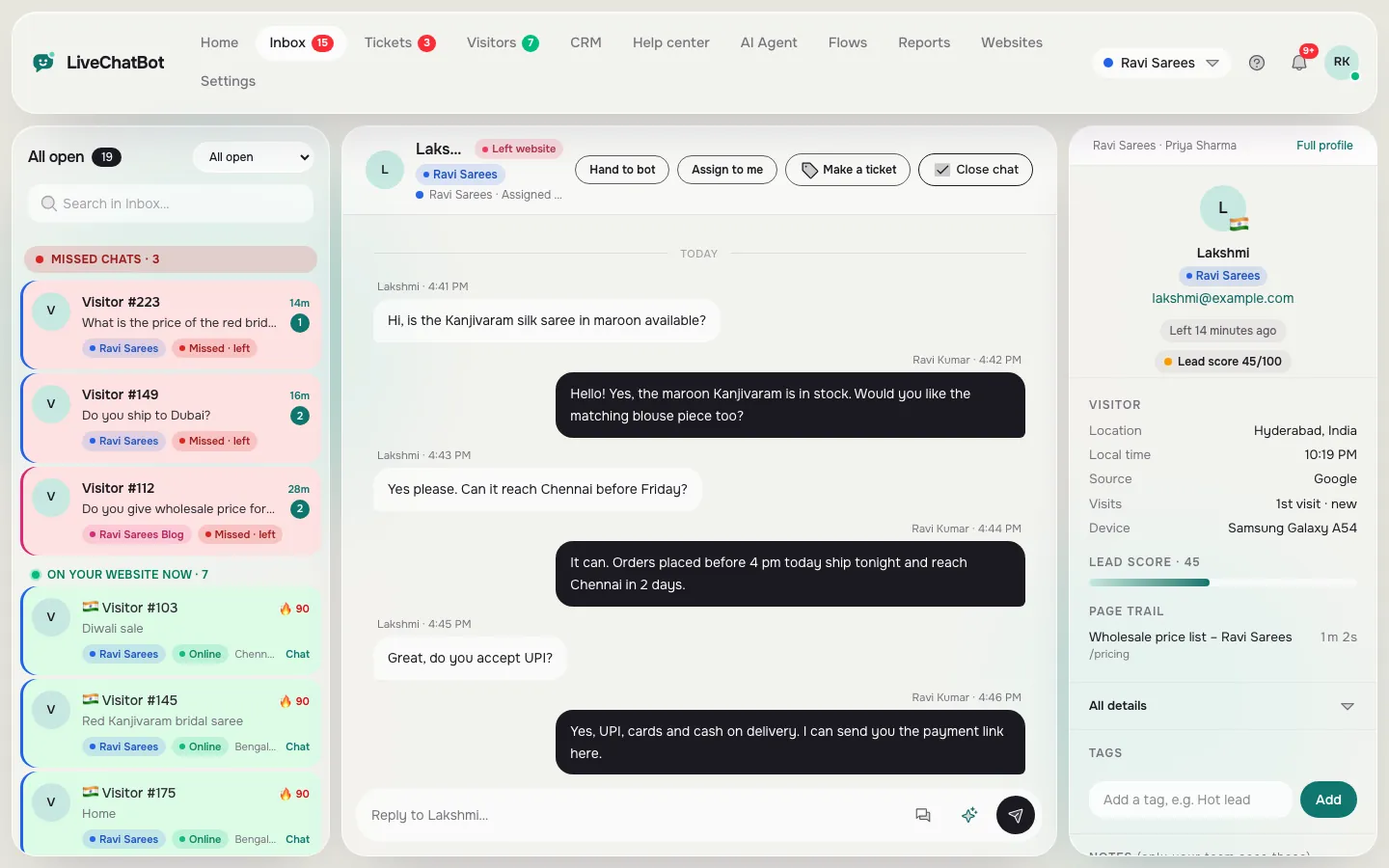
In LiveChatBot those parts are the chat widget, a shared inbox with Assign to me and Unassigned/Mine folders, saved replies, the AI Agent, tickets, and Reports. Staff can also answer from the Android app. There are no per-seat charges, so adding a second or third person does not change the price. The wider picture for service teams is in our live chat for customer service guide.
What it is not: a phone system, a full contact-centre suite, or a tool with single sign-on, audit logs or role builders. Those are not part of LiveChatBot. For a small team that mostly needs fast, tidy answers, the four parts above are the whole job.
The sum
Size your team with one sum, using your busiest hour
The number of people you need is set by the busiest hour, not by the day. A day can look calm on paper and still leave customers waiting for ten minutes at lunchtime.
The formula
Agents busy = chats in the hour × minutes per chat ÷ 60.
This assumes each person handles one chat at a time. If your staff handle two chats side by side, halve the answer.
Worked example (illustrative numbers)
A made-up online shop gets 60 chats on an average day and spreads them over 10 hours. It looks like 6 chats an hour. But the owner checks the inbox and finds that 14 chats arrive between 12 and 1 pm.
- Average view: 6 chats × 6 minutes ÷ 60 = 0.6 of a person.
- Busiest-hour view: 14 chats × 6 minutes ÷ 60 = 1.4 people.
So one person is not enough at lunch, even though the daily average says they are. Cut the minutes per chat from 6 to 4 with saved replies and the answer drops to 14 × 4 ÷ 60 = 0.93, which one person can just manage.
Real screens
Where to find your busy hours, and where the team replies
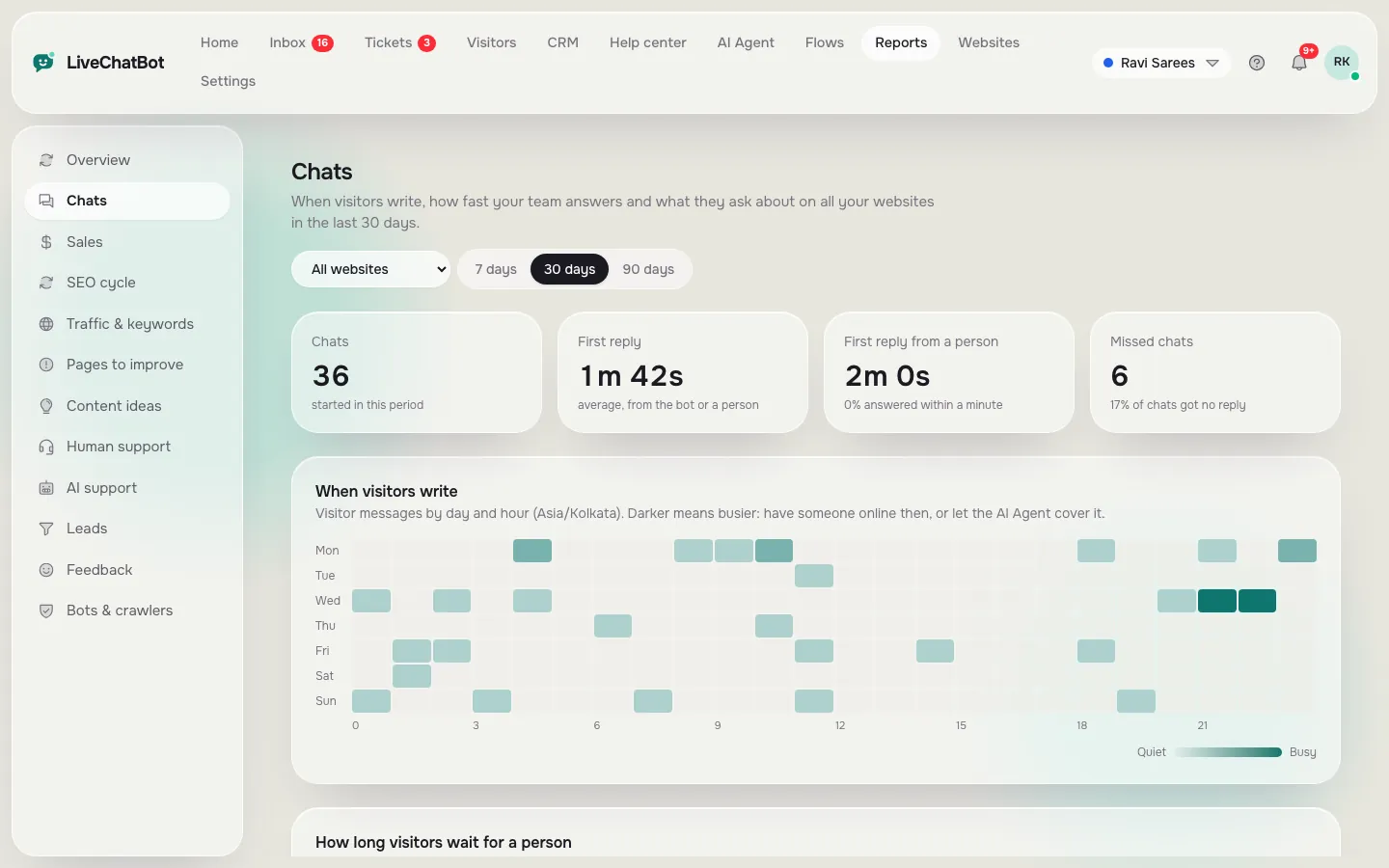
Real screens from the LiveChatBot panel, shown with sample data. Click any picture to see it full size.
Finding your numbers
Where to read your own busiest hour
Open Reports and choose the Chats view with a date range of the last 30 days. It shows reply times and a busy-hour heatmap, so you can see which hour of which weekday fills up. Pick the busiest cell, note how many chats it holds, then do the sum above.
If you have no history yet, run the free plan for one week with the widget on and write down the count each evening. A week is thin data, so treat the result as a first estimate and recheck after a month.
Minutes per chat
Open five recent chats and time them from first visitor message to the last useful reply. Use the middle value rather than the longest. Typical simple questions about delivery, hours or price take far less than a refund dispute, so separate the two kinds when you count.
What the sum cannot see
It ignores chats you never answered. If nobody is online at night, those visitors are missing from your count. That is why the next sections matter as much as the headcount.
Cutting minutes
Four parts of the software that shrink minutes per chat
Shorter chats mean fewer people, so the best software is the kind that takes minutes out of each conversation.
1. Saved replies
Type a shortcut and a full answer drops in, with the visitor’s name filled in using {name}. Writing ten replies for your most common questions is usually the quickest win. See how to use saved replies in live chat or read the guide to canned responses.
2. The AI Agent
The AI Agent answers from the facts you give it: typed answers, a copied web page, or an uploaded PDF, DOCX, XLSX, CSV or TXT file. It takes the repeat questions so people only see the unusual ones. When it is unavailable or used up, the free keyword bot answers from your saved replies.
3. Flows
A chat flow can greet visitors on chosen pages with a useful first message, so chats arrive with the question already half-formed.
4. Tickets
A chat that needs an investigation does not have to stay open. Turn it into a ticket, set an owner, and tell the customer you will come back to them. Our notes on a ticketing system and help desk software explain the line between the two.
Our rule
What most guides miss: size for the hour, then plan for the hours with nobody
Our rule: the busiest hour sets the headcount, but the emptiest hours set your lost leads. Most guides only cover the first half.
Here is the check. Take the hours when no one is online, say 9 pm to 9 am. Those are 12 of 24 hours, so on a plain calendar basis half the day has no person at the desk. If even a small share of visitors write in then, that is a steady trickle of unanswered messages that never appears in your chats-per-hour sum, because nobody was there to answer.
How LiveChatBot handles the empty hours
- Opening hours and the away form. Outside your hours the widget shows an away form that collects email or phone. Our guide on setting live chat opening hours walks through it.
- Chat rescuer. If nobody replies within 6 seconds, the chat asks the visitor for an email and phone so the lead is not lost.
- Offline messages as tickets. Messages left while you are away can become tickets for the morning.
Treat the morning queue as a second small busiest hour. If 20 messages wait at 9 am and each takes 3 minutes, that is 60 minutes of work for one person, which is a worked cost you can plan for, rather than a surprise.
Try it
Pick a starting setup for your team
Answer five quick questions. The most common answer decides which first setup suits you. It is a starting point, not a final verdict.
Honest gaps
What a tool like this does not do
Say plainly what is missing so you can decide with open eyes.
- No automatic or round-robin assignment. Agents pick up chats with Assign to me, and teams route chats to groups.
- No iOS team app. The team app is for Android; iPhone users answer from a browser.
- No single sign-on, audit logs or role-permission builder.
- No native Slack, Teams, HubSpot, Salesforce or Zendesk integration. Zapier, webhooks (ticket.created and ticket.solved) and the REST API can bridge many tools.
- “Powered by LiveChatBot” stays on every plan.
If any of these is a must-have, a different tool may fit better. If not, the saving is real: no per-seat charges and a free plan to test with. Check pricing for current plans, and read how fast replies affect customers in our guide to live chat response time.
Your first week
A first week of trial, day by day
A short trial beats a long comparison, so run this for seven days.
- Day 1: Add the widget and set your opening hours. Turn on the away form.
- Day 2: Write ten saved replies from the questions you answer most.
- Day 3: Install the Android app on the phone of whoever answers.
- Day 4: Add the AI Agent’s first facts: hours, delivery, returns, prices.
- Day 5: Test as a customer. Ask something it was never taught and check that a person is alerted.
- Day 6: Read the transcripts and fix the weak answers.
- Day 7: Open Reports, find the busiest hour, and run the sum with real numbers.
By the end of the week you will know your busiest hour, your minutes per chat and whether one person is enough. That is more useful than any feature table. For a fuller setup with colours and texts, see the guide on live chat for customer service and sign up at livechatbot.in.
Frequently asked questions
What is customer service chat software?
It is a website chat widget plus a shared inbox, saved replies, tickets and reports, so a team can answer customers in one place. An AI helper can take repeat questions.
How many agents do I need?
Multiply chats in your busiest hour by minutes per chat and divide by 60. If staff handle one chat at a time, that is the number of people busy in that hour.
Do I pay per agent on LiveChatBot?
No. There are no per-seat charges. Plans are priced by websites and visitors, and the free plan covers two websites with 100 visitors per website a month.
What happens when nobody is online?
Opening hours show an away form that collects email or phone. If no one replies in 6 seconds, the chat rescuer asks for an email and phone so the lead is kept.
Can I use it from my phone?
Yes, on Android through the LiveChatBot app. There is no iOS team app, but iPhone users can reply from a browser.
Keep reading
Related guides
Customer Service AI Chatbot Report Card: Which Numbers Prove It Works and Which Ones Mislead (Free Monthly Review Checklist)
Size it, then start free
Run the busiest-hour sum, try the free plan for a week and see your real numbers. Start on livechatbot.in with no per-seat charges.