Chatting Page for Your Website: Build a Dedicated “Chat With Us” Page That Visitors Actually Use (Free Copy Builder)
Chatting page setups give conversation a page of its own on your site: the chat window sits open in the page, with the hours, reply times and quick answers that help a visitor decide to type. Most small businesses never build one. They rely on the corner bubble, which is easy to ignore, and a contact page full of forms. This guide shows when a dedicated chat page is worth it, what goes on it, how to link people to it, and gives you a free builder that writes the page copy and checks your promises.
⚡ In short
- A dedicated chat page shows the chat open inside the page, not just a bubble in the corner.
- It works best as a link destination: from emails, invoices, QR codes, social bios and your contact page.
- Put hours, an honest reply time, three to five quick answers and one alternative contact on it.
- Use the free builder to write the copy and catch promises your team can’t keep.
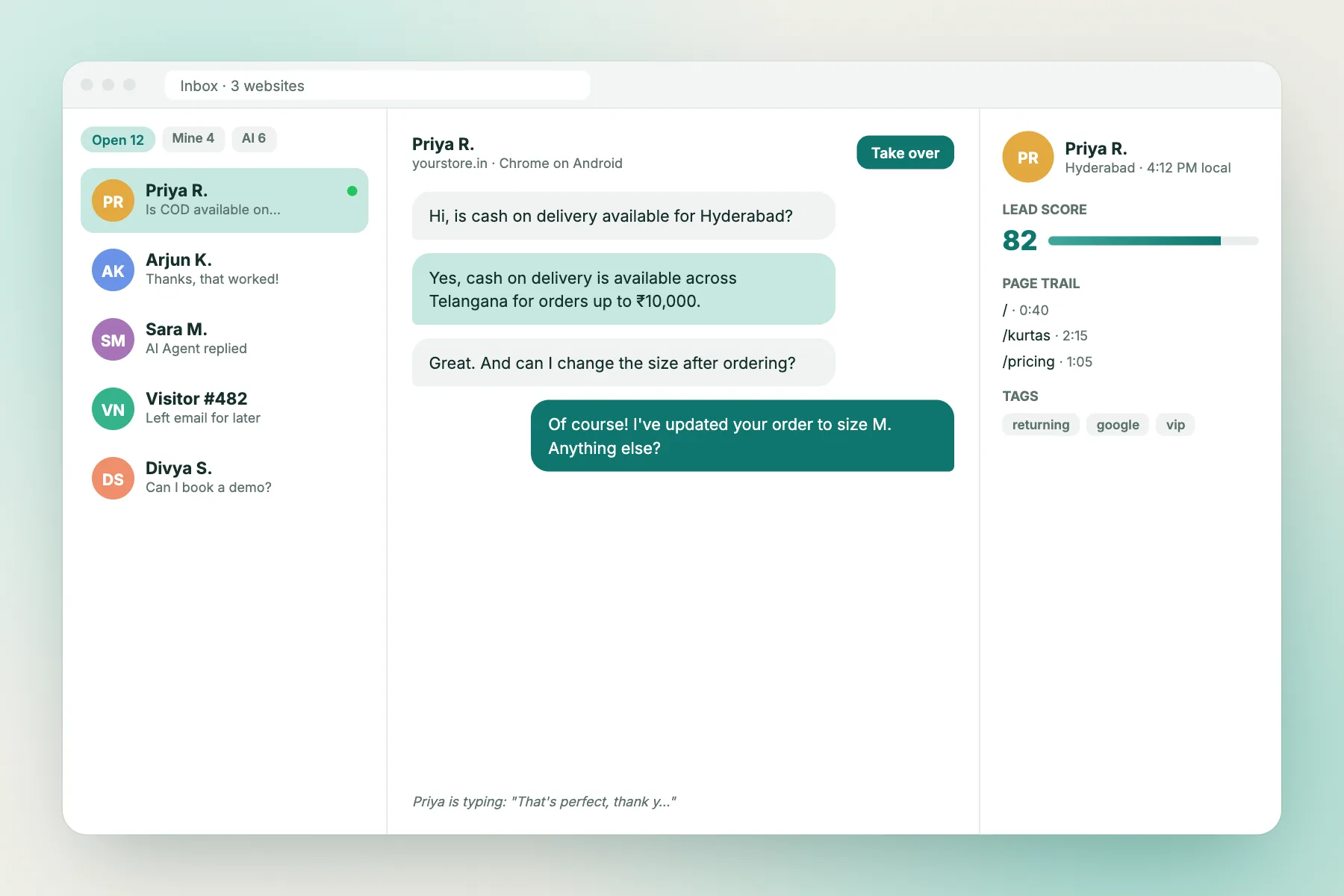
Why a page
The corner bubble is easy to miss; a page is a destination
The chat bubble in the corner of every page is good at catching people who are already browsing. It’s bad at being a destination. You can’t print a bubble on an invoice, put it in a WhatsApp status or link to it from an email signature. When you want to send someone straight to a conversation, you need an address.
That’s what a dedicated chat page gives you: a URL such as yoursite.com/chat where the chat window is already open in the middle of the page. Anyone who arrives there came to talk, so nothing else on the page should compete for attention.
It also helps people who don’t notice bubbles. Older visitors, people on small phones and people who’ve learned to ignore pop-ups often miss the corner widget completely. A page with a clear heading, “Chat with us”, and an open message box removes the guesswork.
And it gives you room to set expectations. A bubble has space for one welcome line. A page has room for your hours, your usual reply time, the questions most people ask and what happens outside working hours. Visitors who know what to expect are far more patient, and far less likely to leave after thirty seconds.
LiveChatBot supports this with inline mode, which shows the chat inside a page instead of as a floating bubble. The rest of your site can keep the normal bubble.
When it’s worth it
Five situations where a chat page earns its place
Not every site needs one. A dedicated page is worth building when at least one of these is true:
- You send people to chat from outside the website. Order confirmation emails, printed bills, packaging inserts, QR codes on a shop counter and social media bios all need a link.
- Your contact page is a dead end. If it lists a phone number nobody answers and a form that goes to an inbox nobody reads, replacing it with a chat page is an instant improvement.
- You run a service with lots of pre-sale questions. Clinics, coaching centres, travel agents and repair services get “is this possible?” questions that a chat answers better than a form.
- Your visitors are mostly on phones. On a small screen, a full-width chat is easier to use than a small floating window.
- You want a support hub. Some businesses use the page as the single place for help, with quick answers above the chat and the chat for everything else.
If none apply and your traffic mainly arrives from search and browses product pages, the bubble alone may be enough. Our guide to where to greet visitors page by page helps with that decision.
Anatomy
What goes on a good chatting page, top to bottom
1
Clear heading
“Chat with [business name]”. No clever slogans. The visitor should know in one second what the page is for.
2
One intro line
Who will reply and about what: orders, products, visits. Mention that a real person reads the chats if that’s true.
3
Hours and reply time
Days, hours and the usual first reply. Honest beats impressive. Say what happens outside hours.
4
The open chat
Inline, in the middle of the page, with the message box visible without scrolling on a phone.
5
Quick answers
Three to five of your most common questions with one-line answers. Many visitors find their answer here.
6
One alternative
Phone, email or a WhatsApp button for people who won’t type into a chat. One or two options, not six.
Free tool
Write the copy for your chat page
Enter your name, hours, reply time, team size and top questions. The builder drafts each block of the page and warns you about promises that don’t fit your team.
Fill in what’s true for your business. The builder writes the copy for a dedicated “Chat with us” page and flags promises that don’t match.
Runs only in your browser; nothing is sent or saved. Edit the copy before you publish it.
Writing the copy
Short, honest and specific
The builder gives you a draft. Here’s how to make it better.
Make the reply time something you beat
If you usually reply in five minutes, promise ten. Visitors judge you against the promise, not against the clock. A reply in six minutes after “within 10 minutes” feels fast; the same reply after “instant replies” feels slow.
Name a human where you can
“Priya and Arjun reply to chats” is warmer than “our support team”. You can match this in the widget by setting a team name and avatar, which the chat window then shows. The welcome message guide covers wording for the first line inside the chat.
Answer, don’t tease
A quick answer like “Do you deliver to Indore? Yes, in 2 to 3 days” saves a chat. “Ask us about delivery!” creates one for no reason. Write the real answer.
Say what happens after hours
“Outside these hours, leave your email or phone number and we’ll reply the next working day.” That sentence turns a closed shop into a captured lead. In LiveChatBot, set opening hours and the away form collects contact details automatically.
Cut everything else
No newsletter sign-up, no banner, no product carousel. The page has one job.
Sending people there
Eight places to link your chat page
A chatting page only works if people reach it. Once it’s live, add the link everywhere a customer might have a question:
- Order confirmation emails. “Questions about your order? Chat with us” with the link.
- Invoices and bills. Print the short URL or a QR code at the bottom.
- Packaging inserts. A small card with a QR code that opens the page on the customer’s phone.
- Shop counter or reception. A standee with the QR code for people who’d rather not queue.
- Social media bios. Instagram and Facebook bios with one link work well with a chat page.
- Email signature. Every email your team sends becomes a route to chat.
- Your contact page. Either replace it or put a prominent “Chat now” link at the top.
- Google Business Profile. Use the website link field or a post to point local searchers to it.
Use a short, memorable address such as /chat or /help so it’s easy to type and print. If you track campaign links, you’ll be able to see which of these sends the most visitors; LiveChatBot’s visitor tracking shows where each visitor came from.
Setting it up
Building the page in your website builder
The steps are similar on most platforms:
- Create a new page called “Chat with us” with the slug /chat. In WordPress, a normal page works; on Wix, Squarespace or Shopify, add a blank page.
- Add the copy from the builder above: heading, intro, hours and reply time, quick answers and the alternative contact.
- Place the chat inline. Use LiveChatBot’s inline mode so the chat appears inside the page rather than in the corner. Put it high enough that the message box is visible on a phone without much scrolling.
- Hide the corner bubble on this page so visitors don’t see two chat windows. The “where it shows” settings let you hide the widget on specific pages.
- Keep the page out of your menus’ clutter. One “Chat” link in the header or footer is enough.
- Test on a phone. Open the page on mobile data, send a message, reply from the inbox or the Android app, and check the visitor sees it.
If you’re adding the code for the first time, our guide to adding chat with HTML explains bubble and inline placement, and the WordPress plugin handles installation without editing code.
Mistakes
Why some chat pages get ignored
Most chatting page failures come from a few repeat mistakes.
The chat is below the fold. If visitors have to scroll past a big banner and three paragraphs to find the message box, many won’t. Put the chat near the top on phones.
It promises live replies nobody gives. “We’re online now!” on a page that nobody watches at 9 pm sends people away angry. Let opening hours control the status, and show the away form outside them.
Too many alternatives. A page with chat, a form, two phone numbers, an email address and four social icons makes people choose, and some choose to leave. Keep one or two alternatives.
Quick answers that are out of date. The delivery time on the page says 2 days; the bot says 3; the agent says 5. Keep one set of facts and update all three together.
No link to it. A beautiful page that nobody can find gets no chats. Use the list of eight places above.
Two chat windows. The inline chat plus the corner bubble on the same page confuses people. Hide the bubble there.
Measure it
Is the page working?
Give the page four weeks, then check three things:
- Visits to the page and where they came from: emails, QR codes, social bios or your menu.
- Chats started from the page compared with the number of visits. If people arrive but don’t type, the copy or placement needs work.
- Questions answered by the quick answers. If the same question still comes up in chat every day, move it higher or rewrite the quick answer.
If one source sends lots of visitors who don’t chat, look at what they expected. A QR code on packaging labelled “Track your order” will disappoint people if the page only offers chat. Match the label to the page.
Getting started
Build it this afternoon
Fill in the copy builder above, create a /chat page, place the chat inline, hide the bubble on that page and add the link to your order emails and social bios. That’s an afternoon’s work, and it gives every customer a single, obvious place to ask a question.
LiveChatBot includes inline mode, opening hours with an away form, widget cards (including a WhatsApp button card) and an inbox for your team, all on the free plan. The free plan covers two websites with 100 visitors per website each month; see pricing for visitor packs. Start at livechatbot.in.
Frequently asked questions
What is a chatting page?
A page on your own website built for conversation, with the chat window shown open in the page plus hours, reply times and quick answers.
Do I still need the corner chat bubble?
Usually yes, on your other pages. Hide it on the chat page itself so visitors don’t see two chat windows.
What should the page URL be?
Something short you can print and say out loud, such as /chat or /help.
What happens when nobody is online?
Set opening hours so the away form appears outside them. It collects the visitor’s email or phone number so you can reply later.
Should it replace my contact page?
If your contact page is just a form and a phone number nobody answers, yes. Otherwise link to the chat page from the top of it.
Keep reading
Related guides
Chatbots in Artificial Intelligence: How Much AI Is Really Inside? A 6-Level Scale and a Free Behaviour Test
Companies With Chatbots: 9 Patterns Big Brands Use That a Small Business Can Copy This Week
Conversation Bot Handover: How to Pass a Chat From Bot to Human Without Losing the Customer
Give your customers one place to ask
Build a dedicated chat page with inline chat, honest hours and quick answers. Start free on livechatbot.in.