A Seven-Day Plan to Set Up a Chatbot Free for Website: From Empty Page to Your First Real Answered Chat
Chatbot free for website sounds easy until you sit down to do it and have no idea where to start. This plan gives you one small job a day for a week, each about 20 to 40 minutes. By day seven a visitor can ask a question on your site, get a correct answer, and reach you when the bot can’t help. It uses the free plan on LiveChatBot, so it costs ₹0.
You can add a chatbot free for website use in seven days at ₹0: write your twenty most-asked questions, install the code, teach the answers, set opening hours and a handover, test on your phone, then read the first real chats. LiveChatBot’s free plan covers two websites and 100 visitors per website a month.
⚡ In short
- You don’t need a developer or a budget. You need one hour of facts about your business and about 30 minutes a day.
- Days 1 and 2 are about facts and install. Days 3 to 5 are about answers, hours and a handover. Days 6 and 7 are about testing and tuning.
- The free plan covers 2 websites and 100 visitors per website a month. Powered by LiveChatBot stays on the widget.
- Tick the progress list below as you go; it keeps your place if you come back tomorrow.
Before you start
What a free website chatbot can and can’t do for you
A free website chatbot answers common questions from your facts, hands over to a person and takes contact details, but it has limits.
A chatbot free for website owners like you is a real tool, not a toy, as long as you know its edges. LiveChatBot’s free plan gives you two websites, 100 visitors per website each month, the live chat inbox, the Android app for your team, saved replies for a keyword bot, and a small allowance of AI answers.
It does not remove the “Powered by LiveChatBot” label, and there is no iPhone team app (iPhone users can answer from a browser). If those two points are fine for you, read on. If you are still choosing between free tools, our guide to the four kinds of free explains what each type really includes, and the free live chat page lists what the plan covers.
The plan
Seven days, one job each
Do them in order. Each day builds on the one before.
Open your email, WhatsApp and call notes. List the twenty questions customers ask most, with the true answer under each. Prices, hours, delivery, returns, location.
Sign up, add your website, copy the code and paste it before the closing body tag, or use the WordPress plugin. Check the bubble appears.
Add your twenty answers as saved replies for the keyword bot, and as knowledge for the AI Agent. One fact per answer.
Tell the widget when you are around. Outside those hours it shows a form that asks for an email or phone number.
Decide who gets alerted. Install the Android app on that phone and switch notifications on.
Use your own phone. Ask ten questions, including three you never taught it. Fix every wrong or empty answer.
Read what people typed and add three new answers.
Days 1 and 2
Collect the facts, then install
Days 1 and 2 are about facts first and code second, because the code takes five minutes and the facts take an hour.
Day 1: the twenty questions
Write what you’d say to a friend who phoned and asked.
Aim for these groups:
- Money: prices, deposits, payment methods.
- Time: opening hours, delivery or booking times.
- Place: address, areas you serve, parking.
- Rules: returns, cancellations, warranties.
- Contact: phone, email, WhatsApp number.
Day 2: install
Create a free account on livechatbot.in, add your website and copy the install code. Paste it into your site, or use the WordPress plugin if your site runs on WordPress. If you use another builder, our guide to setting up live chat on a website covers the common ones. Reload the page and look for the bubble. If nothing appears, clear the site cache and try again.
Real screens
Where days 2, 3 and 4 happen in the app
Real screens from the LiveChatBot panel, shown with sample data. Click any picture to see it full size.

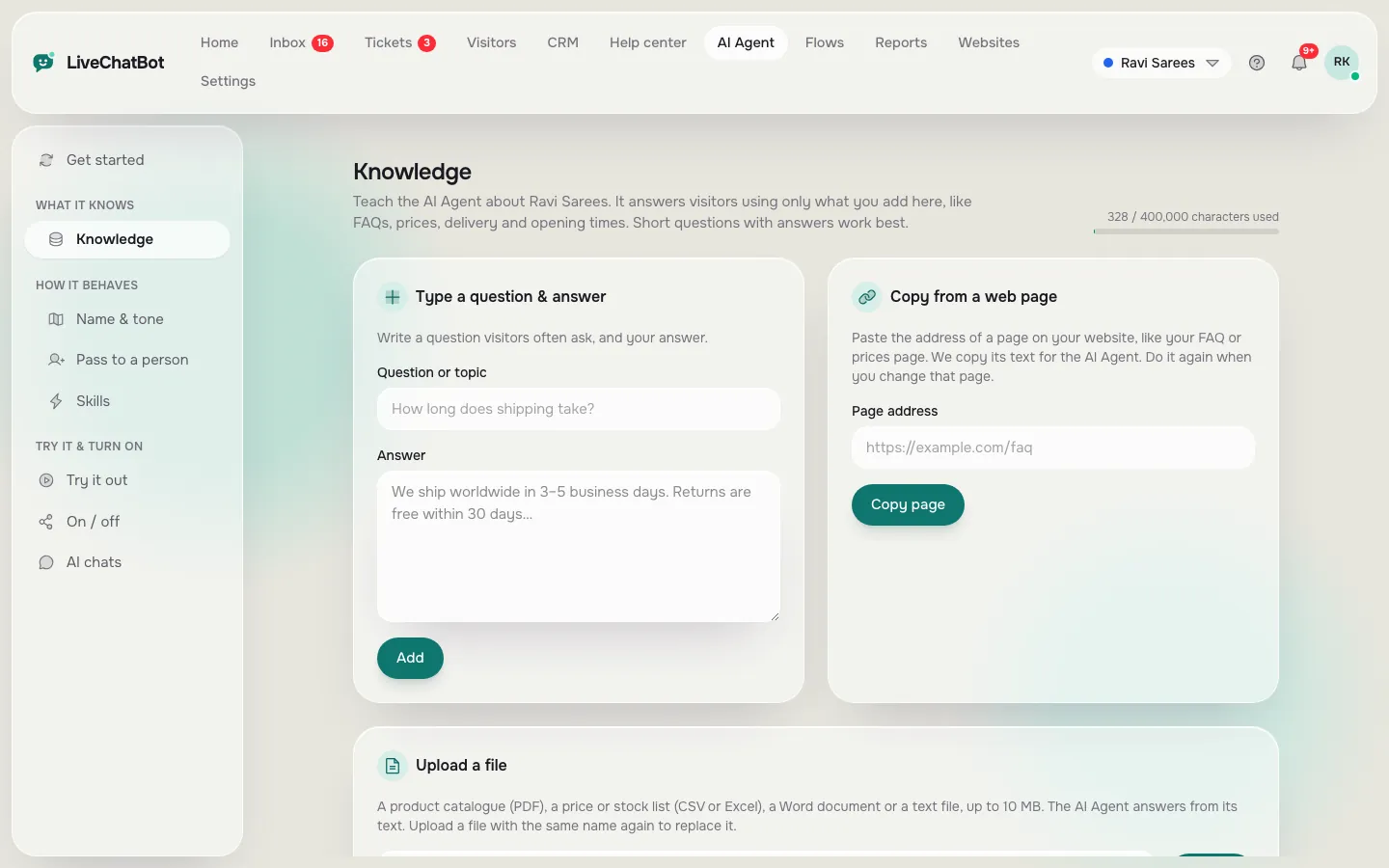
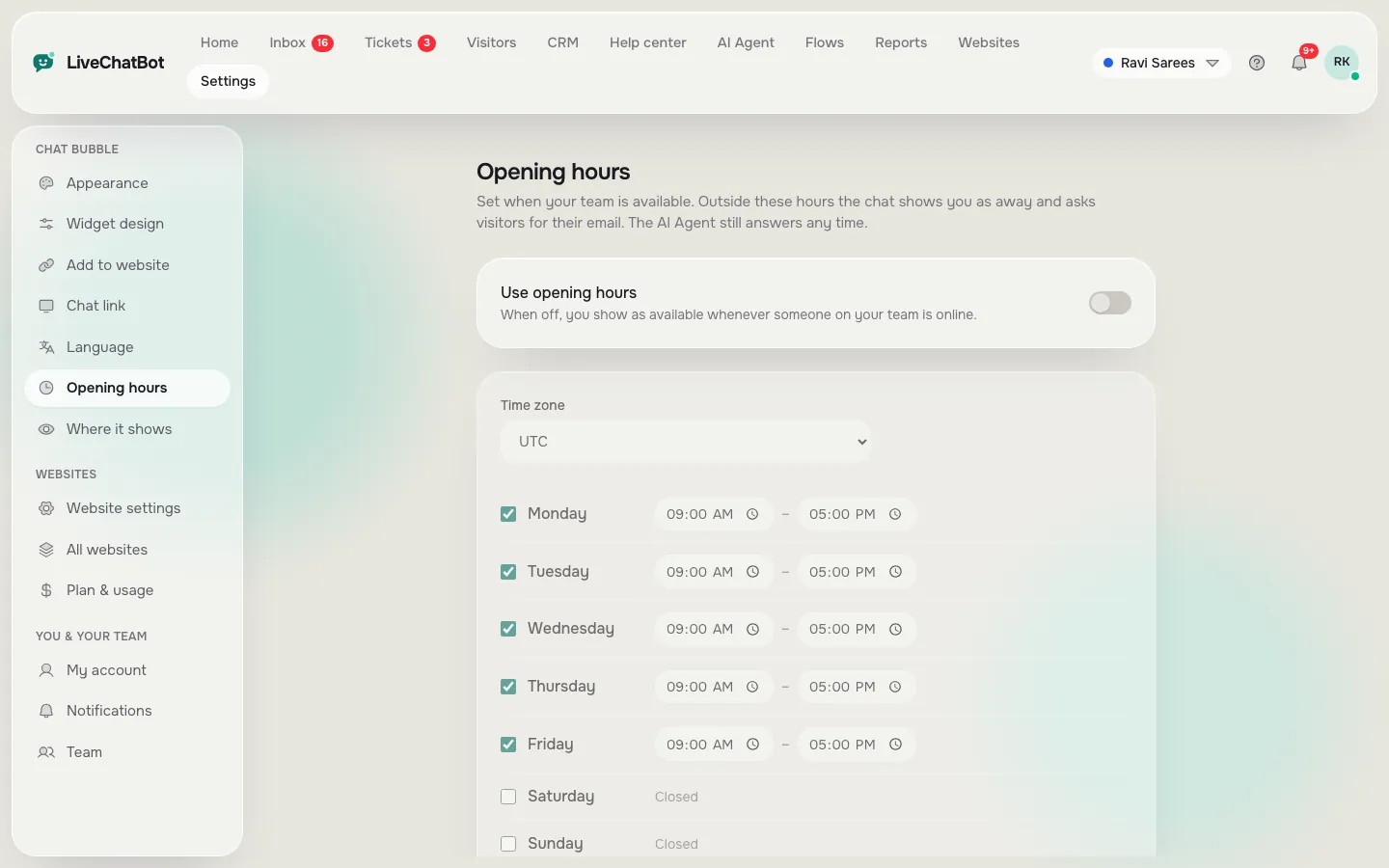
Days 3 and 4
Teach the answers, then set hours on your free website chatbot
Give the bot your twenty answers in two places and tell the widget when you are around.
Day 3: answers that sound like you
Add each of your twenty answers in two places. First, as saved replies the free keyword bot can send. Second, as knowledge for the AI Agent, where you can type answers, copy a web page, or upload a file such as a PDF or spreadsheet. For more on how to do that well, read how to train your AI chatbot.
Keep answers to two sentences.
Day 4: hours and the away form
Visitors arrive at 11 pm. Without an away form, they leave. Set your opening hours, then switch on the form that asks for an email or phone number. The next morning you have a lead waiting, not a missed chance. The steps are in how to set live chat opening hours.
Day 5
The handover: how a person joins your free website chatbot
A handover works when one named person gets a phone alert within seconds of the visitor asking for a human.
Pick the person, or the two people, who will get the alerts. Install the LiveChatBot Android app on their phone and allow notifications, so a visitor’s message arrives like a WhatsApp message.
Add a line to the greeting: “Ask me anything, or type ‘person’ to talk to the team.” If no one replies within seconds, the chat rescuer asks for an email and a phone number so the lead isn’t lost.
Write the handover rule on paper: who answers, by when, and what happens at night.
Your progress
Tick off the week as you go
A simple list to keep you honest. It only runs in your browser.
Days 6 and 7
Test your chatbot free for website visitors like a stranger, then tune it
Test with ten questions on your own phone, then improve the bot from the first real chats.
Day 6: the ten-question test
Open your site on your phone and play the customer. Ask four easy questions, three that need a handover, and three you never taught it. Note every wrong or empty answer.
The three unknown questions matter most. A good bot says it isn’t sure and offers to bring in a person. A bad one makes something up. If yours guesses, tighten the facts and use the Rules box in the AI Agent to say what it must never promise.
Day 7: go live and read
Open the inbox the next morning and read every chat. Add three new answers based on what people actually typed. If you want to turn those chats into leads, see how to collect leads with live chat.
Keeping it free
How to keep your free chatbot for a website inside the limits
The free plan counts visitors, not chats: 100 per website a month, on two websites.
The free plan counts visitors, not chats. You get 100 per website each month, and two websites.
Check the visitor count in the dashboard once a week. If you hit the limit, tracking and alerts continue, and new over-limit visitors can’t start a chat until the month resets or you add visitors.
When your traffic grows, the paid plans are Starter at ₹299 a month and Growth at ₹699 a month. Both are prepaid, with no auto-renew and no per-seat charges. Details are on the pricing page. Until then, a chatbot free for website use can be enough. For a wider look at what the plan holds, see our free live chat guide.
Original data: the maths
The free plan, worked out in hours and visitors
These numbers come from LiveChatBot’s own plan limits and a simple time budget, not from a survey. The visitor split and time per job are examples; swap in your own.
- Visitors: 100 per website a month is about 3 a day (100 divided by 30). Two websites give 200 a month in total, about 6 a day.
- Your time: seven jobs at 20 to 40 minutes is 140 to 280 minutes, so roughly 2.5 to 4.5 hours in a week.
- Chats: if 1 visitor in 10 starts a chat (an assumption; check your own), 100 visitors is about 10 chats a month, or one every three days.
- Cost: ₹0 on the free plan. The first paid step is Starter at ₹299 a month for 2 websites and 750 shared visitors, which is about 25 visitors a day.
The takeaway: at free-plan volume you will not be flooded. You can read every chat yourself, and that is the best training data you will get.
What most guides miss
Our rule: treat your first 100 visitors as a rehearsal
Most free-chatbot guides say “set it up and forget it”. We think that is backwards: the free limit is a gift, because your first 100 visitors are a small, safe audience to learn from.
The 3-for-3 test (5 minutes). Ask your bot three questions you deliberately never taught it. Pass means all three get an honest “I’m not sure” plus a way to reach a person. If even one gets a confident guess, fix the knowledge or add a line to the Rules box, and test again.
The 10-chat rule. After the first ten real chats, stop and read them all. Add one new answer per unanswered question, and delete any answer nobody asked for. Only then widen the chat to more pages.
This is the opposite of launching everywhere on day one, and it protects your name while the bot is still learning.
Frequently asked questions
Is there really a chatbot free for website owners with no card?
Yes. LiveChatBot’s free plan needs no card. It covers 2 websites with 100 visitors per website a month, and includes the inbox and the Android app.
Do I need a developer to install it?
No. You paste one code snippet into your site, or use the WordPress plugin.
Will the free chatbot answer wrongly?
It answers from the facts you give it. Test with questions you never taught it, and add a Rules line for anything it must never promise.
Can I remove the Powered by LiveChatBot label?
No. The label stays on every plan, including the free one.
What happens when I pass 100 visitors?
Tracking and alerts continue, but new over-limit visitors can’t start a chat until the month resets or you add visitors. Nothing is charged automatically.
Keep reading
Related guides
Chatbot for WordPress Free, Month Two Onwards: A Ten-Minute Monthly Upkeep Routine That Keeps Chat Useful (Free Upkeep Checklist)
More to read
More guides on this topic
Click to Chat Software: Count the Taps From Your Page to the First Message, and Cut Every Tap You Can
Start your seven days today
Free plan for two websites, no card and no per-seat charges. Set up your free chatbot on livechatbot.in.