Call Center Chat Software for a Phone Team: Add Chat Without Doubling the Workload (Shift Map and Honest Gaps)
Call center chat software has to fit a team whose day is built around phones, shifts and queues. A small support desk does not need a giant contact-centre suite. It needs one shared inbox, a clear owner for every chat, alerts that reach agents on the move, and a plan for who covers which hour. This guide shows how to add chat to a phone team, which jobs the software should do, and which big-centre features LiveChatBot does not have.
⚡ In short
- Chat is a different rhythm from calls: one agent can hold several chats, but each needs a quick first reply.
- Plan shifts first. Decide which hours a person answers, which a bot covers and where leads wait.
- Look for a shared inbox, clear ownership, saved replies, tickets and busy-hour reports.
- LiveChatBot has these. It has no skill-based routing, voice or single sign-on, so check your needs.
The shift
How chat changes the job of a phone team
A call takes one agent’s full attention. A chat does not. A trained agent can often handle two or three chats at once, because the visitor types, waits and types again. That is the main reason teams add chat: more people helped per hour.
The risk is the first reply, and good live chat practice starts there. A visitor who waits two minutes with no answer will leave. So the work is less about long conversations and more about fast starts: a prompt greeting, a saved reply, then the real answer.
Chat also leaves a written record. Every conversation can become a ticket, shared with a colleague, or handed on at the end of a shift, with no need to remember what was said on a call. If you are weighing chat for service in general, our guide to live chat for customer service covers the wider picture.
Must-haves
What call center chat software must do for a small team
One shared inbox
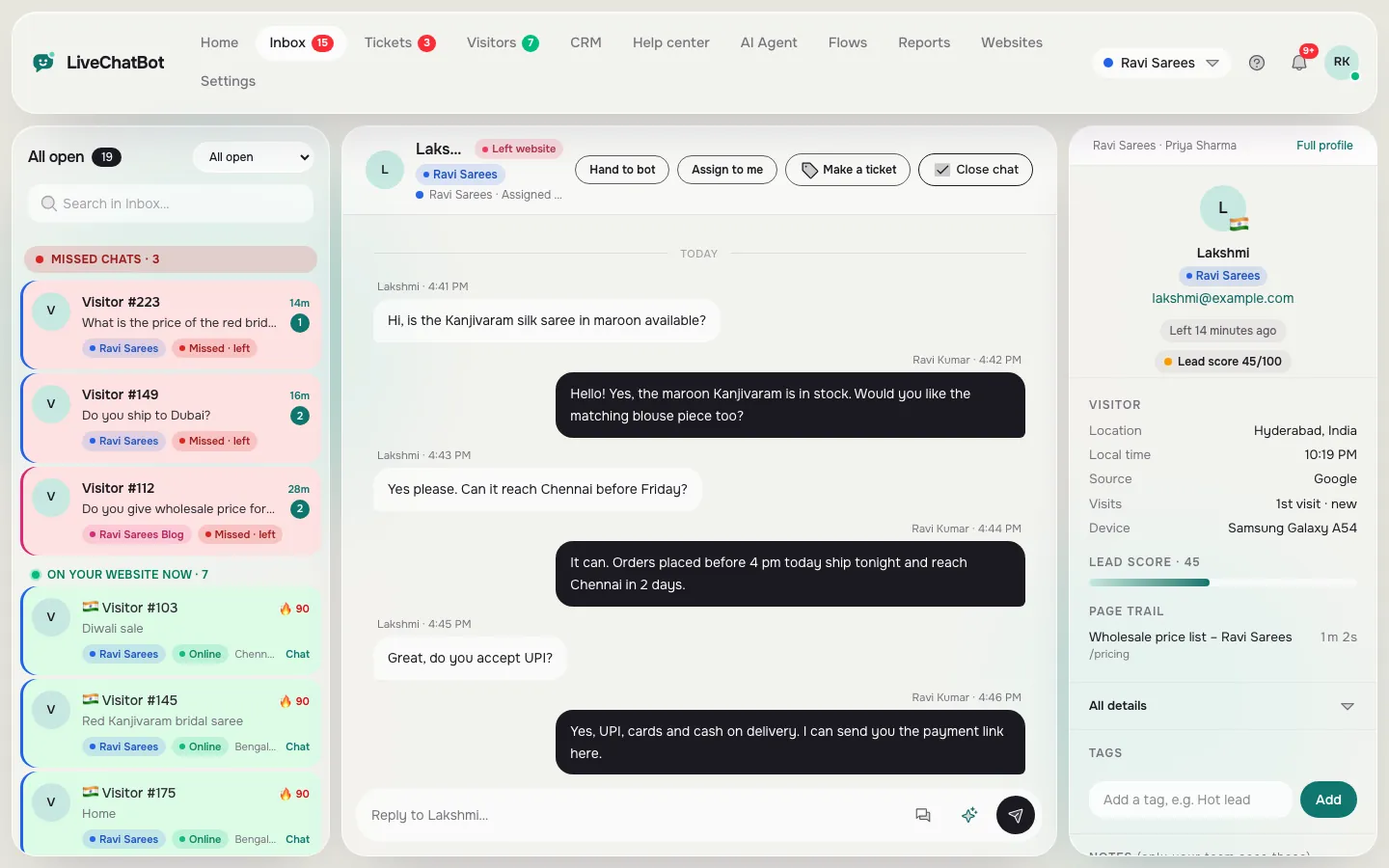
Everyone sees the same queue. In LiveChatBot, chats from the website, and WhatsApp and Facebook Messenger messages connected through Meta, arrive in one inbox, so the team does not hop between tools.
Clear ownership
Agents use Assign to me, and the inbox has Unassigned and Mine folders. Teams let you route chats to a group, with a My teams folder. Assignment is manual. There is no automatic round-robin or skill-based routing, so one person, often the shift lead, should watch the Unassigned folder.
Speed tools
Saved replies with {name} cut typing. A chat that sits unanswered triggers the chat rescuer, which asks the visitor for email and phone so the lead is kept.
Records and follow-up
Turn any chat into a ticket with an owner and a status of open, pending or solved. Customers get a ticket page with no login.
Shift map
Who answers when? A weekly coverage grid
A sample for a small desk open six days. Copy the idea, then change it to your own hours.
| Mon | Tue | Wed | Thu | Fri | Sat | Sun | |
|---|---|---|---|---|---|---|---|
| 9 am to 1 pm | Person | Person | Person | Person | Person | Person | Bot only |
| 1 pm to 6 pm | Person | Person | Person | Person | Person | Bot + email | Bot only |
| 6 pm to 10 pm | Bot + email | Bot + email | Bot + email | Bot + email | Bot + email | Bot only | Bot only |
| 10 pm to 9 am | Bot only | Bot only | Bot only | Bot only | Bot only | Bot only | Bot only |
After hours
Covering the hours your phone line is closed
A grid like the one above shows the gaps at a glance. Where no person is online, the aim is not a perfect answer. It is not losing the enquiry.
Set opening hours in the dashboard. Outside them, the widget shows an away form that collects an email or phone number, and offline messages can become tickets. Your morning shift then starts with a list of people to call back, which suits a phone team well. The AI Agent can also answer common questions from your knowledge while you are away; when its allowance is used up, the free keyword bot answers from saved replies.
Our guide to setting live chat opening hours has the exact steps. For handoffs between shifts, write one line in each ticket saying what is pending and who is next.
Real screens
Real screens for a support desk
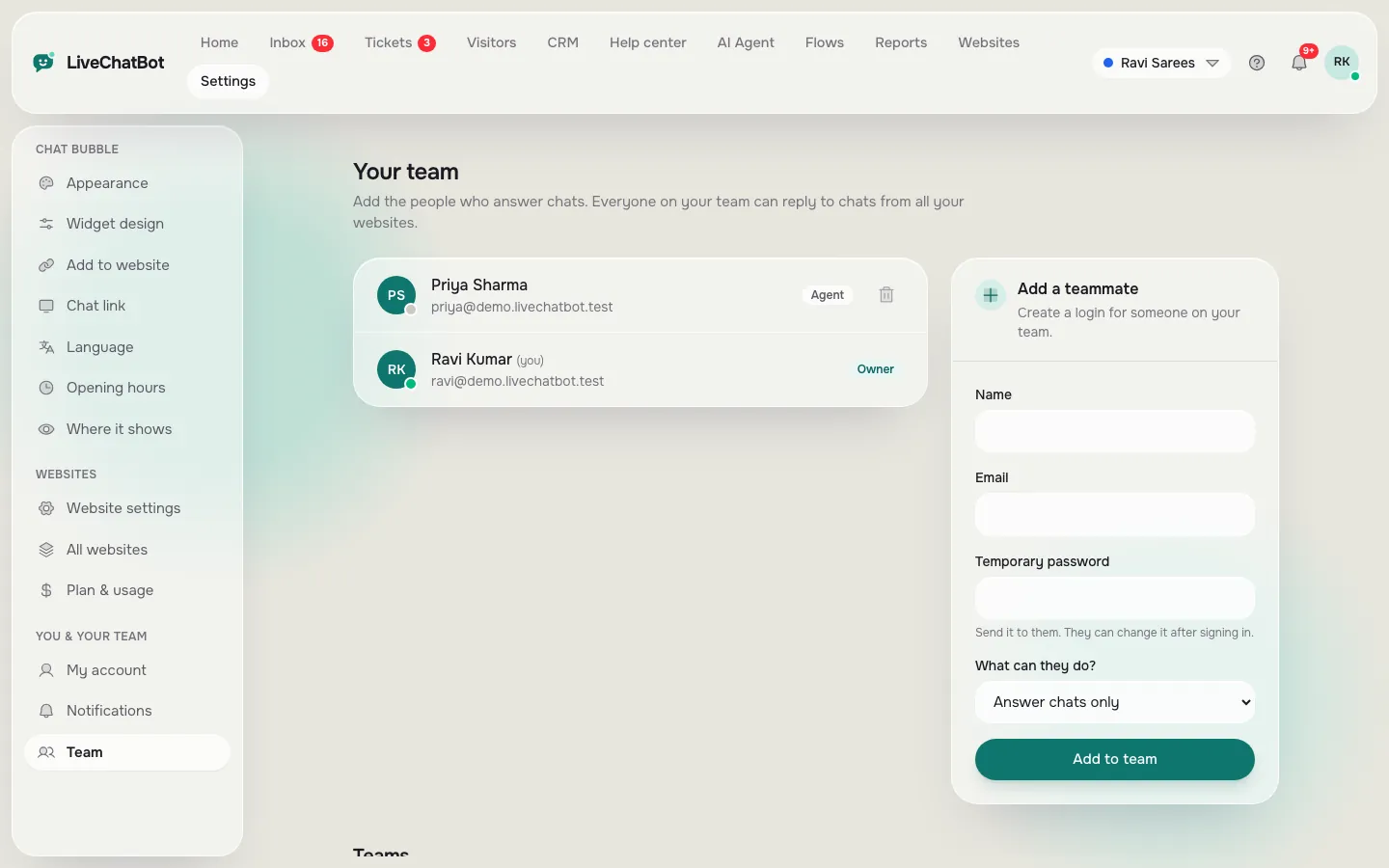
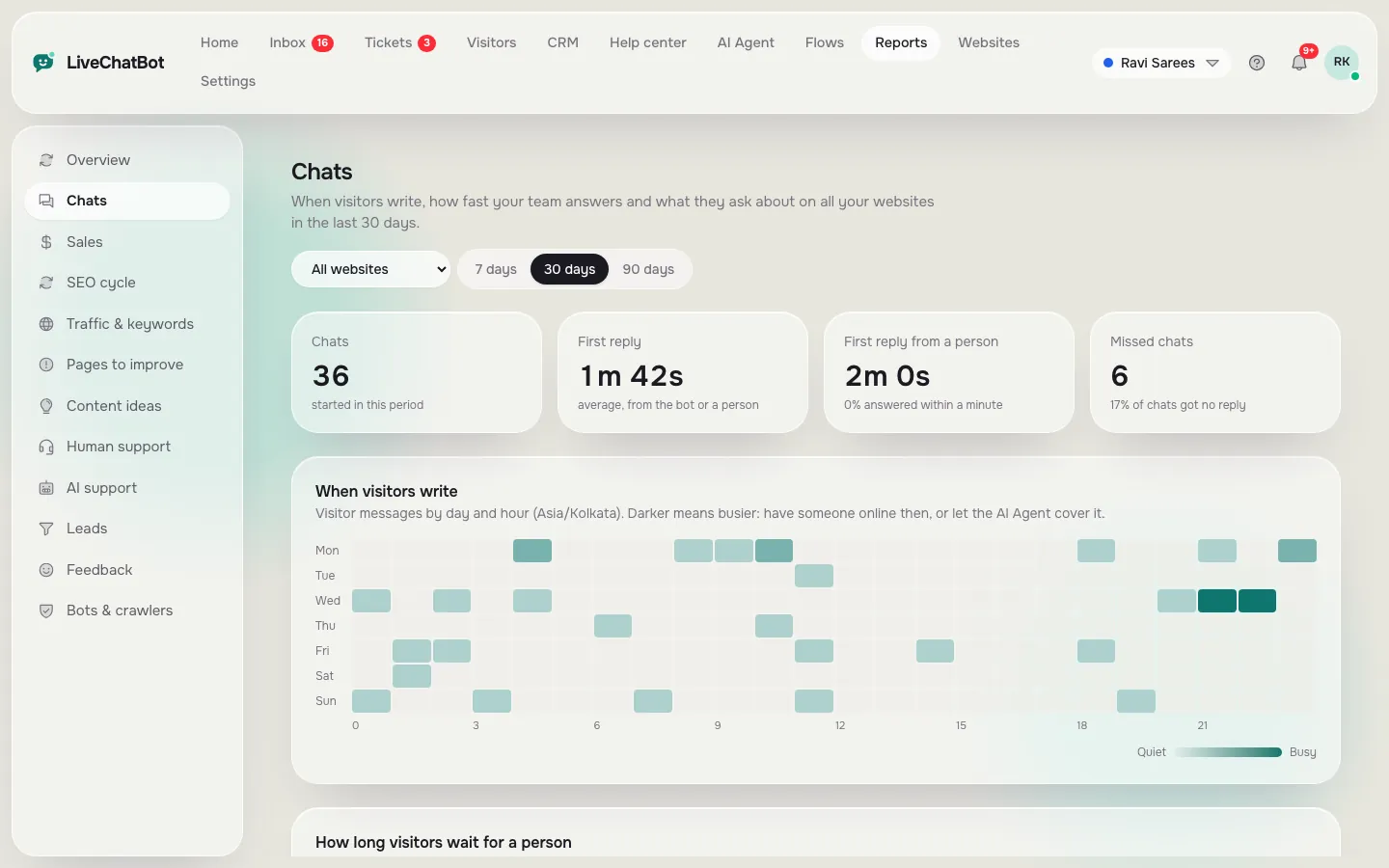
Real screens from the LiveChatBot panel, shown with sample data. Click any picture to see it full size.
Measuring
Numbers a phone team should watch once chat is on
Call centres already live by metrics. Chat needs only a few.
- First response time. The most important number. Aim to cut it steadily.
- Response rate. The share of chats that got a reply.
- Conversations per day and busy hours. The Chats report shows a busy-hour heatmap, which tells you where to put extra people.
- By agent. Assigned conversations and replies sent per agent.
- Resolved by AI. Chats the AI Agent answered without a person.
You can also turn on a thumbs up or down rating at the end of a chat. There is no custom report builder, scheduled report email or sentiment scoring, so for deeper analysis, send ticket events to a spreadsheet through Zapier or webhooks. For help desk basics, see our help desk software overview.
Rollout
A one-week rollout for call center chat software
Do not switch chat on for everyone at once. A phone team already has a full day.
Day 1. Create the account, install the chat code or WordPress plugin, and add team members. Put the Android app on each agent’s phone and test an alert.
Day 2. Write twenty saved replies from the questions your callers ask most. Phone agents know these by heart, so ask them to dictate the answers.
Day 3. Set opening hours and the away form. Write the greeting and the offline message.
Days 4 and 5. Run chat on two pages only, with one or two agents on it. Agents learn the rhythm of switching between a call and a chat before the volume rises.
Next week. Read the first response time, widen to more pages and add more agents. If many callers ask the same thing, a short chat flow on that page can answer before they dial.
Gaps
What this call center chat software does not have
Large centres often ask for features LiveChatBot does not offer. Be clear before you buy.
- No skill-based or round-robin routing.
- No voice, call recording or telephony features.
- No single sign-on, audit logs or role-permission builder.
- No native links to big CRM or help desk products; Zapier, webhooks and the REST API can bridge some.
- No iOS team app; iPhone users answer from a browser.
- “Powered by LiveChatBot” stays on every plan.
For the full feature list, see the live chat page. If your centre has hundreds of seats and strict compliance rules, you need a larger suite. If you have a team of two to twenty, the shared inbox, teams and tickets above are usually enough, and there are no per-seat charges.
Frequently asked questions
What is call center chat software?
It is software that lets a support team answer website visitors by text, in a shared inbox, with ownership, saved replies and reports.
Can one agent handle several chats?
Usually yes. Many agents manage two or three at once, as long as first replies stay fast. Watch response time to find your limit.
Does LiveChatBot route chats automatically?
No. Assignment is manual with Assign to me, Unassigned and Mine folders, plus teams for grouping. There is no round-robin or skill-based routing.
How much does it cost for a team?
There are no per-seat charges. The free plan is ₹0, Starter is ₹299 a month and Growth is ₹699 a month, based on websites and visitors.
Can agents answer from their phones?
Yes, through the Android app. There is no iOS team app, so iPhone users reply from a browser.
Keep reading
Related guides
Build Your Own Chatbot Starting With Keywords: 15 Saved Replies That Become a Working Bot Before You Add AI
Add chat to your phone team
Start free on livechatbot.in with a shared inbox, tickets and an Android app for your agents.