Best Free Live Chat for WordPress Is One You Can Undo: A 30-Minute Trial on a Copy of Your Site Before Anything Goes Live (Free Trial Checklist)
Best free live chat for WordPress is easy to find and hard to judge, because every tool looks good in its own screenshots. The safer way to choose is to try it on a copy of your site, tick through a short list of checks, and only then switch it on for real visitors. This guide gives you that 30-minute trial, the checks that matter, and a tickable checklist you can work through while you test.
⚡ In short
- Never test a new plugin on your live site first. Use a staging copy or a quiet local install.
- A good free tool is easy to remove: switch it off and your site looks exactly as before.
- Run the same short checks on every candidate so the comparison is fair.
- LiveChatBot can be tried free on two websites with no card and no per-seat charge.
Why a trial copy
Why the best free live chat for WordPress should be tested on a copy first
A chat plugin loads on every page. If it clashes with your theme, your cache plugin or your checkout, your visitors are the ones who find out. That is a poor way to run a test.
A staging copy is a duplicate of your site that only you can see. Many hosts offer one with a single click. If yours does not, a free local install on your computer works too, or you can test on a spare subdomain. The point is that mistakes stay invisible.
What a copy cannot tell you
A copy will show you whether the plugin installs, whether the bubble appears and whether pages break. It will not show real visitor behaviour or real server load under traffic. For those, you watch the live site carefully for the first few days after launch.
The undo rule
Before you install anything, decide how you will get out. Switching the plugin off in the Plugins screen should remove the bubble from every page. Write that down as your pass-or-fail test.
The trial
The 30-minute trial, in four rounds
Keep a timer running. If a tool needs more than half an hour to show you a working chat, that tells you something too.
Round 1: Install (10 minutes)
Create an account, add your website and install the plugin on the copy. With LiveChatBot you sign up at livechatbot.in, add your site and connect it. The WordPress live chat plugin page explains the connection step by step.
Round 2: Look (5 minutes)
Open five pages: home, a blog post, a product or service page, the contact page and, if you have one, checkout. Check the bubble sits where it will not cover a button.
Round 3: Talk (10 minutes)
Send a chat from a phone. Reply from the inbox. Then send another and leave it unanswered, to see what a visitor sees when nobody replies.
Round 4: Undo (5 minutes)
Deactivate the plugin. Reload the same five pages. The bubble should vanish and nothing else should change.
Try it
Tick through the trial as you go
Work down the list on your staging copy. A tool that cannot tick every box is not the best free live chat for WordPress for you.
Real screens
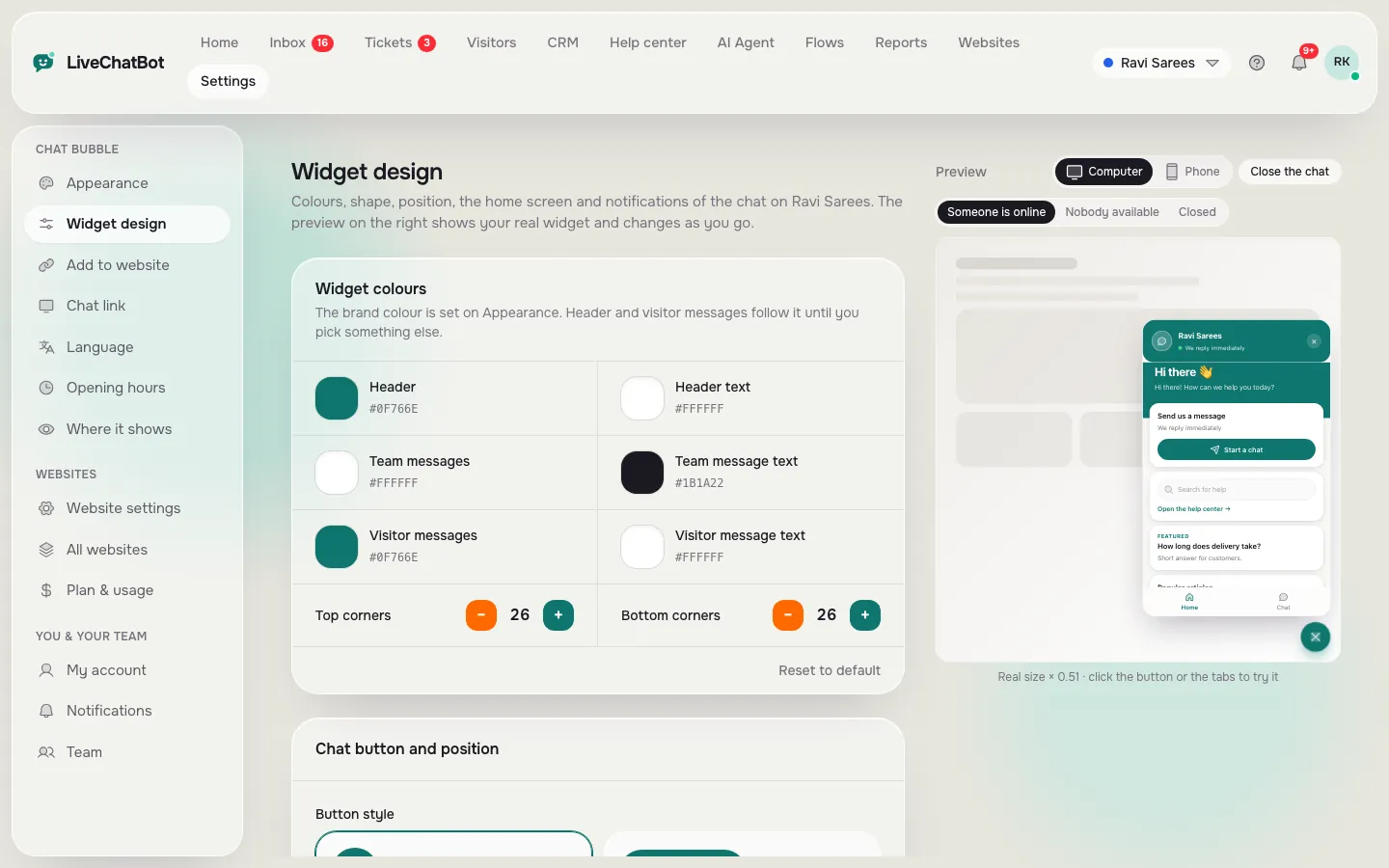
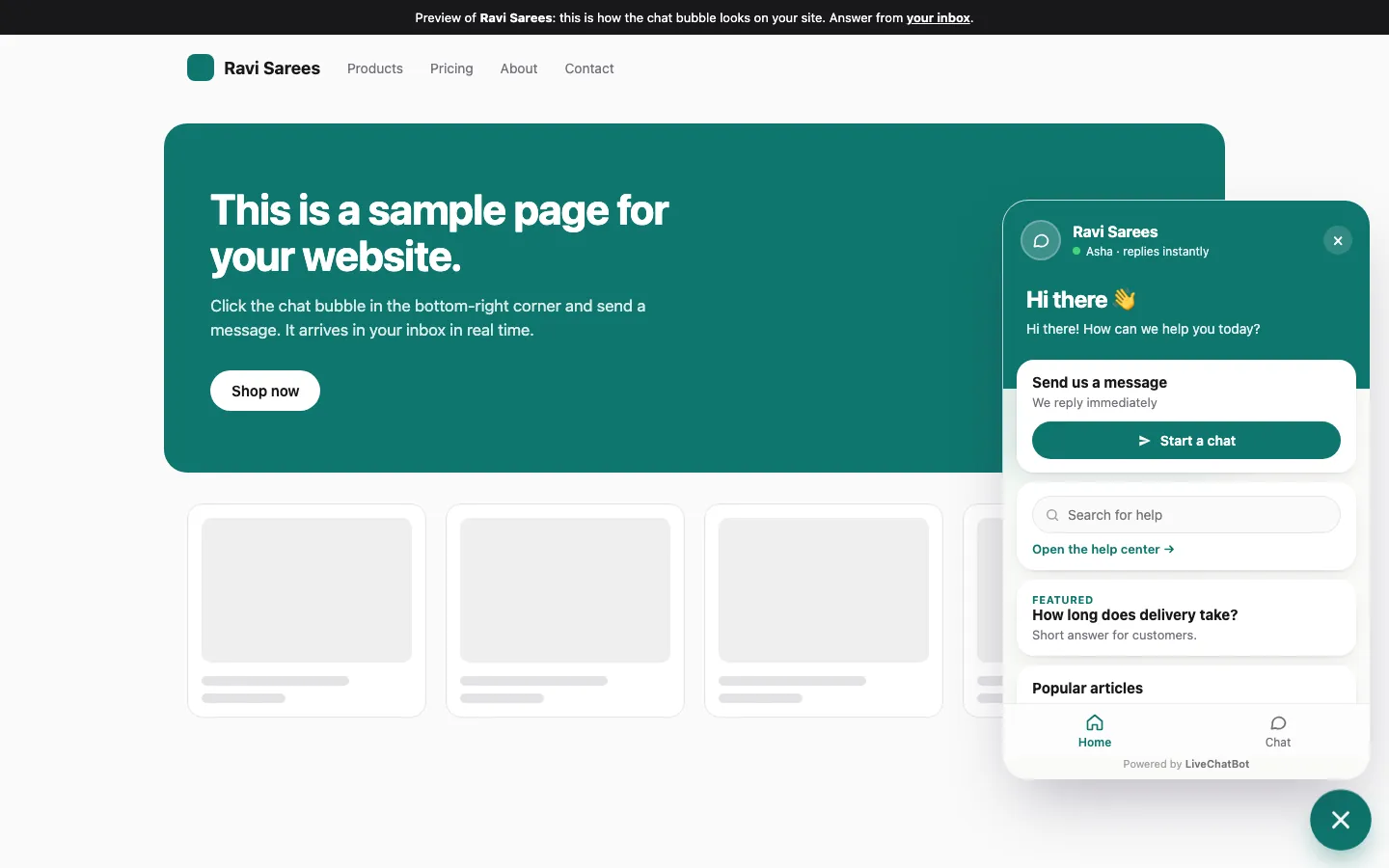
Install, design and the finished chat on a website
Real screens from the LiveChatBot panel, shown with sample data. Click any picture to see it full size.

Reading the result
How to read your trial result
If you tick all ten, you have a tool that is safe to put live. If you miss one or two, ask which ones. A bubble that covers a button is a settings fix. A page that loads slowly with the plugin on is a real problem, and worth repeating the test before you decide.
Be most careful with these:
- Speed. Compare timings on a page with and without the plugin. Time it three times and take the middle number, and read our WordPress chat box plugin checks for more.
- Conflicts. If another plugin breaks, deactivate the others one by one. Then switch them back on one at a time to find the culprit. Also test on a phone: our mobile-friendly check lists what to look for.
- Undo. A tool that leaves code behind after you switch it off is not one you want.
Run this check on every candidate, including ours, and trust what you see rather than what a feature list says.
What free covers
What the free plan includes, and what it does not
The LiveChatBot free plan gives you two websites and 100 visitors per website each month. The shared inbox, Android app, Flows, tickets, saved replies, a free keyword bot and AI replies with a monthly allowance are all part of it. There are no per-seat charges.
Paid plans are optional. Starter is ₹299 a month (about 3 to 4 US dollars, check today’s rate) with 750 visitors shared across two websites. Growth is ₹699 a month with 2,500 visitors shared across five. Plans are prepaid, with no automatic charges.
Be aware of the gaps. “Powered by LiveChatBot” stays on every plan, there is no iOS team app and there is no voice chat. If those matter, say so before you install. See pricing for the details.
After launch
Go live carefully, then watch for a week
Once the trial passes, repeat the install on your live site at a quiet time. Open the same five pages immediately and send one more test chat.
For the first week, check three things each day: that chats arrive, that your page speed has not dropped, and that no visitor has complained about a covered button. If something looks wrong, deactivate the plugin and you are back where you started.
If you want a view of the whole free tier before you commit, read our free live chat guide.
Frequently asked questions
What is the best free live chat for WordPress?
The best free live chat for WordPress is one that installs cleanly, shows on the right pages, reaches your phone quickly and can be switched off without leaving a trace. Test candidates on a copy of your site with the same checks.
Do I need a staging site to try a chat plugin?
It is the safest route, but a spare subdomain or a local install works too. The goal is to keep mistakes away from real visitors.
Will a chat plugin slow my WordPress site?
Any script can. Compare one page’s load time with and without the plugin before you go live.
Is LiveChatBot really free for WordPress?
Yes. The free plan covers two websites with 100 visitors per website each month. Paid plans are optional and prepaid.
Can I remove the Powered by LiveChatBot line?
No. It stays on all plans.
Keep reading
Related guides
Best Free Live Chat Apps for Android: Two Different Apps Hide Behind the Search, and You Need to Pick the Right One (Free Decision Tree)
Best Free Chatbot Plugin for WordPress: Read the Fine Print on What Free Really Means (Free Scorecard)
Try it on a copy first
Start free on livechatbot.in and run the 30-minute trial on your staging site.