Best Chatbot for Webflow Websites: Score Your Shortlist on Six Designer-Friendly Criteria, Including Page Speed and Custom Code (Free Scorecard)
Best chatbot for Webflow websites should be judged the way you judge anything else on a Webflow build: does it load fast, look clean and stay out of the way of your design? Feature lists miss all of that. This guide gives you six criteria that matter to designers and freelancers, a scorecard you can fill in for up to three tools, and a plain account of how LiveChatBot adds to Webflow.
⚡ In short
- Webflow owners care about speed, clean design and control, so judge chat tools on those first.
- LiveChatBot has no Webflow app. You paste its snippet into custom code, which needs a Webflow plan that allows it.
- Score up to three tools on six criteria, weighting what matters most for this client or site.
- Always test the published site on a phone, because the Webflow designer view hides custom code.
Why it differs
What makes the best chatbot for Webflow websites a designer’s decision
Webflow users build pixel-careful sites, often for clients. A chat widget lands on top of that work. If it is slow, clumsy or covers a call-to-action, the whole page looks worse and the client notices.
So the usual buyer checklist, with its lists of channels and integrations, misses the real questions. How much weight does the script add? Can you move and colour the widget to match the brand? Can you control which pages show it? What happens in the dashboard when the client wants to change a welcome line?
On Webflow, a chat tool reaches the page through custom code in site settings or an embed element. LiveChatBot uses that route. Our guide to the Webflow chatbot timeline covers the steps, and the designer mistakes guide lists what to avoid.
Try it
Score your shortlist on six criteria
Rename the three tool names to your shortlist, set how much each criterion matters to you, then score each tool from 0 to 5. The highest total is outlined.
Test the published page on a slow phone connection before and after adding the snippet.
Importance Score Score Score
Colour, position, name, avatar and welcome text you can match to the design.
Importance Score Score Score
Show or hide chat on chosen pages, so it never covers a key button.
Importance Score Score Score
Replies come from facts you write, with a clean handover to a person.
Importance Score Score Score
A client can change text and read chats without touching Webflow.
Importance Score Score Score
Know the yearly cost for your traffic, with no automatic charges.
Importance Score Score Score
Speed test
A ten-minute speed and layout test for the best chatbot for Webflow websites
Before and after
Open your published page in a private window on a phone using mobile data. Note how long the main content takes to appear. Add the snippet, republish and repeat three times. If the page feels slower, remove the snippet and tell the vendor.
Layout check
Look at the widget beside your sticky header, cookie banner and call-to-action. On small screens the chat button must not sit on top of a form field or a buy button. Move it to the other corner if it does.
Interaction check
Send a test message from the site and watch how long your phone takes to alert you. Then ask a question the bot was never taught and confirm it offers a person, not a guess.
Reading the score
How to use the scorecard for the best chatbot for Webflow websites without fooling yourself
A scorecard is only as honest as its inputs. Three habits keep it useful.
Score from a test, not a brochure. Page weight, handover speed and widget position can all be checked in ten minutes on a free account. Do that, then score.
Weight what the client cares about. A restaurant cares about opening hours and a WhatsApp number. A SaaS landing page cares about speed and lead capture. Change the importance sliders for each project and the answer will change too.
Treat close scores as a tie. If two tools are within a few points, choose the one with the clearer pricing, because the cost surprise is the one you cannot undo.
Adding it
How LiveChatBot goes onto a Webflow site
There is no Webflow app. You copy one snippet from the LiveChatBot dashboard and paste it into your site's custom code settings in Webflow, in the footer area so it loads after your content, then publish. Custom code in site settings generally needs a paid Webflow site plan, so check your plan in Webflow first.
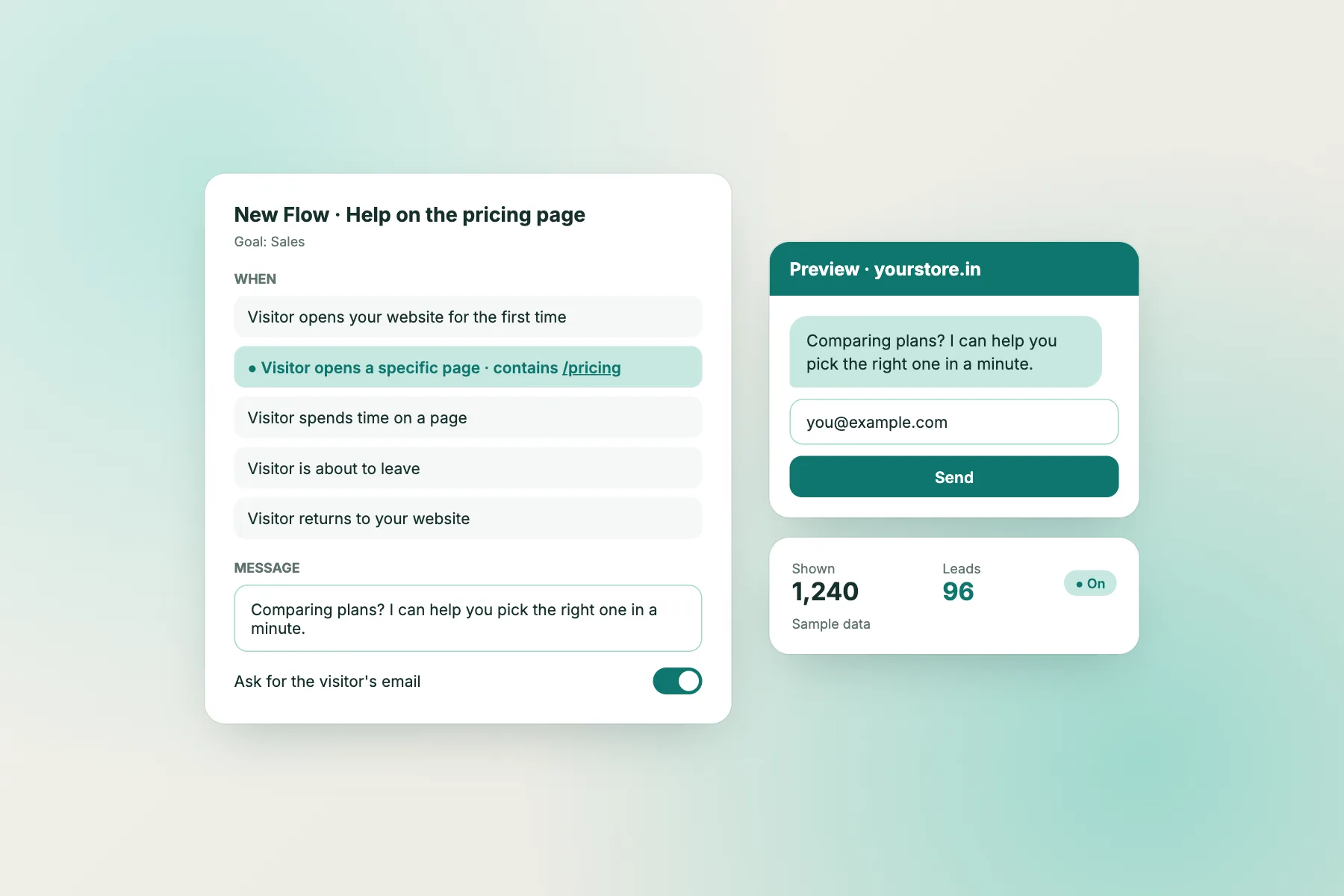
After publishing, open the live site on your phone. If you do not see the widget, re-check that the code was saved and the site republished. Then set colours and text from the LiveChatBot widget settings and use Flows to show chat only on pages where it helps.
Handover to a client
Give the client control without giving them Webflow
A good freelance delivery means the client can run the chat without calling you.
- Invite the client as a team member in LiveChatBot. There are no per-seat charges.
- Show them the inbox and the Android app so they get alerts.
- Write the first ten answers together and store them in the AI Agent.
- Show them how to edit a fact when a price changes.
Because LiveChatBot's dashboard is separate from Webflow, the client edits chat text without touching your design. One caution: do not promise the client a badge-free widget. The "Powered by LiveChatBot" credit stays on every plan.
Honest limits
Where LiveChatBot does not fit a Webflow project
It is not a Webflow app, it does not read Webflow CMS or ecommerce data, and there is no WhatsApp inbox or iPhone team app. There are no single sign-on, audit logs or staff roles. For a high-security client these may rule it out, so say so early.
On cost, the free plan covers two websites and 100 free visitors per website each month. Visitor packs are one-time and never expire: 100 for ₹99, 500 for ₹299, 1000 for ₹499. An extra website is ₹199 for six months. Nothing charges automatically. See pricing.
Frequently asked questions
What is the best chatbot for Webflow websites?
The one that scores best on your own criteria: speed, brand fit, page control, honest answers, client handover and clear cost. Use the scorecard above.
Does LiveChatBot have a Webflow app?
No. You paste a snippet into Webflow's custom code settings and publish. Check that your Webflow plan allows custom code.
Why can't I see the chat in the Webflow designer?
Custom code usually shows only on the published site. Open the live page on a phone and a laptop to check.
Can a client manage the chat without Webflow access?
Yes. They use the LiveChatBot dashboard and Android app. There are no per-seat charges for added team members.
Can I hide the Powered by LiveChatBot credit?
No. It stays on every plan, so don't promise a badge-free widget to a client.
Keep reading
Related guides
Best Chatbot for Wix Websites Is Decided Before You Install It: A Six-Stage Plan From Wix Plan Check to First Real Chat (Free Timeline)
Best Chatbot for Squarespace Websites: Score Your Options on the Seven Things a Squarespace Owner Actually Has to Live With (Free Scorecard)
Best Chatbot for Shopify Stores Depends on What the Store Sells: Fashion, Handmade, Gadgets or Digital, and the Setup for Each (Free Decision Tree)
Try it on your Webflow build
Free plan for two websites, no per-seat charges and one-time visitor packs. Start free on livechatbot.in.