Best Chat Plugin for WordPress Free to Install Safely: A Backup, Staging and Rollback Checklist Before You Click Activate (Free Safe-Install Checklist)
Best chat plugin for WordPress free is a search about price, but the real risk of a free plugin is not the price. It is the moment you click Activate on a live site with no backup and no way back. A plugin can clash with your theme, slow a page or break a form. This guide shows how to install any free chat plugin safely, in a few small steps, and how to undo it in two minutes if something goes wrong.
⚡ In short
- The best chat plugin for WordPress free of charge still needs care: a bad install can cost you a day of lost orders.
- Take a backup first, test on a copy if your host offers one, and write down the undo steps before you activate.
- After activating, check five things in ten minutes: front page, forms, checkout, mobile and speed.
- A chat that loads from a small script is easier to remove than one that rewrites your pages.
The real risk
Free does not mean harmless: what can go wrong on a live site
When people look for the best chat plugin for WordPress free of charge, they compare features. Few ask what happens if the install goes badly. These are the common problems:
- A clash with another plugin. Two plugins load the same library, and a menu or form stops working.
- A slower page. Extra scripts add weight, especially on a phone with a weak signal.
- A broken layout. The chat button sits on top of your cookie banner or a call-to-action.
- A white screen. Rare, but it happens when a plugin needs a newer PHP version than your host runs.
None of these is a reason to avoid chat. They are reasons to install carefully. For the full picture of how the plugin works, see our WordPress live chat plugin guide, then use the checklist below for the install itself.
Before you click
Step one: make a way back before you install anything
Take a backup
Most hosts have a one-click backup in the control panel. Use it. If yours does not, a free backup plugin works. A backup you have never restored is a hope, not a plan, so check that the file exists and has today’s date.
Use a staging copy if you can
Many hosts offer a staging site: a private copy of your website. Install the plugin there first, run the checks, and only then repeat it on the live site. If your host has no staging, install at a quiet hour, such as early morning, when few visitors are on the site.
Write down the undo
Write one line: “If it breaks, deactivate the plugin in Plugins, or rename its folder over FTP.” Having it written down saves you from searching in a panic.
Try it
Your safe-install checklist
Tick each step as you do it. The bar shows how ready you are to click Activate.
Real screens
The install page, and the chat on a live site
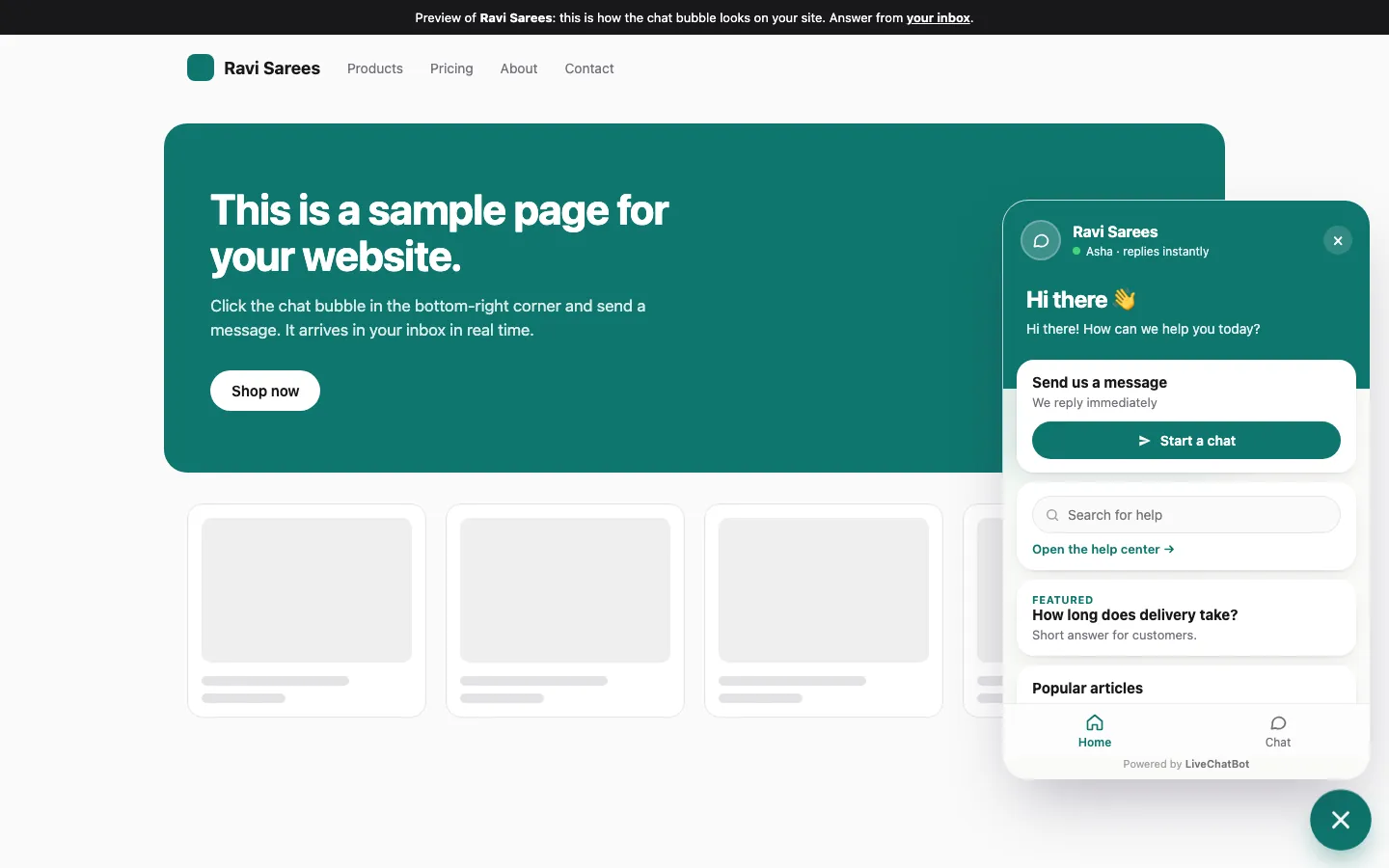
Real screens from the LiveChatBot panel, shown with sample data. Click any picture to see it full size.

After you click
Step two: ten minutes of checks after activating
Do these in order, with the site open in a private window so that you see what visitors see.
- Front page. Does it look the same, with the chat button in the corner?
- Mobile. Open it on a phone. Does the button cover your menu or call-to-action? You can change position, devices and pages in the widget settings.
- Forms. Send a test message through your contact form. LiveChatBot’s plugin also catches Contact Form 7, WPForms, Elementor Pro, Gravity, Fluent and Ninja Forms submits as leads, so confirm the form still sends its normal email too.
- Cart or booking. Run one test order if you sell anything. The plugin works with WooCommerce.
- Speed. Compare your busiest page with the number you wrote down earlier.
If any check fails, use your written undo line, then try the code-snippet method instead. Our website chat widget page compares the two routes.
Rolling back
Step three: how to undo a bad install in two minutes
The quick way
Go to Plugins, find the chat plugin and click Deactivate. The chat disappears at once and your site returns to how it was. Nothing is deleted, so you can try again later.
If you cannot log in
If a white screen blocks the dashboard, open your host’s file manager or FTP, go to the plugins folder and rename the plugin’s folder by adding “-off” to its name. WordPress switches it off the next time a page loads. Then log in, and decide whether to delete it.
Then restore only if needed
A backup restore is the last step, not the first, because it also rolls back any orders or comments received since the backup. Use it only if deactivating did not help.
Free means what?
What the free plan includes when you choose the best chat plugin for WordPress free of charge
Install risk is one question. The other is what you get without paying. On LiveChatBot’s free plan you get two websites and 100 visitors per website each month, the chat widget, the shared inbox, the Android app, visitor tracking, Flows, opening hours with an away form, tickets and saved replies. There are no per-seat charges.
Paid plans start when you need more visitors: Starter is ₹299 a month for 2 websites and 750 visitors, and Growth is ₹699 a month for 5 websites and 2,500 visitors, shared across them. Plans are prepaid, with no automatic charges.
The things it does not give you on any plan: removing “Powered by LiveChatBot”, an iOS team app, or single sign-on. See the pricing page for the details. Our free live chat guide and the free-limit planning guide for WordPress explain what happens when you outgrow the limit.
Frequently asked questions
Is a free chat plugin safe for my WordPress site?
It can be, if you install it with a backup, check your key pages afterwards and know how to deactivate it. The risk is in the install, not the price.
What is the best chat plugin for WordPress free of charge for a small shop?
One that works with WooCommerce, answers after hours and does not slow checkout. Test those three on a staging copy before you decide.
Do I need a developer to install it?
No. Installing from the Plugins page takes a few minutes. A developer only helps if two plugins clash or your host has an old PHP version.
Can I use the code snippet instead of the plugin?
Yes. You can paste the snippet into your theme or a header plugin. Both routes show the same chat.
Will deactivating the plugin delete my chats?
No. Your chats live in your LiveChatBot account, not inside WordPress, so deactivating only removes the widget from your site.
Keep reading
Related guides
Best Chat for WordPress Is Proven in Your First Week: Install, Watch Seven Days, Then Keep or Switch (Free Week-One Timeline)
Best Chat Support Software Is Judged After the Chat Ends: Test Offline Messages, Tickets, Owners and Follow-Ups Before You Choose (Free Follow-Through Scorer)
Install it the safe way
Free plan for two websites, no per-seat charges. Start free on livechatbot.in.