Adding Chat to Website Plans: Are You Ready? Four Questions About People, Hours and Words Before You Touch the Code (Free Readiness Quiz)
Adding chat to website pages is the quick part: one line of code or one plugin. The slower part is deciding who answers, when, and what the chat says. Businesses that skip this step end up with a bubble nobody watches. This guide covers the three things to settle first, a short quiz to find your weakest spot, and then the install itself.
⚡ In short
- The technical side of adding chat to a website is small. The decisions about people, hours and words are bigger.
- Settle who answers, when they answer, and what happens outside those hours.
- Write your welcome text and your ten most common answers before you switch chat on.
- Take the quiz to find your weakest spot, then install in about ten minutes.
Three decisions
Before adding chat to website pages, settle these three things
Who answers
Name a person, even if that person is you. Chat alerts go to people, not to departments. Decide who is on duty and what phone they use. LiveChatBot has no per-seat charges, so adding a second person later costs nothing extra.
When they answer
Pick real hours, not hopeful ones. A shop that closes at 7 pm should not show as available at 9 pm. Outside your hours, the away form takes over and collects an email or phone number, so the visitor is not left talking to nobody.
What the chat says
Write the welcome line, the away line and the answers to your top questions: price, delivery, returns, timings, booking. These become the knowledge for the AI Agent and the saved replies for your team.
None of this needs a developer. It needs half an hour with a notebook, and it separates a chat that earns enquiries from one that collects dust.
Try it
How ready are you for chat?
Four questions, no sign-up, nothing saved. The answer shows the one area to strengthen first.
The install
Adding chat to website platforms: the technical bit
Whichever platform you use, adding chat to a website follows the same idea. Create your account, copy the widget code, and place it on your pages once. After that, every change happens in the dashboard.
- WordPress: use the plugin. The WordPress live chat plugin guide covers it step by step.
- Plain HTML: paste the code before the closing body tag of your template.
- Shopify, Wix and Squarespace: paste the code into the custom code area. There is no Shopify App Store app, so this is a connect-and-paste job.
- Joomla, React and Vue: there is an extension for Joomla and plugins for React and Vue.
For a deeper platform-by-platform comparison, see chat widget for website installation and our wider live chat overview.
Real screens
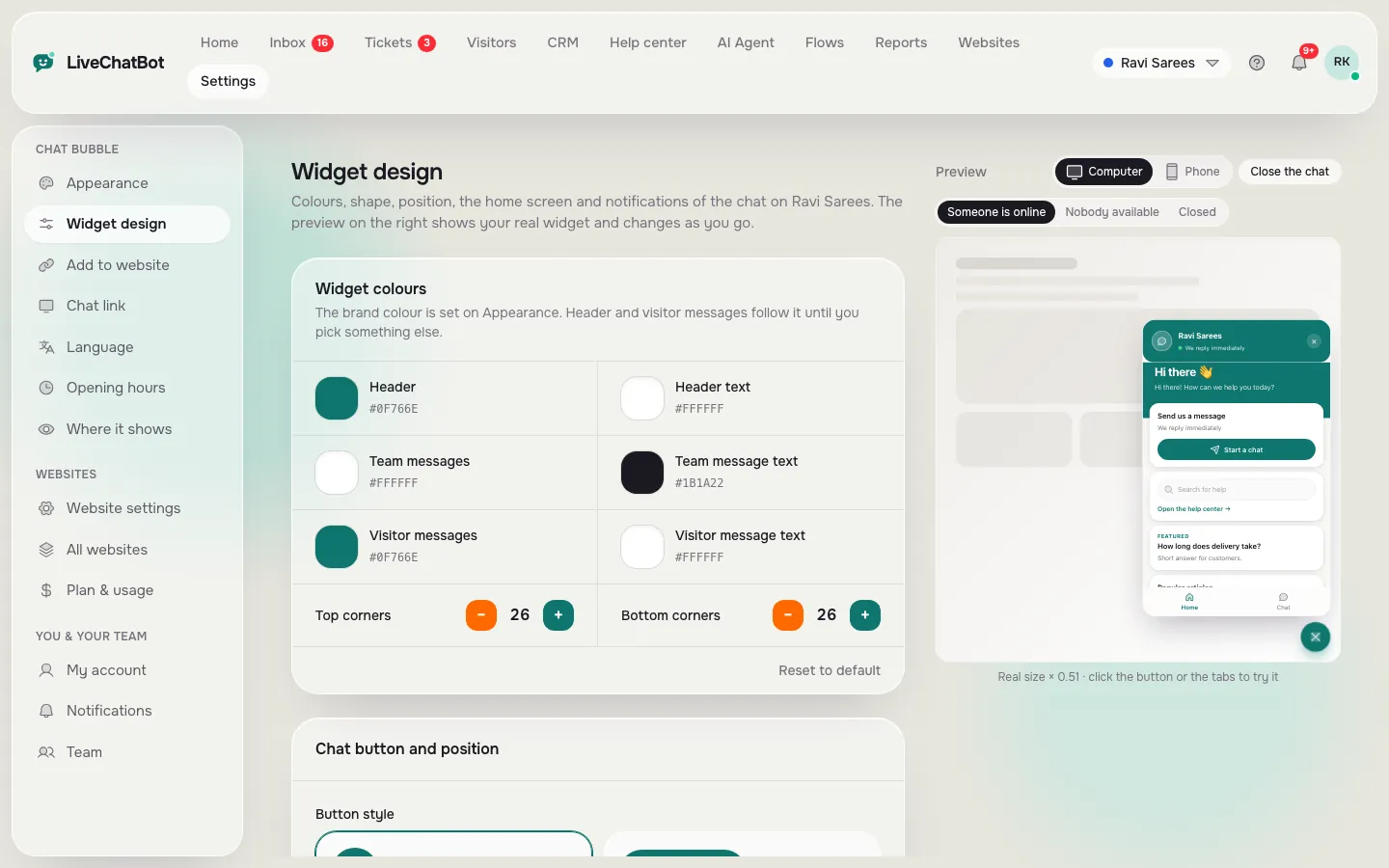
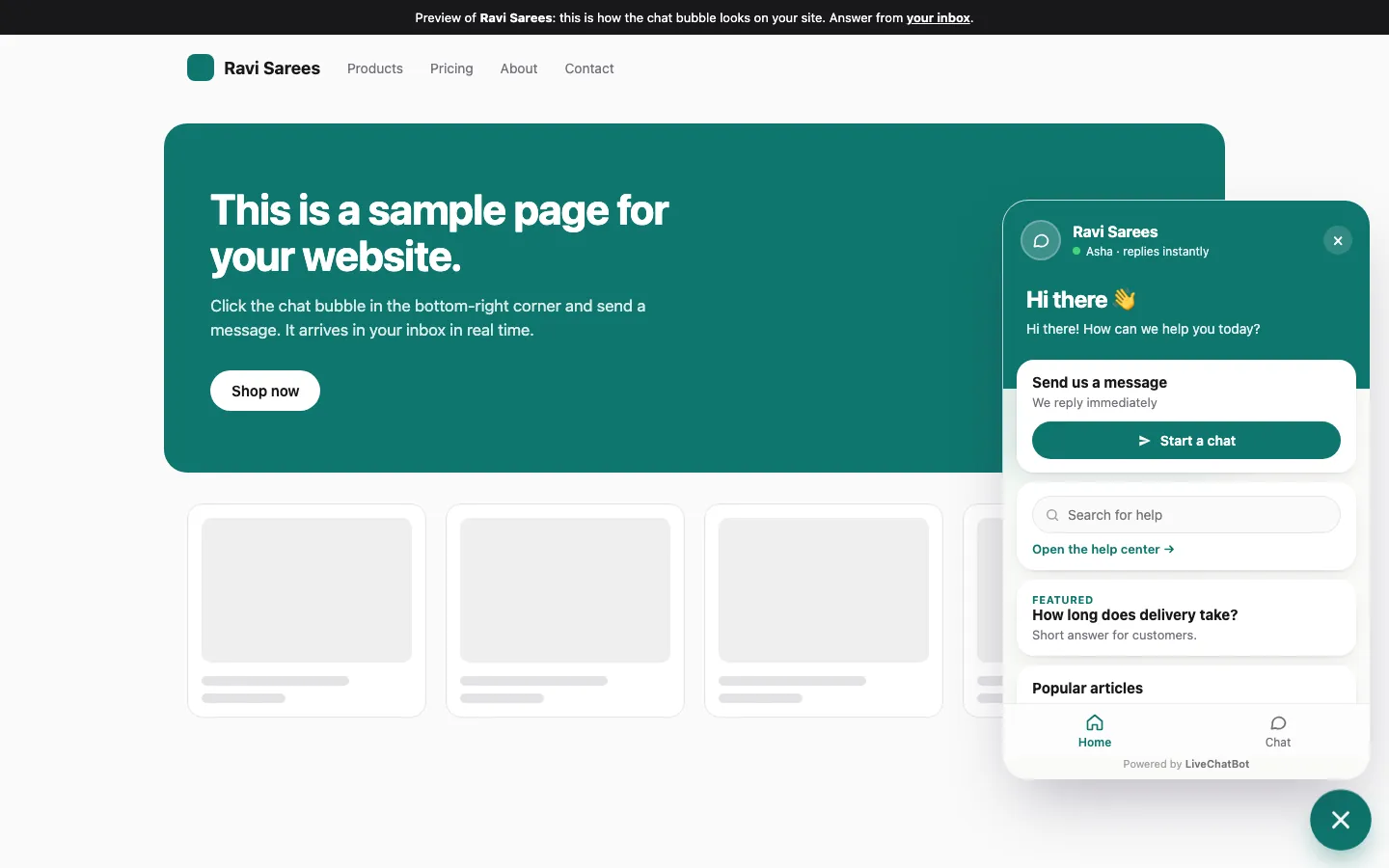
What you will see in LiveChatBot
Real screens from the LiveChatBot panel, shown with sample data. Click any picture to see it full size.

After the install
First hour after adding chat to website pages
Do these four checks before you tell anyone.
- Open your site in a private window and look for the bubble.
- Send yourself a message from your phone. Confirm the alert arrives on the Android app or the dashboard.
- Test the away form. Set hours that end in five minutes, wait and send another message.
- Check the widget on mobile. Open it, type, close it, and scroll the page.
If something does not show, clear any caching plugin and test again. A security plugin that blocks outside scripts is the second most common cause.
Once the basics work, consider a proactive message on your pricing page using Flows, which can show a message after a page, a source, a country or a number of visits. Our website chat widget page explains what you can customise.
Where it goes
Adding chat to website pages: which ones to start with
You do not have to show chat everywhere on day one. Start where visitors hesitate.
Pages that earn the first chats
Pricing, contact, booking and delivery pages are where people have questions. A proactive message there, set up in Flows, can ask “Need help choosing?” after a few seconds. Our guide on how to show live chat on specific pages covers the rules.
Pages to leave alone at first
Checkout and payment steps are better quiet. The “where it shows” rules let you hide chat by page, device or country, so you can add it there later once you trust your setup.
Mobile first
Most visitors in India browse on phones. Open the widget on a small screen, check that it does not cover your buttons, and place it on the side your thumb does not need. ### Mistakes to avoid in the first month
Do not promise “instant replies” in your welcome text. Do not leave chat running with nobody checking it. Do not copy a competitor’s script word for word, because your customers ask different questions and use different words. Read your first twenty real chats, then rewrite your welcome and your saved replies using the exact words visitors used. That single habit improves a chat setup faster than any new feature.
What chat will not do
Honest limits of adding chat to website projects
Be clear about what you are getting.
- The “Powered by LiveChatBot” credit stays on all plans.
- There is a free Android app for your team, but no iOS team app. iPhone users can answer from a browser.
- WhatsApp and Facebook Messenger messages can arrive in the same inbox through Meta, and the widget has a WhatsApp button card.
- There is no captcha, no sentiment analysis and no single sign-on.
- Connections to other tools go through Zapier, webhooks and a REST API rather than native apps for Slack, HubSpot or Salesforce.
If those fit, you are set. If one is a hard requirement, check it before you pick a tool, not after.
Frequently asked questions
How long does it take to put chat on a website?
The install takes about ten minutes. Deciding who answers, your hours and your welcome text takes longer, so do that first.
Do I need a developer to add chat?
No. WordPress has a plugin, and other platforms need one pasted line of code. Developers help only for unusual custom layouts.
Will chat slow my website?
A well-built widget loads after your content. Compare a page-speed test before and after, and test on a real phone.
What if nobody is online when a visitor writes?
The away form collects an email or phone number, and the chat rescuer asks for both if nobody replies within seconds.
Is it free to put chat on a website?
The free plan covers two websites with 100 free visitors per website each month, with no per-seat charges.
Keep reading
Related guides
Advantages of a Chatbot, Measured: Work Out the Hours and After-Hours Enquiries It Saves for Your Business Type
Add Live Chat to WordPress Without Letting It Go Unanswered: Seven Ways Chats Get Missed, and the Fix for Each (Free Mistake-vs-Better List)
Advantages of AI Chatbot Answers vs Their Limits: An Honest Ledger, With the Fix for Each Limit
Install chat the ready way
Free plan for two websites, no per-seat charges and an Android app for your team. Start free on livechatbot.in.