Add Chatbot to WordPress and Then Tell Your Team: Rollout Messages for Staff, Customers and Your Own Site (Free Copy-Ready Lines)
Add chatbot to WordPress and the install is the easy half. The other half is people: who answers, what customers hear, and what the chat says on day one. Most launches stumble there, not in the plugin. This guide gives you the short install path, then ready-to-edit messages for your team, your customers and your welcome text.
⚡ In short
- The install is a plugin and an account connection. Plan 20 minutes, not a day.
- The launch is a people job: tell staff what to do, tell customers what to expect.
- Use the copy-ready lines below and change the names, hours and promises to match your business.
- Never promise a reply time your team cannot keep.
The short version
How to add chatbot to WordPress in four steps
If you only want the install, here it is.
- Create your account. Sign up at livechatbot.in and add your website. The free plan covers two websites.
- Install the plugin. In WordPress, open Plugins, then Add New, search for the LiveChatBot plugin, install and activate it.
- Connect it. Open the plugin settings and connect your account. The widget now appears on your pages.
- Set the basics. In the dashboard, choose a colour, a team name, a welcome line and your opening hours.
The longer, screenshot-led version lives in our WordPress live chat plugin guide, and if you prefer pasting a snippet, read how to add a chatbot to a website. Everything below assumes the widget is already showing on your site.
Real screens
What you will see in LiveChatBot
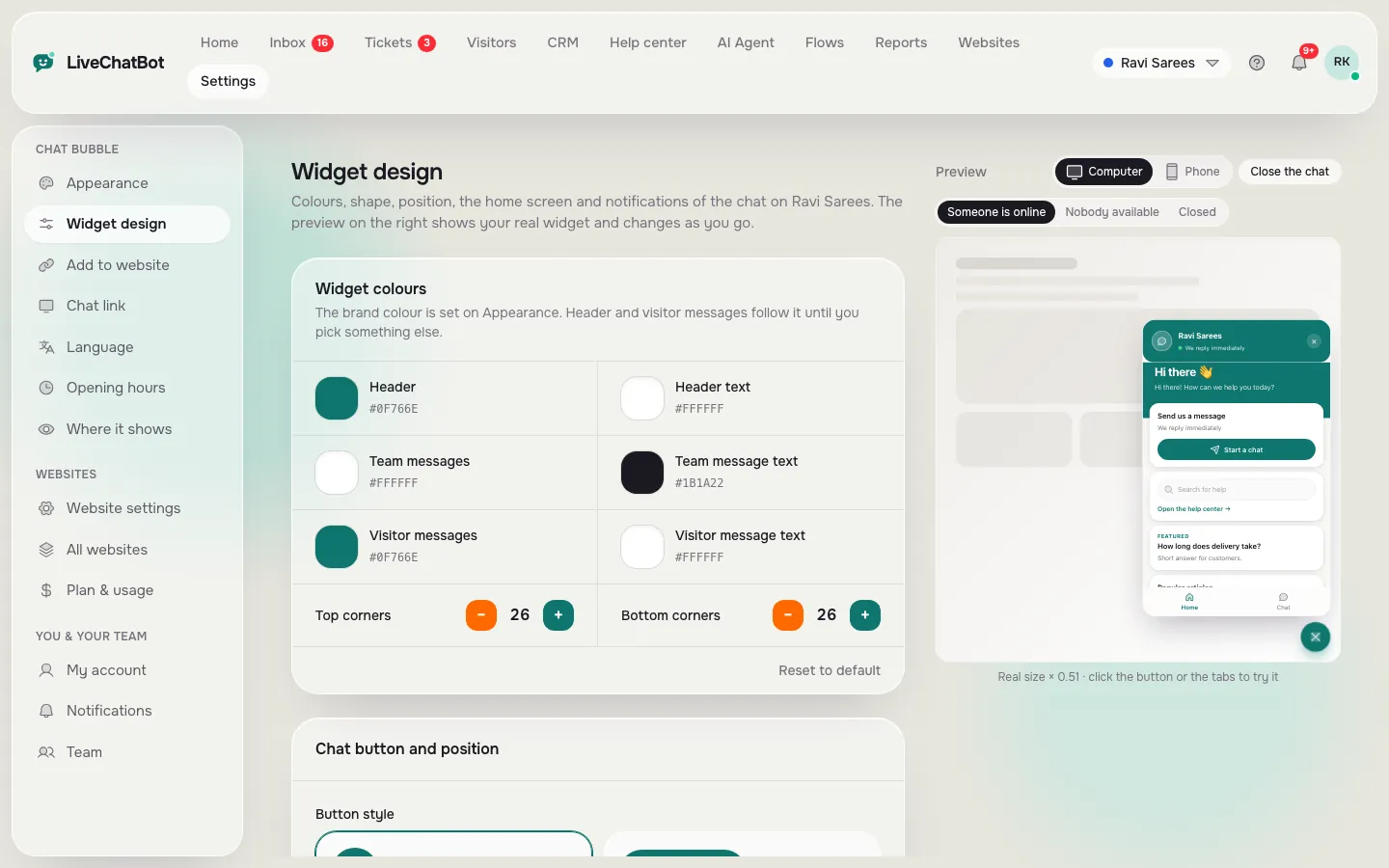
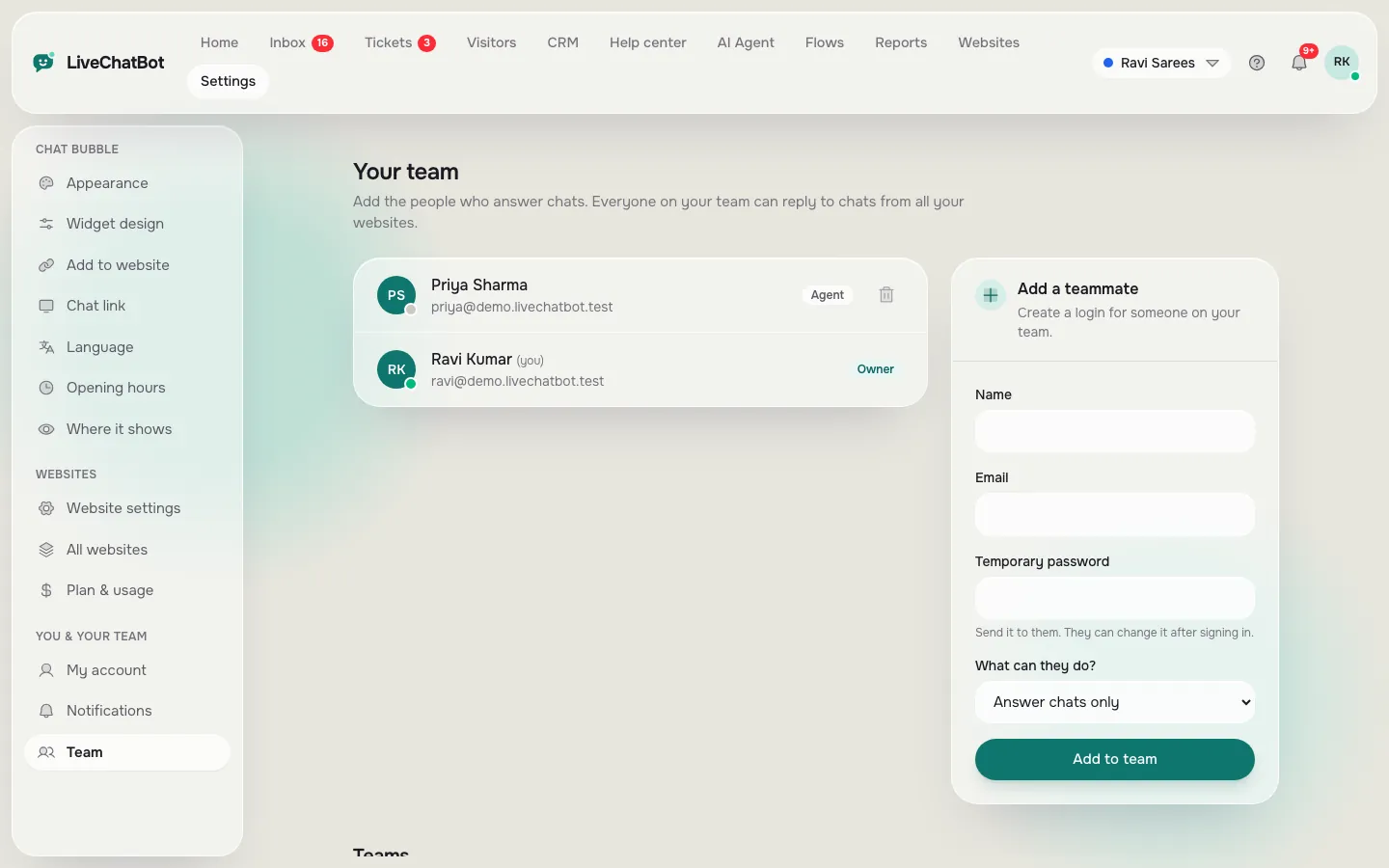
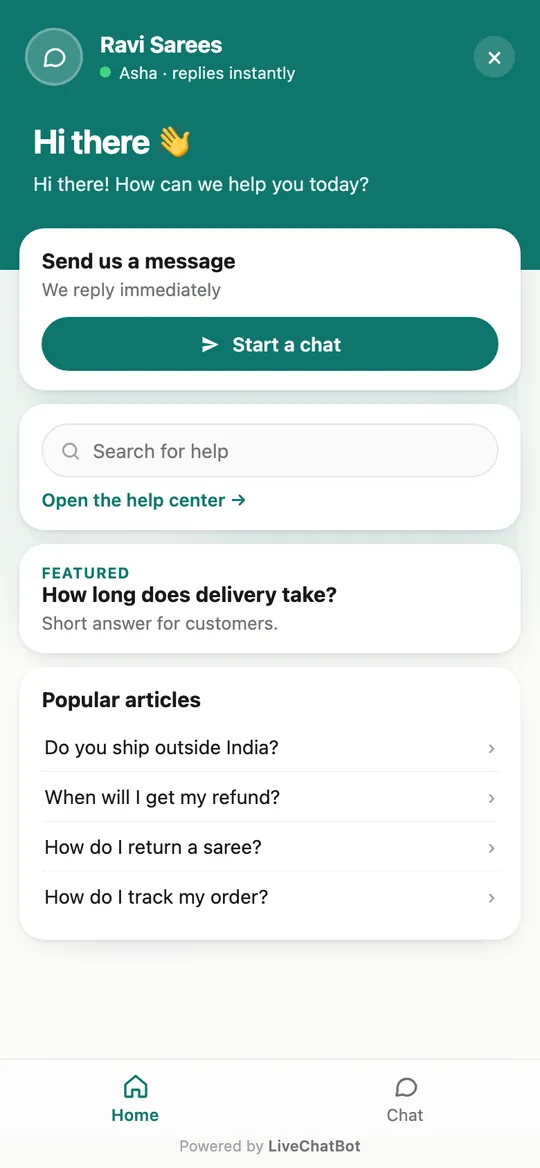
Real screens from the LiveChatBot panel, shown with sample data. Click any picture to see it full size.
The people part
Why a launch needs words, not only code
When you add chatbot to WordPress and say nothing, three things go wrong in the first week.
Staff don’t know the alerts exist. The first chat arrives, nobody sees it, and the visitor leaves. A short message to the team fixes that.
Customers don’t know what the chat is for. Some will treat it as a ticket form and write long messages. Others will not notice it. A line on your contact page helps both.
The welcome text over-promises. “We reply instantly” works until the first slow Tuesday. Choose words you can keep.
Fixing all three takes fifteen minutes of writing. The tool below gives you the starting lines.
Try it
Copy-ready rollout messages
Pick a tab, copy a line, and change the bracketed parts. Every line is a starting point, not a script. Read it aloud and make it sound like you.
Welcome text
Write a welcome that keeps its promise
The first words a visitor sees decide whether they type. Keep them short and specific.
Say what you can help with
“Ask about prices, delivery or booking” works better than “How can we help?” because it shows the visitor what is on offer.
Say when a person is there
If you answer 10 am to 6 pm, say so, then set the same hours in the dashboard so the away form takes over outside them. Our opening hours guide shows how.
Add one honest line about the bot
If the AI Agent answers first, mention that a teammate is available. It sets expectations and builds trust. The AI Agent answers from the knowledge you give it, and the training guide shows how to start with your twenty most-asked questions.
Announce it
Tell people on your own site
You do not need a campaign. Three small placements are enough.
- Contact page. Add one line: “The fastest way to reach us is the chat bubble.” Many people still scan the contact page first.
- Order or booking confirmation. A sentence such as “Questions about your order? Use the chat on any page” cuts email replies.
- Footer or help page. A short mention gives repeat visitors a reminder.
If you run a shop, connect it too. LiveChatBot’s WooCommerce connection shows the visitor’s cart to your agents. And if you have a form already, the plugin catches Contact Form 7, WPForms and other form submissions as leads, with an instant “New lead” alert.
First week
The first week after you add chatbot to WordPress
Check three things each day for the first week, five minutes each.
- Open the inbox. Read every chat. Note questions the bot could not answer.
- Add facts. Put those questions and answers into the AI Agent knowledge or the saved replies.
- Look at the Reports page. See how many chats arrived, the first response time and busy hours.
By day seven you will have a better answer list than any template could give you. If something is not working, such as the chat not showing, WordPress chatbot installation covers the usual causes.
Honest limits: the “Powered by LiveChatBot” credit stays on all plans, and there is no iOS team app, only Android.
Frequently asked questions
How long does it take to add chatbot to WordPress?
The install usually takes about 20 minutes: sign up, install the plugin, connect your account and set a welcome text. Teaching the bot your facts takes a bit longer.
Do I need to tell my team before I go live?
Yes. Tell them where alerts arrive and how to use Assign to me. Without that, the first chats are easy to miss.
Should I say a chatbot answers customers?
Yes, briefly. A line such as ‘a teammate steps in when needed’ sets expectations and builds trust.
Can I add chatbot to WordPress for free?
Yes. The free plan covers two websites with 100 free visitors per website each month, and there are no per-seat charges.
What if the chat does not show after I install the plugin?
Clear every cache, check that the plugin is connected to your account, and test in a private window. A cache or security plugin is the usual cause.
Keep reading
Related guides
Add Chatbot to Website HTML Buttons: Open the Chat, Ask a Question or Pass a Logged-In Name From Your Own Code
Add Chatbot to Your Website When You Don’t Know What It’s Built On: Find Your Platform From the Page Source, Then Follow the Right Install Route (Free Platform Detector)
Add Chatbot to Website in Stages: A Soft-Launch Plan That Tests Your Bot on Safe Pages First
More to read
More guides on this topic
Multi Website Chatbot Software: A Staggered Rollout Plan for 3 or More Sites, Pilot First, Then Copy What Worked (Free Rollout Timeline)
Chatbot With Webhook Integration: What a Webhook Actually Does, the Two LiveChatBot Events, and Copy-Ready Messages for Your Developer (Free Copy Lines)
Add chat, then tell people
Free plan for two websites, no per-seat charges and an Android app for your team. Start free on livechatbot.in.