Chatbot Plugin for WordPress: What the Plugin Does, and What Happens in the Dashboard Instead (Free Page-View Timeline)
Chatbot plugin for WordPress listings rarely explain where the work happens. You install something in your WordPress admin, then you are told to configure it somewhere else, and it is hard to know which screen controls what. This guide splits the job in two: what the plugin itself does on your site, and what lives in the chat dashboard. A short timeline then follows one visitor’s page view so you can see every step.
Short answer: A chatbot plugin for WordPress is a small connector. It puts the chat on every page and catches your form submissions, while the chat design, opening hours, AI answers and team inbox are managed in a separate dashboard. Install it once, then run everything from the dashboard or the Android app.
⚡ In short
- The plugin is the bridge. It puts the chat on your pages and passes along form submissions.
- The look, welcome text, opening hours, AI answers and team inbox live in the dashboard, not in WordPress.
- That split is a feature: you change the chat without touching your theme or editing files.
- Follow the timeline below to see exactly what happens on one page view.
The split
Why a chatbot plugin for WordPress has two homes
Because the plugin only connects your site, the real settings live in a hosted dashboard. When you search for a plugin like this, you expect one settings screen with everything on it. Some tools work that way, and then your chat settings, your chat history and your customer data all sit inside your own database.
LiveChatBot splits it. The plugin is small. It connects your site to your account and loads the chat on your pages. Everything you actually run day to day lives in the dashboard at livechatbot.in, which you can open from any browser or from the Android app.
That means your team does not need a WordPress login to answer chats. It also means a theme change, a plugin update or a hosting move does not wipe your chat history. If you want the full install walkthrough, our WordPress live chat plugin guide covers it step by step.
In WordPress
What the plugin does on your site
The plugin does three jobs on your site: it loads the chat, catches form leads and supports WooCommerce.
It loads the chat on every page
Once connected, the plugin adds the chat script across your pages, so you do not edit `footer.php` or paste snippets into a theme. Switch themes later and the chat stays.
It catches form submissions
The widget and the plugin catch submissions from Contact Form 7, WPForms, Elementor Pro, Gravity, Fluent and Ninja forms and turn them into leads, with an instant “New lead” alert to your team. Your forms keep working as before.
It supports WooCommerce stores
On a shop, the plugin works with WooCommerce so agents can see the cart and purchases show up in Reports, Sales. Our WooCommerce live chat page covers the shop side.
What it does not do
It does not add an Elementor widget, and it does not remove the “Powered by LiveChatBot” credit, which stays on every plan. Keep that in mind when you compare listings.
Real screens
Where the connection happens, and where the look is set
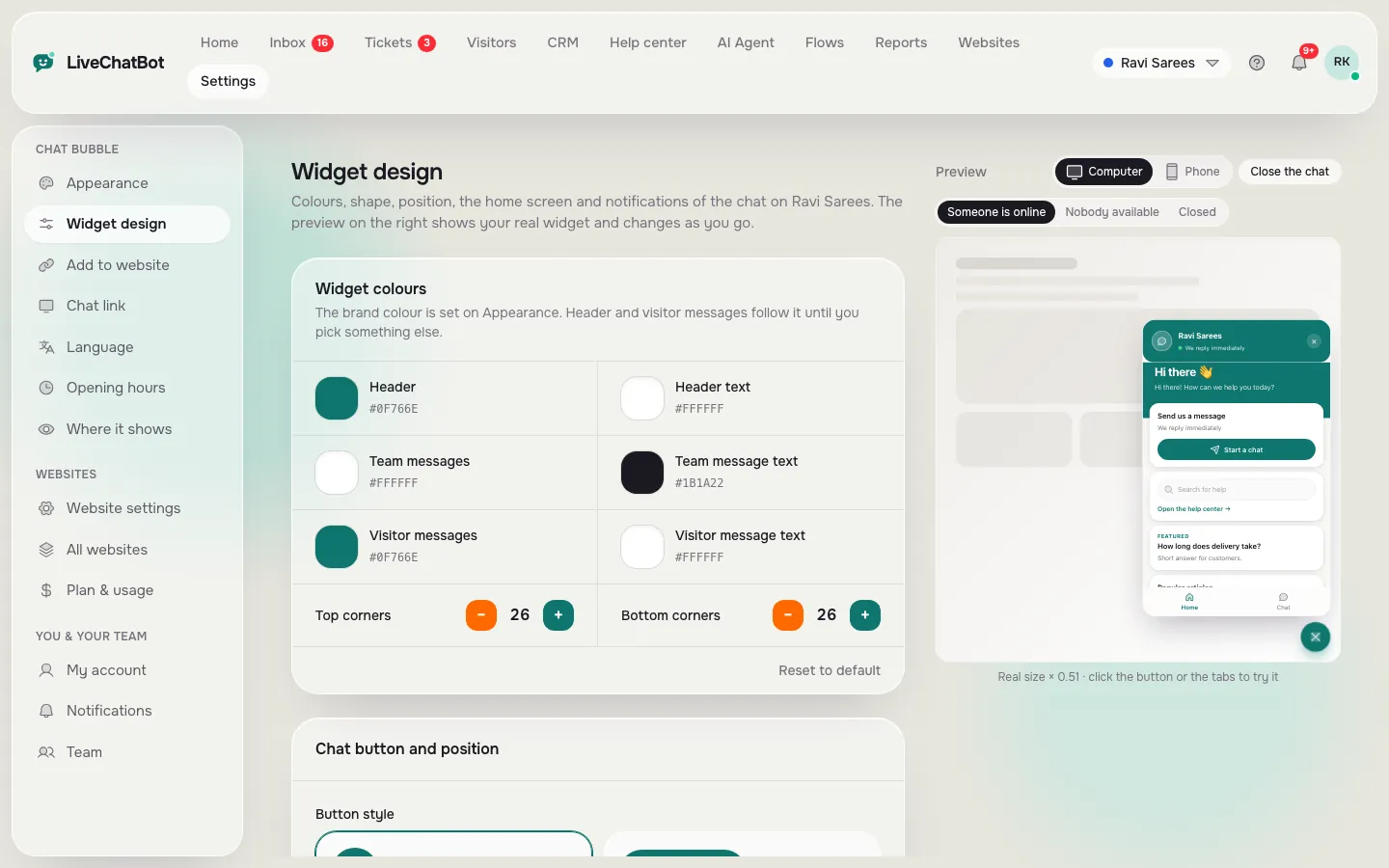
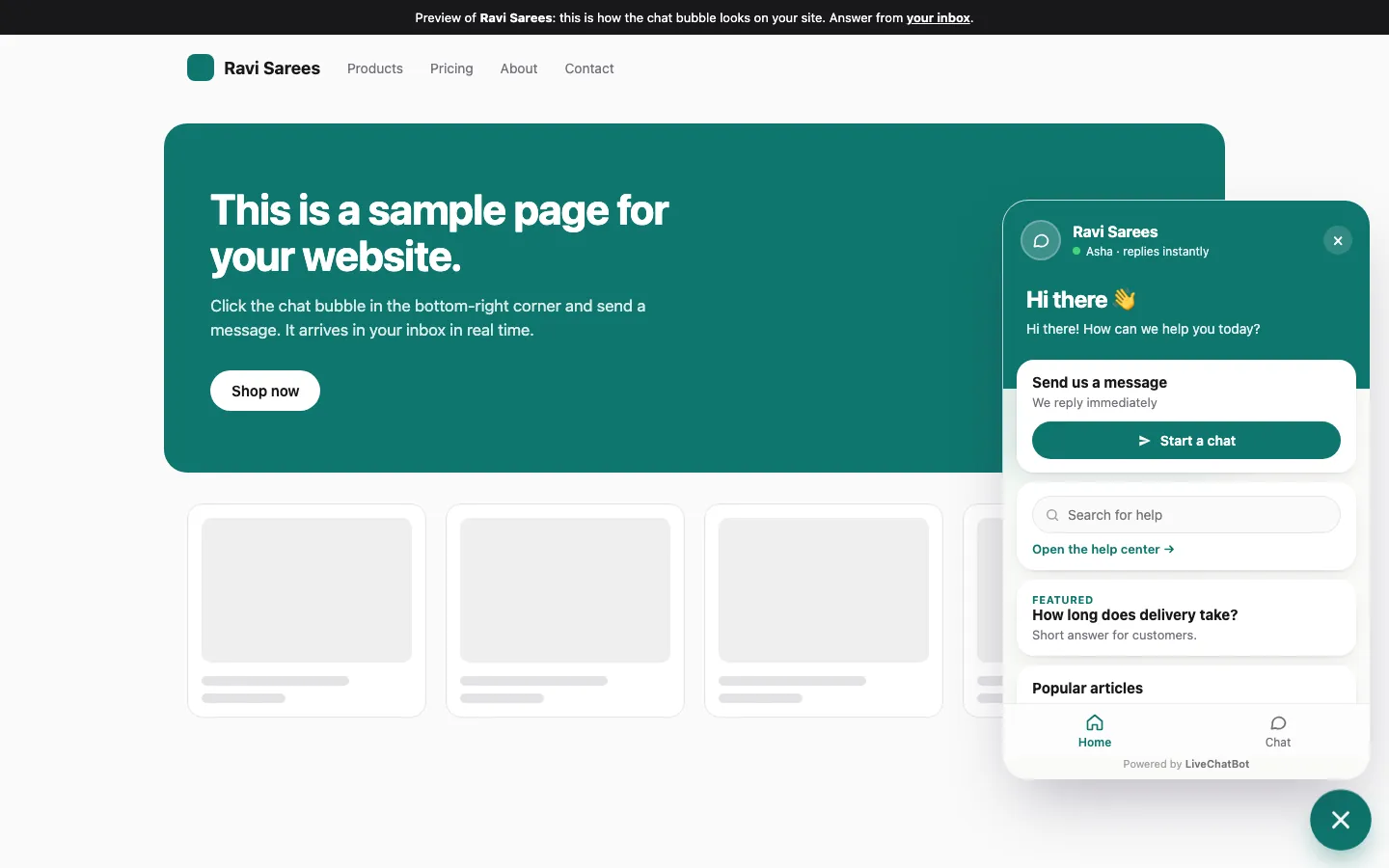
Real screens from the LiveChatBot panel, shown with sample data. Click any picture to see it full size.

In the dashboard
What you run from the dashboard instead
Design, hours, AI answers, Flows, inbox and reports are all managed in the dashboard, not in WordPress. Most of the interesting settings never appear in the WordPress admin:
- Widget design. Colours, position, team name, avatar and welcome text. See how to customize your chat widget.
- Opening hours and the away form. Outside your hours, visitors leave an email or phone number.
- The AI Agent. You give it answers by typing them, copying a web page or uploading a file (PDF, Word, Excel, CSV or TXT). It answers from that knowledge. Read more on the AI Agent page.
- Flows. Proactive messages by page, source, country or device. See chat flows.
- Inbox, tickets, saved replies and the CRM. Where your team spends the day.
- Reports. Chats, traffic, keywords and which pages bring leads.
This is also why the dashboard is where a mistake is easiest to fix. If a welcome message is wrong, you change it once and every page updates.
Try it
Follow one page view from start to finish
Click through the steps to see what the plugin does and what the dashboard supplies when a visitor opens a page on your site.
WordPress builds the page as normal. Your theme and other plugins work exactly as before.
The plugin places the chat script on the page. This is its main job, and it is why you never edit theme files.
Colours, welcome text, opening hours and the page rules come from the dashboard, not from WordPress.
A chat goes to your inbox. A Contact Form 7 or WPForms submission is caught as a lead.
Agents are alerted on the dashboard or the Android app. No one needs WordPress admin access.
The AI Agent answers from your knowledge, or a person replies. If nobody answers in seconds, the chat rescuer asks for email and phone.
What to check
How to judge any chatbot plugin for WordPress before installing
Judge any plugin by three questions about where chats live, who needs a login and what happens on deactivation. Whatever tool you pick, ask these three questions about the split.
- Where do chats live? If they sit in your WordPress database, hosting problems become chat problems. A hosted dashboard avoids that.
- Who needs a WordPress login? Ideally only whoever installs the plugin. Everyone else uses the dashboard.
- What happens if you deactivate it? The chat should disappear from your pages, and your chat history should still be in your account.
Then test it on one page. Read our website chat widget guide for a launch-day check, and use a phone as well as a computer.
Our own numbers
Original data: what the free and paid visitor allowances work out to
Plan visitor allowances divide into a cost per visitor you can compare yourself. These figures come from LiveChatBot’s own published plan limits (checked November 2026) and simple division, not from a survey.
- Free: 2 websites × 100 visitors = 200 visitors a month for ₹0.
- Starter: ₹299 ÷ 750 visitors shared across 2 websites = about ₹0.40 per visitor.
- Growth: ₹699 ÷ 2,500 visitors shared across 5 websites = about ₹0.28 per visitor.
- Sign-up code WELCOME100: adds 100 visitors once, so a new free account starts with 300 visitors in its first month if both sites use the full allowance.
A worked example: a local clinic site gets 160 visitors a month and a second blog gets 70. Both fit inside the free plan, because each site has its own 100-visitor allowance. The moment the clinic reaches 220 visitors, it is over the free limit by 120, and Starter’s 750 shared visitors comfortably cover both sites. Chat pauses only for new over-limit visitors, tracking and alerts continue, and nothing is charged automatically.
What most guides miss
Our rule: judge a plugin by who can run it without a WordPress login
Here is a test we have not seen in other plugin guides. It takes five minutes and tells you more than any feature list.
- Ask a colleague who has no WordPress login to open the dashboard on their phone.
- Have them change the welcome message and reply to a test chat.
- Have them check which page the test visitor was on.
If they can do all three, the plugin is a true connector and your team is free of your hosting. If any step needs WordPress admin access, the tool has pulled chat work into your site, and every staff change becomes a security decision.
The reason this matters is simple. Plugin pages sell features, but the daily work of a chat is answering. The people who answer are usually not the people who manage the website. A good chatbot plugin for WordPress keeps those jobs apart, so the person who installs it and the people who use it never need the same password.
Common mistakes
Four mistakes people make with the split
The most common mistakes come from looking for settings in the wrong place.
Hunting for colours in WordPress
If you cannot find the colour picker in the plugin screen, that is expected. Widget design is in the dashboard. Open it, change the colour, and reload your page to see the result.
Testing only when logged in to WordPress
Logged-in admins sometimes see pages differently because of caching or admin bars. Test as a visitor, in a private window, on a real phone.
Forgetting the cache
If a caching plugin serves old pages, clear the cache after the first install. Otherwise the chat may seem missing when it is only hidden by a stored copy of the page.
Installing on a site you will move
Moving hosts is easy with a hosted dashboard, because your chat history is not in your database. Install the plugin on the new site, connect the same account and carry on.
Honest limits
What to expect on the free plan
The free plan is enough to test the whole setup on two sites. It covers two websites with 100 visitors per website each month. Starter is ₹299 a month for 2 websites and 750 visitors shared across them. Growth is ₹699 a month for 5 websites and 2,500 visitors shared. Plans are prepaid, with no auto-renew and no per-seat charges, and AI replies come with every plan within a monthly allowance shown in your dashboard. See pricing for current details.
Not available: SSO, audit logs, role-based permissions, voice, and native Slack, Telegram or HubSpot integrations. Zapier and webhooks can bridge some of these. For a plain small-business site, that is rarely a problem, and it is why one clear plugin plus a dashboard is enough for most sites.
Next step
Install the bridge, then spend your time in the dashboard
Install the plugin first, then spend your time in the dashboard. Sign up, install the plugin, and open the dashboard. Set a welcome message, add your opening hours, teach the AI Agent your top ten answers, and test from your phone. The plugin step takes minutes; the dashboard is where you will spend your time. For the complete walkthrough, go back to the WordPress live chat plugin guide.
Frequently asked questions
Do I need a WordPress login to answer chats?
No. Your team answers from the dashboard or the Android app. Only the person who installs the plugin needs WordPress admin access.
Will the chat disappear if I change my theme?
No. The plugin adds the chat script itself, so it does not depend on theme files.
Is the chatbot plugin for WordPress free to start?
Yes. The free plan covers 2 websites with 100 visitors per website each month. Paid plans are prepaid with no auto-renew.
Does the plugin work with my contact forms?
It catches Contact Form 7, WPForms, Elementor Pro, Gravity, Fluent and Ninja form submissions as leads.
Can I remove the Powered by LiveChatBot credit?
No. The credit stays on every plan, so check that it suits your site before you install.
Keep reading
Related guides
Chatbot Platform Comparison Tables Mislead: Seven Tricks to Spot and the Fairer Question to Ask Instead
More to read
More guides on this topic
Dashboard Tawkto
Install once, run from the dashboard
Free plan for two websites, no per-seat charges. Start free on livechatbot.in.