Chat Client for Website Teams: The App Your Staff Reply From, and the Eighteen Inbox Words You Will Meet on Day One (Free Searchable Glossary)
Chat client for website is a phrase with two meanings. One is the box your visitor sees. The other, which most guides skip, is the app your own team uses to read and answer those chats. This guide is about that second one: where your staff reply from, what the screens are called, and a searchable glossary of the words you will meet on the first day.
⚡ In short
- A chat client has two sides: the widget visitors see and the inbox your team replies from.
- Your team can answer from a browser on a computer or from the Android app. There is no iOS team app.
- Most confusion on day one is about words: folders, assignments, handoffs and tickets.
- Learn eighteen words and the inbox stops feeling like software and starts feeling like a shared mailbox.
Two sides
Every chat client for website use has a visitor side and a team side
When you add chat to a website, two things appear. The first is the widget, the small box in the corner of your pages. The second is the place where messages arrive for your team. In everyday talk both get called “the chat client”, which makes buying guides confusing.
The visitor side is about looks: colour, welcome text, position. The team side is about work: who sees a new message, how it gets answered, what happens when nobody is around. A pretty widget with a weak inbox gives you a bad week. A good inbox with a plain widget still gets the job done.
Where the team side lives
With LiveChatBot, your team signs in to the dashboard on a computer, or uses the Android app on a phone. Messages from the website arrive in one shared inbox. WhatsApp and Facebook Messenger messages, once connected through Meta, arrive in the same place.
For the visitor side of the story, see our live chat overview.
The inbox
How the inbox is organised
Think of the inbox as a shared mailbox with folders.
Folders that sort the work
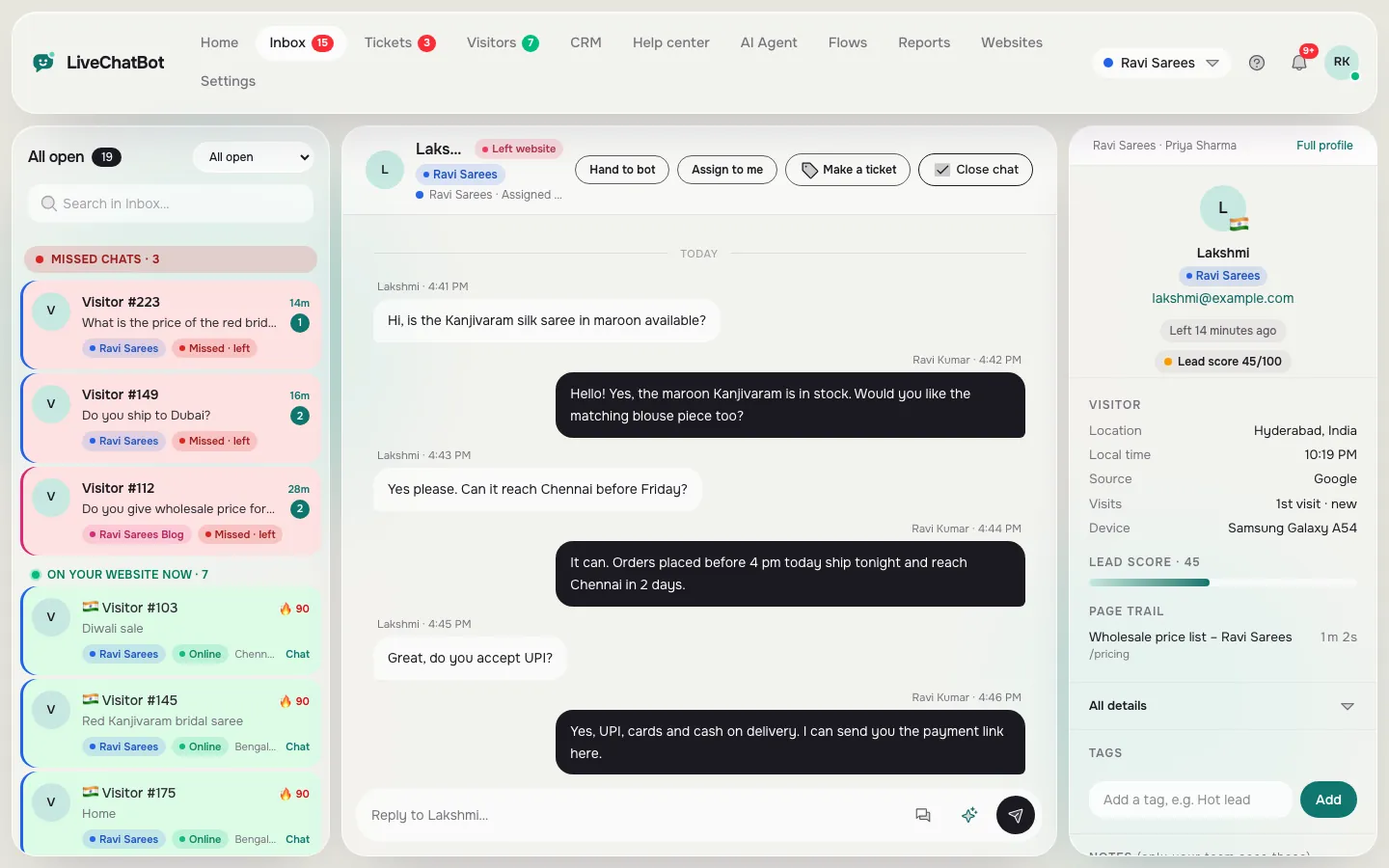
New conversations land in the main list. From there, folders narrow things down. Unassigned shows open chats that no one owns yet. Mine shows the ones you have claimed. If you use teams, a My teams folder shows chats routed to your group.
Claiming a chat
Any agent can press Assign to me on a chat. This stops two people answering the same visitor. There is no automatic round-robin or skill-based routing, so on a small team the habit is simple: whoever sees it first claims it.
One screen per conversation
Open a chat and you see the messages, the visitor’s details and a place to type. Saved replies speed up repeat answers. The visitor profile shows what page they are on and their lead score.
The glossary below covers each of these in one line.
Try it
Look up any inbox word
Type a word such as assign, folder or ticket. Each entry says what it means and what to do with it.
Real screens
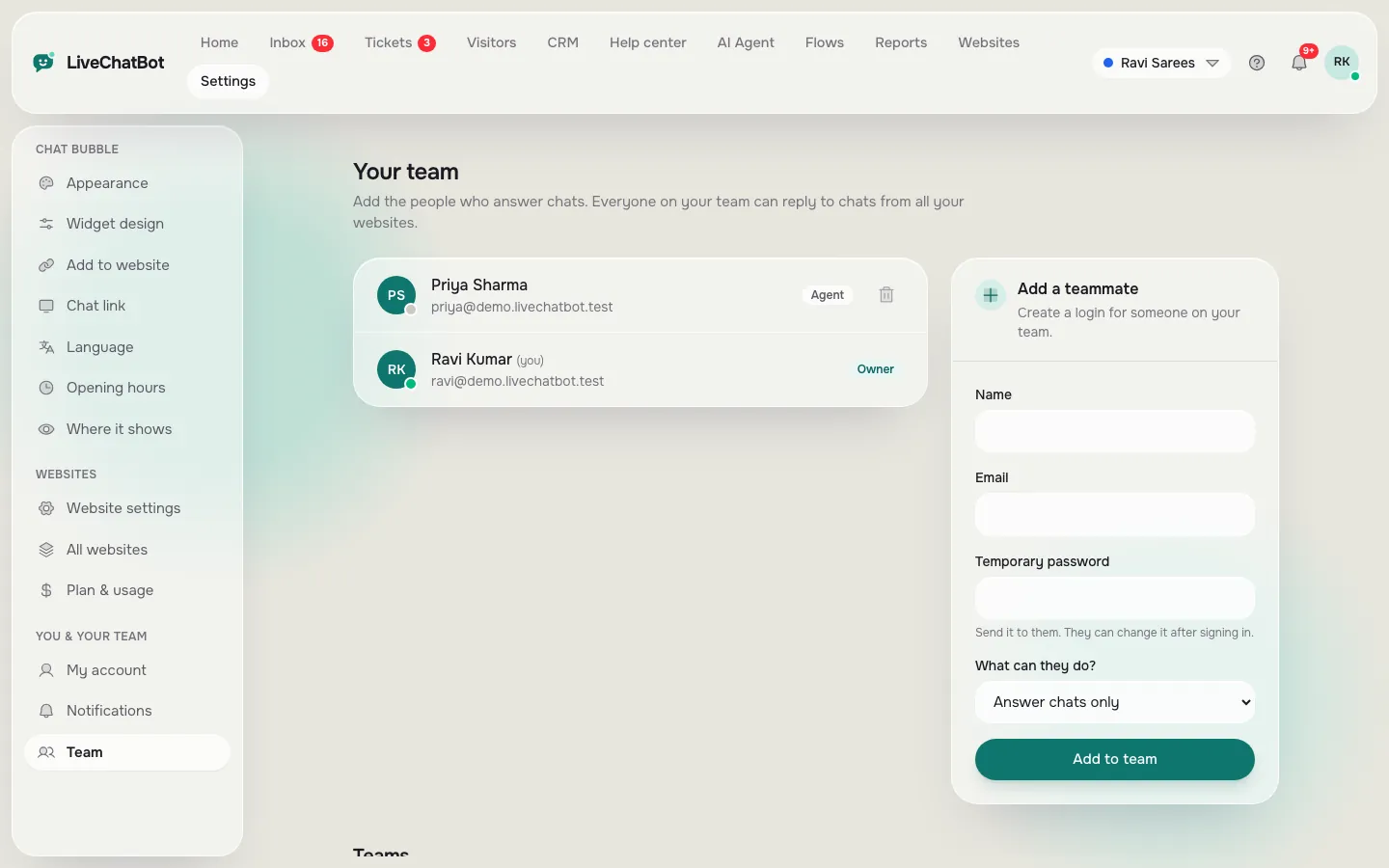
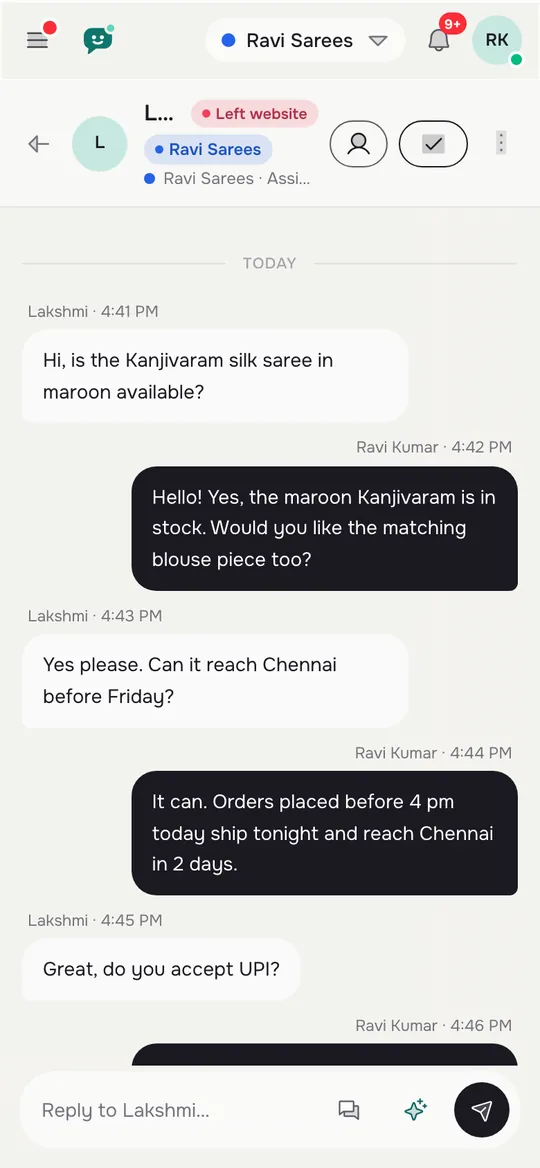
The shared inbox, the phone inbox and the team list
Real screens from the LiveChatBot panel, shown with sample data. Click any picture to see it full size.
On the move
Replying from a phone
Many small businesses are one or two people who are not at a desk all day. That is why a phone client matters more than a long feature list.
The Android app
The LiveChatBot Android app lets an agent read and answer chats, hear a tone for new messages and see the same folders as the browser. Tones can be chosen per website, so a shop and a blog sound different. Our guide to the LiveChatBot Android app covers the setup.
iPhone users
There is no iOS team app today. An iPhone user can still sign in from the browser and reply. It is not the same as a push-notified app, so if the whole team is on iPhones, plan for that before you commit.
A short phone test
Ask a friend to send a test message while you are away from your desk. Time how long it takes your phone to tell you. That one number tells you more than any feature list.
Choosing
What to look for in a chat client for website teams
When you compare tools, put the inbox ahead of the widget. Five checks cover most of it.
- Where can staff reply from? Browser, phone, or both?
- Can two people avoid answering the same chat? Look for assigning.
- Can you reuse answers? Saved replies save hours.
- What happens after hours? An away form and tickets keep the lead.
- What does an extra person cost? LiveChatBot has no per-seat charges, so adding staff does not raise the bill.
Be honest about the gaps too. There is no single sign-on, no audit log and no role-permission builder. If your company policy needs those, a different tool fits better. For most small teams, they are not needed.
Picking a tool is easier once you can read its screens. The live chat guide shows how the pieces fit, and the saved replies page explains the time-saving part.
First week
A simple first week for a new chat client for website team
On day one, sign in, add your colleagues and look at the folders. On day two, write five saved replies for your most common questions. On day three, set opening hours and an away form. Share the phone app on day four. By day five, ask someone to test it end to end and watch what happens to a real message.
You do not need to learn everything. The glossary above is a good bookmark for new staff. Sign up free at livechatbot.in.
Frequently asked questions
What is a chat client for website use?
It is the app your team uses to read and answer chats from your site. The widget is what visitors see; the client is what staff use.
Can my staff reply from their phones?
Yes, with the Android app. iPhone users can reply from a browser, because there is no iOS team app.
How do two agents avoid answering the same visitor?
An agent presses Assign to me on a chat. The chat then appears in their Mine folder and leaves the Unassigned list.
Do I pay for each team member?
No. LiveChatBot has no per-seat charges.
Can WhatsApp messages come into the same inbox?
Yes, once you connect WhatsApp through Meta, those messages arrive in the shared inbox with website chats.
Keep reading
Related guides
Chat Box WordPress Plugin on Every Kind of Page: Decide Where the Box Shows, Hides or Changes (Free Page Rules Quiz)
Give your team a proper inbox
Free plan for two websites, a shared inbox and an Android app. Start free on livechatbot.in.