Best Live Chat for WordPress Is Proven on a Staging Copy: A Six-Step Test Before It Goes Live
Best live chat for WordPress is not the tool with the longest feature list. It is the one that installs cleanly, stays fast, catches your form leads and still works after the next theme update. This guide gives you a six-step test to run on a staging copy of your site, so you find problems before your visitors do.
⚡ In short
- Never judge a chat tool on its demo page. Judge it on a copy of your own site.
- Six steps: install, look, speed, forms, phone, break it. Each takes 5 to 15 minutes.
- Write down a pass or fail for each step. A tool that fails two steps is not for you, whatever its reviews say.
- LiveChatBot has a WordPress plugin on the free plan, so you can run the whole test for ₹0.
Why test
Why the best live chat for WordPress can only be found on your own site
WordPress sites are not alike. One runs a heavy page-builder theme, another a light blog theme. One has a caching plugin and a cookie banner, another has neither. A chat tool that looks perfect on a vendor’s demo can overlap your cookie bar, load slowly on your product pages or clash with a security plugin.
That is why reviews and top-ten lists only get you to a shortlist. The final choice needs a test on your own theme, your own plugins and your own pages. If you want a feature-by-feature overview first, our WordPress live chat plugin guide covers what the plugin does and how to install it.
The test below works for any live chat tool you are considering. It uses a staging copy, which is a private duplicate of your site that visitors cannot see. Most hosts offer one-click staging. If yours does not, a copy on a subdomain works too. Testing there means a broken afternoon costs you nothing.
The test
Six steps, in order
Run them one after another on the staging copy. Stop and note a fail the moment you see one.
Install the plugin, paste your account details and open one page. Pass if the chat button appears within a minute and you did not edit any theme file.
Check home, a product or service page, the contact page, a blog post, the cart or checkout page, and a phone-sized view. Pass if the button never covers your menu, cookie bar or back-to-top arrow.
Run the same page through a speed test before and after. Pass if the page still feels as fast and the chat loads after your main content.
Submit your contact form from a private window. Pass if the enquiry shows up as a lead with an alert, not only as an email.
Send a visitor message and reply from your phone. Pass if the alert arrives in seconds and your reply appears in the chat.
Switch your theme, update a plugin and clear the cache. Pass if the chat survives all three.
Steps one to three
Install, look and speed: the first three checks
Install without touching code
A WordPress chat tool should install like any other plugin: upload or search, activate, connect. If the vendor tells you to edit your theme’s header file, that is a warning sign. Theme edits vanish when the theme updates, and one wrong character can break your site.
Look at the six pages
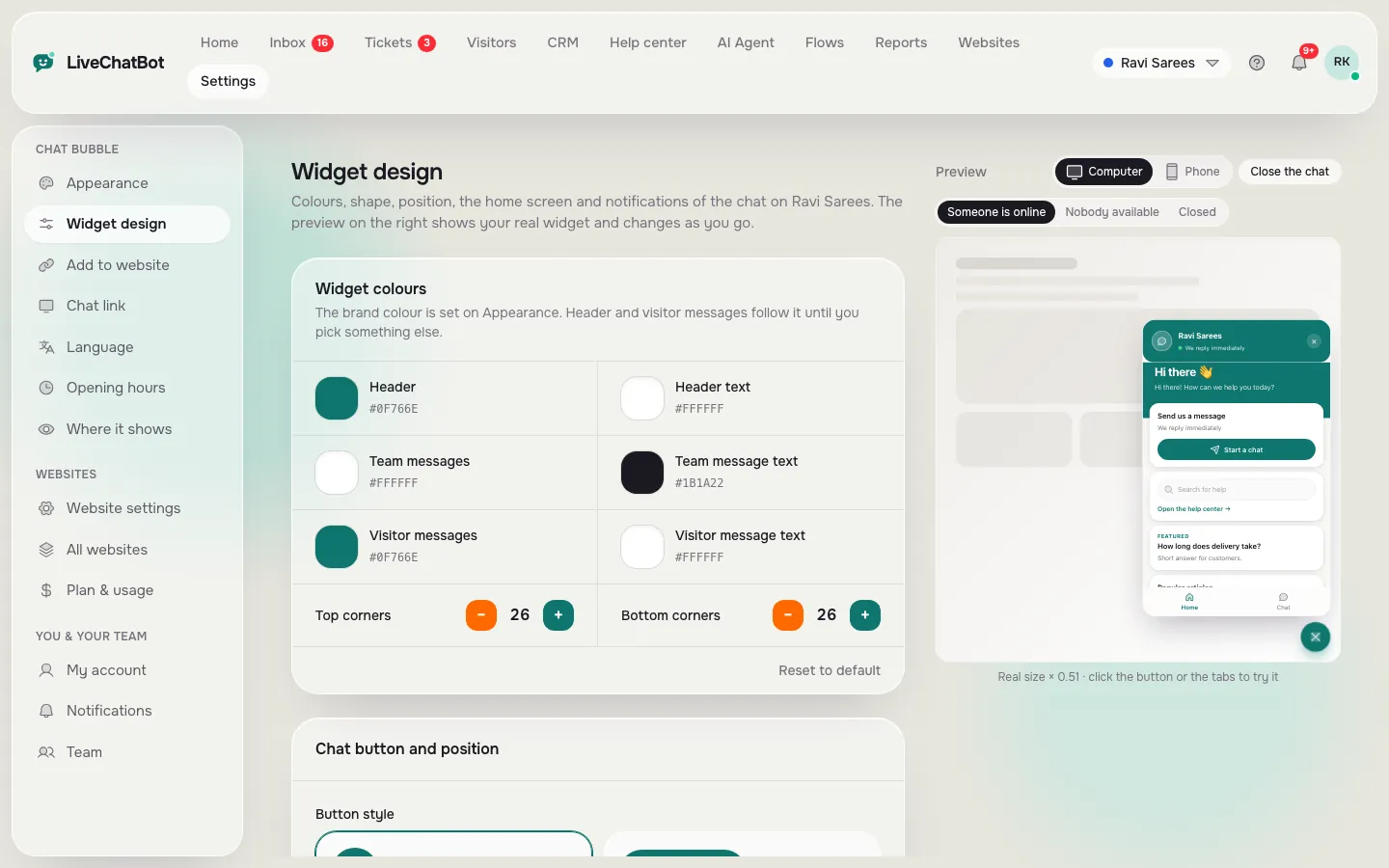
People forget this step. The chat button sits on top of your design, so it can hide things. On a phone it is worse, because the screen is small. Open each page type and look for overlap. In LiveChatBot you can move the button to the left or right, change its size and set offsets. If you want it off the checkout page, use the page rules in how to show live chat on specific pages.
Measure the speed
Chat widgets add a script. A well-built one loads late and stays small. Run a free speed test on one page twice, once with the chat and once without, and compare the result. Do not trust a single run, as results vary. Run each three times and compare the middle numbers. A small difference is normal. A big drop means look elsewhere.
Steps four to six
Forms, phone and the break-it test for the best live chat for WordPress sites
Forms that become leads
Most WordPress sites already have a contact form. Visitors who fill it in are warm, yet the enquiry usually lands in an email inbox where it waits. LiveChatBot’s WordPress plugin catches submissions from Contact Form 7, WPForms, Elementor Pro, Gravity, Fluent and Ninja forms as leads, and sends an instant “New lead” alert. Test yours with a fake enquiry and watch for the alert.
Replying from your phone
A chat you cannot answer is worse than no chat. Install the team app on the phone of whoever will reply. LiveChatBot has an Android app for agents. There is no iOS team app, so iPhone users reply from a browser. Check the mobile app page for details.
Breaking it on purpose
Switch to a default theme for a minute, update one plugin, and clear your cache plugin. Reload a page each time. Chat tools that inject code in odd ways often fail here. If the chat disappears and does not come back, the tool is fragile. Repeat the test once a quarter, because themes and plugins keep changing.
Real screens
Real screens from the staging test
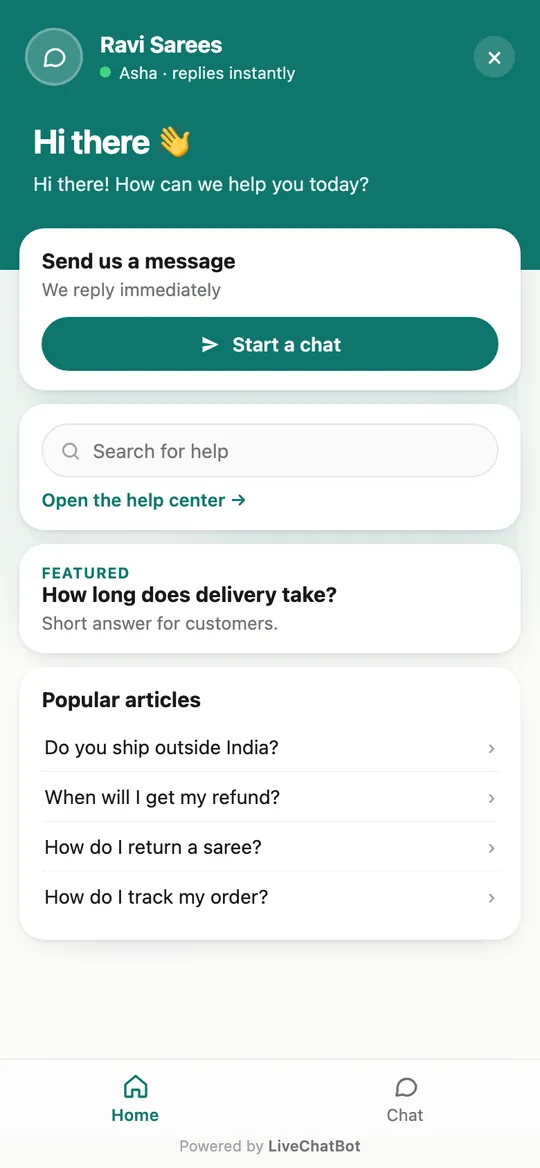
Real screens from the LiveChatBot panel, shown with sample data. Click any picture to see it full size.

Score it
A pass/fail checklist for your own staging test
Tick each step as it passes. Five or six out of six is a keeper.
Beyond the test
What the best live chat for WordPress sites also needs after launch
Passing the test means the tool is safe to install. It does not mean it will earn you customers. After launch, check three things in the first week.
Welcome text. Replace the default with one specific line, such as “Ask about delivery, sizes or returns.” Our welcome message guide has examples.
Opening hours. Turn on opening hours and the away form, so a late visitor can still leave an email or phone number. See how to set live chat opening hours.
Store questions. If you sell with WooCommerce, connect the store so your agents see the cart, then read our WooCommerce live chat guide.
Last, be honest about gaps. The “Powered by LiveChatBot” badge stays on all plans, and there is no white-label option. If you need a badge-free widget, factor that into your choice.
Frequently asked questions
What is the best live chat for WordPress?
The one that passes a test on your own site. Install it on a staging copy, check six page types, measure speed, send a form, reply from a phone and break it with a theme switch.
Is there a free live chat plugin for WordPress?
Yes. LiveChatBot has a free plan with a WordPress plugin, 2 websites and 100 visitors per website each month. Paid plans start at ₹299 a month.
Will live chat slow my WordPress site?
It can, if the script is heavy. Measure the same page with and without chat, three runs each, and compare the middle results.
Does the plugin catch form submissions?
Yes. It catches Contact Form 7, WPForms, Elementor Pro, Gravity, Fluent and Ninja forms as leads, with an instant alert.
Can I remove the Powered by badge?
No. It stays on every LiveChatBot plan, so check whether that works for your brand before you choose.
Keep reading
Related guides
Best Live Chat Plugin for WordPress Depends on Your Site: Match the Plugin Type to Your Hosting, Team and Shop (Free Fit Finder)
Best Live Chat App for Shopify: A Weighted Scorecard to Pick One for Your Own Store (Free Scorecard)
Run the test for free
Install the WordPress plugin on a staging copy and score it yourself. Start free on livechatbot.in.