Live Chat CRM Integration Notes: The Fields, Tags and Follow-Up Lines to Copy Into Your CRM From Every Chat
Live chat CRM integration is usually explained as a connector you switch on. The harder part is deciding what a chat should leave behind in your CRM: which fields, which tag, which note and which follow-up. This guide gives you that structure, with copy-ready lines for each lead type.
⚡ In short
- A good chat record in your CRM has five fields: name, contact, page, interest and next step.
- LiveChatBot has no native CRM connector. Connect it with Zapier, webhooks (ticket created, ticket solved) or the REST API.
- Use the same note format every time so your sales team can read it in ten seconds.
- Copy the lines below, adapt the words, and add them as saved replies or Zap templates.
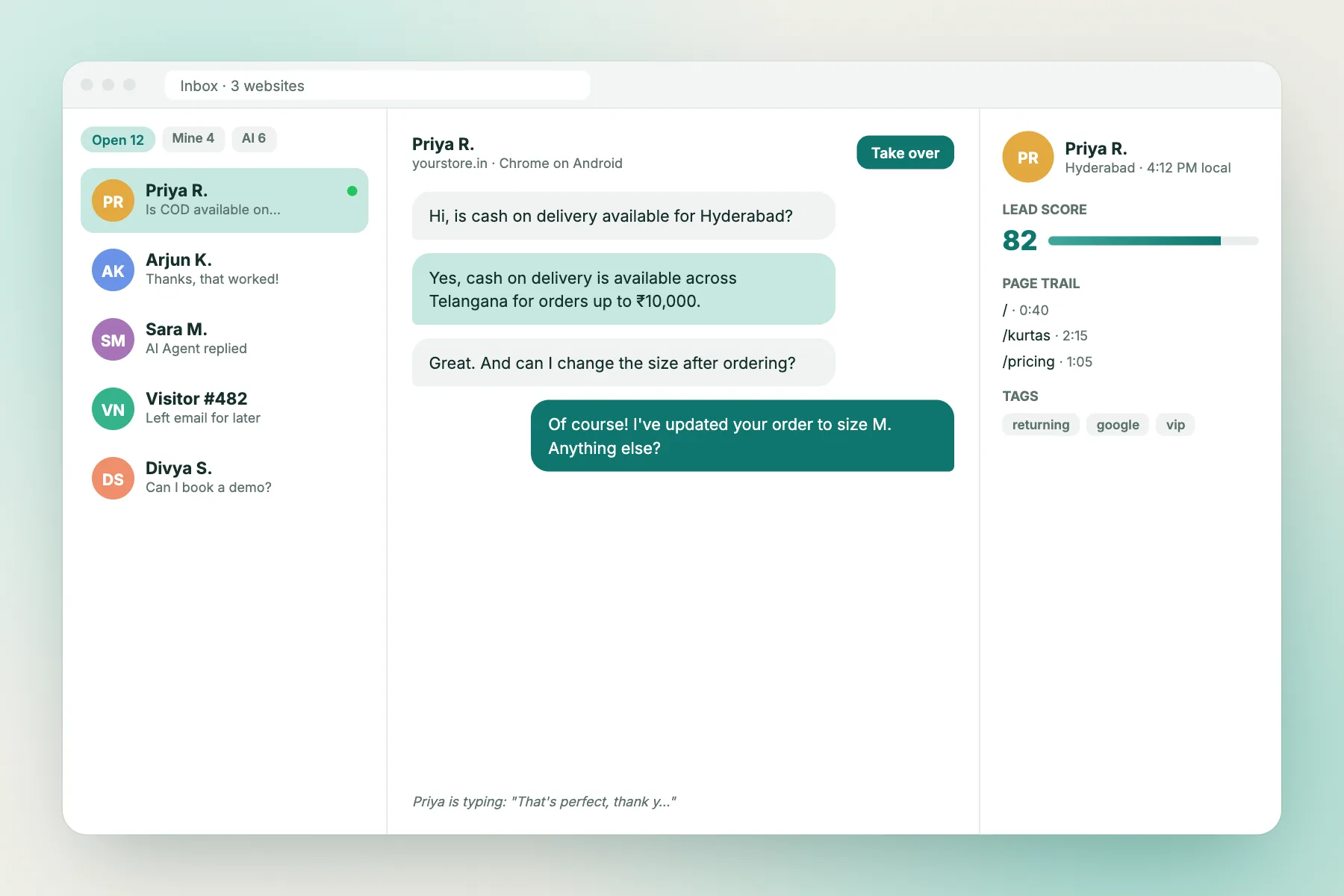
The five fields
What a chat should leave in your CRM
A CRM is only useful if the records in it are complete and consistent. Chats are messy: half sentences, typos, a visitor who vanishes. Your job is to turn that mess into a small, repeatable record.
Save these five things for every chat worth keeping:
- Name. Use what the visitor typed, or leave it blank rather than guess.
- Contact. Email or phone, whichever they gave. A record with neither is a note, not a lead.
- Page. The page they were on when they started. It tells you what they cared about.
- Interest. One line in their words: “wants bulk pricing for 200 units”.
- Next step. Who calls or writes, and by when.
Anything beyond these five is a bonus. Teams that try to capture twelve fields end up with twelve empty ones.
What is possible
How a live chat CRM integration works with LiveChatBot
To be direct: LiveChatBot does not have a built-in connector for any CRM. There is no HubSpot, Zoho, Salesforce or Pipedrive button. What it has is enough to build your own bridge:
Zapier
Connect LiveChatBot to Zapier and send new activity into a CRM or a spreadsheet. Our guide on connecting live chat to Zapier walks through it.
Webhooks
Webhooks fire when a ticket is created and when it is solved. A created ticket is a clean trigger to add a lead; a solved one is a trigger to close a task.
REST API
If you or a developer prefer code, the REST API lets your own system read tickets and chats. Ask our team for developer documentation.
Turning an unanswered chat into a support ticket is the simplest way to create one structured record per lead.
Copy-ready lines
Live chat CRM integration notes you can copy
Pick a lead type. Paste the line into a CRM note, a Zap template or a saved reply, then replace the brackets.
Using the notes
Make the live chat CRM integration notes stick
Write the interest line in the visitor’s words
“Needs it before Diwali” is more useful than “urgent”. Quote what they said when you can. The person who calls tomorrow was not in the chat.
Use one tag per source
Tag every record from chat the same way. Later you can compare conversion from chat against other sources without cleaning old data.
Put the next step first
A note that opens with “Call by 4 pm” gets acted on. A note that ends with it gets skimmed.
Keep saved replies for the note, too
Saved replies with {name} work for visitors. Keep your note formats in a shared document next to them so every teammate writes the same way. Our saved replies guide shows how to organise them.
Worked example
An illustrative example: one chat, one record
This example is made up to show the shape of a good record. A visitor on a furniture site’s wardrobe page chats at 7 pm.
What the chat looked like
The visitor asks if the sliding wardrobe ships to Pune and how long it takes. The team replies, then asks for an email to send the measurements sheet. The visitor gives one and says they are moving in three weeks.
What goes into the CRM
- Name: Asha
- Contact: the email she typed
- Page: the wardrobe category page
- Interest: “sliding wardrobe to Pune, moving in three weeks”
- Next step: send measurements sheet tonight, call on Thursday
Notice that nothing here needed a clever integration. It needed five lines, written the same way every time. Once the format is steady, a Zap can fill it automatically from a ticket, and a human only reviews the interest line.
By team size
Three ways to run it, from a sheet to a full CRM
Solo owner
Skip the CRM at first. Use a shared sheet with the five fields as columns. Add a row after each chat that left contact details. It takes under a minute and costs nothing.
Small team
Use Zapier to add a row or contact whenever a ticket is created. Agree on the tag names and a rule for who follows up. Review the Zap once a week for the first month.
Growing sales team
Add a step that checks for an existing contact, assigns an owner and creates a task. This is where task limits on your automation plan start to matter, so count your monthly chat leads first.
Honest limits
What a bridge cannot do, and how to plan around it
A Zapier or webhook bridge is one-way and simple. It can push a new ticket or lead into your CRM. It will not sync every message, show CRM history inside the chat window, or update the chat when a deal closes.
Plan for that:
- Decide who owns duplicates. If a visitor chats twice, will your CRM create two records? Search by email first in the Zap.
- Keep the chat inbox as the conversation record. The CRM holds the lead and the next step, not every message.
- Test with a dummy lead before you point real traffic at the Zap.
- Check the automation limits of your Zapier plan, since each created record counts as a task.
If you need deep two-way sync today, say so openly when you shortlist tools. LiveChatBot suits small teams whose CRM is a sheet or a lightweight tool fed by Zapier. See integrations for what is available.
Frequently asked questions
Does LiveChatBot have a live chat CRM integration?
Not a native one. You can connect to a CRM through Zapier, webhooks for ticket created and solved, or the REST API.
Which fields should I send to my CRM from chat?
Name, contact, page, interest and next step. Add more only when someone will actually use them.
Can I see CRM data inside the chat?
Not through a built-in link. You can pass visitor details with the JavaScript API setVisitor call, and look up the rest in your CRM.
How do I avoid duplicate records?
Add a search-by-email step before the create step in your Zap, and update the record if it already exists.
Is this free to set up?
LiveChatBot has a free plan. Zapier and your CRM have their own plans and limits.
Keep reading
Related guides
Best Conversational AI Software: Six Marketing Phrases to Translate Into Tests Before You Choose
AI Sales Assistant Chatbot for Product Recommendations: Write Product Notes the AI Can Match to What Buyers Actually Ask (Free Match Tester)
Chatbot With WhatsApp Integration: The Four Levels Vendors Mean, and How to Test Which One You’re Buying (Free Claim Decoder)
Make every chat leave a clean record
Start free on livechatbot.in, turn leads into tickets and send them to your CRM with Zapier.