Live Chat on Website Free, Without Looking Cheap: 11 Settings That Make a Free Widget Look Professional (Free Polish Score)
Live chat on website free plans have one hidden cost: a chat box left on its default settings can make a good business look unfinished. A grey bubble labelled “Support”, a welcome line that says “How may I help you?” and nobody replying at 9 pm tell visitors you set it up in a hurry. None of that is about money. Every setting that makes chat look professional is available on a free plan; it just takes an hour. This guide walks through the 11 settings that matter, in order of impact, and a free tool scores your current setup and lists what to fix first.
⚡ In short
- Free chat looks cheap when it’s left on defaults, not because it’s free.
- The biggest gains: a real team name, a specific welcome line, an away form and a phone check.
- Faces and colours matter: a real photo or logo and your own brand colour.
- Test it yourself from a phone before you tell anyone it’s live.
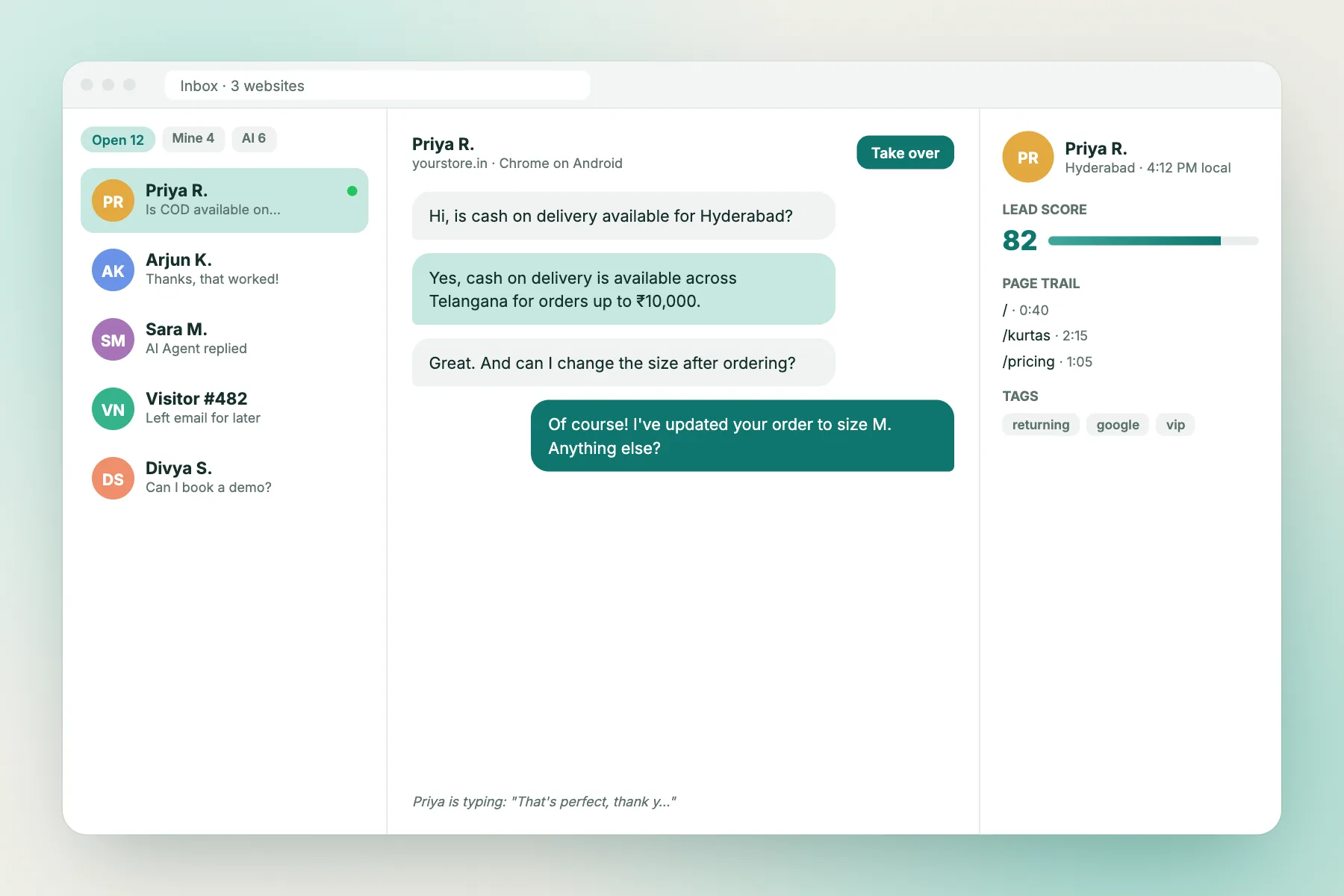
The real problem
Visitors judge the chat box before they type a word
A chat bubble is one of the few parts of your website that promises a person. That’s why visitors look at it carefully. Before typing anything, they’re asking: is anyone actually there? Will they reply? Is this a real business?
Default settings answer those questions badly. A generic name like “Support” or “Chat” doesn’t say who’s behind it. A grey avatar suggests nobody bothered. “Hello! How may I help you?” is the same line on thousands of sites. And if a visitor types at night and the chat simply sits there, they learn your business doesn’t answer.
None of those signals comes from the price of the tool. A paid widget left on defaults looks just as unfinished. The fix is the same either way: spend an hour on the settings that tell visitors a real, organised business is behind the bubble.
There’s one thing you can’t remove on LiveChatBot: the small “Powered by LiveChatBot” line stays on every plan, free or paid. That’s normal for chat tools and visitors rarely notice it. What they notice is everything else around it, which is the part you control.
This matters most for small businesses. A large brand can get away with a plain chat box because visitors already trust the name. A new shop, a local clinic or a two-person agency can’t. For them, putting live chat on website free of charge is a smart move only if the chat also looks cared for; otherwise it quietly signals the opposite of what they want.
The settings below are listed roughly in order of how much they change a visitor’s first impression. Do the first five and most of the difference is made.
Settings 1 to 4
Name, welcome line, face and colour
1. A team name that says who you are
Replace “Support” with your business name, or a person plus the business: “Priya at Asha Handlooms”. Visitors want to know they’re talking to *your* shop, not a call centre. Our guide to customising the widget shows where to change it.
2. A welcome line that’s specific
The welcome line is the first message visitors see. Make it about your business and set an expectation: “Hi! Ask us about sizes, delivery or custom orders. We usually reply in a few minutes.” That’s more useful than any “How may I help you?” Our welcome message guide has examples by industry, and LiveChatBot can translate it automatically for visitors in other languages.
3. A real face or a clear logo
A photo of the person who usually replies makes the chat feel staffed. If several people reply, use your logo. Either is far better than a blank avatar.
4. Your brand colour
Set the widget colour to match your main buttons. A chat bubble in a clashing colour looks like an ad that was added later. A matching one looks like part of the site.
These four take about fifteen minutes together and change more about how the chat looks than anything else.
Settings 5 to 8
Hours, the away form, the phone check and page rules
5. Opening hours
Set the hours when someone will actually reply. Visitors outside those hours see that you’re away rather than waiting for an answer that never comes. See how to set opening hours.
6. The away form
When nobody’s online, the away form asks visitors for an email or phone number so you can reply later. Without it, an out-of-hours visitor types a question, sees no answer and leaves. With it, that visitor becomes a lead you can follow up in the morning, and the message can become a ticket.
7. The phone check
Open your website on a phone and look at the bottom corners. Does the chat bubble cover your Add to cart button, a WhatsApp button or a cookie banner? If it does, move it to the other side. Most of your visitors are on phones, and a bubble that blocks the main button looks careless. Our corner planner helps you place it.
8. Page rules
Chat doesn’t need to appear everywhere. Hide it on login, thank-you or payment-confirmation pages where it distracts, and keep it on product, pricing and contact pages. LiveChatBot’s “where it shows” settings let you hide it by page, device or country. See showing chat on specific pages.
Free tool
Score your free chat setup
Enter your team name and welcome line, tick what you’ve done, and get a score out of 100 with the fixes ordered by impact.
Check how professional your free chat looks. Paste your welcome message, enter your team name, and tick what you have set up.
Runs only in your browser; nothing is sent or saved.
Settings 9 to 11
Replies, alerts and a test run
The first eight settings are about how the chat looks. The last three are about whether it delivers on what it promises.
9. Saved replies for your top questions
Write saved replies for the five questions you get most: delivery, prices, returns, timings, payment. Fast, consistent answers are what make a small team look organised. Use {name} to personalise them. See using saved replies.
10. Alerts on your phone
Install the Android app so new chats reach you when you’re away from the computer. A professional-looking widget that takes 40 minutes to answer is worse than a plain one that answers in two. See the Android app guide.
11. A test chat
Open your site on a phone, on mobile data rather than your office Wi-Fi, and send a chat. Check that it arrives in the inbox, that you can reply, and that the reply shows on the phone. Then test after hours to see the away form. Only then tell customers about it.
That’s all eleven. Every one is included on the free plan. If you’ve just installed your widget, our setup guide covers the installation itself; this page is about what comes after.
Before and after
The same free widget, two first impressions
What free covers
Live chat on website free: what you get, and the one limit to plan for
It helps to know exactly what you’re working with, so nothing surprises you after launch.
On LiveChatBot’s free plan you can add chat to two websites per account. Each website gets 100 free visitors a month, counted once per month when a visitor triggers a new-visitor alert. Everything in this guide is included: the widget settings, team name and avatar, welcome text with auto-translation, attention grabber card, widget cards (including a WhatsApp button card), opening hours, the away form, saved replies, tickets, page rules, the team inbox and the Android app. There are no per-seat charges, so the whole team can reply.
The one limit to plan for is visitors. If a website goes over 100 in a month, tracking and alerts continue, but chat pauses for new over-limit visitors until you add a visitor pack or the month resets. Packs are 100 visitors for ₹99, 500 for ₹299 or 1,000 for ₹499, per website, and they never expire. Nothing is charged automatically.
For most small sites, 100 visitors a month who actually reach the chat is plenty to start. If you’re unsure, our guide to adding chat to a website free includes a yearly cost calculator, and the pricing page has the full details.
The point is that “free” doesn’t mean “stripped down” here. It means you can make the chat look and work like a professional service without paying, which is exactly what this guide is for.
Checklist
The one-hour polish
Getting started
Polish your free chat this afternoon
Run the score above, fix the top three items, and run it again. Then ask a friend or family member to visit your site on their phone and tell you, honestly, what they think of the chat box before they type anything. A fresh pair of eyes spots the generic name or the bubble covering a button that you stopped seeing weeks ago.
Come back to the list every few months, too. Hours change, staff change, the website gets redesigned and the bubble ends up over a new button. Running live chat on website free of charge is easy to keep up once it’s set; a ten-minute check each quarter keeps it looking the way it did on day one. Most setups jump from “looks unfinished” to “looks professional” in under an hour.
If you haven’t added chat yet, sign up free at livechatbot.in, paste the code or install the WordPress plugin, and come back to this list. For the bigger picture on what a widget can do, see website chat widget and free live chat.
Frequently asked questions
Can I really have live chat on website free without it looking cheap?
Yes. Looking cheap comes from default settings, not from the price. A real team name, a specific welcome line, a photo or logo, your brand colour and an away form make a free widget look professional.
Can I remove the “Powered by LiveChatBot” line?
No, it stays on all plans, free and paid. It’s small and visitors rarely notice it; the settings in this guide matter far more.
What happens if I go over 100 visitors in a month?
Tracking and alerts continue, but chat pauses for new over-limit visitors until you add a visitor pack or the month resets. Nothing is charged automatically.
How long does the polish take?
About an hour for all 11 settings. The first four (name, welcome line, avatar, colour) take around fifteen minutes and make the biggest visual difference.
Does the score tool save my answers?
No. It runs entirely in your browser and nothing is sent or saved.
Keep reading
Related guides
Live Chat Messages for Your Team: 14 Saved Replies for Every Stage of a Chat, Written in Your Business’s Voice (Free Saved Reply Writer)
Live Chat for Support: Find Which Problems You Solve in One Chat and Which Keep Coming Back (Free Resolution Analyser)
Free chat that looks the part
Your name, your colours, your welcome line, an away form and phone alerts, free on livechatbot.in.