How to Track WhatsApp Leads From Website Pages: Four Methods, From a Free Notebook to Ref Codes
How to track WhatsApp leads from website visitors is a question every owner asks after the first month of messages: which page sent this person? WhatsApp itself will not tell you. This guide gives four methods you can use today, from a free notebook habit to automatic ref codes, explains what each one can and cannot show, and ends with a setup checklist you can tick off.
Real screens
See it in the LiveChatBot app
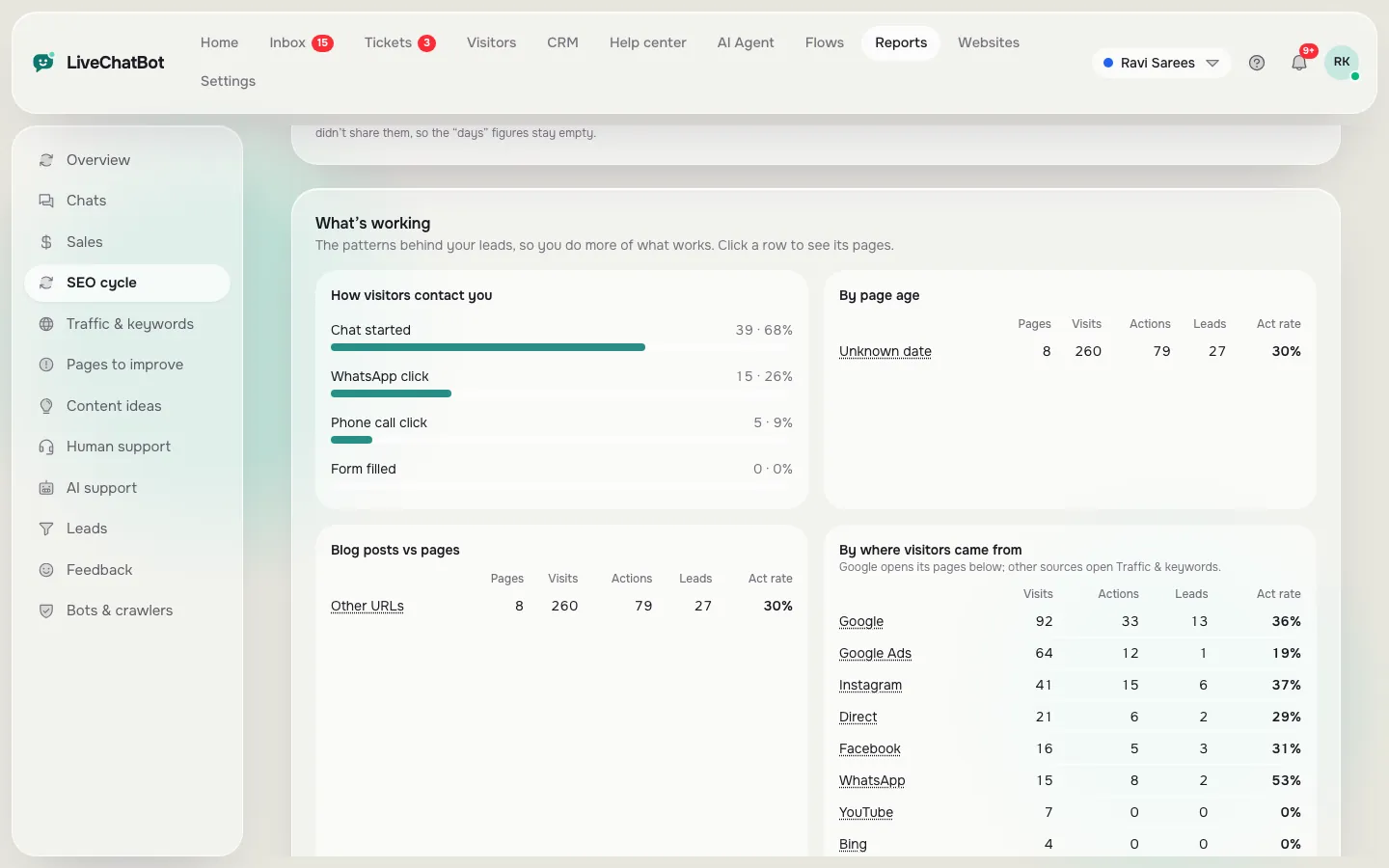
Real screens from the LiveChatBot panel, shown with sample data. Click any picture to see it full size.
⚡ In short
- WhatsApp does not tell you which web page a chat came from. You have to build that link yourself.
- Four methods: ask the customer, use different pre-filled messages per page, use ref codes, or log clicks with a tool.
- Count clicks per page even when you cannot match every chat. Trends matter more than perfect data.
- LiveChatBot logs the click and adds a ref code; you match the code to the chat in Reports.
The problem
Why WhatsApp leads are hard to trace
When a visitor taps a WhatsApp button, they leave your website and open another app. A message arrives on your phone from a number you do not know. Nothing in that message says whether the sender came from your homepage, your pricing page, a blog post, an Instagram bio or a printed flyer.
Ordinary website analytics cannot fix this on its own. It can count a click on the button, but it cannot connect that click to the person who later messages you. For an owner who is spending time on blog posts or money on adverts, that missing link means guessing which effort works.
What you actually need to know
Not everything. For most small businesses, three answers are enough:
- Which pages make people tap WhatsApp?
- Which of those taps turn into real chats?
- Which chats become customers?
The four methods below get you progressively closer to answering all three. Start with the simplest one that you will actually keep doing.
Method 1
Ask every new contact one question
The cheapest way to learn how to track WhatsApp leads from website visitors is a notebook and one question. After your first reply, ask: “How did you find us?” Write the answer next to the name, with the date.
What you learn
People say “Google”, “Instagram”, “a friend”, or name a page or post. Over a month you get a rough share for each source, and sometimes a very useful specific answer such as “your post about school fees”.
Where it falls short
- Some people forget or give a vague answer.
- It adds a step to every chat, which is awkward if you handle many.
- You learn the channel, not the exact page.
Make it easier
Save the question as a saved reply or a WhatsApp quick reply so it takes one tap. Keep a simple sheet with columns for date, name, source and outcome. This method costs nothing and works as a baseline against which you can judge the others.
Method 2
Use a different pre-filled message on each page
A WhatsApp link can carry a ready-made message, using the wa.me format with a text parameter. Instead of the same text everywhere, put the page’s name in the message.
Examples (illustrative)
- On your pricing page: “Hi, I have a question about your pricing.”
- On a blog post about school admissions: “Hi, I read your admissions guide and have a question.”
- On your Instagram bio link page: “Hi, I found you on Instagram.”
When the message arrives, you can see from the first line where the person was.
Why it works
The visitor does not have to remember anything. The context is in the message itself.
Where it falls short
- You must edit every button on every page by hand.
- Visitors can change or delete the text before sending.
- It only tells you the page the button was on, not where the visitor came from before that.
Use this together with Method 1 for a decent picture on a small site with ten or twenty pages.
Method 3
Add a short ref code to each message
A ref code is a short tag, such as “Ref: K7Q2”, added to the end of the pre-filled message. It does not carry the page name; it points to a record. Your tool logs that code against the visitor’s click, the page and the source. Later, when you read the message, you look up the code and see where it came from.
Why codes beat page names
A page name tells you where the button was. A code can stand for the whole visit: the page, the button and where the visitor came from. It also stays the same for a returning visitor, so a later tap on a different page still points to the same person.
The catch
Someone has to log the codes and show you the record. Doing it in a spreadsheet by hand is possible but slow. Using a tool that adds the code and logs the click for you is much easier. That is what WhatsApp click tracking in LiveChatBot does, and it is described in the method below.
Method 4
How to track WhatsApp leads from website taps automatically
With LiveChatBot, the widget on your website does the logging. When a visitor taps any WhatsApp link on your pages, or the WhatsApp card in the chat widget, LiveChatBot logs the page, the button and the source, and adds a ref code to their pre-filled message.
How you match a chat
- Open the WhatsApp message and note the code at the end.
- Go to Reports, then SEO cycle, then “WhatsApp clicks → leads”.
- Type the code, enter the WhatsApp number and an optional name, and press Match.
The chat becomes a lead credited to the page, and the keyword of the page, that brought the visitor. If the visitor first found a blog post on Google and tapped WhatsApp later from another page, the lead is credited to the first page.
Honest limits
Matching is manual: LiveChatBot does not read your WhatsApp messages, and there is no WhatsApp inbox. If a visitor deletes the code, you cannot match that chat. Clicks, however, are still counted per page as actions, so you can see which pages lead to taps even without matching every chat. The ref code is on by default and can be switched off in Settings, then Widget, under “Add a ref code to WhatsApp messages”.
Compare
Which method fits you?
Pick the one you will really keep doing. You can combine them.
| Method | Effort | Shows page? | Best for |
|---|---|---|---|
| Ask one question | Low, every chat | Rarely | Starting today with no setup |
| Page-specific message | Medium, edit each button | Yes, the button’s page | Small sites with few buttons |
| Ref code, by hand | High | Yes | Anyone who loves spreadsheets |
| Logged taps and ref codes | Low once set | Yes, plus source | Sites with many pages and blog posts |
Reading the data
What to do with the numbers once you have them
After four to six weeks of tracking WhatsApp leads from website pages, you should have enough to act on.
Pages that bring taps and chats
Write more content near these. If a blog post about one service brings WhatsApp chats, a second post on a related question may bring more. See how in our guide on topic clusters for small business.
Pages that bring taps but no chats
People tap, then do not send the message. The pre-filled text might feel strange, or the button might open WhatsApp in a confusing way on some phones. Test the button on a real phone.
Pages with visits but no taps
The page may not make the next step clear. Move the button higher or add a line that explains what happens when they tap it.
Chats that never turn into customers
That is a follow-up problem, not a tracking one. Reply faster, ask a clear question, and set a reminder. Our guide to live chat response time has targets that apply to WhatsApp too.
Setup checklist
How to track WhatsApp leads from website pages: tick these off
Work through the list once. It takes under an hour for most small sites.
Privacy
Keep customer privacy in mind
Tracking a lead does not mean collecting more than you need. Tell people how you use their details in your privacy policy, and keep WhatsApp numbers out of public sheets. If you operate in India, India’s Digital Personal Data Protection Act 2023 sets rules for handling personal data, so keep your notes limited to what helps you serve the customer, and delete what you no longer need.
LiveChatBot’s matching is manual by design. It does not read your WhatsApp messages; you type the code and number yourself, so you decide what is stored.
If you want to learn more about getting leads from chat on your site, read how to collect leads with live chat, and see pricing for the free plan limits: two websites, 100 free visitors per website per month, no per-seat charges.
Frequently asked questions
Can I see which website page a WhatsApp message came from?
WhatsApp does not show this itself. You need a method such as a page-specific message, a ref code or a tool that logs the click and the page.
Does LiveChatBot read my WhatsApp messages?
No. It logs the tap on your website and adds a ref code. You type the code in Reports to match a chat.
Do I need Google Analytics to learn how to track WhatsApp leads from website visitors?
No. LiveChatBot uses its own tracking through the widget, without Google Analytics.
What if a visitor removes the code from the message?
You cannot match that chat by code. The tap is still counted for the page, and you can ask the customer how they found you.
Is there a WhatsApp inbox in LiveChatBot?
No. LiveChatBot has a WhatsApp button card for your widget. Chats continue in WhatsApp.
Keep reading
Related guides
WhatsApp Click Tracking: See Which Page and Button Sent You Each WhatsApp Chat
WhatsApp Button Conversion Tracking: Measure the Four Rates Between a Page View and a Paying Customer
Find out which page sends your WhatsApp chats
Start free on livechatbot.in and match every WhatsApp chat to the page that brought it.