Elementor Live Chat Widget: Add It With the HTML Widget or Custom Code, Then Test It on Every Template (Free Install Checklist)
Elementor live chat widget setups are simpler than they look, but there is one thing to know first. LiveChatBot does not have a dedicated Elementor widget or add-on. You add its normal embed snippet, either through a WordPress plugin, an Elementor HTML widget or Elementor’s custom code feature, and then check that it shows on each template you use.
⚡ In short
- There is no special Elementor widget. You use the standard LiveChatBot embed code or the WordPress plugin.
- For one chat on every page, install the plugin or add the snippet once, site-wide, instead of pasting it into each page.
- Elementor has several template types, so test a normal page, a landing page, a popup and your blog posts.
- Use the checklist below, tick each item as you go, and you will know the chat really works.
The honest starting point
What an Elementor live chat widget means with LiveChatBot
Many chat tools advertise an Elementor widget that you drag onto a page. LiveChatBot does not offer one, and it does not need to. A chat widget is a small script that loads on your site and draws the bubble in the corner. Elementor can load a script in several ways, and all of them work.
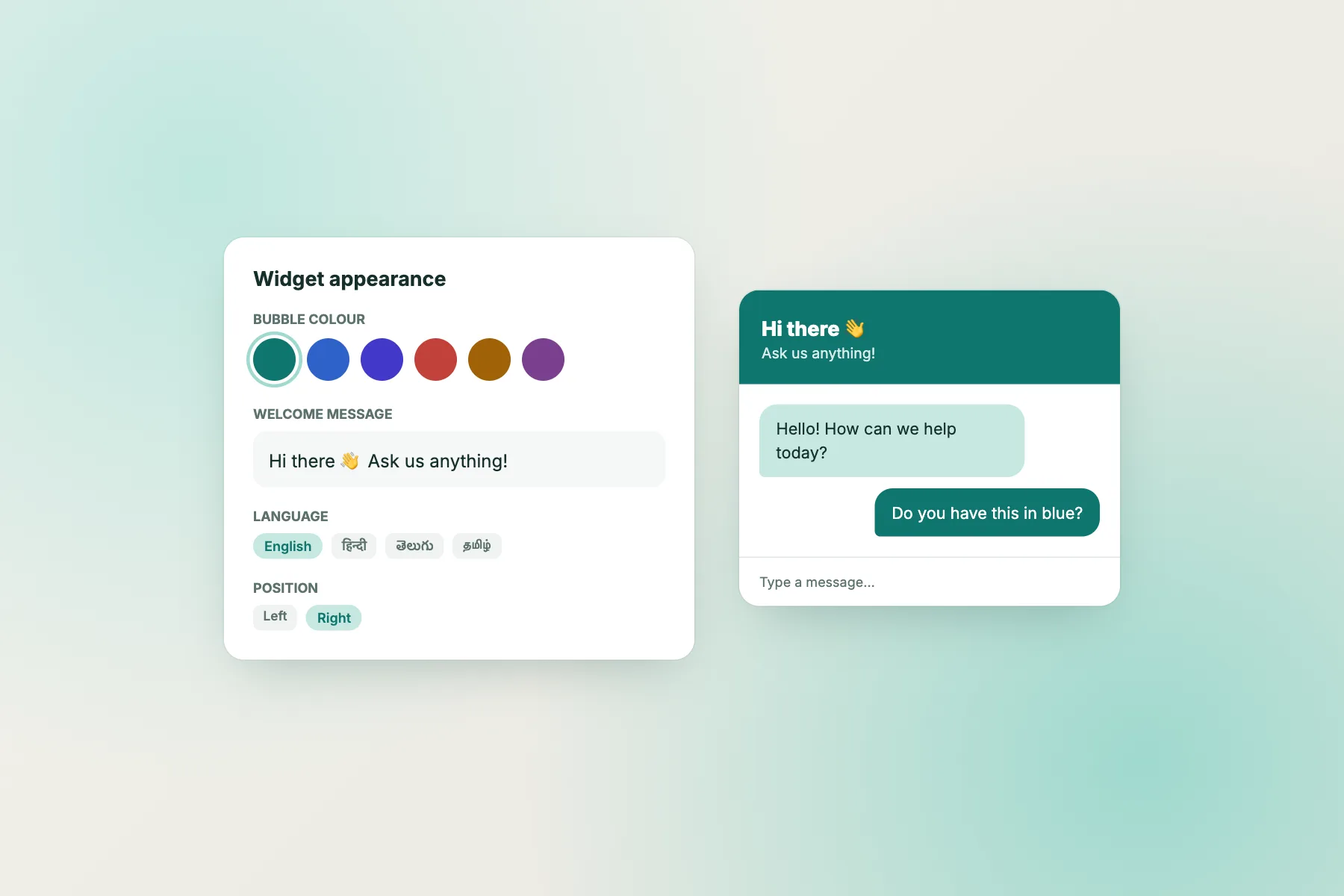
That means you keep your design work in Elementor and your chat work in LiveChatBot. You change the chat colour, position, team name and welcome text inside the LiveChatBot dashboard. You never edit the chat inside Elementor, so a redesign of your pages will not break it.
The price is simple too. The free plan covers two websites and 100 free visitors per website each month, with no per-seat charges. You can try the whole setup before you spend anything. Sign up at livechatbot.in, add your site and copy the embed code from the dashboard.
Pick a method
Three ways to place the snippet in an Elementor site
1. The WordPress plugin (easiest)
Install the LiveChatBot WordPress plugin, paste your site details and the chat appears across the site. This works the same whether a page was built in Elementor or with the normal block editor. Choose this if you want the least work.
2. Elementor’s custom code feature
Elementor Pro includes a custom code area where you can add a snippet to the site footer and choose where it loads. Paste the LiveChatBot embed code there, set it to load on the entire site, and save. Check your own Elementor version for the exact menu names, since they change.
3. The HTML widget on a single page
Drag an HTML widget onto one page and paste the snippet in. Use this only when you want chat on one landing page and nowhere else. If you use it on many pages, you will forget one, so prefer method 1 or 2 for site-wide chat.
Never use two methods together for your Elementor live chat widget. A duplicate snippet can give you two chat bubbles.
Templates
Test every Elementor template, not just the home page
Elementor sites usually mix several kinds of page, and each one is built a little differently. A chat that shows on your home page might not show on a full-width landing page that skips the header and footer.
Open each of these on your phone and your laptop:
- A normal page with the theme header and footer.
- A landing page or canvas-style page with no header and footer. This is the one most likely to behave differently, so check it first.
- A blog post, which uses a single-post template.
- A shop or product page, if you sell online.
- A popup, if you run one. Check that the chat bubble does not sit underneath it.
If the chat is missing on one template, the cause is almost always that the snippet loads in a place that template does not use. Move it to a site-wide spot rather than pasting it again.
Try it
Elementor chat install checklist
Tick each step as you finish it. The bar shows how far along you are.
Cache and speed
If the Elementor live chat widget does not appear
Most missing-bubble problems have boring causes. Work through them in this order.
- Clear the cache. If you use a caching plugin or a host cache, clear it and reload the page. Old copies of a page will not contain your new snippet.
- Open a private window. This rules out your browser’s saved copy.
- Check the snippet is saved. Reopen the Elementor custom code area or the HTML widget and make sure the code is still there.
- Check the visibility rules. In LiveChatBot, the “where it shows” settings can hide chat on certain pages, countries or devices. A rule you set earlier might be hiding the bubble. See how to show live chat on specific pages.
- Look for a duplicate. Two snippets can fight each other. Keep one.
If you used the plugin and still see nothing, check that the plugin is active and that the site ID matches your dashboard.
Make it useful
Set up the chat itself once the bubble shows
A visible bubble is only the start. A few settings turn it from decoration into something that brings enquiries.
Write a short welcome message that says what you can help with. Our guide to writing a live chat welcome message has examples. Add an attention grabber card on your pricing or contact page. Set up Flows so a visitor who has looked at a service page for a while gets a friendly proactive message.
Teach the AI Agent your most-asked questions so it can answer from your own facts. When it cannot answer, the free keyword bot uses your saved replies, and anything unresolved can become a ticket. Install the Android app so alerts reach whoever is on duty. For a wider look at pasting chat into any builder, read our guide to a chat widget for website installation on any platform.
Limits
What to know before you rely on it
Be clear about what you are getting. LiveChatBot has no Elementor-specific widget, so you cannot style the bubble with Elementor’s design controls. The look is controlled in the LiveChatBot dashboard instead.
“Powered by LiveChatBot” stays on all plans, so it will show in your widget. There is no iOS team app, though iPhone users can answer from a browser. There is no WhatsApp inbox, but a WhatsApp button card can send visitors to your number.
Finally, free visitors are 100 per website each month. After that, tracking and alerts continue and chat pauses for new over-limit visitors until you buy a one-time pack (100 visitors for ₹99, 500 for ₹299, 1000 for ₹499, never expiring) or the month resets. Nothing is charged automatically.
Frequently asked questions
Is there an Elementor live chat widget for LiveChatBot?
There is no dedicated Elementor widget. You add the normal embed code through the WordPress plugin, Elementor’s custom code feature or an HTML widget, and the chat works the same.
Do I need Elementor Pro?
Not necessarily. The WordPress plugin and an HTML widget cover most needs. Elementor’s custom code area is a Pro feature, so check your own plan.
Can I show the chat on only one Elementor page?
Yes. Use an HTML widget on that page, or install site-wide and use the where-it-shows settings to hide chat on other pages.
Why do I see two chat bubbles?
Two snippets are loading, for example the plugin plus a pasted code. Remove one.
Can I remove the Powered by badge?
No. It stays on all plans.
Add chat to your Elementor site
Free plan for two websites, no per-seat charges and an Android app for your team. Start free on livechatbot.in.