Create a Bot for Your Website by Building the Handover First: A Four-Block Afternoon Plan, Then the Answers
Create bot for website projects fail when people start with clever answers and forget what happens when the bot does not know. This plan builds the exit first, then the facts, then the rules, then the test, with a time budget for each block.
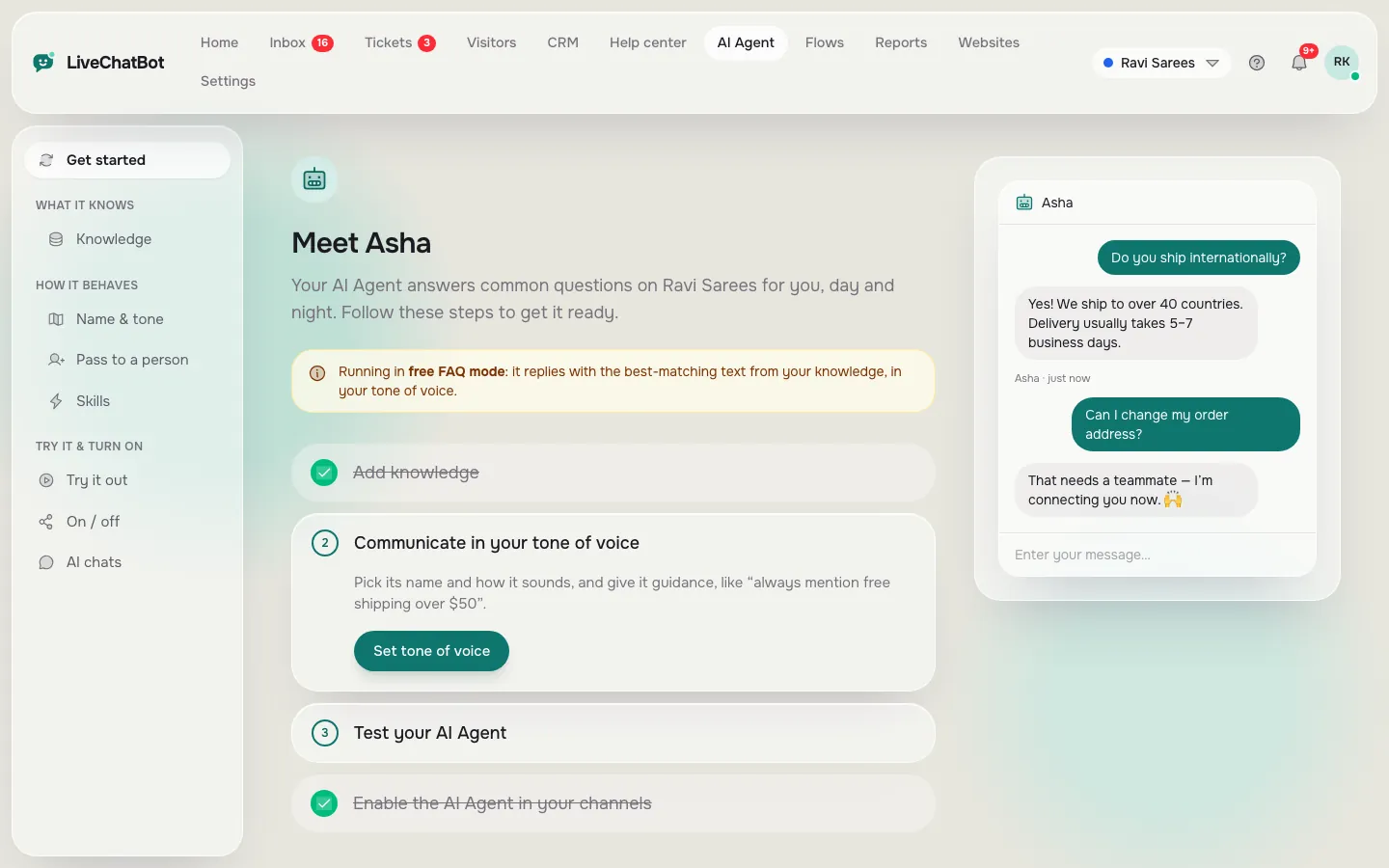
To create a bot for your website, sign up, paste the chat code on your site, add your business facts to the AI Agent Knowledge, write a few Rules, set a human handover, and test with ten real questions. A small site can finish this in about three to four hours without writing code.
⚡ In short
- Build in four blocks: handover, facts, rules, test. Most people do them in the wrong order.
- The AI Agent answers from Knowledge you type, copy from a page, or upload as a file, and follows a Rules box of up to 5,000 characters.
- A free keyword bot answers from saved replies when AI is unavailable, so the chat is never silent.
- You need no code for the bot itself; the chat code is pasted once, or installed with the WordPress plugin.
Before you start
A website bot is a chat window that answers from facts you provide
A bot for your website is a chat window on your pages that replies on its own, using answers you prepared or facts you gave it. That is all it is, and it is smaller than the word suggests.
You do not train a model. You write down what your business says, and the bot repeats it in a friendly way. If you are new to the idea, our short guide on what a chatbot is covers the vocabulary.
What you need on the table
Before you open the dashboard, gather five things: your opening hours, your prices or price ranges, your delivery or service area, your refund or cancellation rule, and a phone or WhatsApp number a human answers. Ten minutes of collecting saves an hour of rewriting.
What the finished bot looks like
If the bot is unsure, it passes the chat to your team or asks for an email and phone number. The AI Agent is the part that does the answering.
Block 1
Block 1 is the handover: decide what happens when the bot does not know
The first block is to decide where unanswered chats go, because every bot meets a question it cannot answer. Build this before any answer so it is never forgotten.
Do these four things, in this order:
- Sign up at livechatbot.in and add your website. The free plan gives 2 websites with 100 visitors each a month.
- Paste the chat code before the closing body tag of your site, or install the plugin if you use WordPress (see the WordPress live chat plugin guide). Shopify, Wix and Squarespace are paste-code installs too.
- Set your opening hours, so an after-hours visitor gets the away form that collects email or phone.
- Install the Android app so a chat that needs a person reaches your phone.
Why the chat rescuer matters here
If nobody replies within seconds, the chat rescuer asks the visitor for an email and phone number so the lead is not lost. It is on by default, which makes your handover safe from the first day.
Block 2
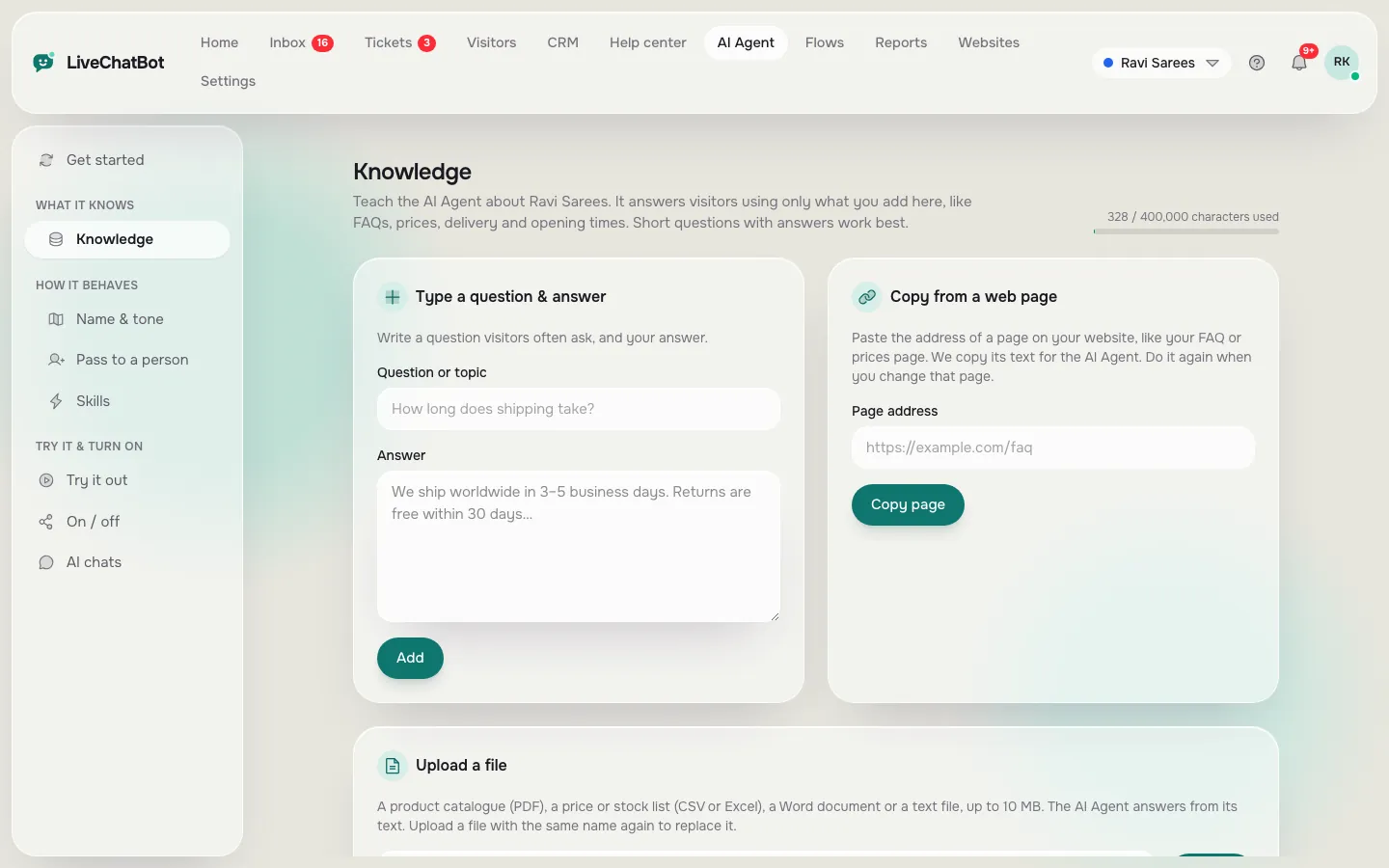
Block 2 is the facts: put every answer in Knowledge in one of three ways
The second block is giving the AI Agent its facts, and there are three ways to do it. Use the one that matches where your information already lives.
- Type it. Write short question-and-answer entries. Best for opening hours, shipping rules and anything that is only in your head.
- Copy a web page. Point the Knowledge at a page you already have, such as your pricing or FAQ page.
- Upload a file. PDF, Word DOCX, Excel XLSX, CSV or TXT. Best for a price list or a brochure.
Keep each fact to one job
One fact per entry beats one long essay. Our guide on how to train your AI chatbot shows how to word entries so gaps are rare.
Start small on purpose
Ten to fifteen entries cover most first-week questions. You can add more every time a real visitor asks something the bot missed, and the transcript shows you exactly what that was.
Real screens
The three screens you use to build the bot
Real screens from the LiveChatBot panel, shown with sample data. Click any picture to see it full size.

Block 3
Block 3 is the rules: write behaviour in the Rules box, facts in Knowledge
The third block is writing the Rules, which tell the bot how to behave rather than what is true. On the AI Agent’s Name and tone page you set the name, the tone of voice, and a Rules to follow box of up to 5,000 characters.
Good rules are short and specific:
- “Never promise a delivery date. Say our team confirms it.”
- “If someone asks for a discount, ask for their email and phone so a person can reply.”
- “Answer in two or three sentences.”
The split that keeps the bot honest
Prices, hours and policies go in Knowledge. Behaviour goes in Rules. Mixing them makes both harder to fix. Rules only work while the website has AI replies; the free keyword bot cannot follow written rules, so back it up with saved replies for your top ten questions. Our guide to canned responses shows how to write them.
Add one proactive message
A Flow can open the chat on a chosen page, for example your pricing page after 20 seconds. Flows allow up to 6 conditions such as page, source, country, device and number of visits. See chat flows for templates.
Original data
A time budget to create bot for website chat, with the maths shown
These figures combine LiveChatBot’s real product limits with a worked example, and the timings are illustrative for a small site, not a survey.
- Knowledge input ways: 3 (type, copy a page, upload a file), covering 5 file types.
- Rules box: up to 5,000 characters, which is roughly 800 words of instructions.
- Flow conditions: up to 6 per Flow.
- Chat rescuer: asks for email and phone when nobody answers within seconds.
- Message limit: 20 visitor chat messages a minute per IP, built in.
Worked time budget (illustrative)
Block 1, handover: install code 20 min, hours 10 min, Android app 10 min, so 40 min. Block 2, facts: 15 entries at 4 min each is 60 min, plus 15 min to copy one page, so 75 min. Block 3, rules: 5 rules at 5 min each is 25 min, plus 20 min for one Flow, so 45 min. Block 4, test: 10 questions at 3 min each is 30 min, plus 20 min of fixes, so 50 min.
Total: 40 + 75 + 45 + 50 = 210 minutes, or 3.5 hours. If you already have a clean FAQ page, the facts block drops to about 20 minutes and the whole job to roughly 2.5 hours.
Build timeline
Your four blocks laid out in order
Follow the blocks top to bottom. The times are the illustrative budget from above.
Chat code on the site, opening hours, away form and the Android app.
Fifteen Knowledge entries, one copied page or file.
Five rules in the Rules box and one Flow on your best page.
Ten real questions, then fix every wrong or missing answer.
What most guides miss
Our rule: when you create bot for website chat, build the exit before the answers
Build the handover before the answers, because a bot is judged by its worst moment, not its best. Most guides open with “add your FAQs” and mention the human handover last, if at all.
The two-minute exit test
Before you write a single fact, open your site in a private window and type “I want to speak to a person”. Check three things: the message reaches your phone, the visitor is told what happens next, and an after-hours visitor is asked for contact details. If any of those fails, fix it before adding Knowledge.
Why order matters
If you build answers first, you test happy paths and ship a bot never asked something unknown. Build the exit first and every later test starts from a bot that fails safely.
Block 4
Block 4 is the test: ask ten real questions before any visitor does
The fourth block is testing with ten questions you have actually received, because invented questions are too polite. Pull them from your WhatsApp, email or call notes.
Run the 7-and-3 check
Pick seven questions your Knowledge answers and three it does not. For the seven, the reply should match your facts. For the three, the right result is an honest “I’m not sure” plus a handover. Any confident wrong answer means a missing fact or a missing rule.
Read the first week’s chats
After launch, open the inbox each morning for a week. Add a Knowledge entry for every question the bot fumbled. The Reports area shows Resolved by AI, so you can see how many chats the AI Agent settled without a person. Fix the top three misses rather than rewriting everything.
Know the limits
You cannot choose the AI model or bring your own key. There is no voice, no sentiment scoring and no native Slack or HubSpot link, though Zapier, webhooks and the REST API can bridge some. “Powered by LiveChatBot” stays on every plan.
Quick check
Which build path fits your site?
Four quick questions. The most common answer picks your starting path.
Cost
Create bot for website projects cost nothing to start, and paid plans start at ₹299
You can start free, and pay only when your visitors outgrow the free plan. The Free plan is ₹0 for 2 websites with 100 visitors per website a month.
When traffic grows, Starter is ₹299 a month for 2 websites and 750 visitors shared across them. Growth is ₹699 a month for 5 websites and 2,500 shared visitors. Yearly plans are 10 months for 12, payment is prepaid with no auto-renew, and there are no per-seat charges. The code WELCOME100 adds 100 visitors once. AI replies come with every plan, with a monthly allowance shown in the dashboard. See pricing for the current details.
Run the free plan for a month, then upgrade only if visitor numbers say so.
Frequently asked questions
Can I create bot for website chat without coding?
Yes. You paste one chat code on your site, or install the WordPress plugin, and set up the AI Agent in the dashboard by typing, copying a page or uploading a file.
How long does it take to create bot for website chat?
About three to four hours for a small site using the four-block plan, or roughly two and a half if you already have a clean FAQ page. The timings in this guide are illustrative.
What if the bot gives a wrong answer?
Add or correct the fact in Knowledge, and add a Rule if the behaviour was wrong. Then ask the same question again to confirm the fix.
Will the bot work on Shopify, Wix or WordPress?
Yes. WordPress has a plugin, and Shopify, Wix and Squarespace use a pasted code. There is no Shopify App Store app.
Can a person take over from the bot?
Yes. Your team answers from the shared inbox or the Android app, and chats can be assigned with Assign to me and the Unassigned and Mine folders.
More to read
More guides on this topic
Create Chatbot for Website in One Afternoon: A Four-Hour Build Plan, Worked Out Minute by Minute
Create your bot on a free plan
Start free on livechatbot.in with 2 websites, and set up the [AI Agent](ai-agent) handover first.