Chatbot Button Design: Placement, Labels and Custom ‘Ask Us’ Buttons That Get Clicked
Chatbot button design decides whether visitors ever start a conversation, because a bot nobody opens cannot help anyone. This guide covers the floating launcher in the corner, the custom buttons you can place inside your pages, and the small details of size, wording and accessibility that change how often people click.
Classic launcher
Launcher + attention card
⚡ In short
- Keep the launcher in the bottom corner, where visitors expect it, and away from your main buttons.
- A short text label or attention card next to the icon gets noticed more than an icon alone.
- Add inline ‘Ask a question’ buttons on high-intent pages: product, pricing, checkout help.
- Make every button keyboard-friendly, with a clear name for screen readers.
Two kinds of button
The launcher and the inline button do different jobs
When people talk about a chatbot button they usually mean the round bubble in the bottom corner of a website. That is the launcher, and it is there on every page as a quiet promise: help is available if you need it. Its job is to be findable without being in the way.
The second kind gets far less attention but often works harder: the inline button. It sits inside your page content, next to the thing a visitor might have a question about. “Questions about sizing? Ask us” under a size chart. “Not sure which plan? Chat with us” under a pricing table. “Need help with installation?” on a product page. Inline buttons catch visitors at the moment a question forms, in the place their eyes already are.
Most websites only have the launcher. Adding two or three well-placed inline buttons is one of the cheapest ways to get more useful conversations, and it takes a few lines of code, which you’ll find further down this page.
The launcher
Placement rules for the corner button
Six decisions, in the order that matters most.
1
Bottom right by default
Visitors look there first because most sites put it there. Move to bottom left only if something important lives on the right.
2
Clear of your main buttons
On phones especially, check the launcher doesn’t cover ‘Add to cart’, ‘Book now’ or a cookie banner’s accept button.
3
Big enough to tap
Aim for a touch target of at least 48 by 48 pixels. Smaller bubbles get missed taps on phones.
4
A contrasting colour
Your brand colour usually works, as long as it stands out from the page background.
5
Hidden where it distracts
Consider hiding it on checkout payment steps or full-screen forms, and keeping it everywhere else.
6
Consistent on every page
Same position and look across the site, so returning visitors know where to find help.
Labels
Icon only, or icon plus words?
An icon on its own is tidy, and most people recognise a speech bubble. But tidy is not the same as inviting. A short label or an attention card beside the launcher tells visitors what the chat is for, and that changes who clicks.
When an icon alone is enough
On sites where visitors already know they can chat (a support portal, a web app with logged-in users), the icon is fine. People who need help will look for it.
When words help
On shops, service businesses and anywhere first-time visitors arrive, words give a reason to click. Compare these:
- “💬” — recognisable, but says nothing about what happens next.
- “Chat with us” — clearer, but generic.
- “Questions about delivery? Ask us” — specific, and answers “why would I click this?”.
- “Talk to a florist” — personal and specific to the business.
The attention card
LiveChatBot’s attention grabber shows a small card next to the launcher with a short line of your choosing. Use it for a message that matches the visitor’s likely question on that site. Keep it under ten words, and test whether it gets more chats started than the plain launcher. The widget customisation guide shows where to switch it on.
Wording
Label lines you can copy
Pick the tab for your type of business, copy a line, and adapt it.
Inline buttons
Adding your own chatbot button inside a page
Inline buttons are ordinary buttons or links in your page that open the chat window when clicked. On LiveChatBot the widget includes a small JavaScript API, window.LiveChatBot, with functions such as open, close, show, hide and sendMessage. Any button on your site can call it.
The simplest version
Paste this where you want the button to appear (in a WordPress Custom HTML block, a Wix embed, or your theme template). It opens the chat window when clicked.
<button type="button" class="ask-btn" onclick="window.LiveChatBot.open()">
  Questions about sizing? Ask us
</button>
Pre-filling the visitor’s question
Sometimes you know exactly what the visitor will ask, because of where the button sits. You can open the chat and send a starting message on their behalf, so the bot or your team answers immediately. Use this carefully: only when the button text makes it obvious what will be sent.
<button type="button" class="ask-btn"
  onclick="window.LiveChatBot.open(); window.LiveChatBot.sendMessage('Can you help me choose a size?')">
  Help me choose a size
</button>
Styling it
Give the button your site’s normal button styles, so it looks like part of the page rather than an advert. A simple outline style with an icon works well under size charts, FAQs and pricing tables.
Where the API lives
For the full list of functions, check the integrations page or ask our team for the developer documentation. Ask whoever manages your website to add the code if you’re not comfortable editing templates yourself; it’s a five-minute job.
Placement map
Where inline buttons earn their place
High-intent spots, where a question usually stops a purchase or booking.
Under size charts
Fit questions stop more clothing and shoe purchases than price. Put ‘Not sure of your size? Ask us’ directly below the chart.
Under pricing tables
‘Which plan fits me?’ is the most common pricing question. A button under the table catches it.
Next to delivery info
On product pages, a small ‘Ask about delivery to your city’ link beside the delivery note.
At the end of long articles
Readers who finish a long guide often have one specific question. Offer to answer it.
On the contact page
Many visitors prefer chat to a form. Offer both, with chat first.
In order emails
A link to a page that opens the chat lets customers ask about their order without phoning.
Accessibility
Making every chatbot button usable for everyone
A button that only works with a mouse, or that a screen reader announces as “button” with no name, shuts out visitors who navigate differently. These checks take minutes and help every visitor, not just those using assistive technology.
- Use a real button element. A clickable div is not reachable with the Tab key. A button element is, and it activates with Enter or Space.
- Give it a name. If your button shows only an icon, add an aria-label such as “Open chat” so screen readers announce what it does.
- Visible focus. When someone tabs to the button, there should be a clear outline. Don’t remove focus outlines in your CSS.
- Colour contrast. Text on the button should contrast clearly with the button colour. White text on pale yellow fails; white on dark teal passes.
- Size. Keep touch targets comfortably large (about 48 pixels) with space around them, so thumbs don’t hit the wrong thing.
- No surprise motion. A gentle one-time animation is fine. Constant bouncing or shaking distracts and can trouble people sensitive to motion.
These points follow the general principles of the W3C Web Content Accessibility Guidelines, which are worth a look for any public website.
Before and after
Common button mistakes and their fixes
Measuring
How to tell if your button changes are working
Change one thing at a time and give it two weeks. Visitor numbers vary from day to day, so a few days of data can mislead you.
What to count
The simplest number is chats started per 100 visitors. Note it before your change, make the change, and compare after two weeks. If you added inline buttons, check which pages the new chats come from; LiveChatBot shows the page a visitor was on when they started chatting, alongside visitor tracking data.
What good looks like
More chats is only good if they are useful chats. If a new attention card doubles chats but they are mostly “hi” with no follow-up, the wording is attracting curiosity, not questions. Adjust the wording to be more specific. If inline buttons on the size chart bring in fit questions that end in purchases, add the same idea to similar pages.
When to stop tweaking
Once your chatbot button is visible, clear and well placed, further gains come from better answers, not a better button. Spend your time on what the bot says next: read conversations weekly and improve the replies.
Frequently asked questions
Where should the chatbot button go on a website?
The bottom-right corner is the standard, because visitors expect it there. Move it to the bottom left only if it would cover something important, such as a checkout or booking button.
Can I change the launcher colour and icon?
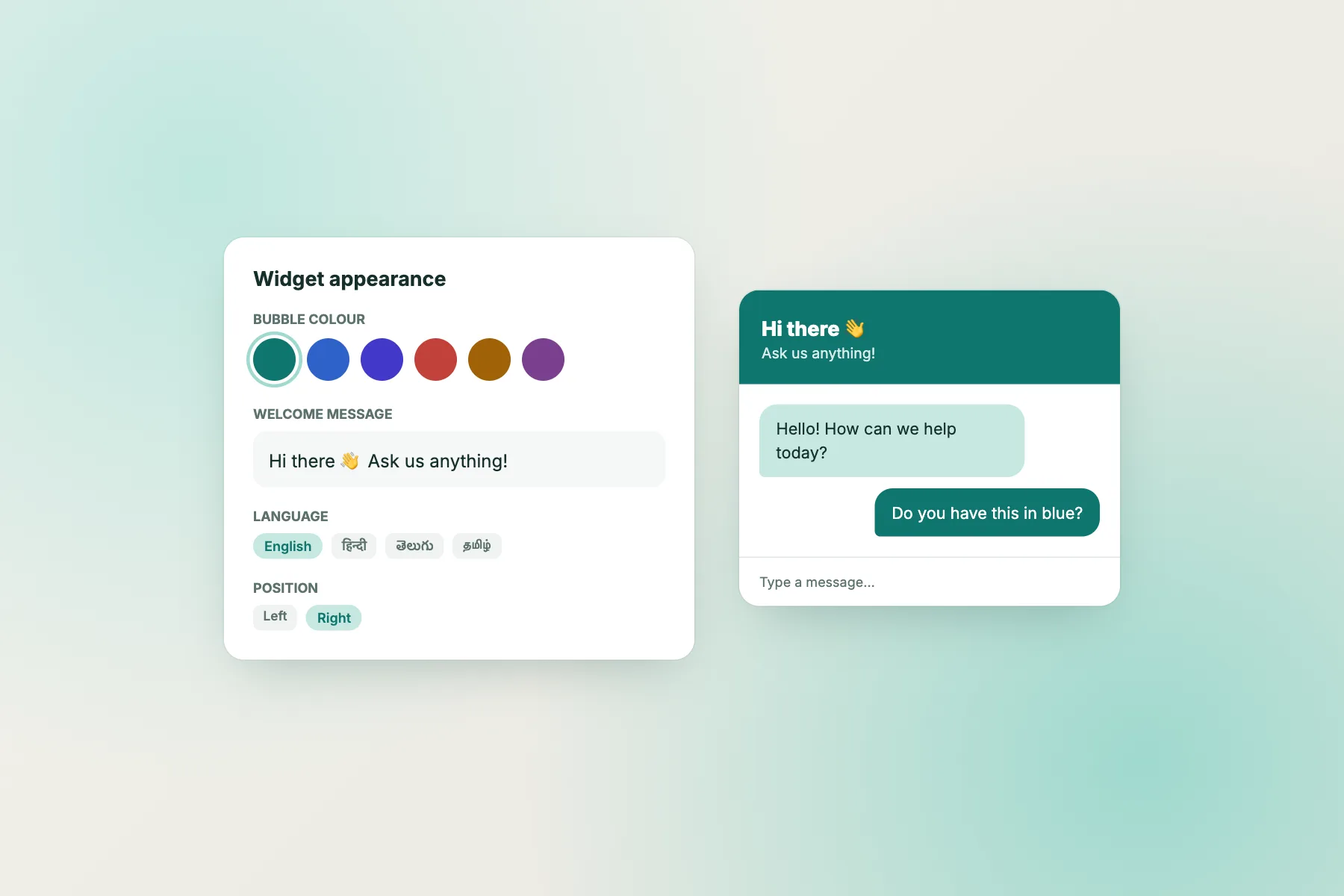
Yes. You can set the colour, position and attention card in the widget settings. The “Powered by LiveChatBot” line in the chat window stays on all plans.
How do I add an ‘Ask us’ button inside my page?
Add a normal button that calls window.LiveChatBot.open() when clicked. The code examples above work in WordPress, Wix, Squarespace and most website builders.
Should the chat open automatically?
Usually not. Opening the chat window on page load feels intrusive. Use a short attention card or a proactive Flow message after the visitor has had time to read.
Can I hide the button on certain pages?
Yes. In Settings you can choose where the widget shows, including hiding it on specific pages or devices. See how to show live chat on specific pages.
Related set-up guides: show live chat on specific pages · live chat button ideas · website chat widget
Keep reading
Related guides
Chatbot Artificial Intelligence Examples: 8 Annotated Conversations That Show What the AI Is Actually Doing
Chatbot Customer Service Rulebook: Who Answers What, and When the Bot Steps Aside
Chatbot Application Ideas by Department: 14 Real Jobs a Website Bot Can Take Over
Put a button where your visitors’ questions start
Install the widget free on livechatbot.in, style the launcher, and add your first inline ‘Ask us’ button today.