Chatbot App Setup in One Afternoon: An Hour-by-Hour Plan for Small Businesses
Chatbot app setup sounds like a week-long project, but for most small businesses it fits into a single afternoon if you work in the right order. This plan splits the job into four hours: install, teach, test and launch, with a short checklist for each one.
Account, widget code, colours and the welcome line.
Your top questions, answers and business facts.
Ask it awkward questions from your phone.
Opening hours, alerts, one Flow and a review habit.
⚡ In short
- Work in this order: install, teach, test, launch. Most problems come from launching before teaching.
- Write down your 15 most common customer questions before you open any settings screen.
- Test on a real phone, as a stranger would, before you tell anyone the bot exists.
- Book a 20-minute review once a week for the first month. That is where the real improvement happens.
Before you start
What you need on the desk before Hour 1
A smooth chatbot app setup depends on preparation more than on software. People who struggle with setup usually stop halfway through to hunt for a logo, a refund rule or a password, lose momentum, and leave a half-configured bot running on their site. Spend ten minutes gathering these first and the rest of the afternoon flows.
Access to your website
You need to be able to paste a short script into your site, or install a plugin if you run WordPress. If someone else manages your website, send them a message now so they are ready when you have the code. On WordPress, Wix, Squarespace, Shopify and most builders this takes a couple of minutes; the set-up guide shows where the code goes on each one.
A list of your real questions
Open your email inbox, your WhatsApp business chats and your phone notes. Write down the questions customers actually ask, in their words, not yours. “Do you deliver to Pune?” is more useful than “Shipping policy”. Aim for fifteen. Most businesses find that eight or nine of them cover the majority of messages.
Your facts in one place
Opening hours, delivery areas and times, prices or price ranges, the refund or cancellation rule, how to book, your phone number and your address. If these live in different places today, this is a good moment to collect them into one note. The bot will only ever be as accurate as this note.
Your brand basics
Your logo, your main colour (the hex code from your website theme, such as #0f766e) and the name you want the chat to show. A friendly team name such as “Asha from the shop” works better than “Support Bot”.
Hour 1 · Install
Get the widget on your site and make it look like yours
The first hour is the most mechanical part of the job, and it is where most people spend too long fiddling with colours. Set a timer. You can always polish later; what matters is a working chat bubble on your live site by the end of the hour.
- Create your account. Sign up on livechatbot.in with your work email. Add your website address. The free plan covers two websites, so if you run a second site you can add it later without paying.
- Copy the widget code. It is one short script. Paste it before the closing body tag of your site, or use the WordPress plugin. Reload your site in a private browser window and check that the bubble appears in the corner.
- Set the colour and name. Use your brand colour and a human team name. Upload your logo or a team photo. See how to customise your chat widget for the full list of options.
- Write the welcome line. One sentence, under fifteen words, that says what you can help with. “Hi! Ask us about delivery, sizes or your order” beats “How may I assist you today?”. The guide to welcome messages has thirty tested examples.
- Choose where it shows. If the bubble would cover a checkout button or a booking form, hide it on that page. You can also hide it on mobile for certain pages.
A note on mobile
More than half of the visitors on most small-business sites arrive on phones. Open your site on your own phone now and check that the bubble does not cover your main button or your cookie banner. If it does, move it to the other corner.
By the end of Hour 1: a branded bubble on every page
Hour 2 · Teach
Give the bot your answers, in your words
This is the hour that decides whether customers trust your bot or close it after one message. A bot that has not been taught guesses, and a bot that guesses about prices or delivery dates creates work instead of saving it.
Start from your list of fifteen questions
Take each question from your list and write the answer the way your best team member would say it out loud. Short sentences. Include the number, the date, the price range or the link the customer needs. If an answer depends on something (“delivery is 2 days in Bengaluru, 4–6 days elsewhere”), say so plainly rather than hiding the detail.
Add the facts that answers depend on
Paste your opening hours, delivery areas, refund rule and contact details. The AI Agent answers from the knowledge you give it, so the more specific your facts are, the more specific its answers will be. If you sell many products, add your best-sellers first; you do not need your whole catalogue on day one.
Decide what the bot should never answer
Every business has questions a bot should hand to a person: complaints, medical or legal questions, custom quotes, anything involving a refund already in dispute. Write these down. When a visitor asks one, the bot should collect their details and pass the chat to your team rather than improvise.
Set the tone
Pick three words for how you want to sound, such as “warm, quick, plain”. Write one example answer in that voice and use it as the model. The guide on how to train your AI chatbot goes deeper into tone, sources and testing.
Copy and adapt
Starter answers for the questions every business gets
Click a tab, copy a line, and change the details to match your business.
Hour 3 · Test
Try to break your own bot before customers do
Testing a new chatbot app is the step everyone skips, and it is the reason so many small-business bots embarrass their owners in week one. Spend a full hour here. It is the cheapest hour of the whole project.
Test as a stranger, on your phone
Open your website in a private window on your phone, so you look like a new visitor. Ask your fifteen questions, but phrase them differently from how you wrote them. Customers type “how much to ship to kochi” and “do u deliver sunday”, not “What is your shipping policy?”. Note every answer that is wrong, vague or too long.
Ask the awkward questions
Try the questions you hope nobody asks. “Is this cheaper on Amazon?” “My order never arrived.” “Can I speak to a human?” “What’s your owner’s phone number?” Check that the bot either answers honestly or hands over politely. It should never invent a policy.
Check the handover path
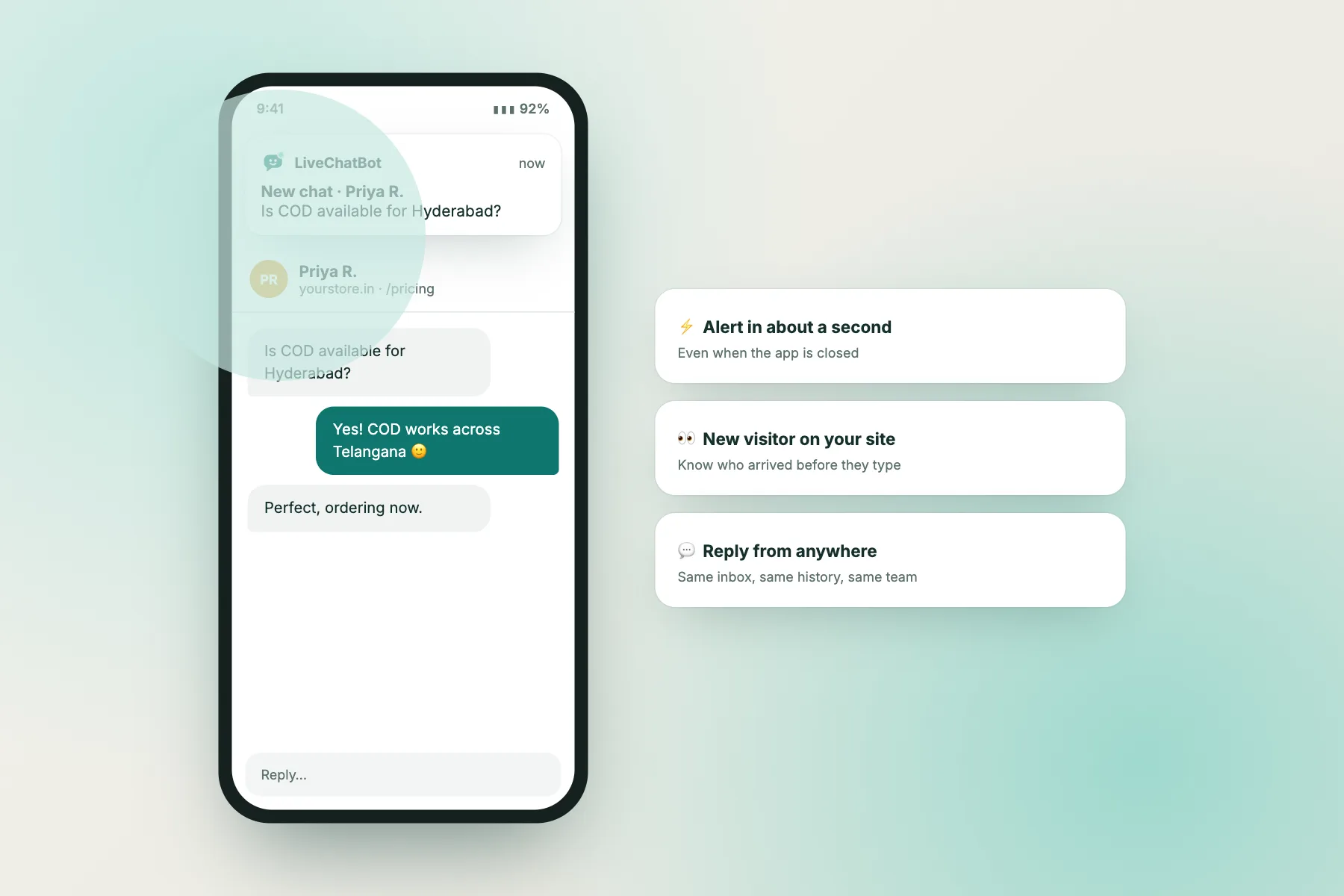
Send a message that should go to a person and watch what happens on your side. Do you get an alert? Does the message show in your inbox? If you plan to reply from your phone, install the Android app now and check that notifications arrive. A handover that nobody sees is worse than no bot.
Fix, then test again
For each wrong answer, add or rewrite the knowledge, then ask again. Most fixes are small: a missing fact, an answer that buried the important number, a question phrased in a way you had not expected. Keep going until at least twelve of your fifteen questions get a good answer first time.
Scoring sheet
Your Hour 3 test checklist
Tick each test as you pass it. Aim for all ten before launch.
Hour 4 · Launch
Switch on the pieces that make it run without you
The last hour turns a working bot into a working system: one that knows when you are around, tells you when it needs you, and starts conversations at the right moments instead of waiting.
Opening hours
Set the hours when a person can reply. Outside them, the chat should say so honestly and collect an email or phone number. Setting opening hours takes two minutes and prevents the most common complaint about website chat: messages that vanish into silence.
Alerts that reach you
Decide who gets notified and where. A small team can share one inbox; a solo owner will want phone notifications. Test it once more with a friend sending a message.
One proactive Flow
A Flow is a message the chat sends by itself when something happens, such as a visitor spending a minute on your pricing page. Start with just one. A greeting on your most important page is a safe first choice. The chat Flows page lists the ready-made templates, and you can switch one on in a minute.
Turn messages into follow-ups
Some questions cannot be closed in chat: a custom order, a repair, a complaint. Turn those into tickets so they do not get lost. See how to turn a chat into a support ticket.
Tell people it exists
Add a line to your email signature, your Google Business profile and your order confirmation emails: “Questions? Chat with us on our website.” Many visitors never notice the bubble until they are told it is there.
The first month
Why the real work starts after launch day
A bot launched in an afternoon is a good bot. A bot reviewed every week for a month is a great one. The difference comes from reading real conversations, because real customers always ask things your list of fifteen missed.
Week 1: read every conversation
Open each chat, even the boring ones. Mark answers that were wrong or incomplete. Add the missing knowledge the same day. This first week usually reveals three to five new common questions.
Week 2: look for drop-offs
Find chats where the visitor left after one bot reply. Often the answer was too long, too vague or asked for an email too early. Shorten and sharpen those answers.
Week 3: adjust your Flow
Check whether your proactive message is getting replies. If nobody answers it, change the wording or the timing. If it is getting replies but the conversations go nowhere, move it to a different page.
Week 4: decide what to add
By now you know what customers ask, when they ask it and on which pages. That tells you whether to add a second Flow, more product knowledge, a saved reply for your team, or a second person on the inbox. Our guide to reading your AI chats shows how to do this review in twenty minutes.
Common mistakes
Five things that make small-business bots fail
Each of these is easy to avoid once you know it.
Launching untaught
A bot with no business facts falls back to generic answers. Customers notice within one message.
Hiding the human
If visitors cannot reach a person, they leave. Always offer a clear path to your team.
Long answers
Three short sentences beat one long paragraph on a phone screen. Put the number first.
Too many pop-ups
One proactive message per visit is plenty. More feels like being followed around a shop.
Never reading chats
The bot only improves when someone reads what it said and fixes what it got wrong.
Forgetting mobile
Most visitors are on phones. Test there first, desktop second.
Costs
What a small business should expect to pay
You can run the whole plan above without spending anything. On LiveChatBot the free plan includes the chat widget, the inbox, Flows, visitor tracking, tickets, the Android app and two websites, with 100 free visitors per website each month. If your site gets more visitors than that, you buy a visitor pack (100 visitors for ₹99, 500 for ₹299 or 1,000 for ₹499) and packs never expire.
AI-written replies are the one premium part: each website gets a small number of free AI replies every month, and after that the free keyword bot keeps answering from your saved answers. That means a small business can launch, learn what customers ask, and only pay once the bot is clearly earning its keep. The pricing page has the current numbers, and the free live chat page explains what stays free for good.
Hidden costs to plan for
The real cost of any chatbot app is time, not money: the afternoon to set it up, and about twenty minutes a week to read conversations and improve answers. Budget that time from the start and the tool pays for itself in calls and emails you no longer have to answer.
Frequently asked questions
Do I need a developer to set up a chatbot app?
No. If you can paste text into your website settings or install a WordPress plugin, you can do it yourself. The only technical step is adding one short script, and it takes about two minutes.
How many questions should the bot know on day one?
Fifteen good answers is a strong start. Most small businesses find that around ten questions make up the majority of their messages, so coverage grows quickly.
Can I answer chats from my phone?
Yes. The LiveChatBot Android app shows new chats and alerts, so you can reply from anywhere. The [guide to the Android app](how-to-use-the-livechatbot-android-app) walks through it.
What happens when I am offline?
The chat tells visitors that the team is away and collects an email or phone number, so you can reply later. Messages left while you are offline can also become tickets.
Will a bot annoy my customers?
Only if it hides the human, gives long answers or pops up too often. Follow the plan above, keep one proactive message per visit, and always offer a way to reach your team.
Keep reading
Related guides
AI Chats: How to Read Your Website’s Bot Conversations and Fix Them in 20 Minutes a Week
AI Chatbot for Your Website: The 10-Question Test Before You Switch One On
Chatbot AI Free Templates: 8 Ready-Made Flows You Can Switch On Today
More to read
More guides on this topic
Create Chatbot for Website in One Afternoon: A Four-Hour Build Plan, Worked Out Minute by Minute
Block out one afternoon this week
Follow the four hours above on livechatbot.in and you’ll have a taught, tested bot live before dinner. Free to start, no card needed.