Best Chatbot for Support Teams: Plan Who Covers Each Hour, Then Let the Bot Fill the Gaps (Free Coverage Grid)
Best chatbot for support teams is the one that fits the hours your people actually work. A bot cannot replace a team, but it can take the easy questions, catch the rest as tickets and keep customers informed while you are away. This guide shows how to plan coverage hour by hour, what LiveChatBot handles for you, and which reports tell you whether the plan is working.
⚡ In short
- Plan coverage by hour first. Choose software second.
- Use people for peak hours, the bot plus a ticket for evenings and a bot alone only for easy questions.
- LiveChatBot has tickets, saved replies, Assign to me and reports for first response time and resolution.
- It does not have automatic routing, SLAs or a CSAT survey beyond a thumbs up or down.
Start with hours
Why the best chatbot for support teams starts with a rota
Support teams usually shop for features and discover the problem later: the hours. A tool can have every feature and still leave customers waiting three hours on a Sunday.
Before comparing products, draw a simple weekly grid. Mark the hours when a person will really answer, the hours when you are away but can reply by email next day, and the hours when only a bot is there. Most small teams find that people cover about half the week.
Once you can see the gaps, the tool’s job becomes clear. It should keep customers informed in the gaps, collect what you need to fix their problem, and put everything in one place for the morning.
Free coverage grid
A sample week for a five-person team
Illustrative only. Copy the layout and change the hours to match your team.
| Mon | Tue | Wed | Thu | Fri | Sat | Sun | |
|---|---|---|---|---|---|---|---|
| 9 am to 1 pm | Person | Person | Person | Person | Person | Person | Bot + email |
| 1 pm to 6 pm | Person | Person | Person | Person | Person | Bot + email | Bot + email |
| 6 pm to 10 pm | Bot + email | Bot + email | Bot + email | Bot + email | Bot + email | Bot + email | Bot + email |
| 10 pm to 9 am | Bot only | Bot only | Bot only | Bot only | Bot only | Bot only | Bot only |
People hours
Peak hours: people answer, saved replies speed them up
In the hours marked Person, real staff reply. Their speed depends on two things: how fast they see the chat, and how fast they can write.
Seeing the chat
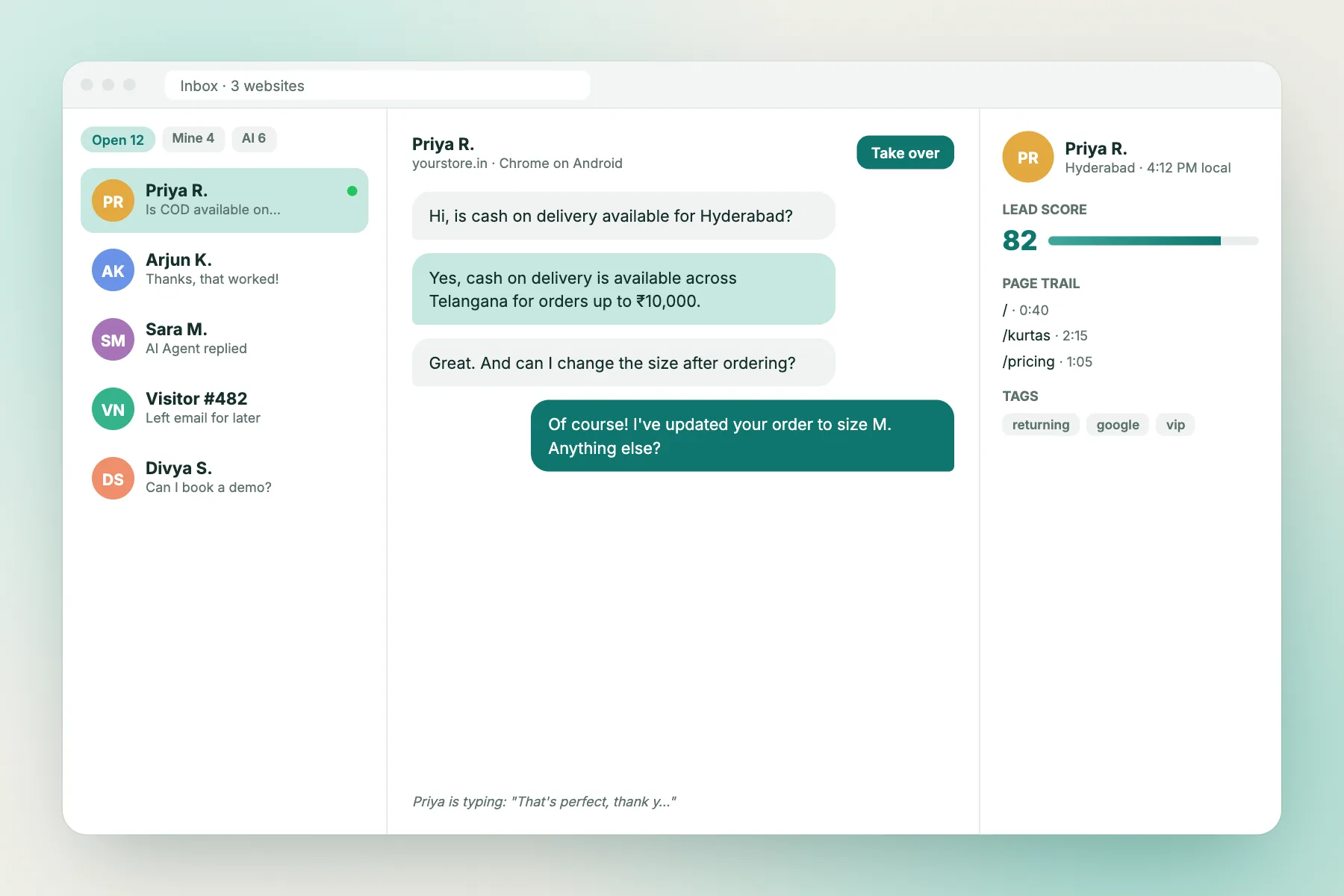
The Android app sends alerts to whoever is on shift. On a desktop, the inbox shows new chats as they arrive. The inbox has Unassigned and Mine folders, and agents use Assign to me to claim a chat. There is no automatic assignment, so agree who watches Unassigned in each slot.
Writing the reply
Saved replies with {name} cover refunds, delivery, password issues and opening hours. Write the twenty most common ones once, and your team’s first response time falls. If a problem needs more than a chat, turn it into a ticket with an owner so nothing is forgotten.
Gap hours
Evenings and weekends: the bot plus a ticket
In the hours marked Bot plus email, the aim is not to solve every problem. It is to answer what can be answered and keep what cannot.
The AI Agent answers from the knowledge you give it: policies, prices, hours and how-to steps. The Rules box sets behaviour, such as never promising a refund date. This works while the website has AI replies; when it is used up, the free keyword bot answers from your saved replies.
For anything else, opening hours and the away form collect an email or phone number. An offline message can become a ticket, and the customer gets a ticket page without logging in. In the morning, someone picks up the tickets with a clear note of what the customer already said.
Night hours
Overnight: a bot alone, with limits
The bot-only row is where support teams make mistakes. It is tempting to let the AI handle everything at night. Don’t.
Keep night answers to the easy and safe: opening hours, where to find a document, how a plan works, how to reach you. Add a Rules line telling the bot to promise nothing about refunds, outages or legal matters, and to say a person will follow up.
A good night message is honest: “Our team is offline until 9 am IST. I can answer common questions now, or leave your email and we will reply first thing.” Customers forgive a delay far more easily than a wrong answer. Read how to train your AI chatbot before you rely on it for sensitive topics.
Measuring
Check the plan against your reports
A coverage grid is a guess until your numbers confirm it. The dashboard has a Reports area with a date range and website filter. Look at these every Friday:
- First response time. Is it slow in the gap hours?
- Resolution rate and Resolved by AI. How many chats ended without a human?
- By agent. Who holds how many conversations and sends how many replies?
- Ratings. Visitors can leave a thumbs up or down with a comment once someone has replied. Turn this on in Settings, Widget design, Features.
- Help articles that need work. The ones with the most not-helpful votes.
There is no custom report builder, scheduled report email or sentiment scoring, so keep a short note of your own each week and compare month to month.
Set up
Set up the best chatbot for support teams in one afternoon
You do not need a project plan. Work through this list in order.
- Install the widget and set opening hours that match your grid.
- Write the twenty most common replies as saved replies.
- Add your policies, prices and steps to the AI Agent’s Knowledge, and a few lines to the Rules box.
- Turn on the away form and ratings.
- Install the Android app on each shift phone.
- Agree out loud who watches Unassigned in each slot.
Run a test from your own phone at an hour marked Bot only, and read what a customer sees. Fix the first thing that feels wrong, then go live. See the chat widget guide for tone and colours.
Limits
What support teams should know LiveChatBot lacks
Be honest about gaps so you can plan around them.
- No automatic or skill-based routing. Assignment is manual.
- No SLA timers or escalation rules.
- No native Zendesk or Freshdesk apps. Use Zapier, webhooks for ticket.created and ticket.solved, or the REST API.
- No WhatsApp inbox. A WhatsApp button card sends visitors to your number.
- No iOS team app, and the “Powered by LiveChatBot” label stays on all plans.
What you get instead is a simple inbox, tickets, saved replies and no per-seat cost. See help desk software if you need to compare what a full help desk adds.
Cost
What the best chatbot for support teams costs
The free plan covers two websites with 100 free visitors per website each month. Packs are one-time and never expire: 100 for ₹99, 500 for ₹299 and 1000 for ₹499. There are no per-seat charges, so a part-time weekend agent costs nothing extra. Past the limit, chat pauses only for new visitors and nothing is charged automatically. See pricing and try it at livechatbot.in.
Frequently asked questions
What is the best chatbot for support teams?
The one that fits your hours. Map who answers when, then check that the bot, tickets and away form cover the gaps.
Can the bot handle support on its own at night?
Only for easy, safe questions. Use the Rules box to stop it promising refunds or fixes, and offer a way to leave contact details.
Does LiveChatBot assign tickets automatically?
No. Agents use Assign to me, and the inbox has Unassigned and Mine folders.
Can I see how fast my team replies?
Yes. Reports show first response time, response rate, resolution rate and replies by agent.
Do I pay per agent?
No. There are no per-seat charges.
Keep reading
Related guides
Best Chatbot for Sales Teams: Decide Who Gets Each Chat Before the First Lead Arrives (Free Routing Tree)
Best Chatbot for Agencies: How to Add Chat to Client Sites Without Overpromising, With Copy-Ready Proposal and Handover Lines
Best Chatbot With Free Plan: Stress-Test the Free Tier in Week One, Before Your Customers Do (Free Stress-Test Checklist)
Cover every hour of the week
Free plan for two websites, tickets, saved replies and an away form. Start free on livechatbot.in.