Automated Chatbot for Website: The Five Automations You Can Switch On in One Day, and Which One to Start With (Free Quiz)
Automated chatbot for website projects sound like one big switch, but they are really five small ones. Each automation does a single job: answer a question, start a conversation, cover after-hours, rescue a silent chat, or catch a form submission. This guide explains all five in plain words, shows what each needs from you, and ends with a quiz that tells you which to switch on first.
⚡ In short
- Automation is five small jobs, not one big robot.
- Start with the one that fixes your biggest leak: slow answers, quiet visitors, night enquiries or lost forms.
- Each automation needs a little writing from you, not code.
- Take the quiz to find your first one, then add the rest over a week.
The idea
An automated chatbot for website visitors is five jobs in a trench coat
People picture a single smart robot that handles everything. In practice, good automation is a set of narrow jobs that each remove one delay or one lost enquiry.
That is good news. You can switch them on one at a time, watch each work, and keep the ones that help. You never have to trust a big system blindly.
Below are the five jobs, in the order most small businesses meet them. If you want the wider view of where people must stay involved, read our guide to automated live chat for website visitors, and for the AI part specifically see the AI Agent page.
Automations 1 and 2
Automation 1 and 2: answer questions and start conversations
1. Answer questions automatically
The AI Agent answers from the facts you give it in Knowledge: typed answers, a copied web page, or an uploaded PDF, Word, Excel, CSV or text file. When AI replies are unavailable, the free keyword bot answers from your saved replies. You write the facts once; it answers all day.
2. Start conversations automatically
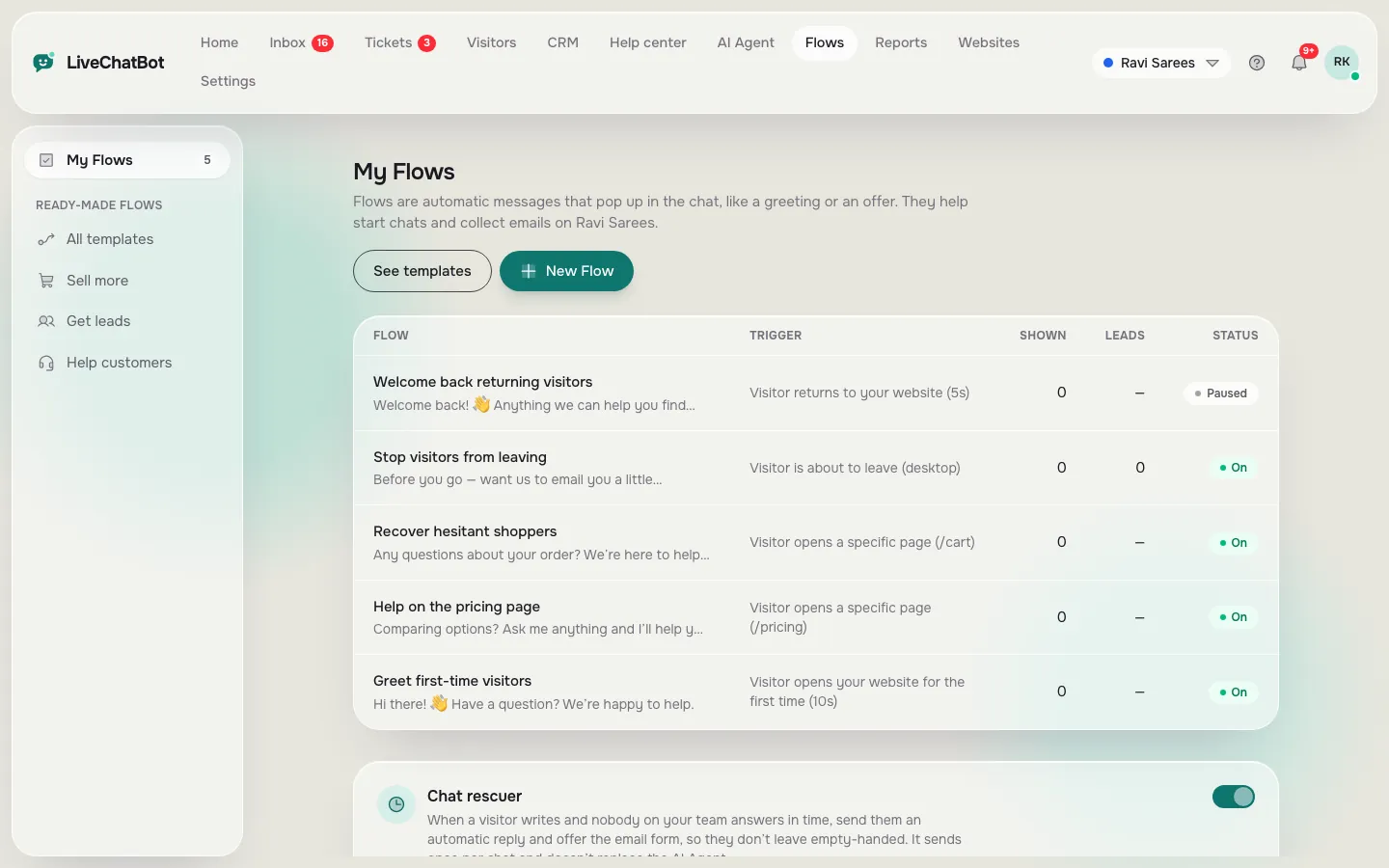
A Flow sends a proactive message to the right visitor at the right moment. You can set up to six conditions: page, source, country, device, browser language, number of visits, lead score, and whether they have given contact details. A pricing page visitor on their third visit gets a different line from a first-time visitor on the blog.
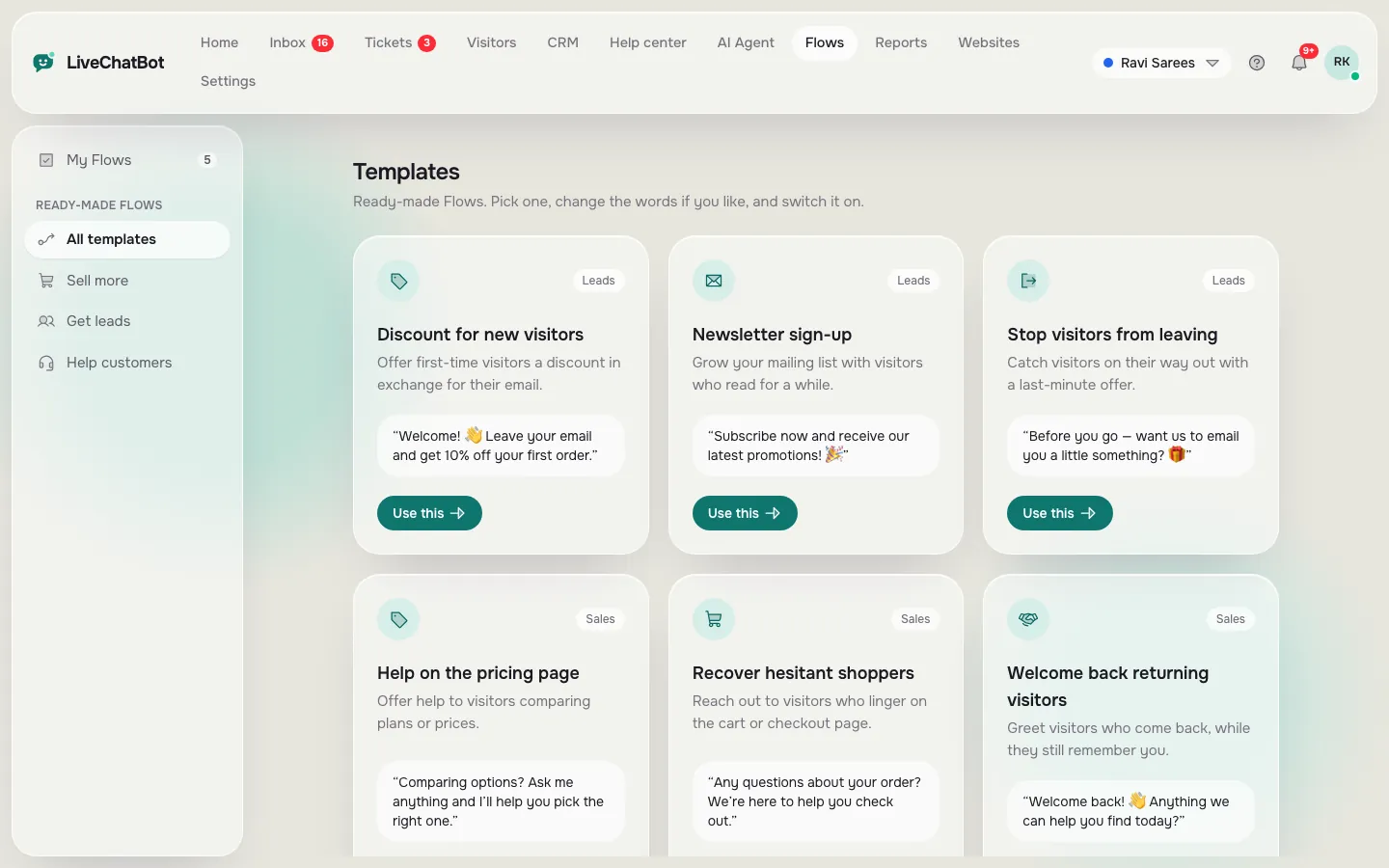
Flows come with templates, so you edit rather than start from nothing. The guide to creating a chat flow has a worked example.
Automations 3 to 5
Automation 3, 4 and 5: cover the gaps
3. Cover after-hours
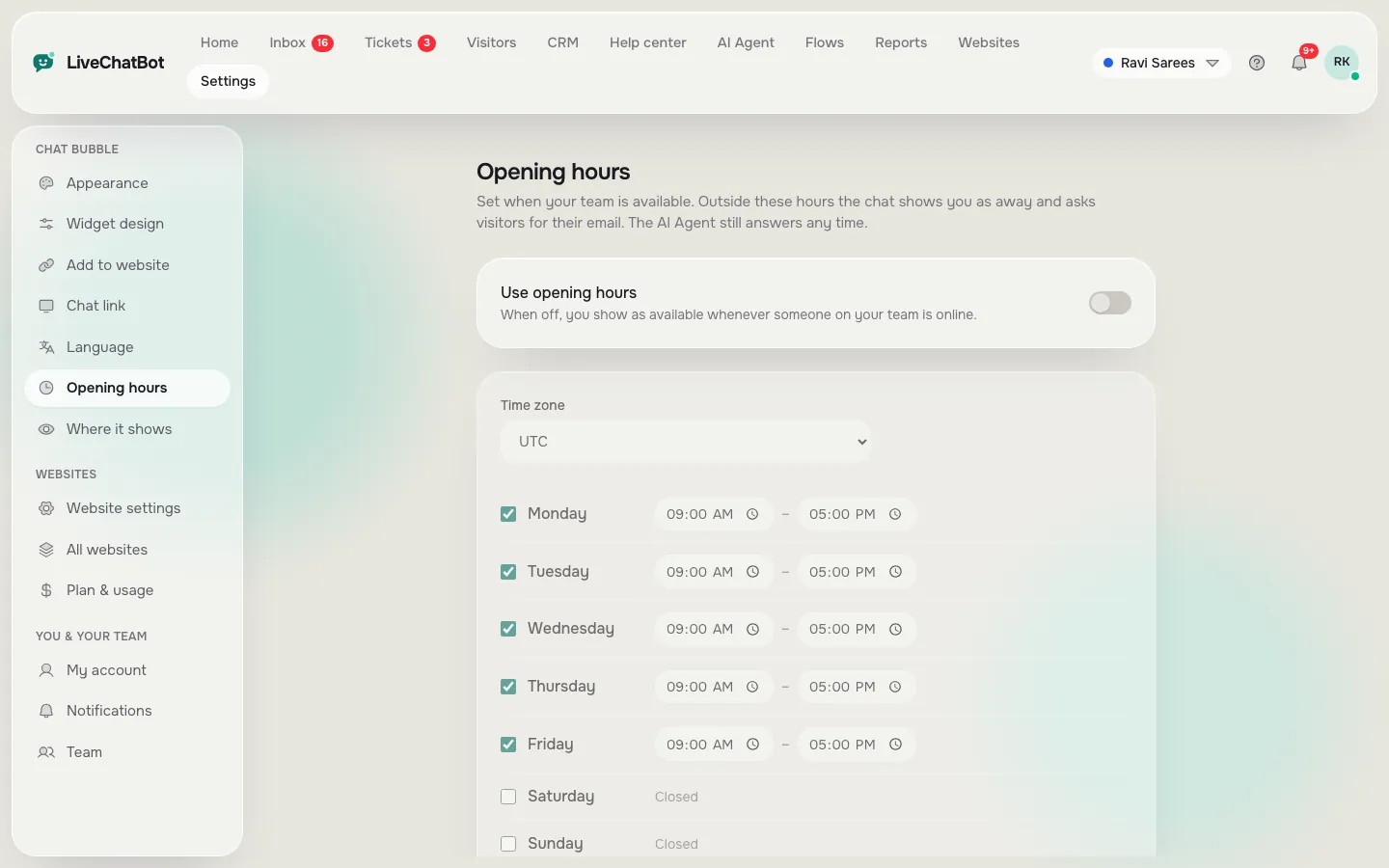
Set opening hours. Outside them, an away form collects an email or phone number, so night visitors become morning follow-ups.
4. Rescue silent chats
If nobody replies within seconds, the chat rescuer asks the visitor for an email and a phone number. It is on at 6 seconds by default, so a busy team does not lose people.
5. Catch form submissions
The widget and the WordPress plugin catch Contact Form 7, WPForms, Elementor Pro, Gravity, Fluent and Ninja form submissions as leads, with an instant New lead alert to your phone. A form that used to land quietly in an inbox now gets noticed.
Together these five cover the whole path: a visitor arrives, gets welcomed, gets answers, can leave details, and never disappears.
Real screens
Where you switch the automations on
Real screens from the LiveChatBot panel, shown with sample data. Click any picture to see it full size.
Free tool
Which automation should you start with?
Answer four quick questions. The most common answer decides your first step.
Order of switching on
A one-day schedule for the whole stack
Whatever the quiz says, here is a realistic order for a single day.
- Morning: install the widget and set colours and welcome text.
- Late morning: add 20 answers to Knowledge and test them in the playground.
- Midday: set opening hours and switch on the away form.
- Afternoon: create one Flow from a template for your highest-traffic page.
- Before you finish: install the Android app, open a test chat from your phone and confirm the alert arrives.
Keep it small. One page, 20 answers, one Flow. You can widen in week two once you have watched real chats. For choosing which questions to automate first, see chatbot questions worth automating.
Common slips
Five slips that spoil an automated chatbot for website use
Measuring
How to tell each automation earns its place
Give each automation two weeks, then look for one clear sign in Reports. Answers: the Resolved by AI figure should rise. Flows: the Flow conversion report shows how many Flows shown turned into leads. Hours and the rescuer: Leads acquired should grow outside working time. Form capture: check New lead alerts against your own form inbox.
If an automation shows no sign after two weeks, change one thing: the opening line, the page, the wording of an answer. If it still does nothing, switch it off. A smaller stack that works beats a bigger one nobody checks.
Keep the AI Agent Knowledge list fresh, because every other automation leans on it. When prices, hours or policies change, edit Knowledge the same day.
Honest limits
What automation will not do for you
Automation is not magic, and some things are outside LiveChatBot. There is no pre-chat form, no captcha, and no sentiment scoring. You cannot choose the AI model or use your own API key. Native Slack, Teams, Zendesk and CRM apps are not available, though Zapier, webhooks and the REST API can pass leads on. There is no iOS team app, and “Powered by LiveChatBot” stays on every plan.
Also remember rate limits are fixed: visitor chat messages are capped at 20 per minute per IP, which protects you from floods but cannot be changed.
A person should still handle complaints, big orders and anything unusual. The best automated chatbot for website use is one that knows when to step back.
Frequently asked questions
What can an automated chatbot for website visitors do?
Answer common questions, start conversations on chosen pages, cover after-hours, rescue chats nobody answers and turn form submissions into leads.
Do I need coding skills to automate my website chat?
No. Knowledge, Flows, opening hours and the chat rescuer are all set from the dashboard. Coding is only needed for custom integrations.
How long does it take to switch these on?
A basic stack takes about a day: 20 answers, opening hours, one Flow and the Android app. You can add more later.
Will it annoy visitors with pop-ups?
Not if you keep Flows narrow. Use page and visit-count conditions and write short, helpful lines, so only the right visitors see a message.
Is it free to try?
Yes. The free plan covers two websites with 100 visitors per website each month, and there are no per-seat charges.
More to read
More guides on this topic
Chatbot With Zapier Integration: Which Zap to Build First, Five Ideas That Pay Back Fast, and the Limits to Know Before You Rely on One (Free Zap Picker Quiz)
Switch on your first automation
Start free on livechatbot.in, take the quiz above and have your first automation live before tonight.