Chatbot Template Fill-In Guide: Turn a Generic Template Into Your Own Bot in 20 Minutes (Free Template Filler)
Chatbot template text saves you from a blank page, but a template used as it comes is easy to spot: vague promises, placeholder gaps, a tone that belongs to nobody, and facts that don’t match your business. This guide is about the part that comes after you pick a template: finding every blank, collecting the facts you need to fill them, cutting the generic lines, adjusting the tone and testing the result. A free filler finds the blanks in any template, fills them with your details and warns you about anything left empty or generic.
Illustrative: a template line after the blanks were filled with real facts.
⚡ In short
- A template is a skeleton. The value comes from the facts you put into it.
- Before editing, collect a fact sheet: hours, areas, delivery days, prices, return rules, phone, links.
- Fill every blank, delete lines that don’t apply, and replace generic praise with specific facts.
- Adjust the tone to sound like your business, then test each message in a real chat.
- Paste any template into the free filler below to find and fill its blanks.
Why templates go wrong
The four tells of a template nobody customised
Templates exist because the first draft is the hardest part. A good set of ready-made messages gives you the structure: a greeting, the common questions, a handover line, an after-hours message. That’s genuinely useful. The trouble starts when the template goes live with only the business name changed.
Visitors notice four things:
- Empty or obvious blanks. “We deliver in [X] days” or, worse, “We deliver in X days” because someone deleted the brackets but not the letter.
- Generic praise. “We are the most trusted company in the industry, offering world-class service.” It says nothing and sounds like everyone else.
- Facts that don’t fit. A template written for an online shop talks about shipping to a salon customer. A template from another country mentions dollars, ZIP codes or a different weekend.
- A borrowed voice. The template sounds like a large brand or a chirpy app, and your business is a family-run hardware shop.
Each of these makes the bot sound less trustworthy, which defeats the purpose. The fix isn’t to throw the template away. It’s to treat it as a form to fill in properly: every blank completed with a real fact, every generic line replaced or cut, and the tone adjusted to yours.
The rest of this guide is that process, in order. Most small businesses can do it in about 20 minutes once the facts are collected.
Collect the facts first
A fact sheet makes filling the blanks fast
Most of the time spent customising a template is not writing. It’s stopping in the middle to look something up: what’s the exact free-shipping threshold, which localities do we cover, what time does the shop close on Sunday. Collect the facts before you open the template and the filling becomes quick.
A useful fact sheet for a small business has around 15 to 20 lines:
- Business basics: name as customers know it, area or city, what you sell or do in one sentence.
- Hours: when you’re open and, separately, when someone can reply to chat.
- Area: localities, cities or pin codes you serve, and any you don’t.
- Time: delivery or turnaround time, with conditions (“2 days in the city, 4 to 6 elsewhere”).
- Money: starting prices or ranges, free-shipping threshold, COD limit, visit or booking charge.
- Rules: return or exchange window and its conditions, cancellation policy, advance payment.
- Contact: phone, WhatsApp number, email, address, booking link.
Write each as a plain sentence fragment you could paste straight into a message. “2 to 4 days” is better than “48 to 96 hours”. “₹999” is better than “a minimum order value”.
If a fact is uncertain, decide it now. A template forces you to answer questions you may have been answering differently each time on the phone, and that alone is worth the exercise. Our bot knowledge guide covers how to write facts so a bot can use them.
Free tool
Find and fill the blanks in any chatbot template
Paste a template with blanks in [square brackets]. Click Find the blanks, type your facts, then Fill. The filler shows the finished lines and flags anything empty or generic.
Step 1: paste a template with blanks in [square brackets], or load the example.
Runs only in your browser; nothing is sent or saved. {name} is left as it is, because LiveChatBot saved replies replace it with the visitor’s name.
Fill, cut or keep
Go through the template line by line
With the fact sheet ready, go through the template one line at a time and make one of three decisions.
Fill it. The line applies to you and needs a fact. Put the fact in, in plain words. “We deliver to [delivery area] in [delivery days]” becomes “We deliver across Tamil Nadu in 2 to 4 days.”
Cut it. The line doesn’t apply. A salon has no use for a shipping message; a business that doesn’t do COD shouldn’t keep a COD line “just in case”. Delete it entirely rather than leaving a vague version. A shorter script that’s all true beats a longer one with filler.
Keep it. Some lines work as they are: “I didn’t catch that. Pick an option below or ask in a few words.” Read them once to check they suit your tone, then move on.
As you go, watch for two traps:
- Half-filled sentences. “We deliver in 2 to 4 days to [delivery area]” with one blank left. The filler above flags these.
- Contradictions with your website. If the template says returns within 7 days and your website policy says 10, fix one of them now. A bot that disagrees with your own site loses trust fast.
Keep {name} where it appears in greetings. In LiveChatBot saved replies, {name} is replaced with the visitor’s name when you use the reply, so it should stay exactly as written. Our guide to saved replies explains how.
Before and after
Generic template lines, made specific
Illustrative examples for different businesses.
Make the voice yours
Tone changes that take five minutes
Once the facts are right, read the whole script aloud and ask whether it sounds like you or someone behind your counter. Templates are usually written in one of two voices: corporate (“We are pleased to assist you with your query”) or bubbly app (“Hey there! 🎉 Super excited to help!”). Most small businesses are somewhere in between.
Quick adjustments:
- Formality. If your customers call you “bhaiya” or “aunty”, the bot can be a little warmer than a bank. If you’re a clinic or a law office, slightly more formal is right.
- Language. If many customers write in Hinglish or a regional language, consider writing the key messages in that style. LiveChatBot can detect the visitor’s browser language and show translated welcome text, but the core replies are worth writing yourself for the language most of your customers use.
- Emojis. Templates often include several. One in the greeting is plenty for most businesses; none is fine too.
- Names. Use your team name and a real avatar in the widget settings, so the voice has a face. Our guide to customising the widget shows where.
The test is simple: if a regular customer read the script, would they recognise your business in it? If not, change the words until they would.
Test the filled template
Ten minutes in a real chat
A filled chatbot template still needs a real test, because the context changes how a line reads. A message that looks fine in a list can feel abrupt after a particular question, or repeat something the visitor was told a moment ago.
Run this test on your live site, ideally on a phone:
- Open the chat as a visitor in a private browser window.
- Ask each common question in the words a customer would use, including a misspelt one.
- Check every answer against the fact sheet. Prices, days and hours must match exactly.
- Try an after-hours visit if you can, or check the away form text in settings.
- Ask something the template doesn’t cover to see what the fallback says.
Note anything that sounds wrong, repeats itself or leaves the visitor without a next step. Fix it and test again.
If you use the free keyword bot, it answers from your saved replies, so test that the keywords match how people actually ask. Our keyword rule guide has a tester for that. If you use the AI Agent, give it your filled fact sheet as knowledge and ask the same questions; it answers from the knowledge you provide.
Where each piece goes
Loading a template into LiveChatBot
A typical template has several kinds of messages, and each goes in a different place in LiveChatBot:
- Greeting goes into the widget’s welcome text. Keep it to one line that says what visitors can ask.
- Answers to common questions become saved replies. Your team uses them in the inbox and Android app, and the keyword bot answers with them when AI replies aren’t on.
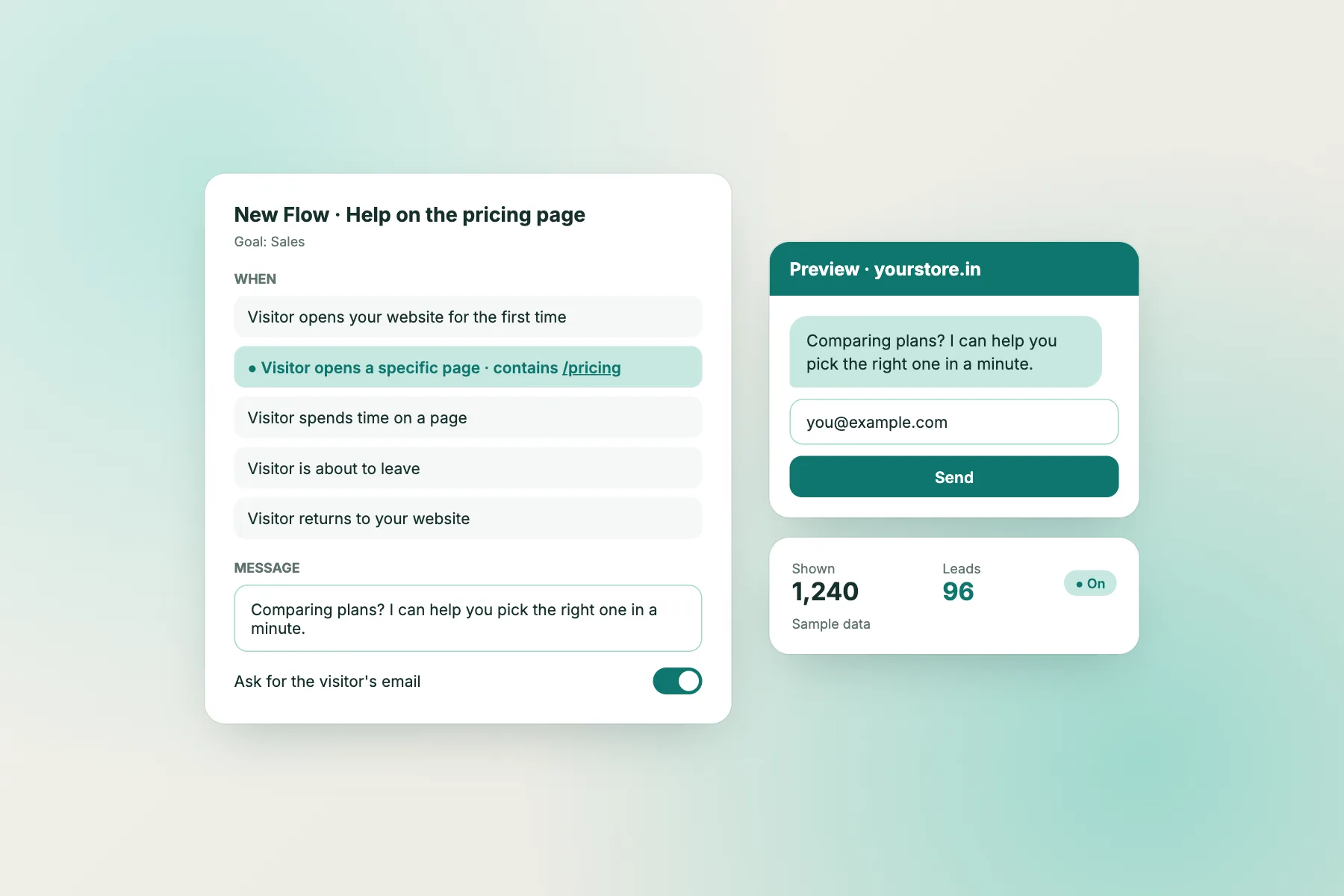
- Proactive messages, such as “Need help choosing a size?” on product pages, become Flows with conditions like page, source or number of visits, and an optional follow-up. See how to create a chat flow.
- After-hours text goes into the away form, which collects an email or phone number outside your opening hours.
- Handover lines are saved replies your team sends when they join a chat.
Keep the master copy, with your fact sheet, in one document. When a fact changes, such as a new delivery time, update the fact sheet first, then every place the fact appears. The filler above helps here too: keep your template with the [brackets] in place, change one value and fill it again to get the updated lines.
If you haven’t started yet, sign up at livechatbot.in. The free plan covers two websites with 100 visitors per website each month; see pricing.
Keep it current
A template is never finished
Your business changes and so should your messages. Prices go up, delivery partners change, festival hours come and go. A chatbot template filled once and forgotten slowly drifts out of date until a customer catches a wrong number.
A simple routine keeps it fresh:
- Monthly: re-read the fact sheet. Update anything that changed and refill the template.
- After every policy change: update the fact sheet the same day and check every place the old fact appears.
- Before festivals and sales: add time-limited lines with the end date written in, and set a reminder to remove them.
- Every few months: read real chats. Questions that keep coming up without a good answer are lines your template is missing.
Also look at what visitors ask that the template never covered. Many templates are written for a generic business, and your customers have their own common questions. Add a line for each one that comes up more than a few times. Over a few months, your script stops being a filled-in template and becomes something specific to your business, which is the goal.
Getting started
Your 20-minute session
Here’s the whole process in one sitting:
- 5 minutes: write your fact sheet.
- 2 minutes: paste your chosen template into the filler and find the blanks.
- 5 minutes: fill the blanks, then cut lines that don’t apply and replace generic ones.
- 3 minutes: read aloud and adjust the tone.
- 5 minutes: load the messages into welcome text, saved replies, flows and the away form, then test.
If you need a starting template, our ready-made flows and script library have options by situation and industry. Pick the closest, put your blanks in square brackets, and run it through the filler. Twenty minutes later you’ll have a bot that sounds like your business and quotes your real facts.
Frequently asked questions
Can I use a chatbot template as it is?
You can, but visitors notice generic lines and wrong facts. Fill every blank with your real details, cut lines that don’t apply and adjust the tone first.
What should go in square brackets?
Anything specific to your business: name, area, hours, delivery days, prices, return rules, phone numbers and links.
What does {name} do?
In LiveChatBot saved replies, {name} is replaced with the visitor’s name, so leave it exactly as written.
How often should I update the filled template?
Check it monthly and after any change to prices, hours, delivery or policies.
Can the AI Agent use my template?
Give the AI Agent your fact sheet and filled answers as knowledge. It answers from the knowledge you provide.
Keep reading
Related guides
Chatbot Software Stack Audit: Which of Your Existing Tools It Replaces, Which It Doesn’t, and What You Save (Free Overlap Finder)
Chatbot Site for a Business With No Website Yet: Build a One-Page Site Where Chat Is the Main Button (Free Page Planner)
Chatbot Script Editing for Phone Screens: Cut Every Bot Message to Thumb Size (Free Phone-Fit Checker)
More to read
More guides on this topic
Chatbot Demo of Your Own Business in 15 Minutes: Turn Your FAQs Into a Live Preview and Test It With Your Team (Free Demo Builder)
Make your template sound like you
Fill the blanks with real facts, cut the filler and load it into your chat. Start free on livechatbot.in.