Create a Chatbot Free: Spend Your 100 Free Visitors Wisely, With the Maths for Every Plan
Create a chatbot free on LiveChatBot in about 20 minutes, with no card and no trial clock. The part nobody explains is the budget: the free plan counts visitors, not messages, so how you set the bot up decides how far 100 visitors a month will go.
Short answer
To create a chatbot free, sign up at livechatbot.in, add your website, give the AI Agent your real answers (type them, paste a web page or upload a file), paste one install code on your site, and test it. The free plan covers 2 websites and 100 visitors per website each month, with no per-seat charges.
⚡ In short
- Setup is five steps: sign up, add the site, teach the bot, paste the code, test with a phone.
- The free plan counts visitors once a month, not messages, so one visitor can chat all day and still count as one.
- Paid plans only add visitors: Starter ₹299 for 750, Growth ₹699 for 2,500, shared across your websites.
- Our rule: write ten answers before you paste the code, not after.
Step by step
Create a chatbot free in five steps
You can create a chatbot free in five steps, and the whole path takes about 20 minutes if you already know your top questions.
- Sign up at livechatbot.in with your email and phone. No card is asked for.
- Add your website in the dashboard. The free plan allows 2 websites per account.
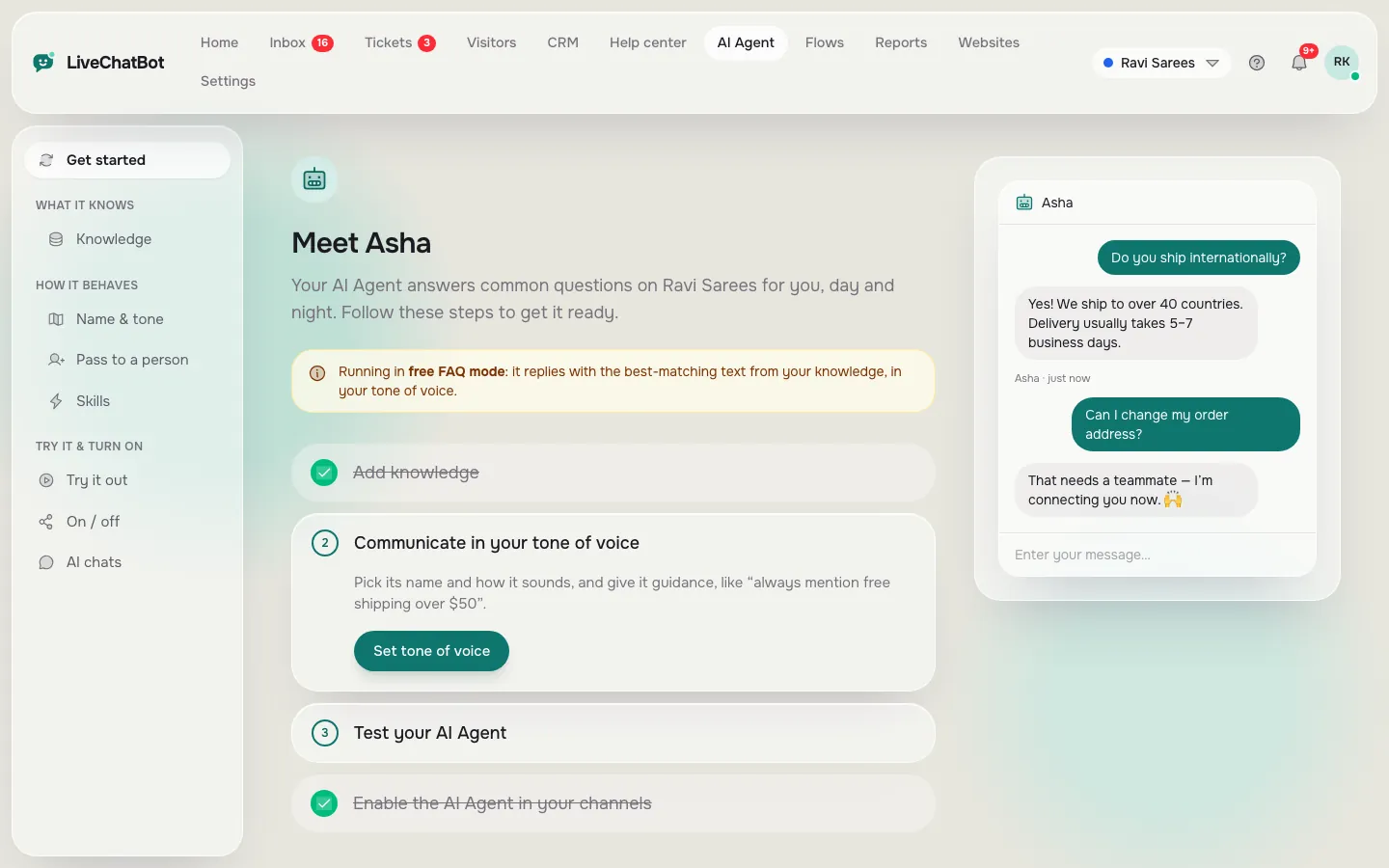
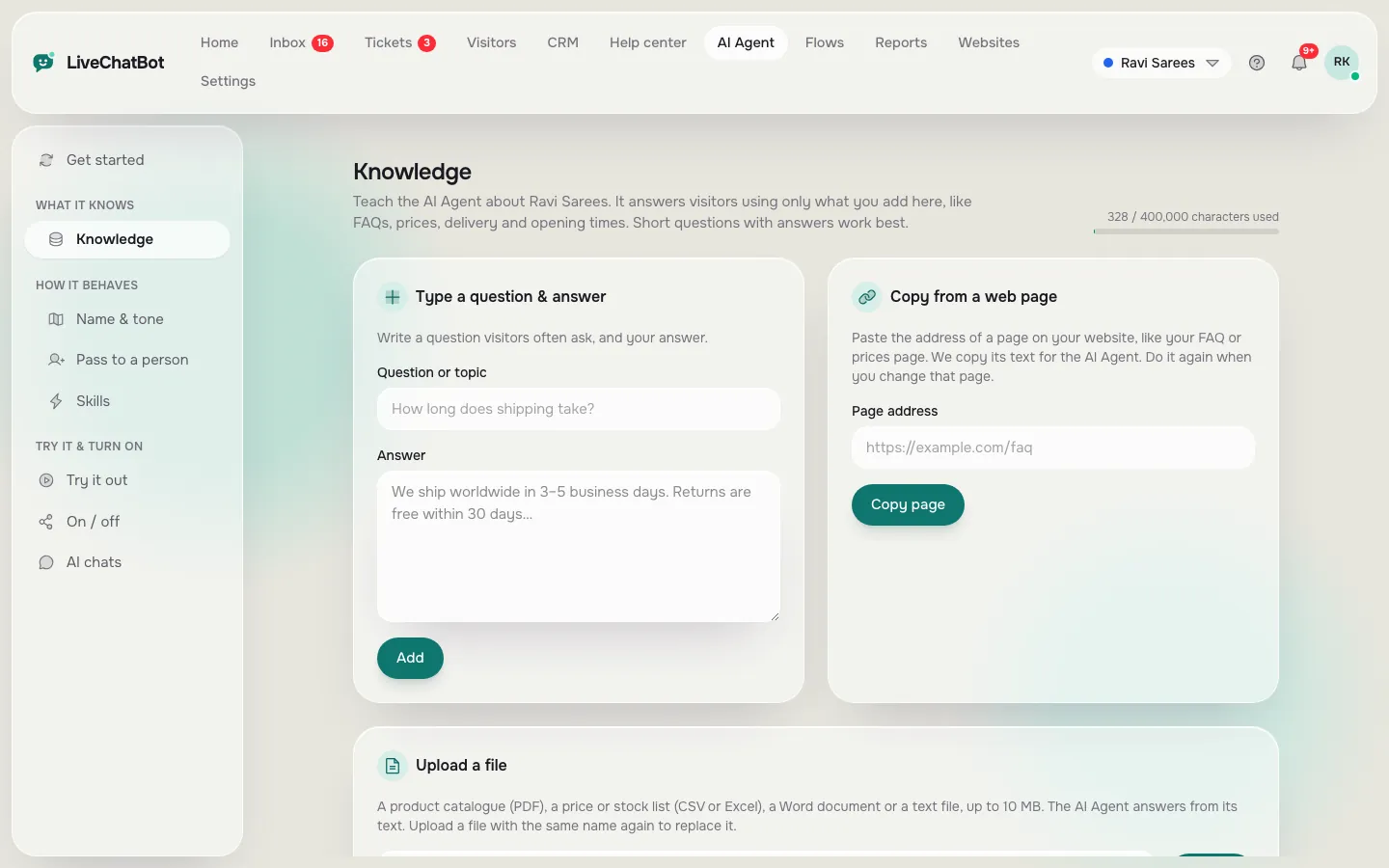
- Teach the AI Agent. Open the Knowledge area and add answers: type them, copy a web page in, or upload a PDF, Word, Excel, CSV or TXT file.
- Paste the install code before the closing body tag of your site. WordPress and WooCommerce have a plugin; Shopify, Wix and Squarespace take the pasted code.
- Test on your phone, ask three real questions and one you never taught it.
That is the whole build. There is no code to write and no model to host. For a longer walk-through of the install step alone, see our guide on how to set up live chat on your website.
What free covers
The free plan covers the bot, the inbox and the team, with limits only on visitors
The free plan limits visitors and websites, not features. That surprises people who expect a cut-down bot.
What you get at ₹0
- The chat widget with your colours, position, team name and welcome text
- The AI Agent, with a monthly allowance of AI replies shown in the dashboard
- A free keyword bot that answers from saved replies when AI replies run out
- A shared inbox, the Android app, tickets, Flows, opening hours and an away form
- Visitor tracking and “New lead” alerts
What the limits are
- 2 websites per account
- 100 visitors per website per month, counted once per visitor per month
Nothing is charged automatically. If you pass the limit, tracking and alerts continue and chat pauses for new visitors until the month resets or you move to a paid plan. The free live chat page lists every feature on the free plan, and “Powered by LiveChatBot” stays on all plans.
Visitor maths
A free visitor is counted once a month, however many messages they send
LiveChatBot counts a visitor once per month, when they trigger a new-visitor alert, so message volume never eats your allowance. Here is the worked maths, using LiveChatBot’s own plan numbers.
Original data: what one visitor costs on each plan
*Source: LiveChatBot plan limits for new sign-ups from 1 November 2026; the division is ours.*
- Free: 2 sites × 100 visitors = 200 visitors a month in total, ₹0.
- Starter: ₹299 ÷ 750 visitors = about ₹0.40 per visitor.
- Growth: ₹699 ÷ 2,500 visitors = about ₹0.28 per visitor.
Starter and Growth visitors are shared across your websites, so one busy shop can use the whole pool while a quiet blog barely touches it. On the free plan each site has its own 100.
A worked example
Suppose a small shop gets 100 new visitors in a month and 18 of them start a chat, averaging 6 messages each. That is 108 messages but still only 100 visitors. The free plan holds. If next month 140 new visitors arrive, 40 are over the limit, and you decide between waiting for the reset and moving to Starter at ₹299.
New sign-ups can also add the code WELCOME100 for 100 extra visitors, once, and a referral gives both companies 200 more.
What most guides miss
Write ten answers before you paste the code, because your first visitors are your most expensive
The first 100 visitors are the only free ones you get each month, so a half-trained bot wastes them. Most guides tell you to install first and improve later. On a visitor-counted plan, that order costs you.
Our rule: the ten-answer gate
Do not paste the install code until the bot can answer ten questions you have genuinely been asked. Take them from your WhatsApp, email or call history, not from your imagination. Typical ten: price, delivery or visit time, opening hours, location, payment, returns or cancellation, how to book, who to contact, what is included, and what you do not do.
Why the gate works
A visitor who gets “I’m not sure” on their first question usually leaves, but they have already been counted for the month. Ten solid answers mean that each counted visitor gets a real reply. It also gives you a number to track: of the visitors you were charged for, how many got an answer? You can read this in Reports, where the AI Agent’s resolved chats show up as Resolved by AI.
This rule is our own working method, not a platform setting. It costs about an hour and protects the only free allowance you have. If you need help finding the ten, how to train your AI chatbot shows how to turn old messages into answers.
Real screens
The three screens you use to create the bot
Real screens from the LiveChatBot panel, shown with sample data. Click any picture to see it full size.

Teaching the bot
Teach the bot with facts, then use Rules for behaviour
Knowledge holds facts and the Rules box holds behaviour, and keeping them apart makes the bot easier to fix.
Knowledge: what is true
Put prices, hours, policies and delivery times in Knowledge. Short, plain sentences work better than long brochure text. If a fact changes, you change it in one place.
Rules: how it behaves
Under AI Agent, Name and tone, the Rules to follow box takes up to 5,000 characters of written instructions, such as “Never promise a delivery date” or “Always ask for a phone number before ending the chat”. Rules apply to AI replies. The free keyword bot, which takes over when AI replies run out, answers from saved replies and cannot follow written rules.
Saved replies as the safety net
Add your ten gate answers as saved replies too. When AI replies run out, the keyword bot still has something correct to say. Our guide to using saved replies in live chat shows the format, including the {name} placeholder.
You cannot pick the AI model or paste your own API key. The provider is set by LiveChatBot, which is one less thing to configure.
Go live
Go live on one page first, then widen
Going live on one page first lets you see real questions before the whole site is exposed.
Use Settings, Where it shows, to choose devices, countries and pages. Start with your price or contact page, where visitors have the most questions. After a week, open Reports and read the chats.
What to check after week one
- Which questions got no good answer? Add those to Knowledge.
- How fast did your team reply when the bot handed over? The Chats report shows first response time.
- Did anyone leave a phone number or email? The chat rescuer asks for both if nobody replies within seconds, so leads are not lost.
Then widen to more pages. Add a Flow only when you know what visitors on a page need: a short proactive message on pricing, say, with up to six conditions such as page, source or number of visits. See chat flows for the options.
Common mistakes
Four mistakes that burn free visitors
Four mistakes cause most wasted allowances, and all four are easy to fix.
Quick check
Run the launch checklist before you tell anyone
Run this checklist once the bot is live, and tick each item as you go.
When to upgrade
Upgrade when visitors pause the chat, not before
Pay only when the free allowance is the thing stopping chats. Three signs say it is time.
- Chat paused for new visitors before the month ended, twice in a row.
- You need a third website. Starter covers 2 websites and Growth covers 5.
- The conversations you are missing are the ones that would have turned into sales.
Prepaid plans use UPI and similar methods, with no auto-renew and no automatic charges. Paying yearly gives you 12 months for the price of 10. Check current figures on the pricing page, compare them with the free live chat plan, and do not pay for a plan to fix a bot that gives poor answers, because more visitors only means more poor answers.
Frequently asked questions
Can I really create a chatbot free, with no card?
Yes. The LiveChatBot free plan needs only an email and phone number. It covers 2 websites and 100 visitors per website each month, with no trial that expires.
Do I need to code to create a chatbot free?
No. You add answers in the dashboard and paste one install code on your site. WordPress and WooCommerce have a plugin, and Shopify, Wix and Squarespace take the pasted code.
What counts as a visitor?
A visitor is counted once per month, when they trigger a new-visitor alert. Sending many messages does not count again.
What happens when the free visitors run out?
Tracking and alerts continue, and chat pauses for new visitors until the month resets or you move to a paid plan. Nothing is charged automatically.
Can I remove the Powered by badge?
No. Powered by LiveChatBot stays on all plans, including the free one.
Keep reading
Related guides
Cost of AI Chatbot, Counted in Leads: How Many Extra Enquiries Pay for Starter and Growth (Free Break-Even Rule)
Create your free chatbot tonight
Two websites, 100 visitors each, no card and no per-seat charges. Start free on livechatbot.in.