Best Website Chat Plugin Bake-Off: Try Two Candidates on One Test Page and Score Them the Same Afternoon (Free Scorecard)
Best website chat plugin lists are written by people who never ran your site. A bake-off is different: you put two candidates on the same page, send the same six messages to each and score what you actually see. It takes one afternoon, costs nothing on a free plan and leaves you with a choice you can defend to anyone on your team.
⚡ In short
- Rankings cannot tell you which is the best website chat plugin on your own pages. A side-by-side test can.
- Use the same page, the same device and the same six messages for both candidates.
- Score what you see: load speed, first reply, handover, after-hours and the phone view.
- Keep the scores. In six months they tell you why you chose, and when to look again.
Why test
Why the best website chat plugin for you is found by testing, not reading
Feature tables look alike. Almost every chat tool lists a widget, an inbox, canned replies and a mobile app. The differences that matter show up only when you use the thing: how long the page takes to settle, what a visitor sees at 11 pm, and whether the notification reaches your phone before the customer gives up.
A bake-off turns those differences into numbers. You are replacing “this one feels nicer” with “this one answered in 9 seconds on my phone and the other took 40”.
It also protects you from the loudest voice. A shared scorecard lets the owner, the developer and the person who answers chats see the same evidence. For a broader view of what a chat tool does, read our live chat overview.
Set up
Prepare the test page and the rules
One test page
Make a simple page, or use a hidden page on your site that is not linked anywhere. Put one candidate on it at a time. The website chat widget guide shows where the snippet goes if you are adding it by hand.
One device each
Use your own laptop and your own phone. Use the phone’s mobile data, not office Wi-Fi, for at least half the tests. That is how many of your visitors will arrive.
One script
Write the six messages below before you start, and paste the same text into each candidate. Changing the words changes the result.
One rule for settings
Give each candidate the same colours, welcome line and opening hours. If one needs an hour of setup and the other ten minutes, write that down. Setup effort is a real score.
Try it
Score your two candidates on the same page
Rename the tool columns, set how much each criterion matters to you from 1 to 5, then score each candidate from 0 to 5 after your test. The totals update as you go.
Does the page settle fast on mobile data?
Importance Score Score Score
How long until your phone alerts you?
Importance Score Score Score
Can a visitor reach a person, or leave a number?
Importance Score Score Score
What does a visitor see when you are closed?
Importance Score Score Score
Is it easy to type and close on a small screen?
Importance Score Score Score
How long to install and style it?
Importance Score Score Score
Are visitor, site and AI limits clear in writing?
Importance Score Score Score
The script
Six messages to send to every candidate
Run these in order on both tools. Each one tests a different part of the product.
- A question you taught it. For example, "What are your opening hours?" The answer should match what you entered.
- A question you never taught it. The right result is an honest "I'm not sure" plus a way to reach a person. A confident guess is a failure.
- "Can I talk to someone?" Time how long your phone takes to alert you, and whether you can reply from it.
- A message sent after closing time. Set the hours to end in five minutes and wait. Does the visitor get a form that takes email or phone?
- A long message with an emoji and a link. Check that the inbox shows it cleanly.
- A second tab. Open the page in a second tab and see whether the chat history carries over.
Score each from 0 to 5 straight away.
Real screens
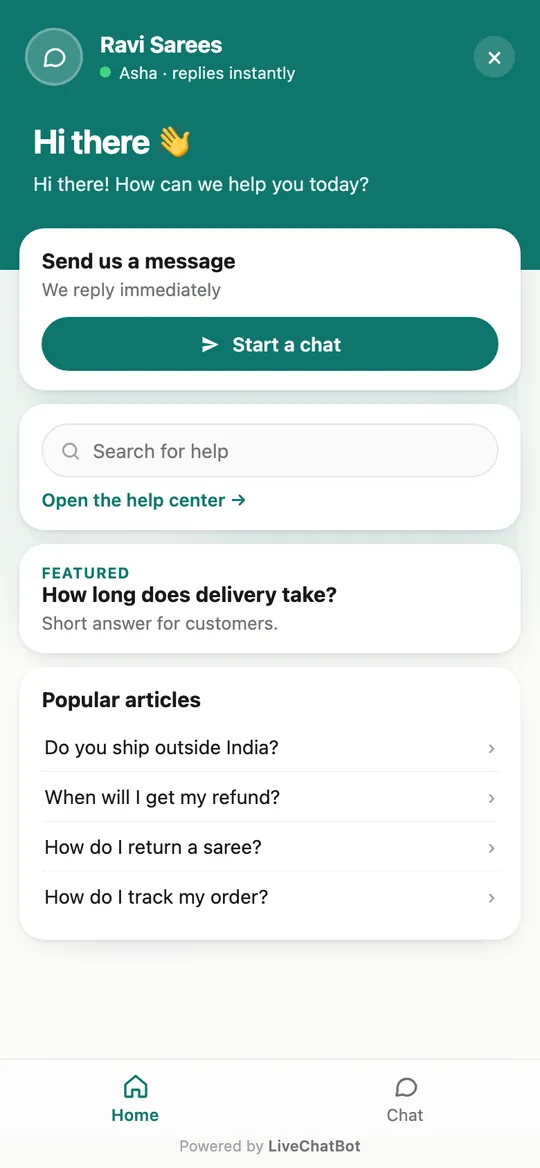
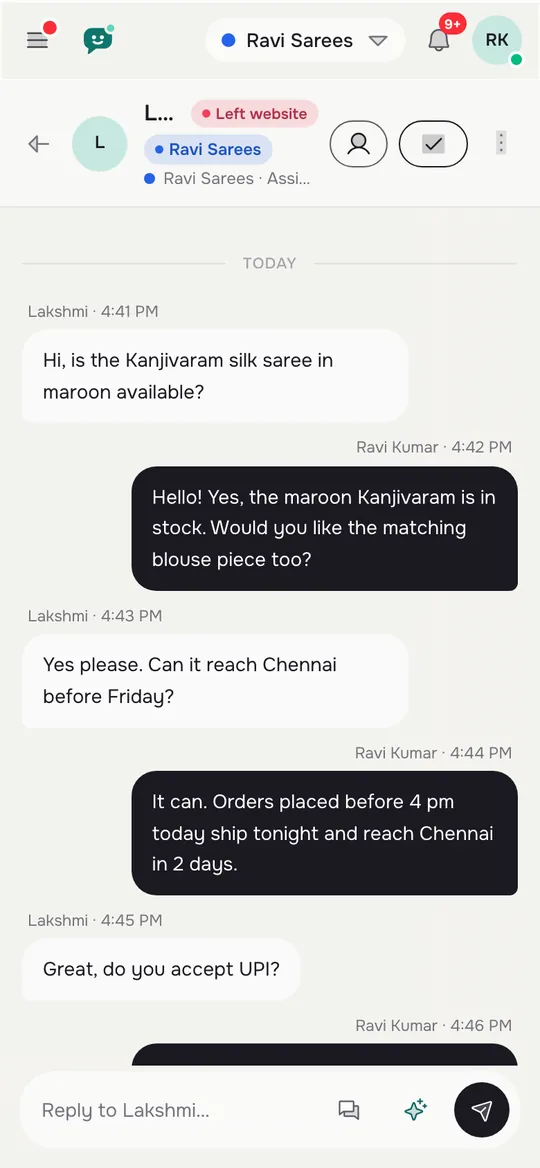
What the test looks like in LiveChatBot
Real screens from the LiveChatBot panel, shown with sample data. Click any picture to see it full size.

Reading results
How to read the totals without fooling yourself
Do not just pick the higher number. Look at the pattern.
Check for a deal-breaker
A tool can win on total and still fail one test that you cannot live with. If candidate A scored 5 on everything but gave no way to reach a person, it loses. Write down your deal-breakers before you start, and cross out any candidate that fails one.
Compare setup effort honestly
A tool that scores higher but needs a developer for every change may cost more than a simpler one. Count the hours.
Look at the gap
If the totals are within five points of each other, the tools are equal for you. Choose on price, then on which one your team liked using.
Re-run on a second day
A 15-minute re-run the next morning catches a slow server or a missed alert. Our guide on how to set up live chat on a website is a good second pass for the setup steps.
Our entry
Where LiveChatBot lands in a fair test
You should expect us to be one of the candidates, so here is where we stand, plainly.
LiveChatBot is free for two websites, with 100 free visitors per website a month. The widget, inbox, Flows, opening hours with an away form, tickets and the Android team app are included, and there are no per-seat charges. The AI Agent answers from the knowledge you give it, and when it does not know, the free keyword bot and your team take over. WhatsApp and Messenger messages can arrive in the same inbox, and a WordPress plugin is available if you run WordPress.
Gaps to score honestly: "Powered by LiveChatBot" stays on every plan, there is no iOS team app, and single sign-on, audit logs and role builders are not part of the product. See the integrations page for what connects today, and pricing for the plans.
After the test
Roll out your best website chat plugin without regret
When you have a winner, do not switch everything on at once.
- Install it on your real site, but hide it from checkout and login pages.
- Use your saved scores to fix any weak spots. If the after-hours score was low, set opening hours and an away message first.
- Ask one team member to answer every chat for the first week, so you learn what visitors really ask.
- After a week, add the top five questions to the AI Agent's knowledge.
Keep your scorecard in a shared document. If reply times slip or a new tool appears, re-run the same six messages in an hour and compare. For the wider picture, return to our live chat guide.
Frequently asked questions
How do I find the best website chat plugin for a small site?
Shortlist two, put each on a test page, send the same six messages and score the results. The best website chat plugin is the one that fits your pages, phone and hours.
How many tools should I test in one round?
Two or three. More than that and you stop remembering differences. If you have five names, cut to two using price and honest limits first.
Does a bake-off cost money?
Not if the candidates have free plans. LiveChatBot is free for two websites, so you can test it without paying anything.
Should I test on my live site?
Use a hidden test page first. Chat tools add scripts to a page, and a test page keeps customers out of your experiments.
Can I remove the Powered by LiveChatBot badge?
No. It stays on all plans. If a badge-free widget is a must-have, add it to your deal-breakers before you test.
Keep reading
Related guides
Best Website Chat Software Starts With Who Answers: Pick by Your Team, Your Hours and Your Phone (Free Decision Tree)
Test it yourself
Free plan for two websites, no per-seat charges. Put LiveChatBot on a test page and score it at livechatbot.in.