Best Free Chat Software Costs Time, Not Money: Where the Hours Go in Setup, Upkeep and Replies
Best free chat software saves you a subscription, but it still costs hours: setting it up, teaching it your answers, and replying to people. Most comparisons list features and ignore that time bill. This guide walks through the hours a small team really spends in the first month, shows which of them a good tool shrinks, and helps you pick free software that fits the time you actually have.
⚡ In short
- Free chat software has a time price: roughly an afternoon to set up, a few minutes a week to maintain, and the replies themselves.
- The best tool is the one that cuts those hours: quick install, answers from your own facts, alerts on your phone.
- Check the limits too: websites, visitors and whether adding a teammate costs extra.
- Use the timeline below to plan your first month, then try it on the free plan.
The hidden bill
Why the best free chat software is judged in hours
When a tool costs nothing, the price column stops helping. Two free products can look identical on a feature list and still feel completely different, because one takes ten minutes to install and the other needs a weekend and a developer.
For a small business, time is the scarce thing. The owner who answers chats is usually also the person packing orders, teaching a class or seeing patients. Every hour spent fighting a tool is an hour not spent on customers.
So ask three questions of any free product: how long until a visitor can type a message, how long until the chat answers common questions without me, and how long each week to keep it correct? If you want the money side first, our free live chat guide covers what free plans usually include.
Hours one
Setup: the first afternoon
Setup is a one-time cost, and it is smaller than most people fear if the tool is built for non-technical owners.
Install (about 15 minutes)
You paste one code snippet into your site, or install the WordPress plugin. Our installation guide covers WordPress, Shopify, Wix and plain HTML.
Look and wording (about 20 minutes)
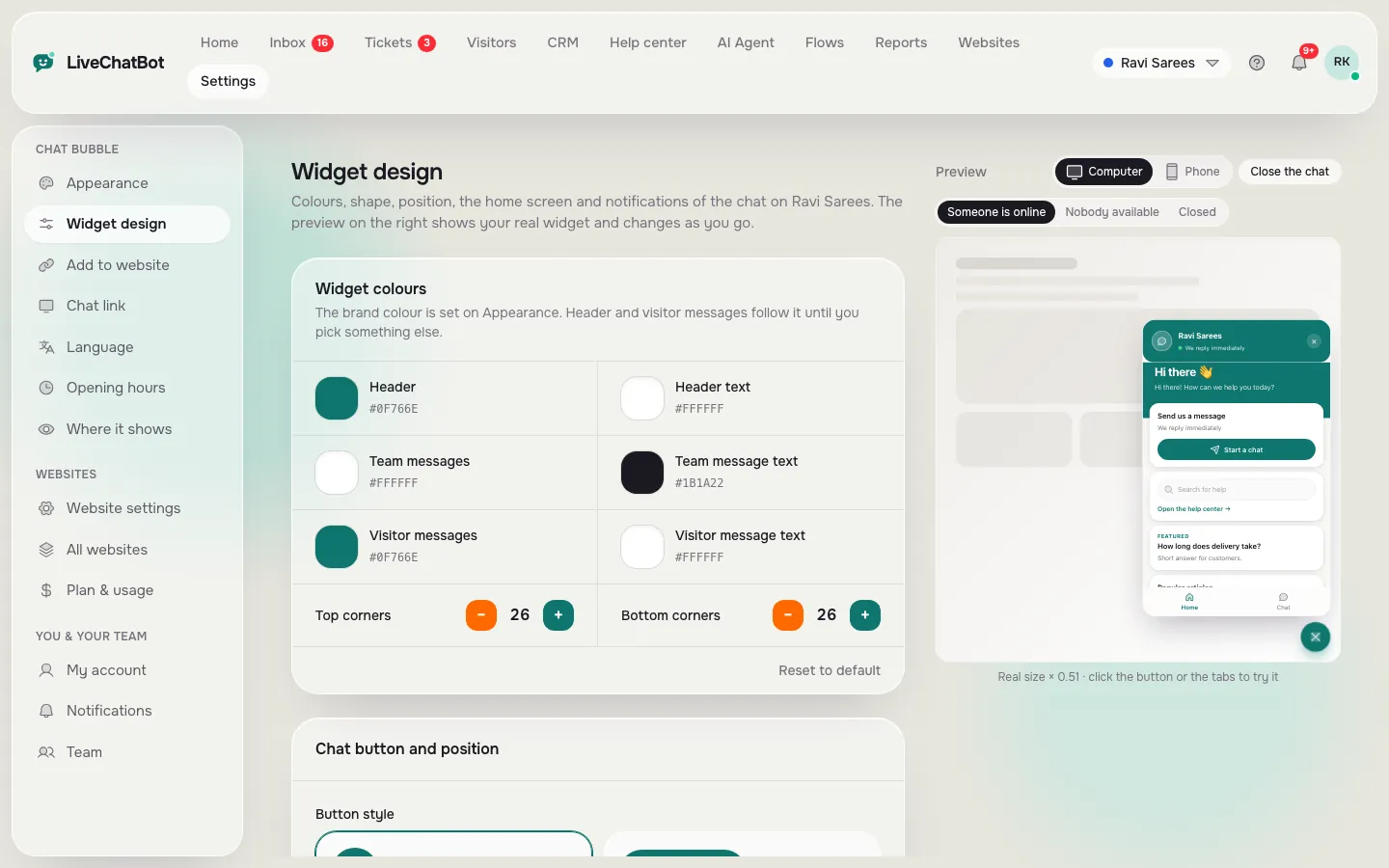
Pick your colour, bubble position and a welcome line in your own words.
Teach it your answers (about 60 minutes)
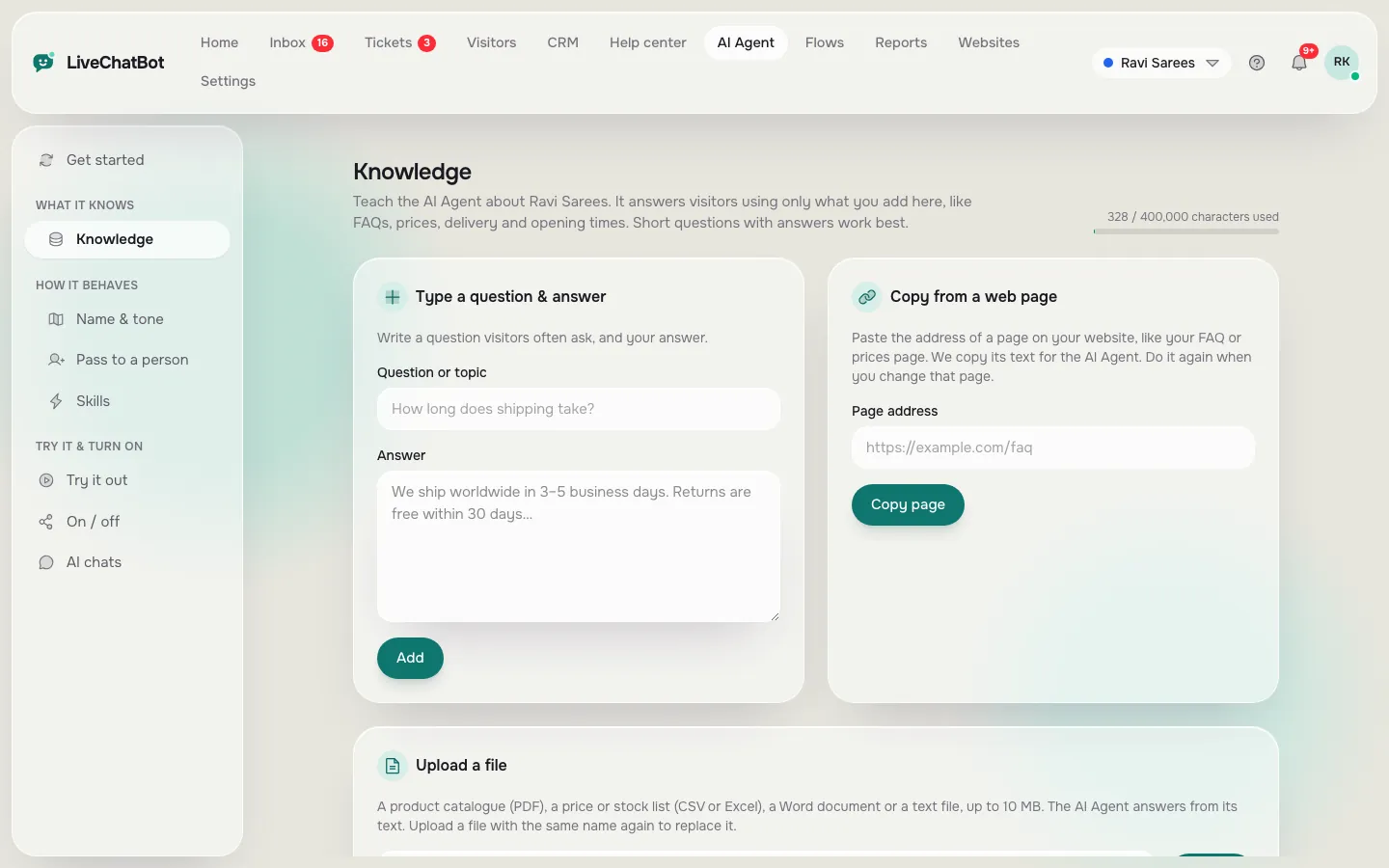
This is the biggest block. List the fifteen to twenty questions customers ask most, and add the answers as knowledge for the AI Agent or as saved replies for the free keyword bot. You can type answers, copy a web page, or upload a PDF, Word, Excel, CSV or text file. Facts such as prices and opening hours go here, so the bot never has to guess.
Add up the blocks and you are at roughly one afternoon.
Your first month
A realistic time plan for free chat software
Hours are estimates for a small site with one or two people answering; yours will vary with the number of questions you teach and the chats you get.
Add the snippet or plugin, choose colours and write the welcome text. Check it on your phone as well as a computer.
Load your top fifteen questions, then ask the bot three it knows and one it does not. The unknown one should hand over, not guess.
Set opening hours, switch on the away form and install the Android app for whoever replies.
See what people really asked. Add the missing answers the same day while you remember the context.
Fix answers that were wrong, remove ones nobody uses, and check the visitor count against your limit.
Real screens
The three setup steps, as they look in the panel
Real screens from the LiveChatBot panel, shown with sample data. Click any picture to see it full size.

Hours two
Upkeep: the part that decides whether it lasts
Tools are rarely abandoned because setup was hard. They are abandoned because answers went out of date and nobody had a routine.
A light routine is enough. Once a week, spend twenty minutes on three jobs:
- Read the chats you did not expect. Anything the bot could not answer is a missing fact.
- Update changed facts. New prices, new hours, a holiday. Change them once in the knowledge, not in five places.
- Check the numbers. Look at how many new visitors you had and whether you are near the free limit.
Our post on a weekly chat review goes deeper if you want a fixed template.
Hours three
Replies: where the real hours go
Even a very good bot does not remove human replies; it removes the repeated ones. Chat volume falls into three piles.
- Repeated questions (hours, prices, delivery, location). The bot answers these on its own.
- Questions needing a person (a custom quote, a complaint). These land in your inbox with an alert on your phone.
- Nobody home. After hours, the away form takes an email or phone number, and the chat rescuer asks for contact details if nobody answers within seconds.
The first pile is usually the biggest, which is where the time saving comes from. For the second, write your most-typed answers once as saved replies. Teams can share the inbox, assign a chat with Assign to me, and use the Unassigned and Mine folders so two people never answer the same message.
None of this needs a paid seat, because LiveChatBot has no per-seat charges.
Fine print
The limits that decide the best free chat software for you
Time is one budget; limits are the other. Read these before you commit your hours to a tool.
- Websites and visitors. Two websites, 100 free visitors each per month. Over the limit, tracking and alerts continue and chat pauses for new visitors until you upgrade or the month resets. Nothing is charged automatically.
- Seats. No per-seat charges, so a third or fourth teammate costs nothing extra.
- Paid plans. Starter is ₹299 a month for 2 websites and 750 visitors; Growth is ₹699 a month for 5 websites and 2,500 visitors, shared across the sites. They are prepaid, with no auto-renew.
Be equally clear about what is not there. “Powered by LiveChatBot” stays on every plan, there is no iOS team app (iPhone users answer from a browser), and there is no single sign-on or audit log. If any of those is a must-have, say so now rather than after a week of setup. Our chatbot pricing guide lays out the plans in full.
Making the choice
How to pick between two free tools in one evening
Install both, one after the other, and time yourself. Record three numbers for each.
- Minutes until a test message reached your phone.
- Minutes until a question about your opening hours was answered correctly.
- What happened when you asked something it did not know.
The winner is the one with small numbers and a sensible third answer: an honest “I’m not sure” plus a way to reach a person.
If you are weighing a plugin, read our notes on the best free chatbot plugin for WordPress, and if you want the broader list of free options, see the best free AI chatbot guide.
Frequently asked questions
What is the best free chat software for a small business?
The best free chat software is the one you can install in minutes, teach from your own facts, and answer from your phone, with limits that fit your traffic. Test two tools with a stopwatch and pick the faster one.
How long does it take to set up free chat software?
Plan on about an afternoon: roughly 15 minutes to install, 20 for wording and design, and an hour to load your most common answers. After that, about 20 minutes a week keeps it accurate.
Does LiveChatBot charge per team member?
No. There are no per-seat charges, so adding someone to answer chats does not change the price.
What happens if I get more than 100 visitors a month on the free plan?
Tracking and alerts continue, and chat pauses for new over-limit visitors until you upgrade or the month resets. You are never charged automatically.
Can I remove the Powered by LiveChatBot badge?
No. The badge stays on all plans, so factor that in if a badge-free widget is essential for you.
Keep reading
Related guides
Best Free Chatbot for Website Owners Is the One You Can Fill in One Afternoon: A Starter Pack of Copy-and-Paste Lines (Free Starter Pack)
Spend the hours once
Free plan for two websites, no per-seat charges, and an Android app for your team. Start free on livechatbot.in.