Integrations
Works with the website you already have
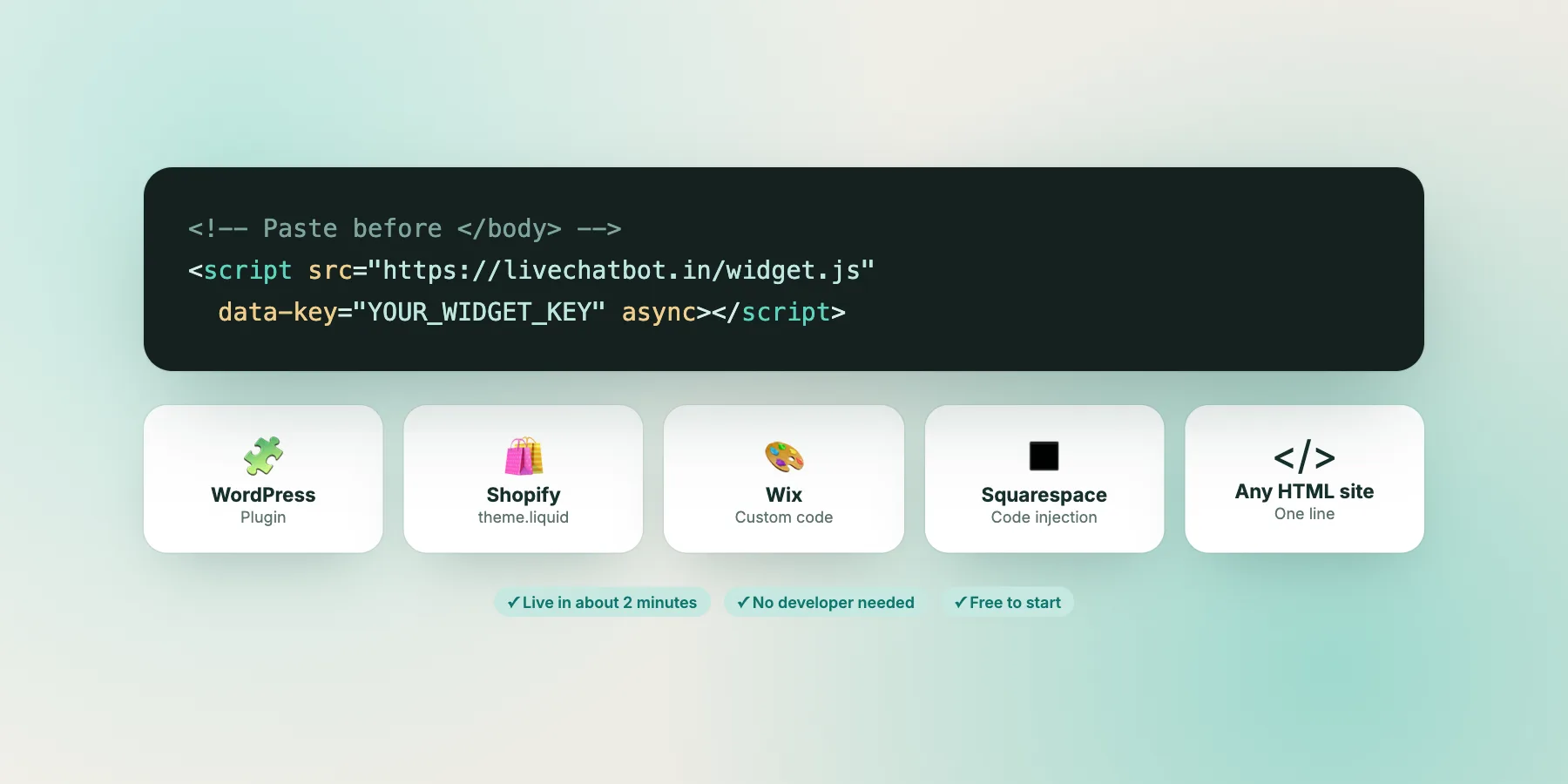
Add LiveChatBot to WordPress, Shopify, Wix, Squarespace or any HTML website in about two minutes. Connect it to your other tools with webhooks and Google Analytics events.
⚡ In 30 seconds
- Installing = pasting one line of code, or the WordPress plugin. No developer needed.
- Webhooks send new chats and leads to Zapier, Make, a Google Sheet or your CRM.
- Google Analytics events show how chat helps your sales.
Interactive walkthrough
Install LiveChatBot in six small steps
From sign-up to your first test message, plus an optional webhook. Click any step, or press Play.
Your install code
After you sign up, copy your own code from Getting started → Install. It looks like this:
<script src="https://livechatbot.in/widget.js" data-key="YOUR_WIDGET_KEY" async></script>Step-by-step install guides
🧩 WordPress
- Download the LiveChatBot plugin from Getting started → Install → WordPress.
- In WordPress, go to Plugins → Add New → Upload Plugin.
- Activate it and paste your widget key.
- Open your website. The bubble appears in the corner.
🛍️ Shopify
- Go to Online Store → Themes.
- Click ⋯ → Edit code.
- Open theme.liquid and paste your code just before </body>.
- Save, then open your store to check.
🎨 Wix
- Go to Settings → Custom code (needs a premium plan with a domain).
- Click Add custom code and paste your code.
- Choose All pages and Body - end.
- Apply and publish your site.
◼️ Squarespace
- Go to Settings → Advanced → Code injection.
- Paste your code into the Footer box.
- Save. The chat shows on every page.
🛒 WooCommerce
WooCommerce runs on WordPress, so use the WordPress plugin above. The chat appears on product, cart and checkout pages.
</> Any HTML website
- Open your site’s main template or footer file.
- Paste the code just before </body>.
- Upload the file and refresh your site.
🔗 No website?
Share your full-page chat link on Instagram, WhatsApp status, email signatures or a QR code. Chats arrive in the same inbox.
Connect your tools
Webhooks: send chats and leads anywhere
A webhook is a web address that LiveChatBot calls when something happens. Paste one from Zapier, Make or your developer into Integrations → Webhooks.
Events we send
| Event | When |
|---|---|
| conversation.started | A visitor starts a new conversation |
| lead.captured | A visitor leaves their email address |
Popular recipes
- New lead → add a row to Google Sheets
- New lead → add a contact to your email tool
- New conversation → post in a Slack channel
- New lead → create a deal in your CRM
Example: lead.captured
{
  "event": "lead.captured",
  "project": { "id": 12, "name": "Your Store" },
  "data": {
    "visitor": {
      "id": 5821,
      "name": "Meera",
      "email": "meera@example.com",
      "phone": null,
      "lead_source": "flow",
      "current_url": "https://yourstore.in/"
    }
  },
  "sent_at": "2026-10-16T10:42:07+05:30"
}
More ways to connect
Google Analytics and Tag Manager
Report chat opened, chat started and lead captured as events, and see how chat drives conversions.
Android and web apps
Answer from the Android app or the installable web app on any device.
Coming soon
Messaging apps, social media messages and email channels in the same inbox.
Troubleshooting
Bubble not showing? Check these
Clear your cache
Caching plugins (like LiteSpeed or WP Rocket) may serve an old page. Purge the cache.
Code in the right place
It must be inside the page, just before </body>, on every page.
Correct widget key
Copy the code again from your dashboard to be sure the key is right.
Website is switched on
Check the website is active in your dashboard.
Ad blockers
Try a private window without extensions.
Still stuck?
Email support@livechatbot.in with your website address.
Install LiveChatBot in two minutes
Free to start. No credit card. Live on your website in about two minutes.